
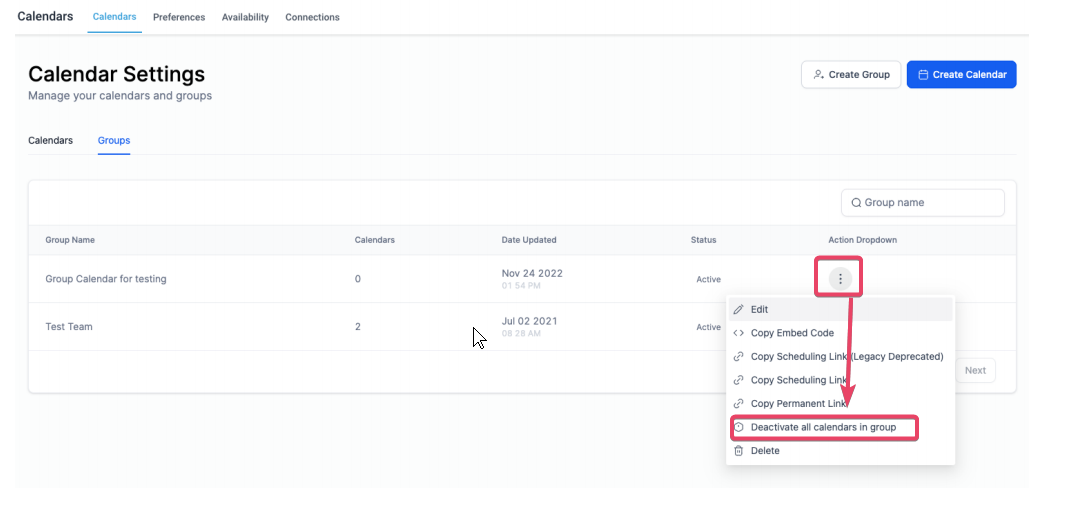
Click on the ellipses (three dots) next to the calendar group that you want to deactivate. This might be the grouping for a specific series of dance classes or workshops.
The ellipses will open an options drawer, presenting you with several actions tailored for managing your studio’s calendars.
Locate the option labeled Deactivate all calendars in group. This command will affect all the calendars associated with that particular dance class group.
-
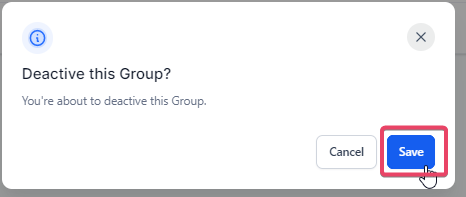
Click the option, and a confirmation pop-up will appear to verify your selection. Confirm to proceed.
Remember that deactivating a calendar group will remove these calendars from your Enrollio system. Ensure that you won’t need these schedules again or have a backup for your records.
Using Enrollio to manage calendar groups helps keep your studio operations efficient, so your focus remains on what matters most—providing a fantastic dance experience for your students.