
StudioBot is designed to escalate — not to argue about money, calm an upset parent, or guess. Handoff settings control when staff take over. Pause controls stop StudioBot studio-wide or for one family.
When StudioBot hands off
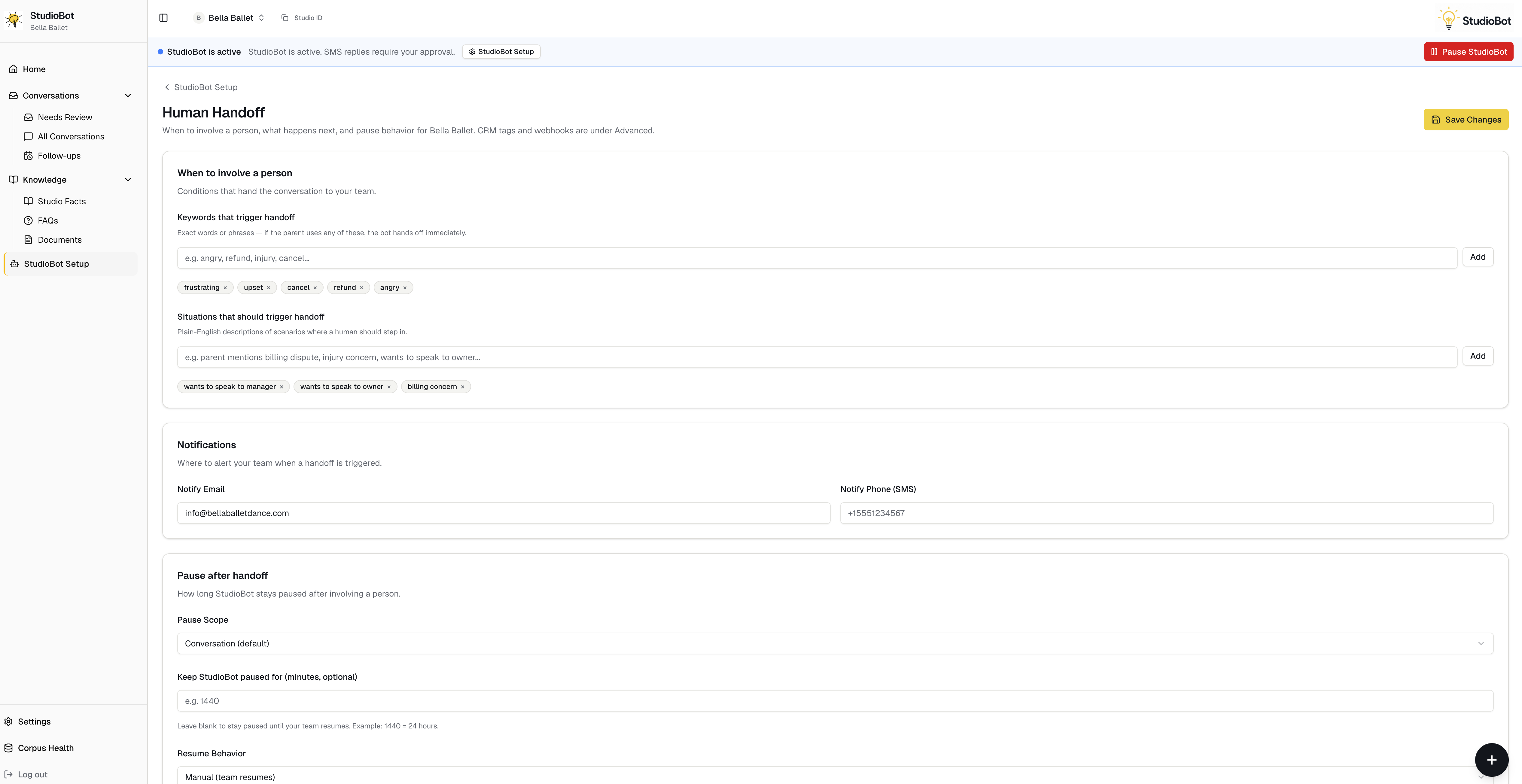
Typical triggers (confirm on your Human Handoff page):
- Tuition, pricing, billing, refunds
- Cancellations and membership changes
- Parent asks for a person
- Frustrated or sensitive messages
- Missing knowledge (better to escalate than invent)
What happens on handoff:
- Parent is told someone on your team will follow up
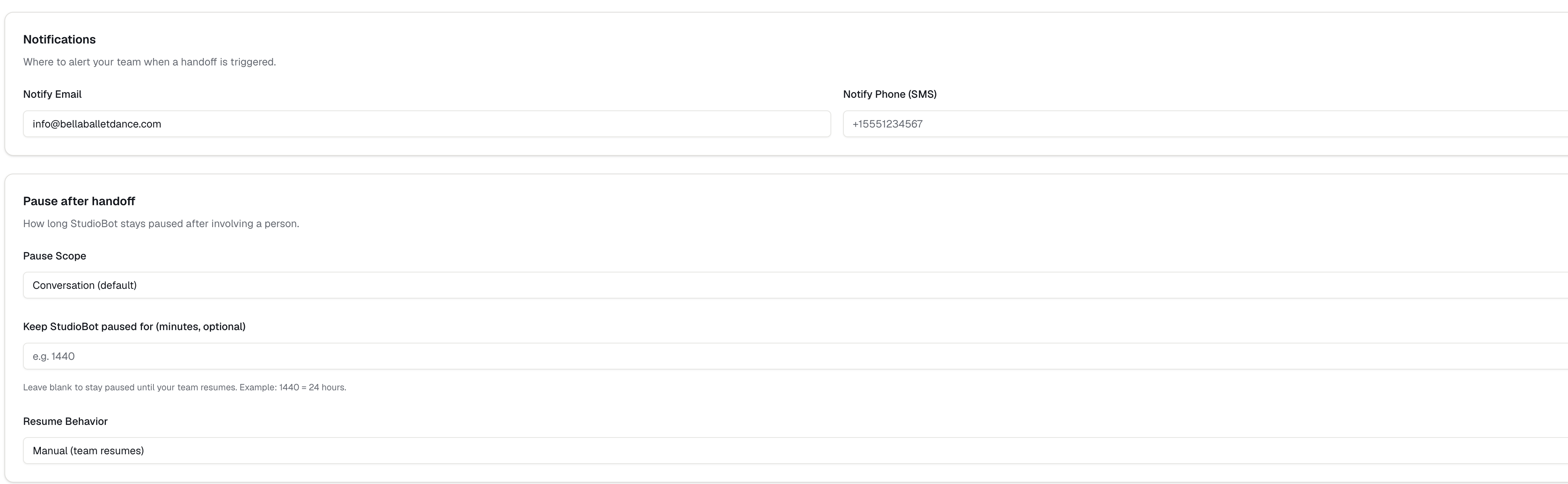
- StudioBot can pause itself for that contact
- Your team gets a notification (Slack and/or CRM tags), based on setup
- Staff continue in Enrollio CRM Conversations
Configure Human Handoff
Path: StudioBot Setup → Human Handoff
- Review the situations that should always go to humans
- Enable the alerts your team actually watches
- Decide whether handoff should pause StudioBot for that family (recommended)
- Leave Advanced CRM tag / webhook options unless Enrollio support asks you to change them
Pause StudioBot everywhere
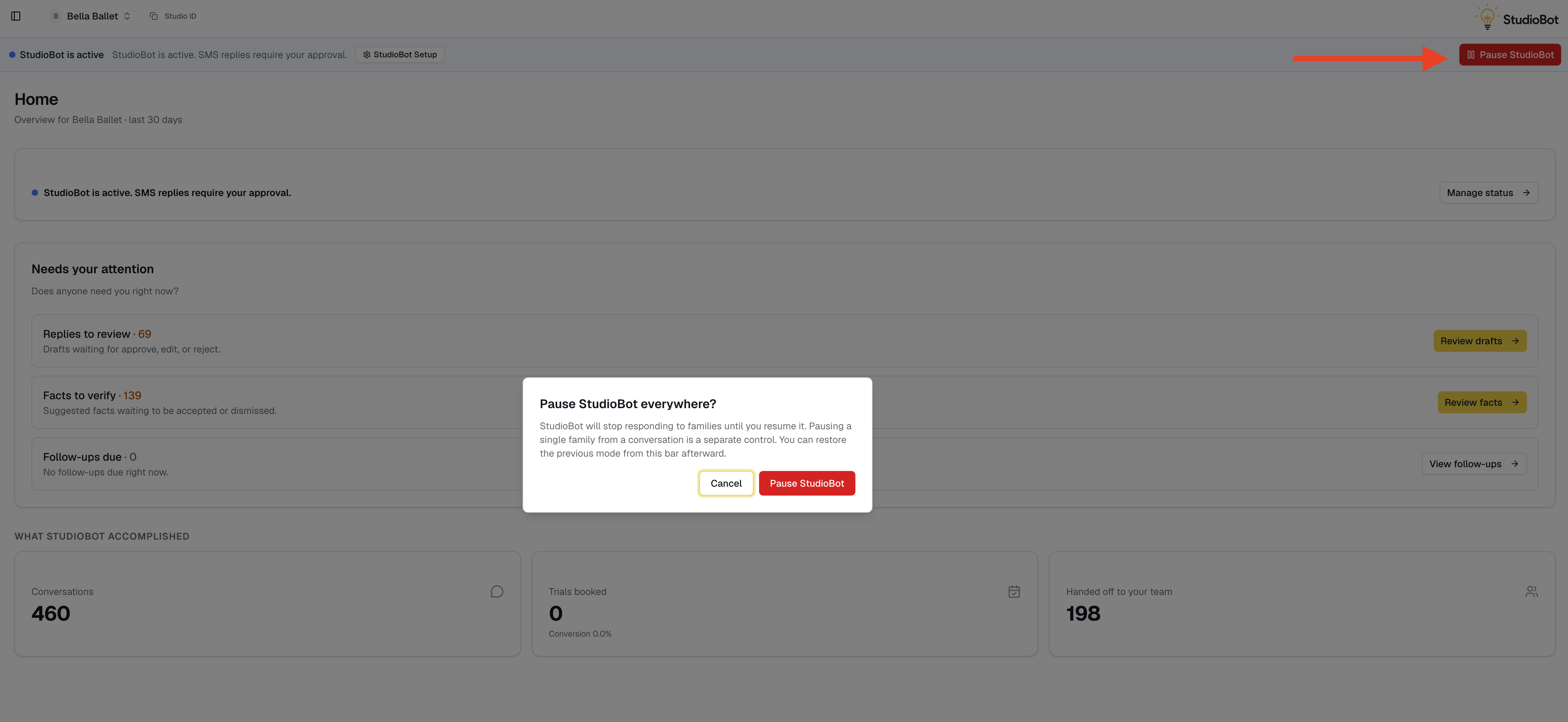
Use studio-wide pause when no families should get bot replies:
- Click Pause StudioBot from the status area (or Status setup)
- Confirm
- Status becomes Paused
- Click Resume when you’re ready — prior sending settings are restored
Pause or resume one family
From Needs Review or conversation views:
- Open the family / contact
- Pause StudioBot for that contact if staff are taking over
- Resume when the human conversation is done and the bot may help again
You generally cannot Approve & Send a draft to a paused contact until you resume them (or you reply manually in Enrollio CRM).
Jumping into a conversation yourself
In Enrollio CRM Conversations, reply as staff anytime. Once a human owns the thread, keep using CRM for that discussion. Use contact pause if you want to make sure StudioBot stays quiet for that family.