
StudioBot status is meant to read like managing an employee — not a list of technical modes. You’ll usually see one status sentence on Home and in the status strip.

The three statuses
Practice
StudioBot can draft replies, but nothing is sent to parents.
Use Practice while you:
- Review Studio Facts and FAQs
- Configure trial calendars
- Run Test StudioBot scenarios
- Train the team on Needs Review
New studios start here on purpose.
Active
StudioBot is on for families. How messages go out depends on your sending preference:
| Sending preference | What happens |
|---|---|
| Review before sending | StudioBot drafts a reply → it appears in Needs Review → you Approve & Send (or edit/reject) |
| Send automatically | StudioBot may send SMS replies without waiting for approval (still escalates sensitive topics) |
Recommended launch path: Active + Review before sending, then consider Send automatically after quality looks solid.
Paused
StudioBot will not respond to families.
Pause when:
- You’re closed for a holiday break and don’t want bot replies
- Something looks wrong and you need a timeout
- Staff should take every conversation manually for a while
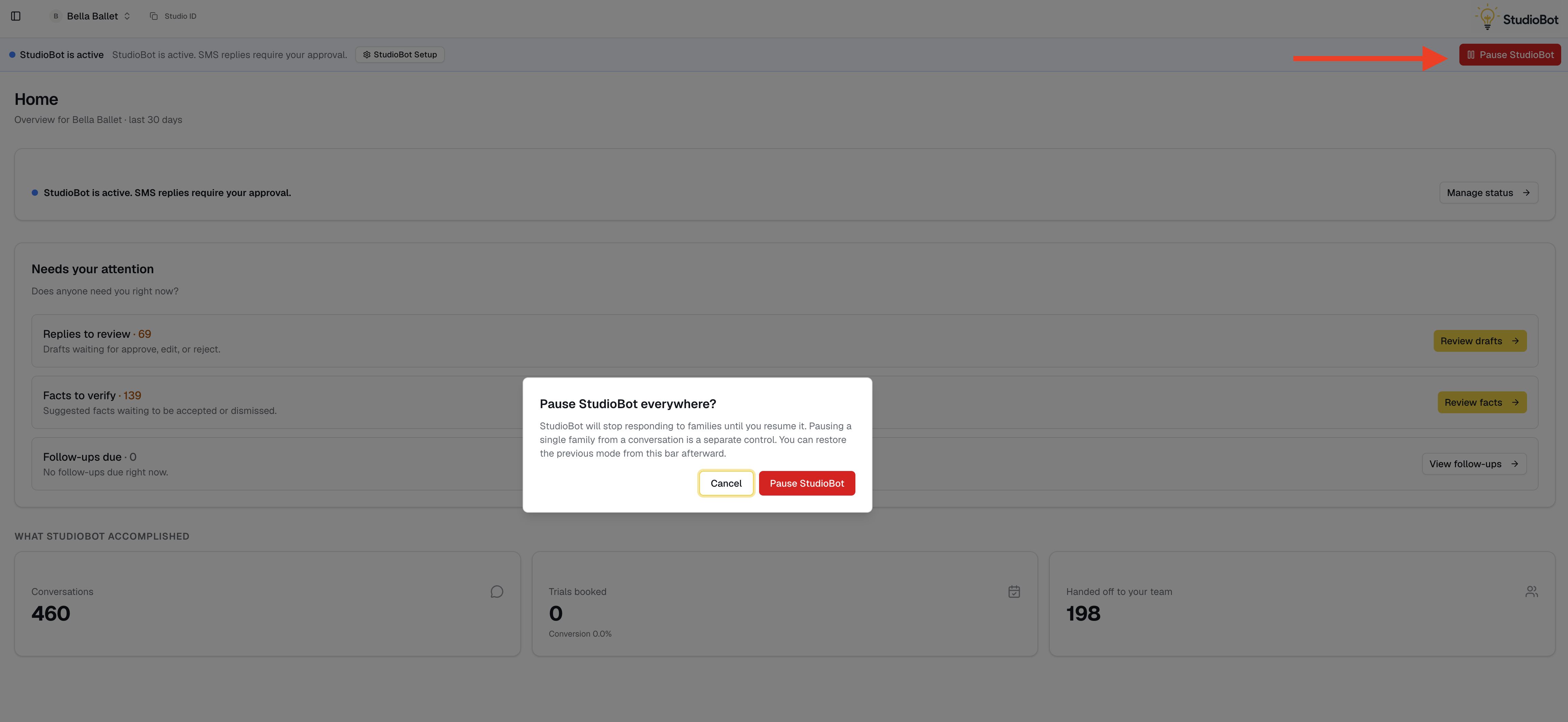
Use Pause StudioBot / Resume from the status area. Resume restores your previous setup.
Practice vs Active at a glance
| Practice | Active (Review) | Active (Automatic) | Paused | |
|---|---|---|---|---|
| Drafts replies | Yes | Yes | Yes | No |
| Parents receive bot SMS | No | Only after you approve | Yes (when allowed) | No |
| You work Needs Review | Optional / training | Required for SMS sends | Spot-check | N/A |
Per-family pause
Separately from studio-wide Pause, you can pause StudioBot for one family (common after a handoff). While that family is paused, drafts for them won’t send until you resume that contact.
See Human handoff and pausing StudioBot.