
Needs Review is where StudioBot puts drafts that need a human before (or after) going to a parent. When you’re Active with Review before sending, this queue is your main daily workspace.
Path: Conversations → Needs Review
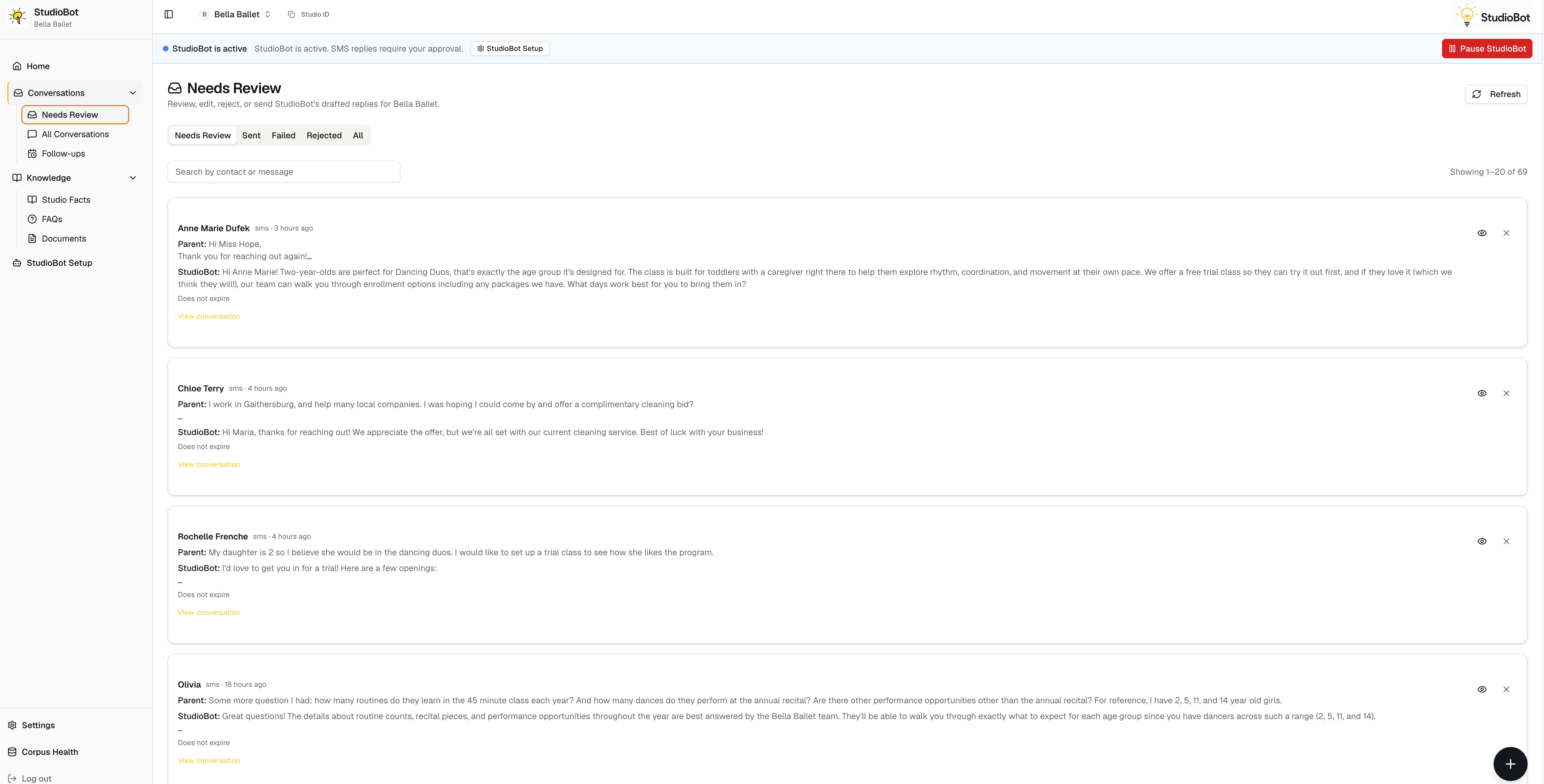
What’s in the queue
Each item typically shows:
- Family / contact
- The inbound message (what the parent said)
- StudioBot’s draft reply
- Context such as student age, interest, or why it’s waiting
- Failed sends that need a retry (if any)
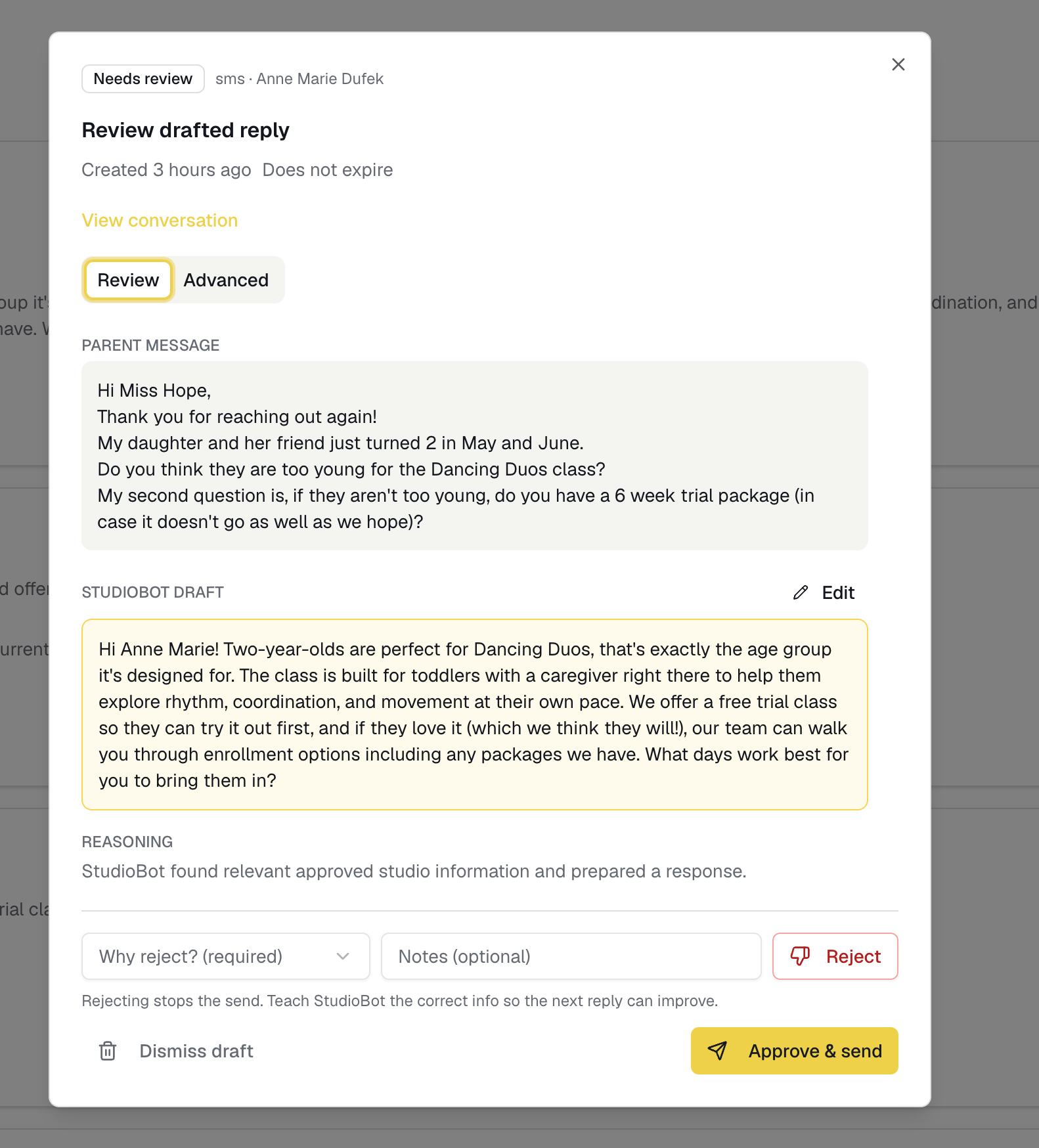
Approve & Send
- Read the parent’s message and the draft
- Confirm facts, tone, and the trial offer (if any) are correct
- Click Approve & Send
The reply goes out on the channel (usually SMS). You’ll also see it in Enrollio CRM Conversations.
Edit, then send
- Open the draft
- Edit the text so it sounds like your studio
- Send the edited version
Use edits for one-off wording. If the same correction keeps coming up, Teach StudioBot after reject (or from the teach flow) so the knowledge base improves.
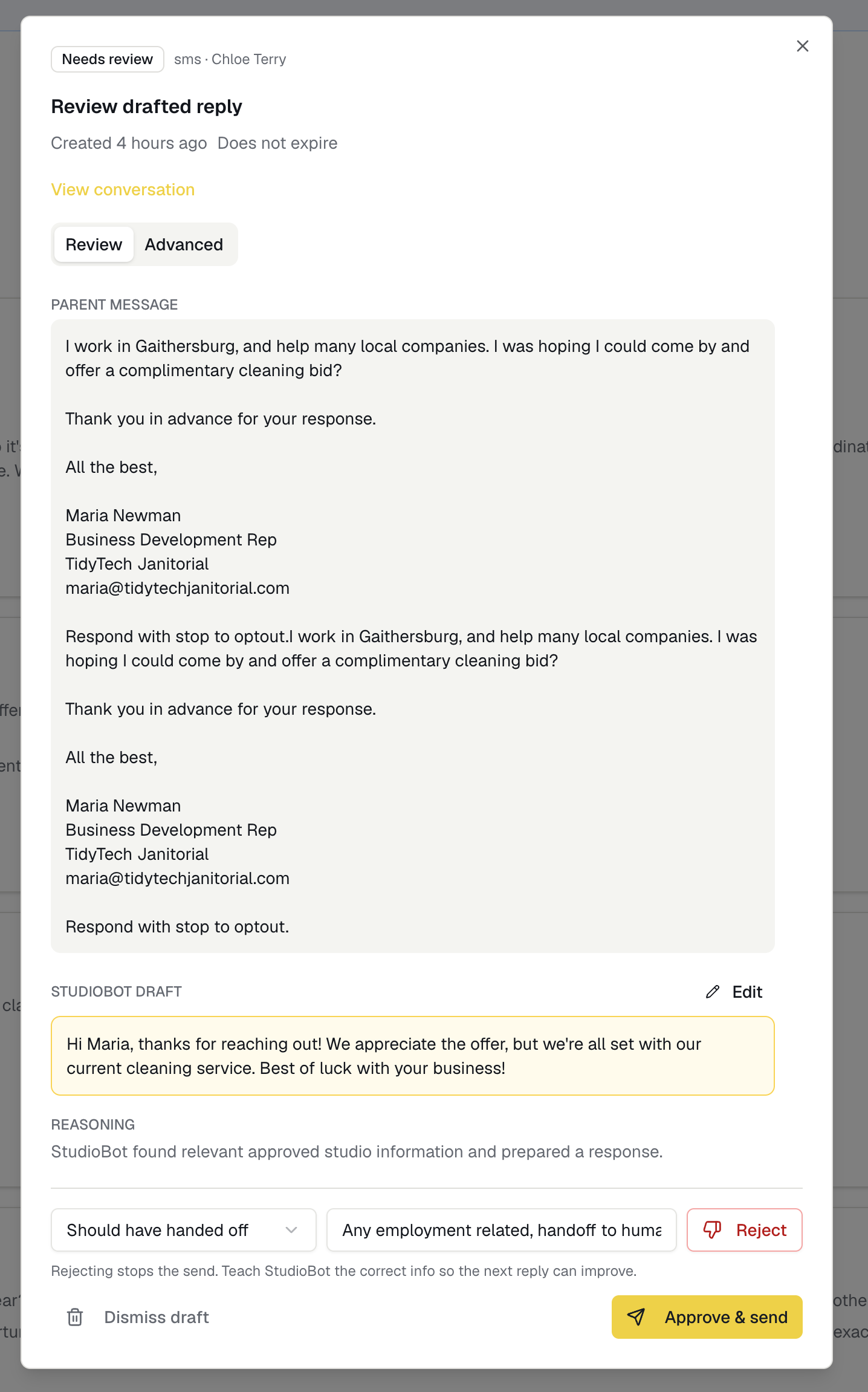
Reject and Teach StudioBot
- Choose Reject
- Pick a reason when prompted (wrong fact, bad tone, shouldn’t reply, etc.)
- When offered, open Teach StudioBot
- Enter the correct fact or guidance
- Confirm — it becomes a Studio Fact StudioBot can use later
Teaching after reject is the fastest way to improve quality without waiting on Enrollio support.
Failed sends
If a send fails:
- Look for the failed item on Needs Review or Home attention
- Retry when the issue looks temporary
- If it keeps failing, contact Enrollio support (don’t dig into provider error codes)
Contact paused
If a family is paused (often after handoff or STOP), you may not be able to send a draft until you resume that contact — or you may need to reply yourself in Enrollio CRM.
Tips for the first two weeks
- Check Needs Review at least a few times a day
- Prefer Approve when the draft is “good enough,” Teach when it’s wrong
- Don’t switch to Send automatically until rejects are rare
- Keep an eye on Home KPIs: conversations, trials booked, handoffs