
Purpose
This guide shows you how to manage what your team can see and use inside Enrollio. By setting user-level permissions, you can give the right access to the right staff members—helping your dance studio stay organized, secure, and easy to manage.
What It’s For (Context)
Use this feature when you want to:
- Limit access to certain tools based on staff responsibilities
- Reduce dashboard clutter so team members only see what they need
- Protect important data while still empowering your team
- Create a smoother workflow for front desk staff, instructors, or managers
Step-by-Step Instructions
-
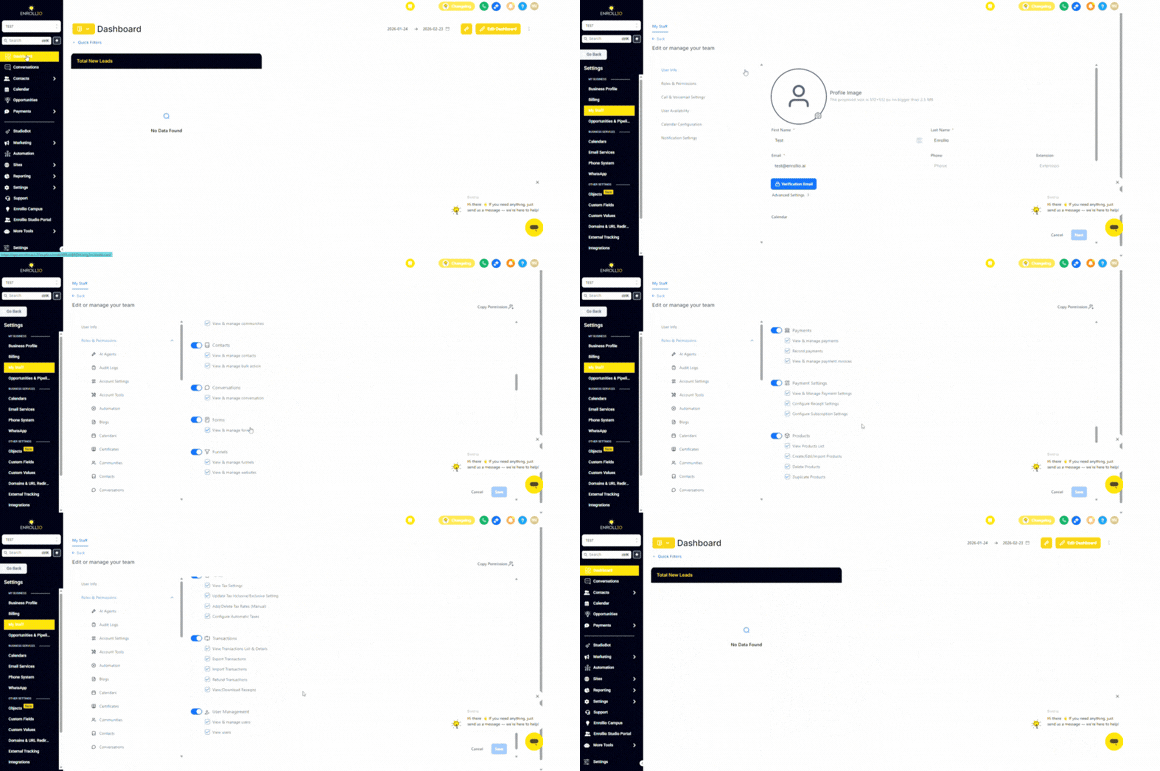
Go to Settings
Log in to Enrollio and navigate to Settings. -
Open My Staff
Click My Staff to view your team members. -
Select a Team Member
Choose the staff member you want to update. -
Adjust Tool Access
Toggle permissions for Forms, Surveys, Quizzes, and QR Codes based on what they should access. -
Set Permission Level
Check or uncheck the “View & manage” boxes to control whether they can simply view the tool or fully manage it. -
Save Your Changes
Click Save to apply the new permissions.
Once saved, the user’s dashboard will automatically update to show only the tools you’ve enabled for them.
Notes / Tips
- These permissions work alongside your existing role-based settings for better control.
- Use the “Copy Permission” feature to quickly apply the same setup to multiple team members.
- Grant management access carefully to avoid accidental changes to important forms or surveys.
Support Reminder
If you have any questions, please reach out to support@enrollio.ai
and our team will be happy to help.