
What is the Number Counter Widget?
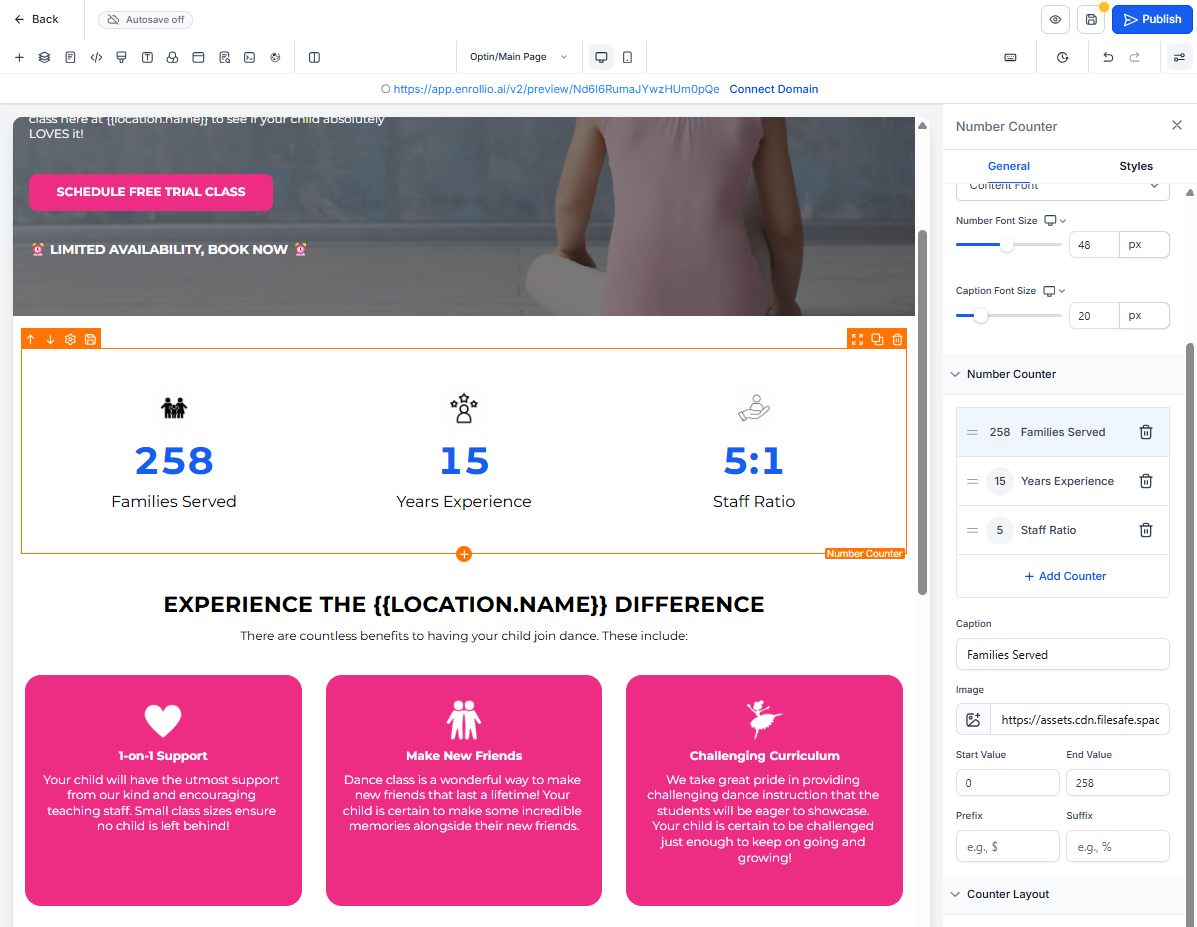
The Number Counter Widget lets you showcase your childcare center's achievements with animated, count-up numbers that grab attention. Use it to highlight how many families you serve, your years in business, staff-to-child ratios, or enrollment milestones.
The numbers animate smoothly as visitors scroll down your page, making your stats memorable and reinforcing trust with prospective families.
Why Use the Number Counter Widget?
Animated numbers help you build credibility instantly. Here's what makes this widget powerful for childcare centers:
- Multiple Counters: Display several metrics in one section — families served, years of experience, staff credentials, enrollment capacity
- Smart Formatting: Large numbers automatically abbreviate (10,000 becomes "10K") for easy reading
- Prefix & Suffix Options: Add context with symbols like $, %, +, or custom text
- Counter Images: Pair each number with an icon to reinforce meaning — a graduation cap for alumni, a heart for families served
- Layout Control: Arrange counters in columns and adjust spacing to match your brand
- Full Styling: Customize colors, borders, shadows, and fonts to fit your enrollment site perfectly
How to Add the Number Counter Widget
Adding the widget to your enrollment page or landing page takes just a few clicks:
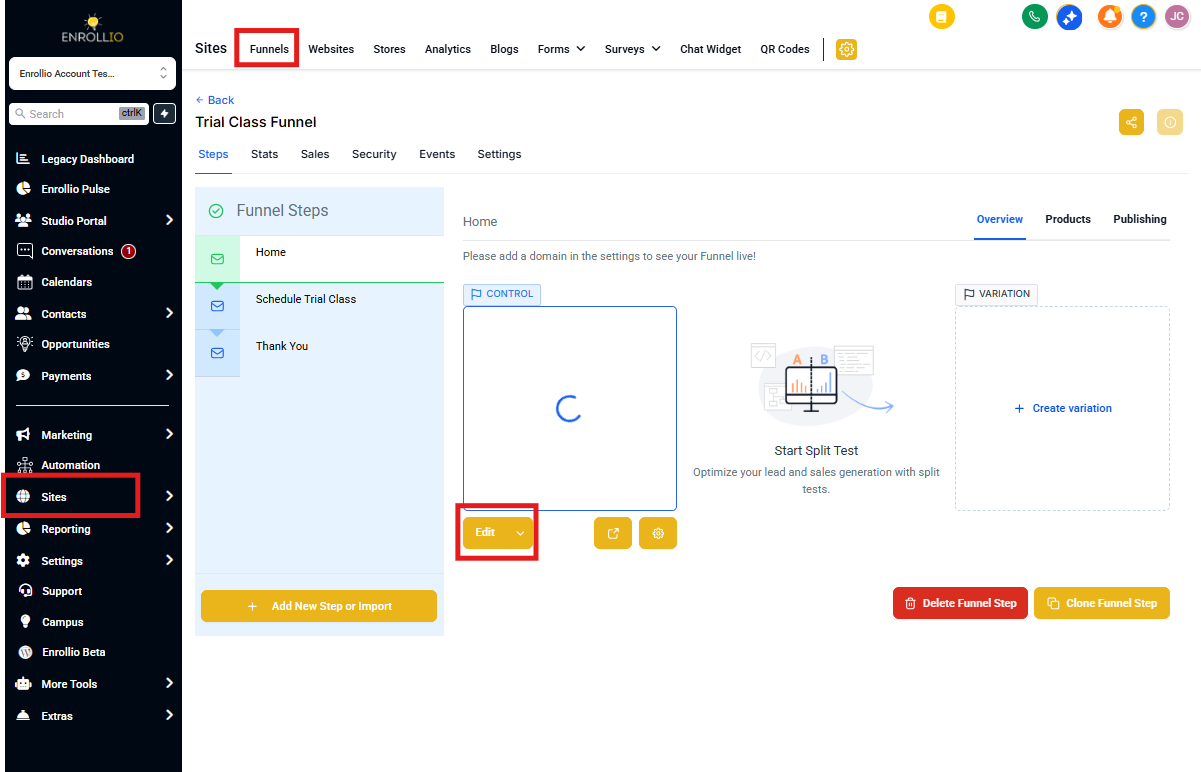
- Navigate to Sites → Landing Pages or Sites → Enrollment Sites
- Click the blue Edit button on your page
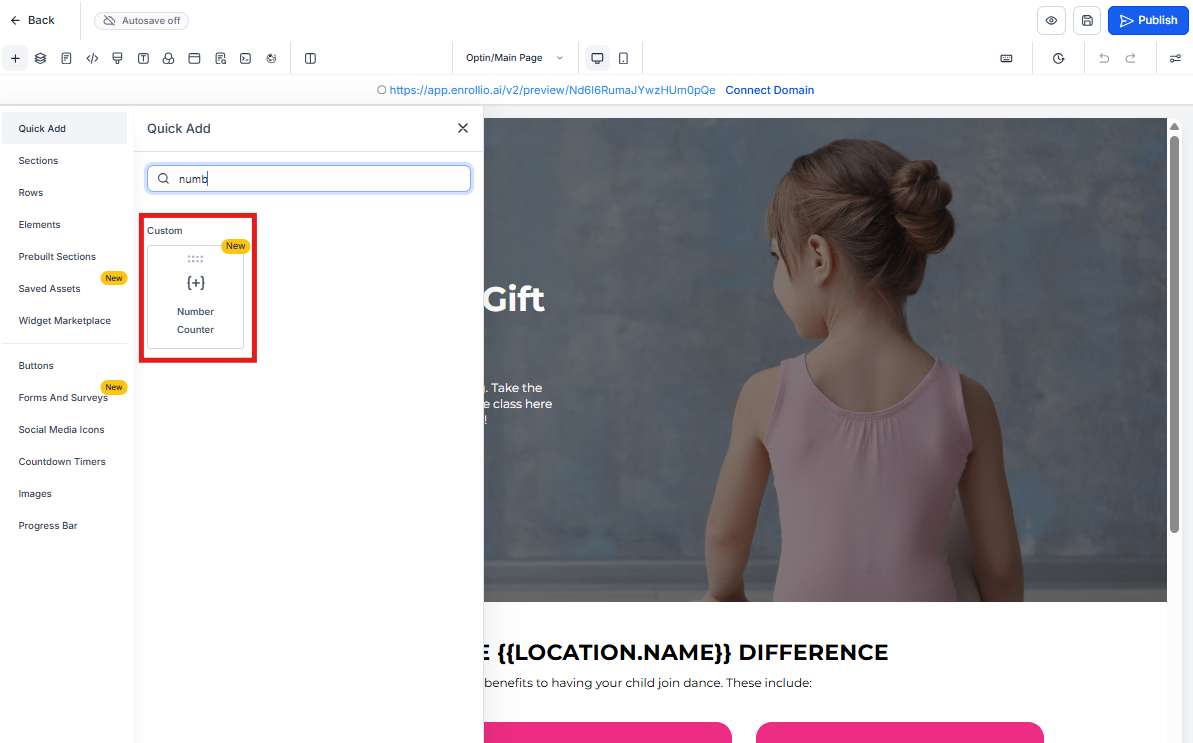
- Select + Add Element in the sidebar and find Number Counter
- Drag Number Counter into your layout where you want your metrics to appear
Configure Your Counter Metrics
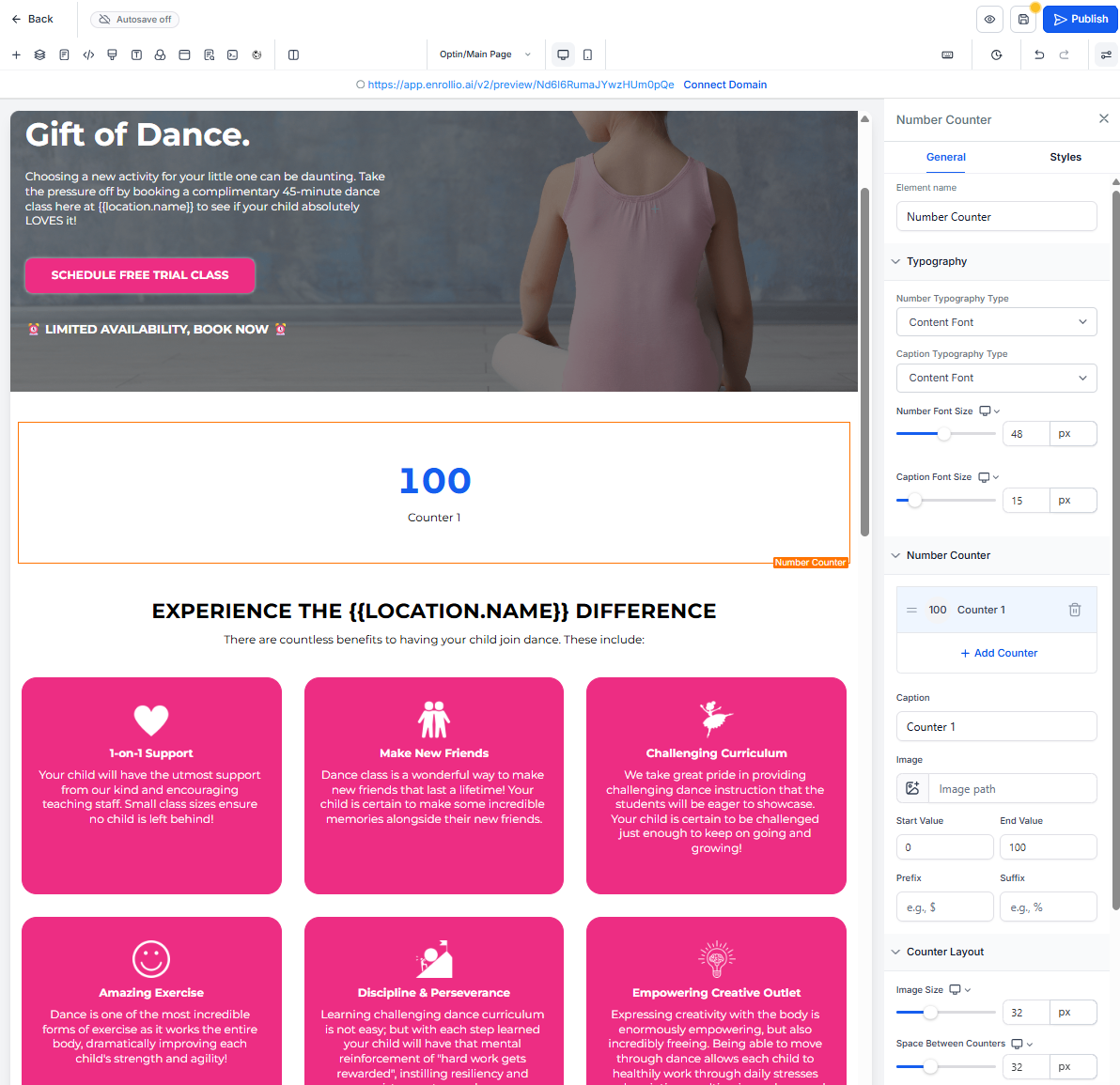
Once the widget is on your page, you can customize each counter to tell your story. Add new metrics, remove ones you don't need, and adjust every detail from the settings panel.
Counter Settings
- Add/Remove Counters: Click Add Counter to create more metrics or the trash icon to delete one
- Caption: Add a label like "Families Enrolled" or "Years of Experience" so visitors understand what the number represents
- Image: Upload an icon (PNG, JPEG, or SVG) and adjust its size with the slider — perfect for adding visual interest
- Start & End Values: Set where the animation begins (usually 0) and ends (your actual metric, like 250)
- Prefix/Suffix: Add context before or after the number — try $, %, +, or custom text like "families" or "years"
Style Your Number Counters
After configuring your metrics, use the Counter Layout section to refine spacing, colors, animation speed, and overall design. Make sure the counters match your brand and look great on every device.
Key Style Controls
- Image Size: Adjust icon dimensions to balance with your numbers
- Space Between Counters: Fine-tune horizontal gaps for a polished, professional look
- Number of Columns: Choose how many counters appear per row (1-5) — fewer columns work better on mobile
- Animation Duration: Control how quickly numbers count up (1-15 seconds) — 2-3 seconds works well for most metrics
- Viewport Trigger: Enable this so numbers animate only when visitors scroll them into view
- Colors: Customize Number, Caption, Background, and Container Background colors independently
- Borders & Shadows: Add visual depth to match your enrollment site design
Important Notes
- Performance: Keep counters to 20 or fewer per widget for optimal load times
- Image Formats: Use PNG, JPEG, or SVG files for counter icons
- Smart Formatting: Large numbers automatically format (2,500,000 becomes "2.5M") to keep your page clean
- Images Optional: You don't need to add images to every counter — use them only where they add meaning
- One-Time Animation: Counters animate once when they enter the viewport to maintain smooth performance
Frequently Asked Questions
Can I add different colors to each individual counter?
Currently, styles apply to all counters globally for consistency. You can adjust the background or container color, but all counters will share the same styling.
Can counters include decimals?
Yes! Include decimal points in your start and end values — great for showing ratios like "5.0 staff-to-child ratio."
Will the animation restart if I scroll back up?
No. Counters animate once when they first enter the viewport. This keeps your page performing smoothly.
Do I have to use images for each counter?
No. Images are completely optional. Add them only where they help clarify what the number represents.
How many counters can I add in one widget?
Technically unlimited, but keep it to 20 or fewer for best performance. Beyond that, animations may appear sluggish on older devices.
Will the counters adjust automatically on mobile?
Yes. Column settings and gap spacing respond to screen size, so your counters remain legible on phones and tablets.
How can I preview the animation while editing?
Click Preview Animation in the Number Counter settings panel to watch the count-up again without leaving the editor.
Ideas for Childcare Centers
Here are some metrics that work well with the Number Counter Widget:
- Total families enrolled
- Years in business
- Staff-to-child ratio
- Number of certified teachers
- Square footage of play space
- Hot meals served daily
- Parent satisfaction rating
- Hours of outdoor time per week