
How to Schedule & Publish Instagram Stories via Push Notifications
Plan your Stories ahead of time, get a mobile reminder, and finish posting inside Instagram with stickers, links, music, or trending audio.
Instagram doesn't allow third-party platforms to directly publish Stories with interactive elements like stickers, links, music, and trending audio. To help you schedule your content and publish it on time, Enrollio's Social Planner now supports publishing Instagram Stories via mobile push notifications.
What This Feature Does
With Instagram Story scheduling, you can:
- Schedule Instagram Stories in Social Planner
- Add notes for the team member who will publish it
- Receive a push notification on your phone when it's time to post
- Tap the notification to open Instagram with the Story media ready
- Auto-copy caption to clipboard and auto-download media
- Add stickers, links, music, etc., inside Instagram before posting
- View all scheduled Stories in Social Planner
Why Push Notifications?
Instagram blocks third-party apps from directly publishing Stories with interactive features. Push notifications let you:
- Prepare Stories ahead of time
- Finish them using Instagram's native features
- Never miss your posting time
- Let any team member publish from their phone
How to Schedule Instagram Stories
Before you start, make sure you have:
- The Enrollio mobile app installed
- Push notifications turned ON
- Logged into the correct Instagram account
To schedule a Story:
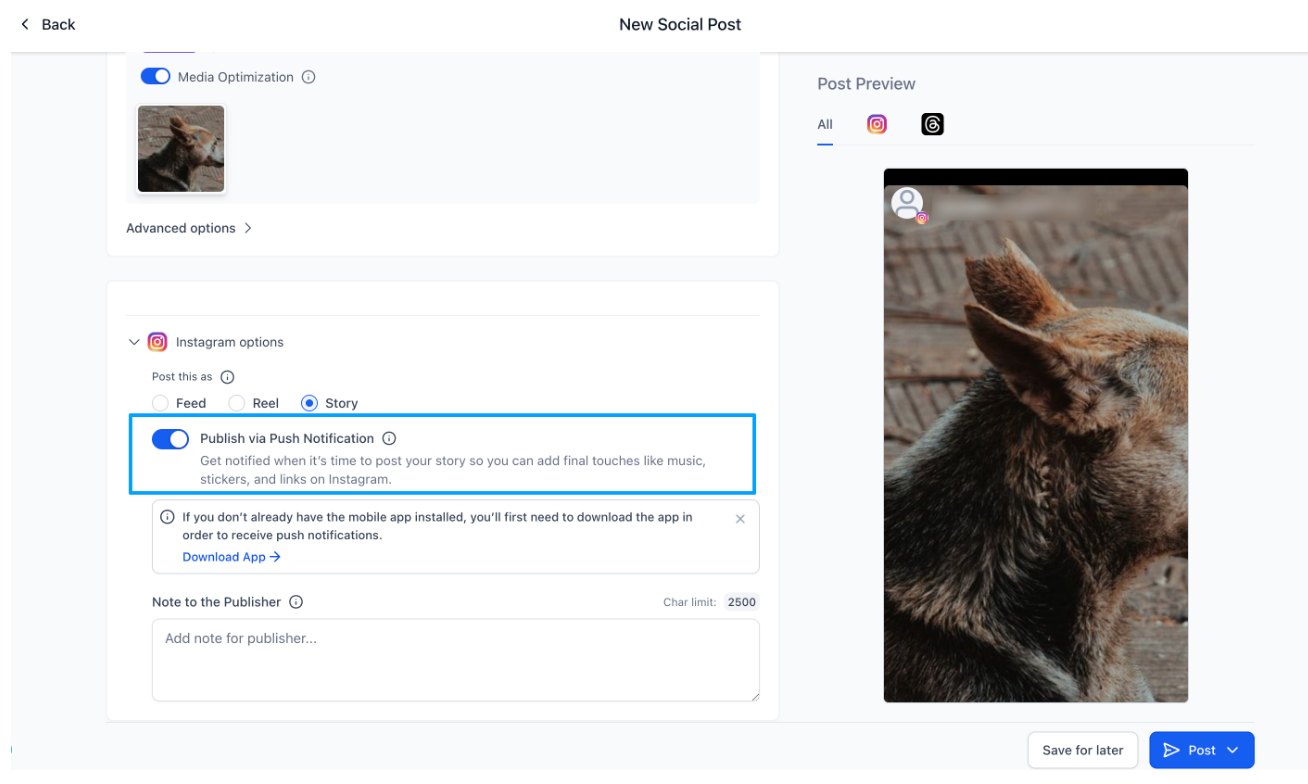
- Go to Marketing → Social Planner → Create Post
- Select Instagram Story
- Upload your Story media and add a caption
- Toggle Publish via Push Notification
- (Optional) Add Notes for the team member who will publish. Example: "Add trending New Year sticker before posting!"
- If you don't have the mobile app downloaded, click Download App and scan the QR code to get the latest version
- Choose your date and time
- Click Schedule
Your Story will now appear in the Scheduled list.
How Publishing Works on Mobile
Make sure you have:
- Enrollio mobile app installed
- Push notifications enabled for your Instagram profile
When it's time to publish:
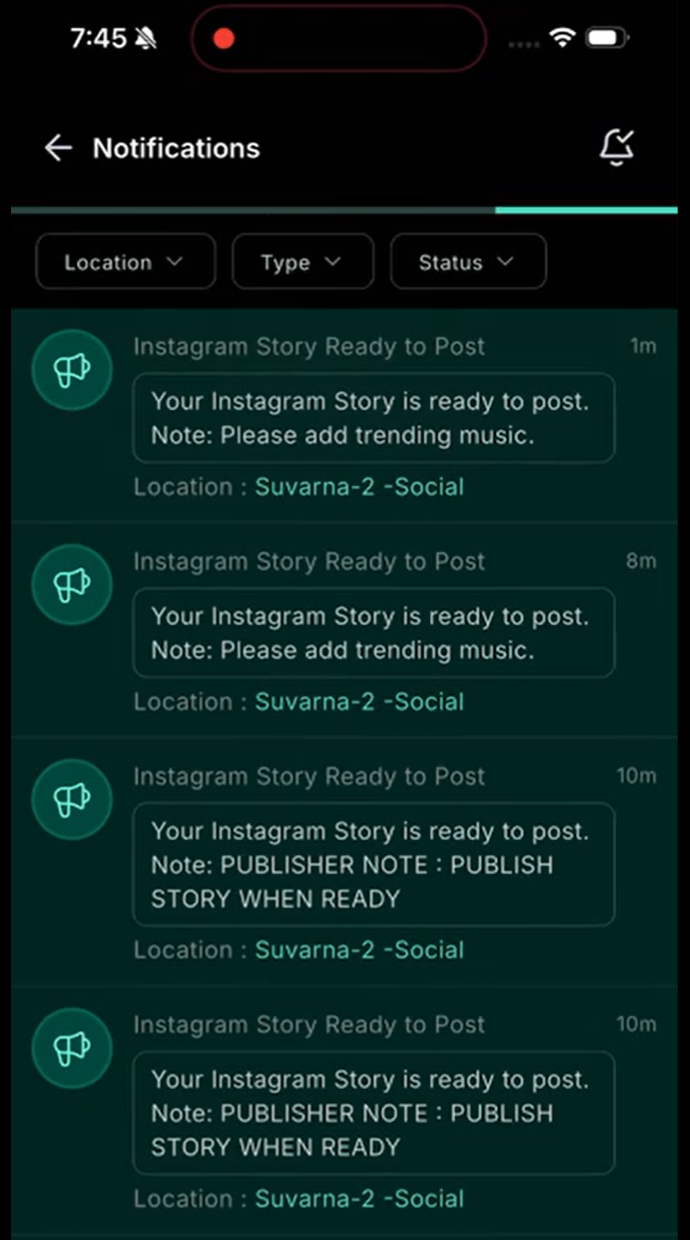
- You'll receive a mobile push notification at the scheduled time
- Tap the notification — the app will:
- Download the Story media
- Copy caption and notes to your clipboard
- Open the Instagram app automatically
- Inside Instagram:
- Add stickers, links, music, mentions, etc.
- Paste the caption
- Publish your Story
Frequently Asked Questions
Why can't Instagram Stories be auto-published?
Instagram restricts third-party platforms from auto-publishing Stories with features like stickers, music, links, and audio. This is an Instagram limitation, not an Enrollio one.
Do I need the mobile app?
Yes. The push notification and automatic media download only work through the Enrollio mobile app.
What happens if I miss the notification?
The Story stays in your Notified list. You can clone and reschedule it anytime.
Can multiple team members publish the Story?
Yes. Any team member who receives the notification can publish it from their phone.
What happens when I tap the notification?
The media downloads automatically, the caption copies to your clipboard, and Instagram opens so you can finish and publish.
Can I add stickers, music, or links?
Yes — add them directly inside Instagram before posting. This is why we use push notifications instead of auto-publishing.