
Voice AI Outbound Calling
Voice AI Outbound Calling lets you automate phone calls to parents and prospective families directly through your automations. Set up intelligent call scheduling, improve efficiency, and reach families at the right time—all without manual dialing.
What is Voice AI Outbound Calling?
Voice AI Outbound Calling integrates automated phone calls into your Enrollio automations. Select an AI agent, choose a phone number, and schedule calls to parents automatically based on triggers like tour bookings, waitlist status, or enrollment steps.
The same AI agent can handle both incoming calls (like tour inquiries) and outgoing calls (like enrollment reminders), making your communication seamless and consistent.
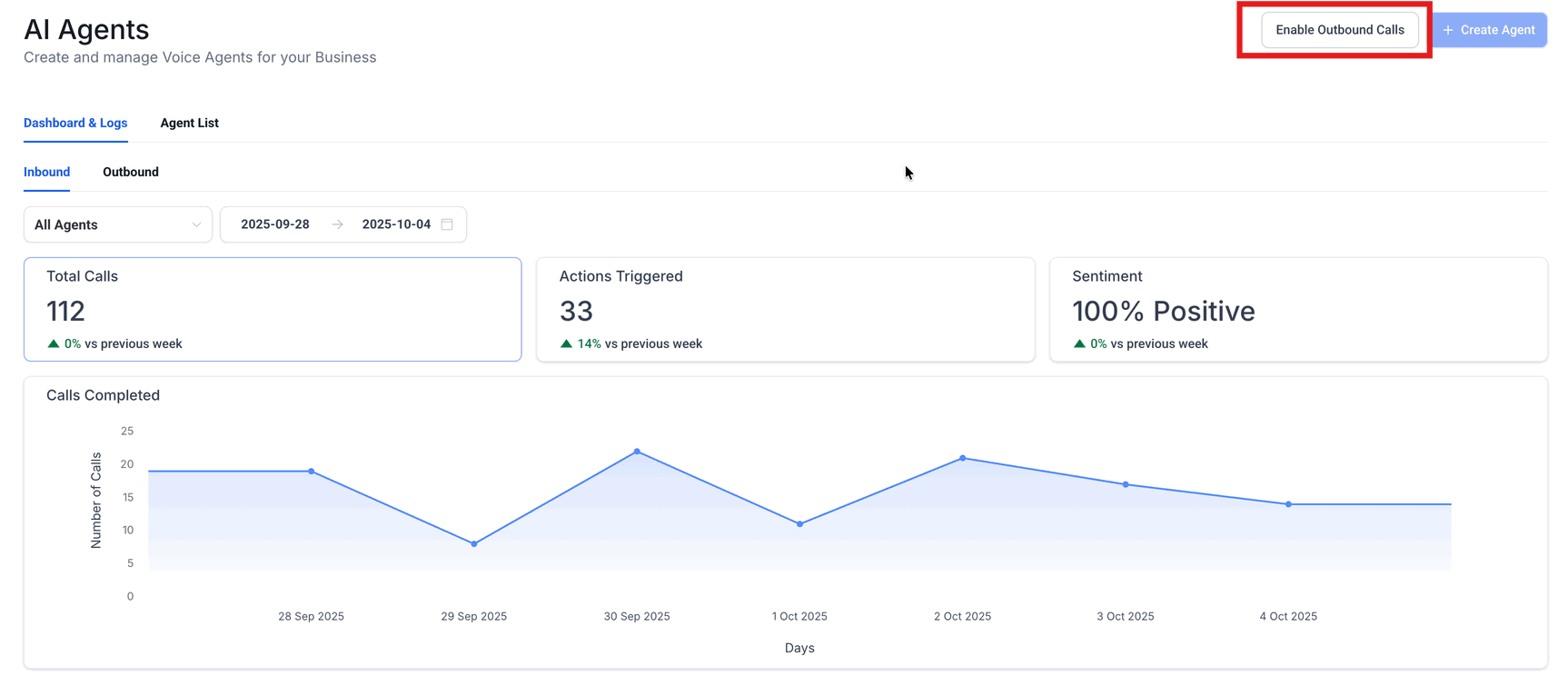
Key Benefits
Automated outbound calling transforms how you connect with families:
- Automated scheduling — No more manual dialing or remembering to follow up
- Efficient agent use — One AI agent handles both inbound and outbound calls
- Smart controls — Built-in limits prevent overwhelming families with too many calls
- Scalable outreach — Manage call volume automatically as your center grows
How Outbound Calling Works
Voice AI follows specific guidelines to ensure professional, respectful outreach:
- Calls go out at one per minute per location
- Each location can make up to 100 calls per day (overflow moves to the next day)
- Each parent phone number receives a maximum of one call per day and four calls over two weeks (additional calls will fail)
- Calls only happen between 10:00 AM and 6:00 PM in the parent's timezone
- Calls only go to families who opted in and haven't enabled Do Not Disturb
- Calls are currently limited to United States phone numbers
How to Set Up Voice AI Outbound Calling
Step 1: Create an Automation for Outbound Calling
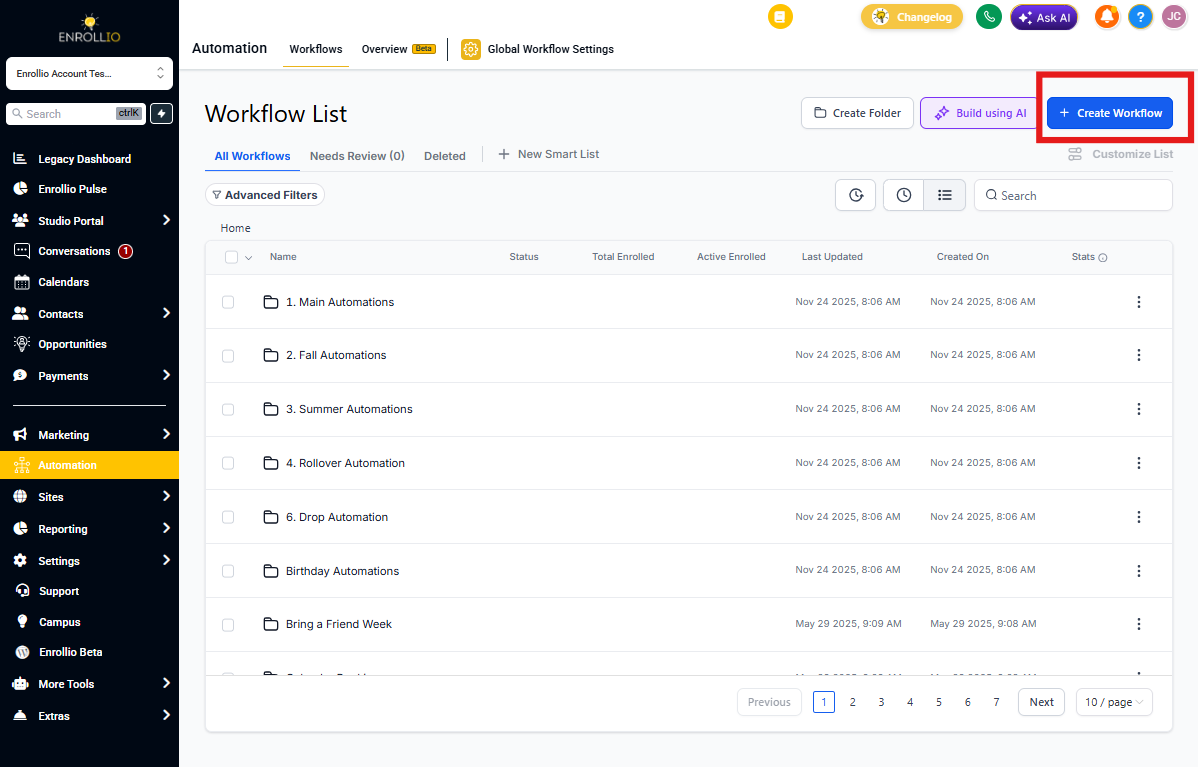
Outbound Voice AI only works inside automations. Create a new automation or edit an existing one by going to the Automations section in your account.
If you're creating a new automation, click "+ Create Automation" and follow the prompts.
Step 2: Add Outbound Voice AI Action
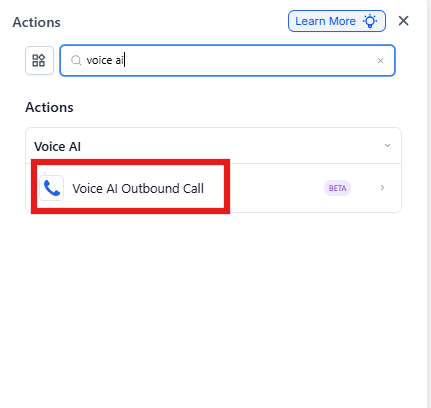
Open your automation and click the "+" icon to add a new action. Search for "Voice AI Outbound Call" or scroll to find it in the action list.
Step 3: Configure the Outbound Call Action
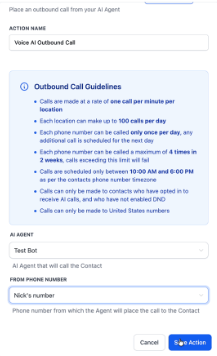
Set up your outbound call with these settings:
Action Name: Give your action a descriptive name (like "Follow-up with tour families") or keep the default. This helps you identify what the action does at a glance.
AI Agent: Select the AI agent who will make the call. The same agent can handle both incoming and outgoing calls. If you haven't created a Voice AI agent yet, create one first, then return to this step.
From Phone Number: Choose the phone number your AI agent will call from. If you haven't added a phone number to your account, add one first, then come back.
Step 4: Save, Publish, and Test
Save your automation and test the outbound calling by adding yourself to the automation. Have the AI agent call your personal phone to verify everything works correctly.
Monitor your scheduled calls in the call logs to ensure they follow the built-in limits and timing rules.
Frequently Asked Questions
How is call scheduling managed?
Calls are placed through automation actions—one call per minute per location. Daily limits and frequency controls ensure balanced, respectful outreach to families.
Can the same AI agent handle both incoming and outgoing calls?
Yes. One agent can manage both directions. Make sure your agent's prompts are flexible enough to handle different call types (like answering tour questions vs. following up on applications).
What happens if a parent's phone number reaches its call limit?
If a number exceeds the daily single-call limit or the maximum of 4 calls in 2 weeks, additional calls are either deferred to the next day or will fail after the threshold is reached.
What's the difference between "deferred" and "failed" calls?
"Deferred" means the system will try calling later (for example, outside allowed hours or due to volume). "Failed" means something prevented the call entirely (like a missing number or consent issue). Check your call logs for specific details.
How can I test outbound calling safely without calling real families?
Create an internal test segment using tags (like "Test - Voice AI"). Point your automation only to those contacts and use your own phone numbers for testing. Review call logs and transcripts before expanding to real families.
Related Articles
- AI Voice Agents Overview
- Creating Voice AI Agents
- Working Hours for Voice AI
- Inbound Call Flow for Voice AI
- Voice AI Custom Actions