
Quickly Access Your Most-Used Templates
This article shows you how to quickly access your most-used templates in Enrollio using the Favorites feature. By marking templates as favorites, you can streamline your work and maintain consistency across your enrollment campaigns.
What is the Favorites Feature?
The Favorites feature in Enrollio's Template Library lets you mark frequently used templates—such as email, landing page, enrollment site, or social planner templates—with a star. This makes it simple to locate and reuse them quickly without searching through your entire library each time.
Key Benefits of the Favorites Feature
- Instant Access – Retrieve your most-used templates in just a few clicks.
- Simplified Navigation – Avoid browsing large libraries each time you build a campaign.
- Consistency – Reuse templates you know work, helping keep your messaging to families uniform.
- Time-Saving – Speed up your workflow by reducing time spent searching.
- Custom Workflow – Build a personalized template toolkit by curating your favorite items.
- User-Specific Favorites – Favorites are tied to your user profile, allowing personalized access.
How to Mark Templates as Favorites
Follow these steps to star templates for easy access later:
-
Go to the Template Library
Navigate to the type of template you want to favorite (e.g., Email, Landing Page, Enrollment Site, or Social Planner templates). -
Find the Template
Scroll or search to find the specific template you'd like to favorite. -
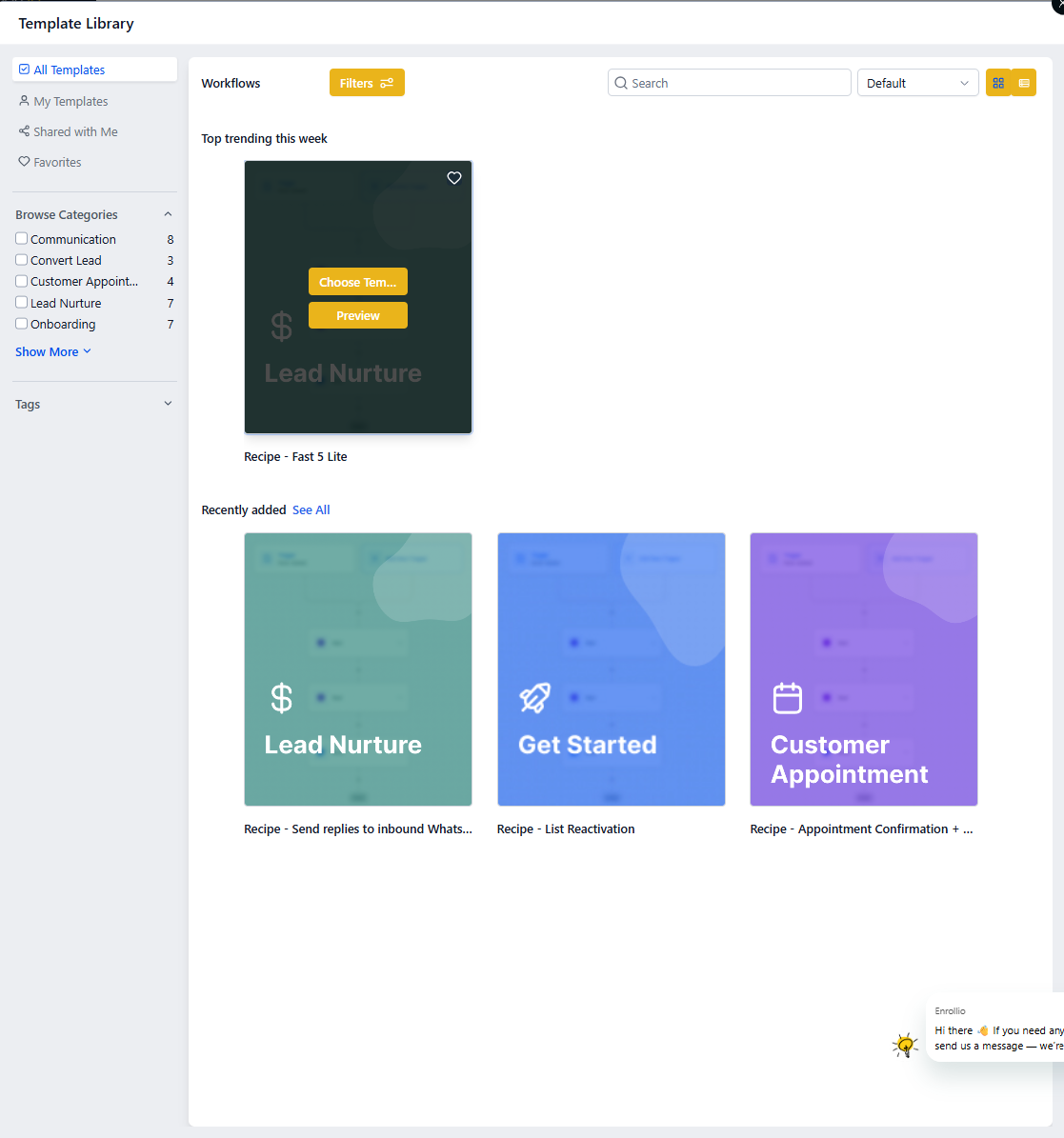
Click the Star Icon
Hover over the template and click the star icon in the upper-right corner. The star will turn solid, indicating it's been added to your favorites. -
Done!
That template is now stored in your favorites list for fast retrieval.
Accessing Your Favorite Templates
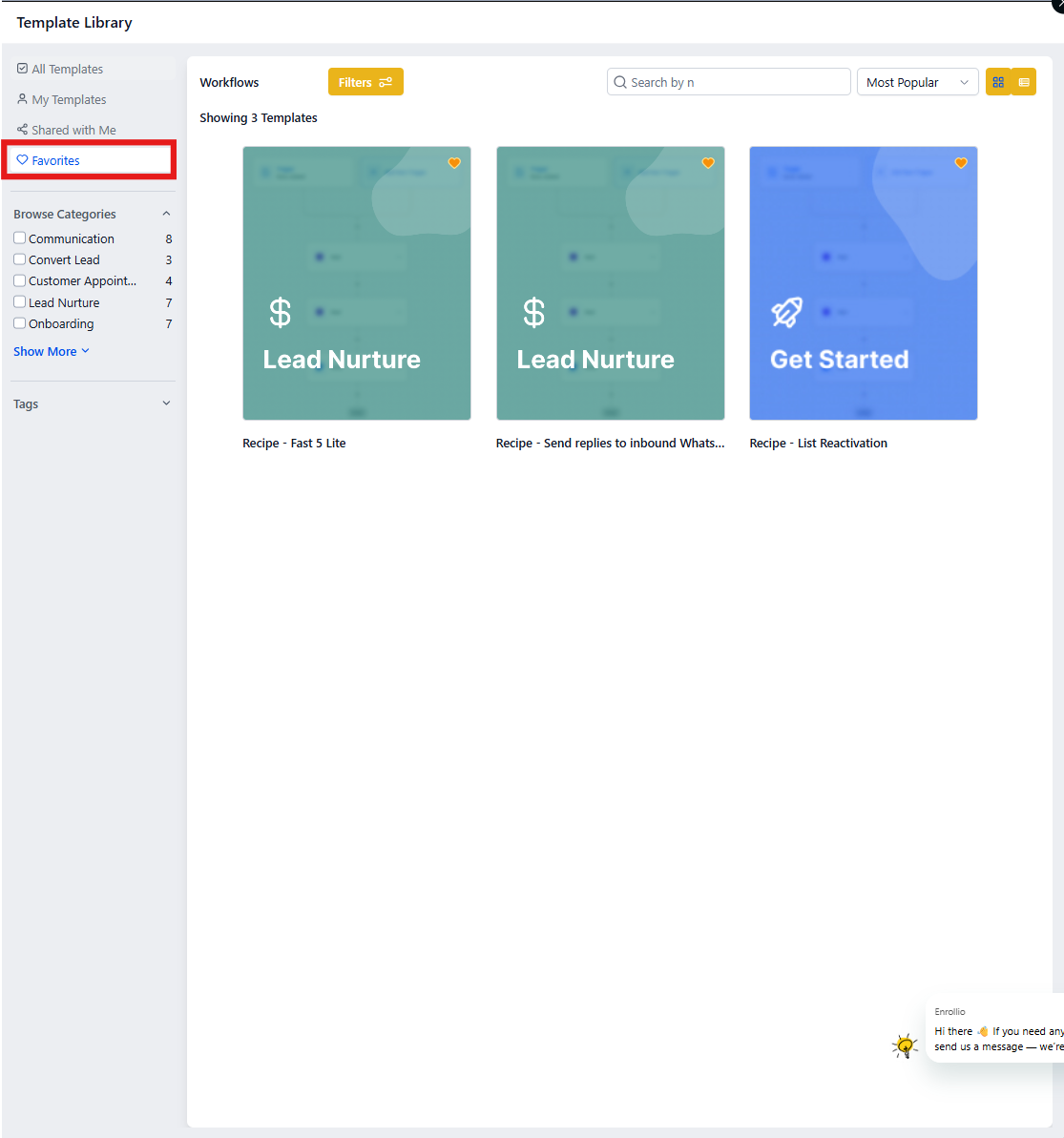
Use the Favorites filter to see only your starred templates:
-
Return to the Template Library
Go back to the relevant template section. -
Open the Filter Menu
Look for the filtering options—usually found on the left panel or near the top of the template list. -
Select "Favorites"
Click the Favorites filter to instantly view only your favorited templates. -
Use or Edit Your Favorites
Click into any favorite template to begin editing or deploying it in your enrollment campaigns.
Best Practices for Using Favorites
Maximize your productivity with these tips:
- Keep Favorites Current – Regularly review and update your list to reflect templates you use most often for parent communication and enrollment.
- Combine Favorites with Tags – Use tags and categories to organize your templates further by campaign type or enrollment season.
- Limit Favorites for Speed – Don't overload your favorites list—keep it concise for faster access.
- Remove Old Templates – If a favorite is no longer useful, unstar it to keep your list fresh and relevant.
Frequently Asked Questions
Q: Can I favorite templates from any category?
Yes, the Favorites feature works across multiple template types including Email, Landing Page, Enrollment Site, and Social Planner templates.
Q: How do I remove a template from Favorites?
Click the solid star icon on the template to unmark it. The star will return to its outlined state and it will be removed from your favorites list.
Q: Will my team members see my favorites?
No. Favorites are unique to each user profile. They are not shared across your team or other staff members at your center.
Q: Is there a limit to how many templates I can favorite?
There's no hard limit, but it's recommended to keep your favorites list manageable for efficiency.
Q: Can I filter favorites by template type?
Yes. You can view favorites within each template section separately by selecting the type (e.g., Landing Page Templates) and applying the Favorites filter.