
The Tasks List View gives you powerful tools to manage and track follow-ups, reminders, and to-dos across your childcare center. With advanced filtering, customizable views, and an intuitive interface, staying on top of your tasks has never been easier.
Accessing the Tasks List View
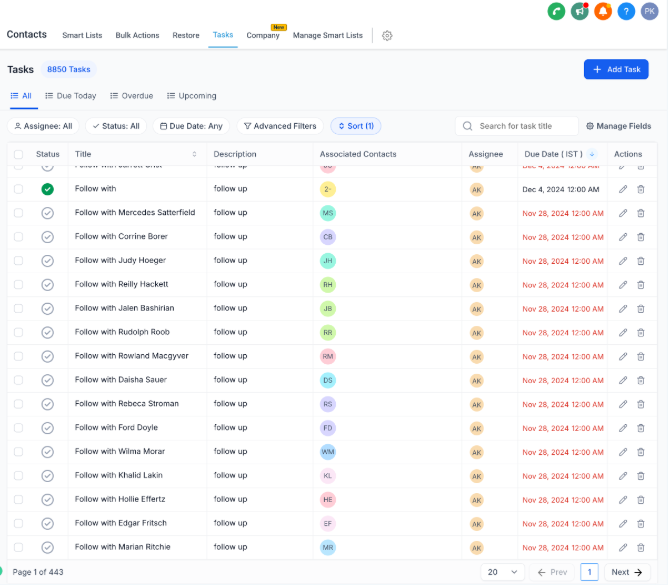
Navigate to Contacts > Tasks from the main menu. You'll see an enhanced view with filtering, sorting, and bulk actions available at the top of the list.
Creating a New Task
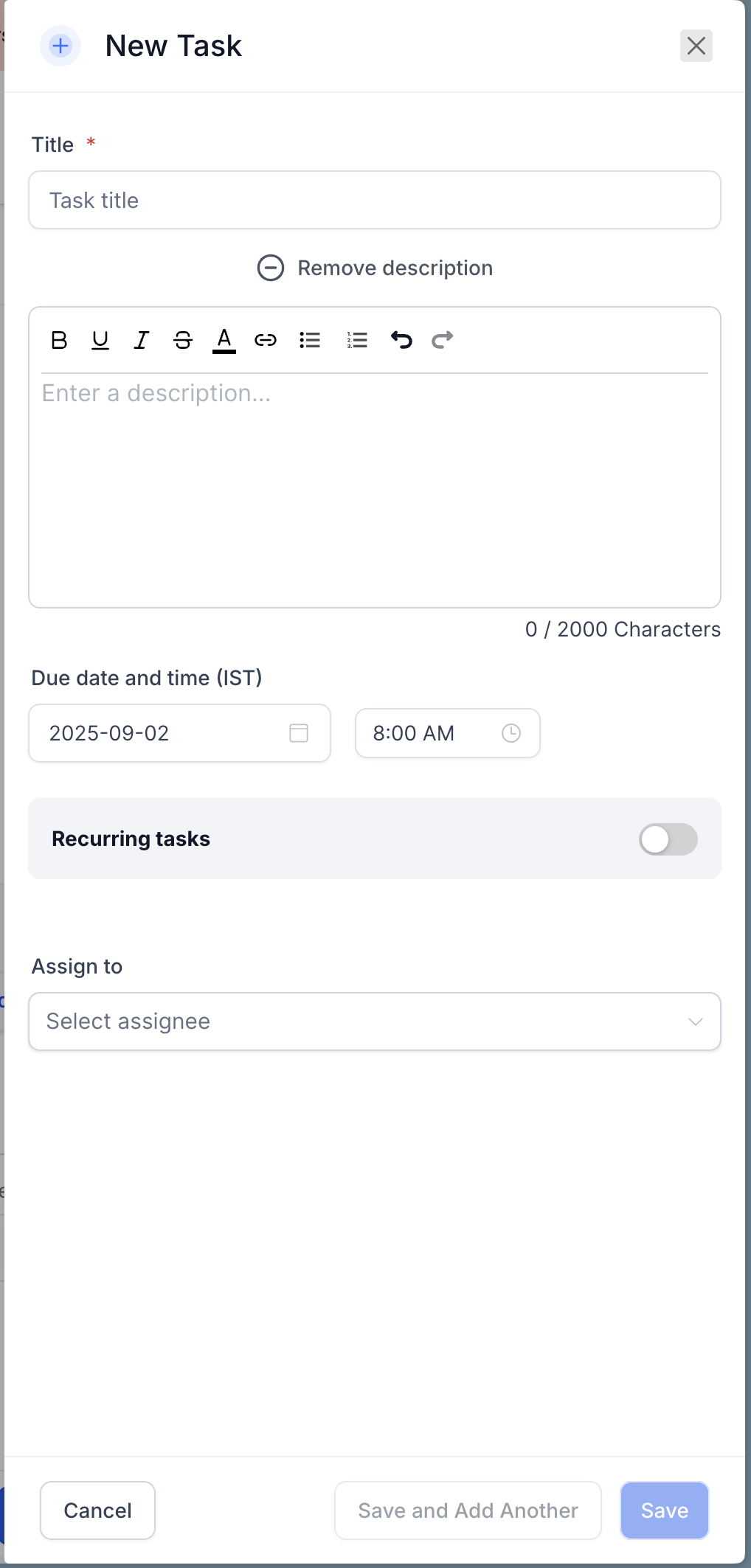
Click + Add Task in the top-right corner. Fill in the following fields:
- Title: Add a brief description of the task (e.g., "Follow up with Johnson family tour")
- Description (optional): Provide additional details. You can add rich text like bold, colored text, and URLs.
- Due Date and Time: Set a deadline for the task
- Recurring Task (optional): Toggle on to create a task that repeats based on a custom schedule
- Parent/Family (optional): Assign the task to a specific family in your system
- Assignee (optional): Assign the task to a team member
Click Save to save and continue editing, or Save and Add Another to create multiple tasks quickly.
Managing Tasks
Edit Task Details
Use the pencil icon in the Actions column or click on the task title to modify any details.
Delete Tasks
Select a task and click Delete. Don't worry—deleted tasks can be restored within two months if you need them back.
Bulk Actions
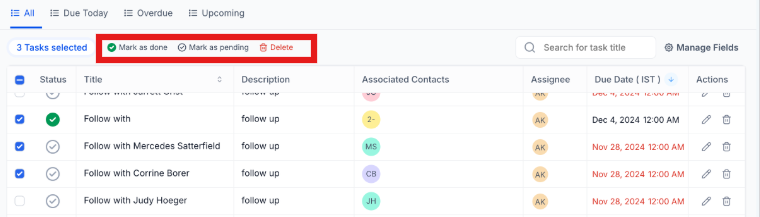
Select multiple tasks using the checkboxes and perform bulk actions such as marking tasks as done or deleting them all at once.
Viewing Standalone Tasks
Automations can create tasks that aren't attached to a specific family. These display as standalone tasks in your Tasks list. Use filters to quickly find and manage them.
Advanced Filters
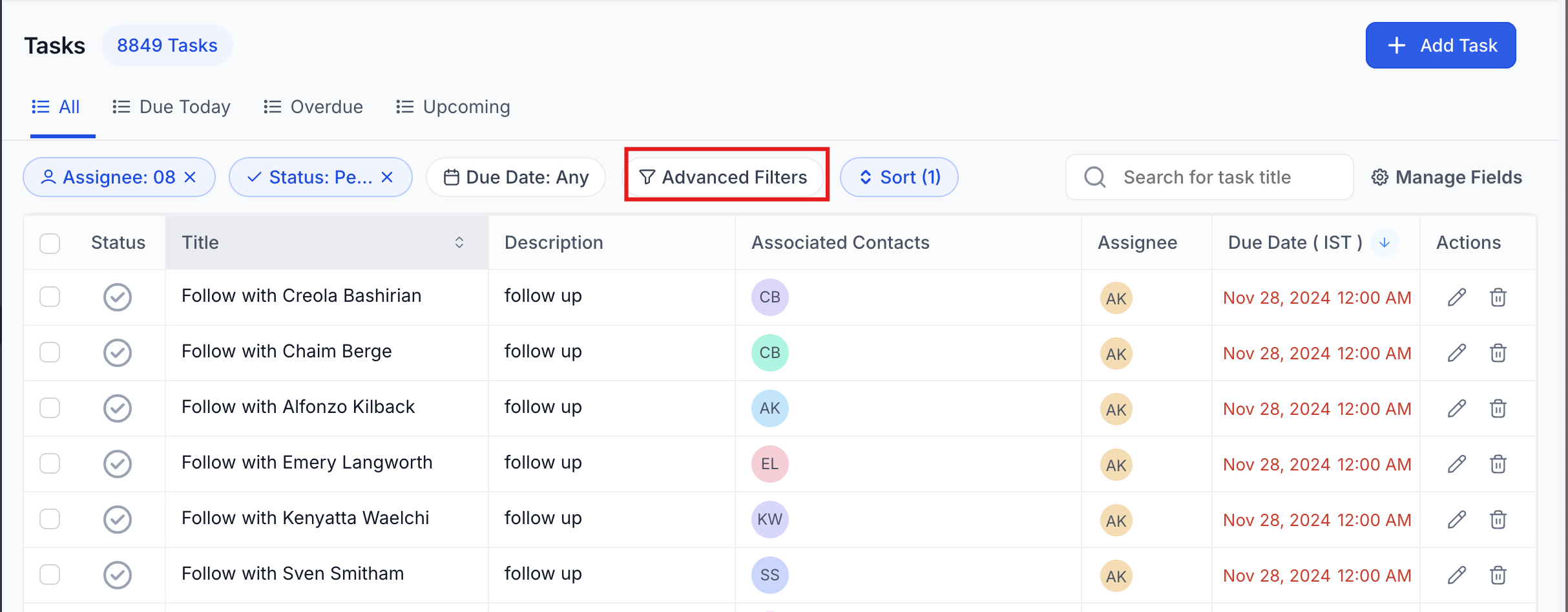
Click Advanced Filters to narrow down tasks by:
- Assignee: See tasks assigned to specific team members
- Status: All, Due Today, Overdue, or Upcoming
- Due Date: Filter by date range
- Custom fields: If you've created custom task fields
Sorting Options
Click Sort to reorder your tasks based on:
- Due Date
- Title
- Created At
- Updated At
This makes it easy to prioritize what needs attention first.
Frequently Asked Questions
How can I schedule a task due at a specific time from an automation?
Use the "Add Task" automation action and switch the "Due In" field to Dynamic Mode. This allows you to input a specific date and time (e.g., 05-30-2025 03:00 PM) using a custom value or dynamic variable.
Can automations create standalone tasks?
Yes—the Add Task action will create a standalone task when no parent/family is present in the automation at that step.
How do I find standalone tasks?
Filter by Parent/Family = Unassigned and optionally add filters for Assignee or Due Date to narrow them down.
Do reminders and notifications work for standalone tasks?
Yes—set them up via automations (e.g., Task Reminder trigger + Internal Notification action). They won't be sent automatically unless you configure them in your automation.