
A great-sounding AI agent builds trust the moment a family calls! With Enrollio's expanded Voice AI catalog and custom voice imports from ElevenLabs, you can match tone, language, and style to your childcare center's brand. This article shows you how to browse the voice catalog, import custom voices, and update your agent's voice in just a few clicks.
What Is Voice Customization for Voice AI Agents?
Voice customization lets you choose how your Voice AI agent sounds—either by selecting from a multilingual catalog or by importing a custom voice from ElevenLabs. You can preview and compare options against your agent's current voice, assign the best fit, and reuse imported voices across locations for consistent branding.
With just a few clicks, you can align language, accent, and tone to your families so every conversation feels natural, clear, and trustworthy.
Key Benefits of Customizing Your Voice AI Agent's Voice
- Brand Alignment: Choose upbeat, calm, authoritative, or friendly personas to match your childcare center's vibe
- Custom Imports: Bring in unique ElevenLabs voices to define your brand sound
- Rapid Preview: Instantly hear a sample with the Play button before committing
- Seamless Updates: Save changes in seconds—no redevelopment or downtime
- Multilingual Reach: Localize conversations with voices across many languages and dialects
Browse and Compare Voices
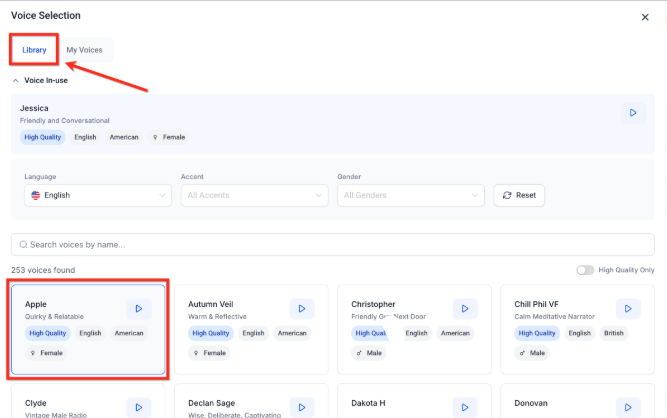
When searching for a voice for your Voice AI agent, start with the built-in library. The expanded catalog includes 26+ languages and 340+ high-quality voices, making it easy to localize tone, accent, and style without custom work.
If you need a very specific sound, you can import a custom voice from ElevenLabs.
Voice In-Use Banner
The Voice In-use banner pins your agent's current voice at the top of the selector so you can audition alternatives without losing context. Use it to compare the active voice against any catalog voice (Library) or imported voice (My Voices).
Click Play in the banner to hear the active voice, then click Play on any voice card in Library or My Voices to compare voices in real time!
Filters
The filters and search function within the Library help you find the best-fit voice for your childcare center and families:
- Language: Filter the catalog by 26+ supported languages. There are even voices that support multiple languages.
- Accent: Narrow options to specific accent families (e.g., American, British, Australian)
- Gender: Filter by all genders or a specific gender
- High Quality Only: Toggle to show only high-quality voices when you want the most natural output
- Search: Type a voice name to jump directly to it
Import Custom Voices from ElevenLabs (My Voices)
You can import voices directly from ElevenLabs into Enrollio! Importing voices from ElevenLabs expands your creative range beyond the default catalog. This is ideal for centers that need a distinctive tone, language variant, or speaking style while keeping the same voice reusable across multiple locations.
Important Limitations:
- You can add up to 10 custom voices
- Imported voices are added to My Voices and can be assigned across all client account locations
- Only Enrollio Dashboard users can import new voices
How To Edit a Voice AI Agent's Voice
Editing your agent's voice directly shapes how families perceive your childcare center. Follow these steps to locate the right voice, compare options, optionally import a custom voice, and apply changes to your agent.
Step 1: Open AI Agents
From the left navigation bar, choose AI Agents. Select the Voice AI tab on the top ribbon.
Step 2: Open Voice AI Agent List
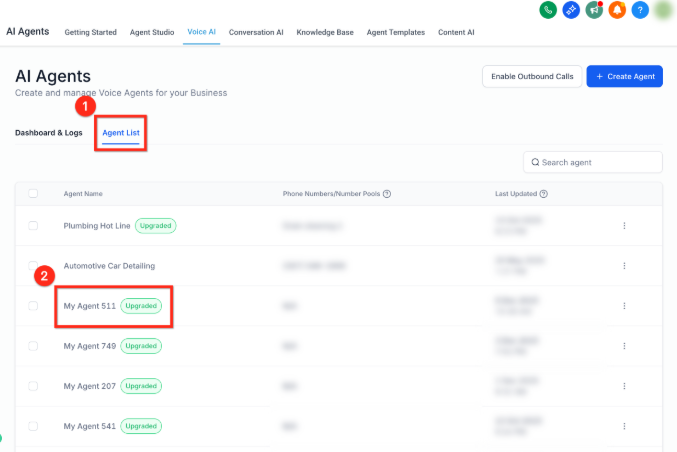
Select Agent List from the secondary top navigation ribbon. Locate the agent you'd like to update and click the agent's name to open the Agent Details.
Pro Tip: If you're creating a new Voice Agent, click the blue + Create Agent button. When creating a new Voice AI agent, the process of choosing the voice remains the same but additional setup is required.
Step 3: Launch Voice Selection
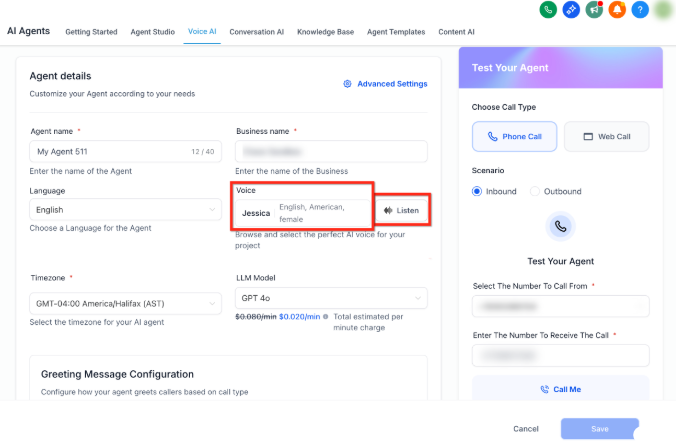
To review the in-use voice, click the Listen button to play a sample. To change the voice that is in use, click on the name of the in-use voice to open the Voice Selection module.
Step 4: Add a Voice From the Library
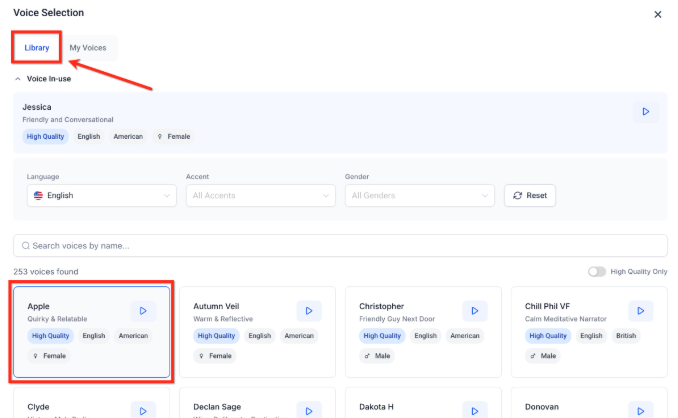
Open the Library tab to choose from the full catalog. Use filters to narrow the list, preview candidates, and compare them against the Voice In-use banner without leaving the selector.
When you find a match, click the voice card to select it. Then click the blue Save Voice button at the bottom to assign the new voice to your agent.
If you'd like to import a custom voice from ElevenLabs, skip this step and move ahead to step 5.
Step 5: Import a Custom Voice (ElevenLabs)
Follow these steps to import custom voices from ElevenLabs to use for your Voice AI Agents!
Important: You can add up to 10 custom voices. Custom voices are shared across all client account locations.
- In the Voice Selection screen, go to the My Voices tab and click Add Custom Voice.
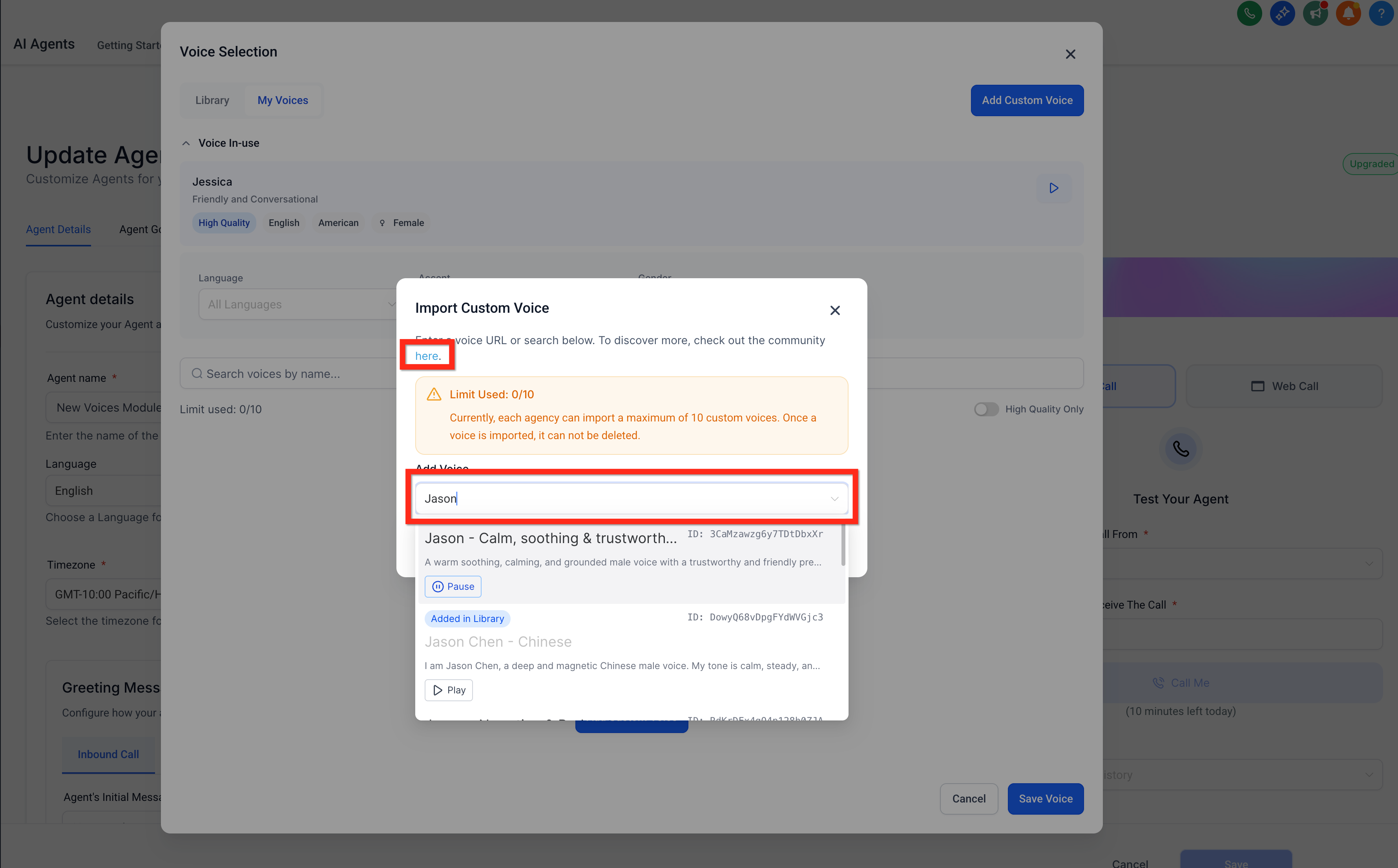
- A pop-up appears where you can browse all available voices from ElevenLabs. Use search and categories to browse the options and click Play to preview a voice.
- Click the link in the pop-up to view the entire ElevenLabs voice library.
- Copy any ElevenLabs Voice ID and paste it into the pop-up's search bar to import that exact voice.
- Once you find a voice you'd like to import, select it and click Import Voice.
- The voice will be added to your My Voices list. Click the blue Save Voice button at the bottom to assign the new voice to your agent.
Please note that it may take a few seconds for the imported voice to be ready to use.
Step 6: Save and Test
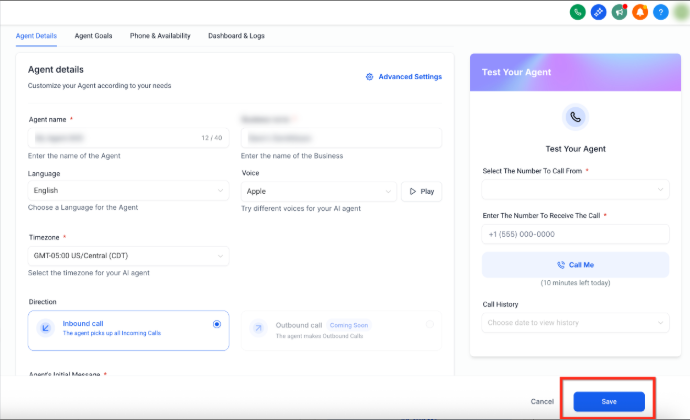
Click the blue Save button to save your changes to your Voice AI agent, then place a test call with the Test Your Agent widget to hear your new voice in action!
Frequently Asked Questions
Will changing a voice affect call scripts or responses?
No. Your script logic stays intact. Only the audible voice changes.
Are non-English voices available?
Yes. The Voice AI catalog includes voices in 26+ languages with various accents and dialects.
Is there a limit to how often I can switch voices?
No. You can change your agent's voice as frequently as you like; the update takes effect immediately after you click Save.
Why is "Add Custom Voice" grayed out when trying to import a custom voice?
You've reached the 10 imported voices limit. Imports are non-deletable, so the button is disabled once the cap is hit. You can still select from existing imported voices under My Voices or choose any voice from the Library.
Why isn't my ElevenLabs voice showing after I enter the Voice ID in the My Voices search box?
Verify the ElevenLabs Voice ID is complete and valid, then confirm you have Enrollio Dashboard access (required to import voices from ElevenLabs). If the Add Custom Voice button is grayed out, you've reached the 10-voice limit and the search by ID function will not be available.
Are these voices available for both outbound and inbound calls?
Yes. Once you assign a voice to your agent, it applies to all calls—whether your agent is answering tours inquiries, making waitlist follow-ups, or handling enrollment questions.