
Spam calls waste your staff's time and make it harder to focus on real families. This guide shows you how to use Enrollio's built-in tools and call routing to automatically detect, block, and quarantine spam callers.
What You'll Accomplish
You'll set up a layered system that identifies likely spam before your team picks up, automatically blocks repeat offenders, and adds an optional phone menu to deter robocalls—all without accidentally blocking real parents.
Key Benefits
- Fewer interruptions: Staff spend less time answering junk calls
- One-tap blocking: Mark a call as spam with a single click
- Automatic quarantine: Spam numbers are blocked from calling back
- Optional screening: A simple phone menu stops robocalls while routing real callers quickly
- Safety net: VIP families bypass filters, and you can undo blocks if needed
- Visibility: See "Spam Likely" labels in your call logs and mobile app
The Four Components
Enrollio's spam protection uses four layers. You'll turn them on in order, testing each step before moving to the next.
1. Number Intelligence (Spam Detection)
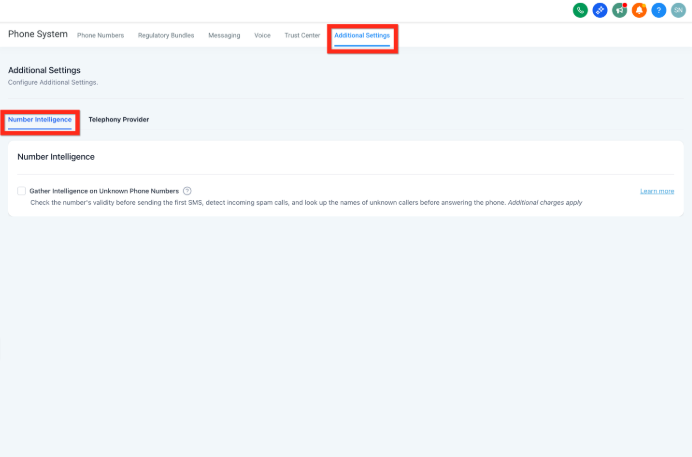
Number Intelligence adds network-level signals to your incoming calls. When a known spam number calls, you'll see "Spam Likely" in your call log and dialer—before anyone picks up.
Where to enable: Settings → Phone System → Additional Settings → Number Intelligence
Important notes:
- Spam detection works best for U.S. phone numbers
- Usage-based charges apply per lookup (see Number Intelligence pricing article)
- Availability varies by country
2. Custom Call Disposition ("Spam Call" Label)
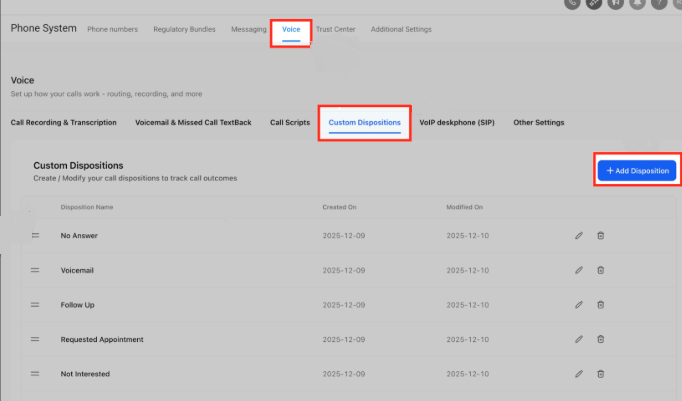
Dispositions let your staff label calls consistently. When you create a "Spam Call" disposition, staff can mark junk calls with one tap—and your automations will use that label to block future calls from that number.
How to create it:
- Go to Settings → Phone System → Dispositions
- Click Add Disposition
- Name it "Spam Call"
- Save
Staff will see this option at the end of every call on desktop and mobile.
3. Automation to Block Spam Callers
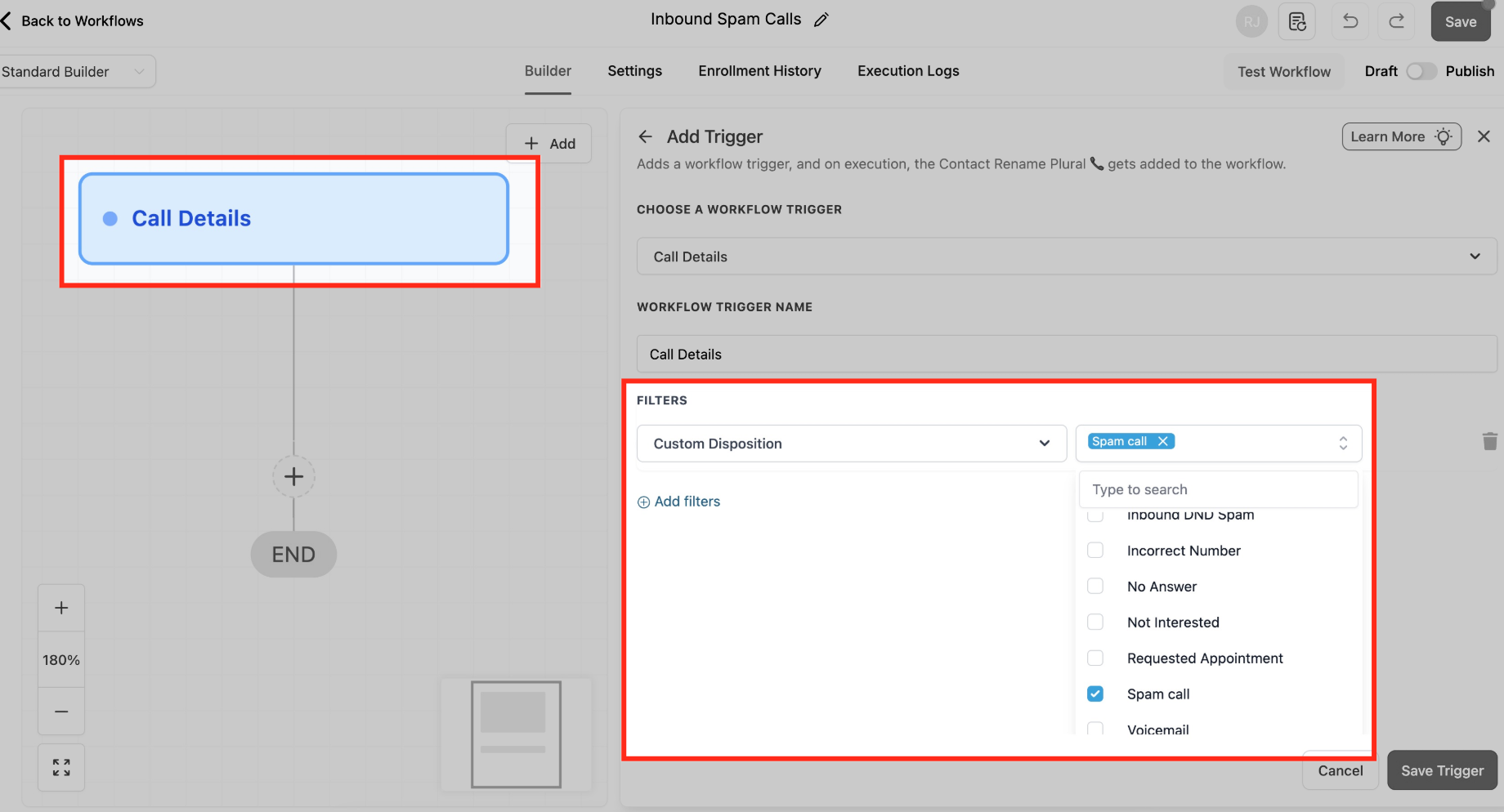
This automation watches for calls marked "Spam Call" and automatically enables Do Not Disturb (DND) for that contact—blocking future inbound calls from the same number while still letting you reach them if needed.
Recommended settings (start conservative):
- Direction: Inbound only (don't block your outbound calls to them)
- Channel: Voice only (don't block texts or emails from legitimate families who happen to share a number)
How to build it:
- Go to Automations and create a new automation
- Set Trigger: Call Details
- Add Filter: Disposition = "Spam Call" AND Direction = Inbound
- Add Action: Enable/Disable DND
- Choose Enable
- Direction: Inbound
- Channels: Voice only
- Save and Publish
4. Interactive Voice Menu (Optional)
A simple phone menu ("Press 1 for tours, press 2 for billing") stops most robocalls while routing real parents quickly. Keep it short—one or two options max—to avoid frustrating urgent callers.
Simple two-option example:
- "Thanks for calling [Your Center Name]. For new family inquiries, press 1. For current families, press 2."
- Press 1 → rings your enrollment team
- Press 2 → rings your front desk
- No response → repeats once, then goes to voicemail
Quick setup:
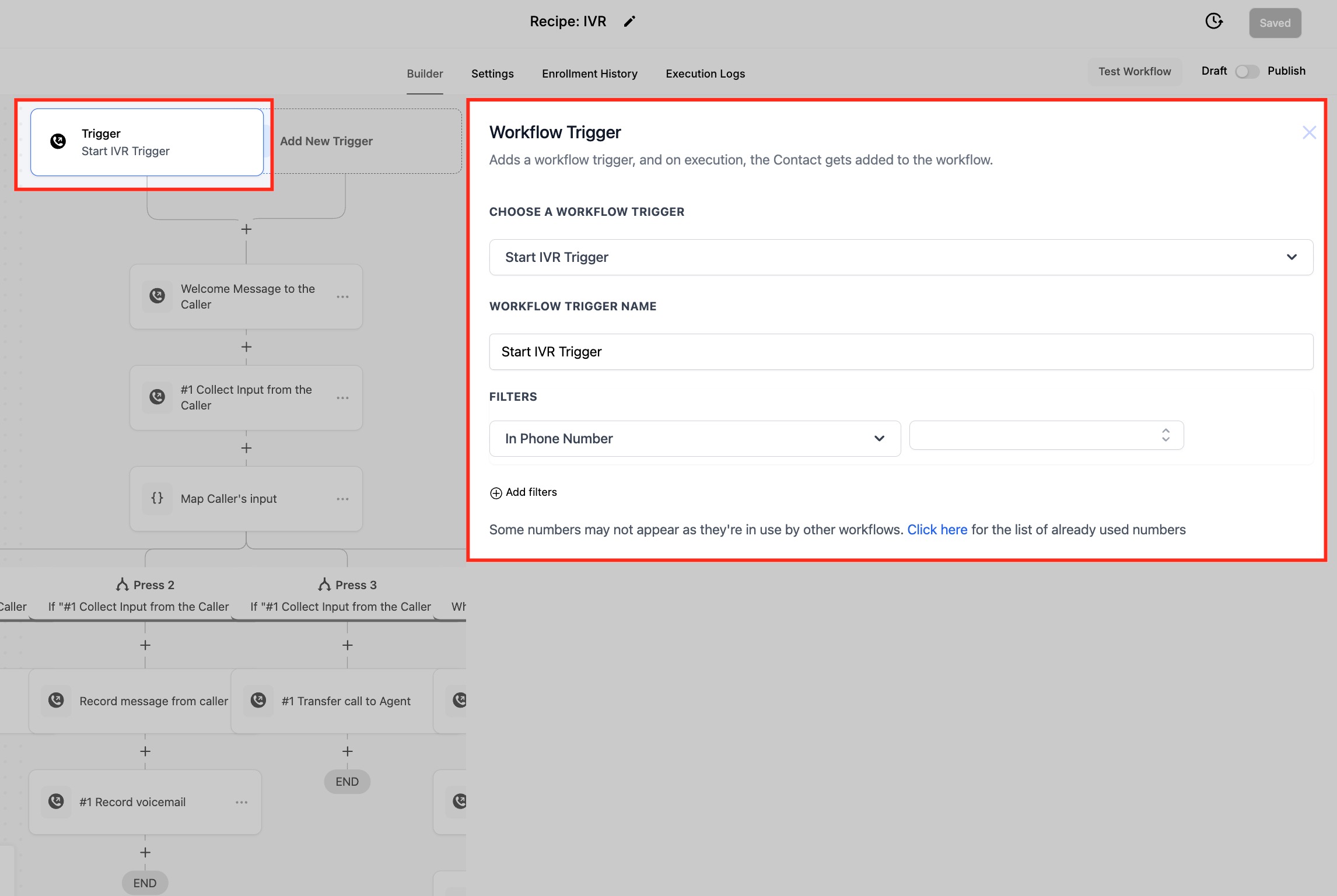
- Create a new automation with Trigger: Start IVR
- Map your inbound phone number to this automation
- Add Say a Message: Record or type your greeting
- Add Gather Input: Wait for keypress
- Map inputs:
- 1 → Connect Call to your tours/enrollment team
- 2 → Connect Call to your front desk
- Timeout/invalid → Repeat once, then Voicemail
- Publish
Important: Each phone number can only be mapped to one IVR automation at a time.
Safety Nets: VIP Lists and Rollback
Mistakes happen. These two patterns make sure important families never get blocked and give you an automatic way to undo false positives.
VIP Bypass
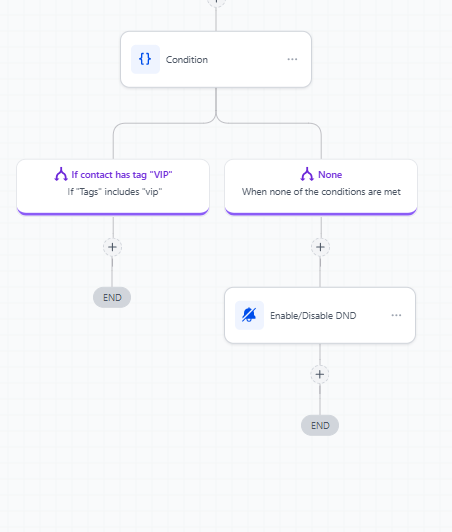
Tag key contacts (board members, major donors, etc.) as "VIP" and modify your spam automation to skip them.
- In your spam-blocking automation, add an If/Else before the DND action
- Condition: If contact has tag "VIP"
- Then: Skip (end automation)
- Else: Continue to Enable DND
Auto-Clear After 30 Days
Automatically remove DND from spam-marked contacts after 30 days (or any timeframe you choose). This gives you a second chance to review numbers that might have been blocked by mistake.
- Create a new automation with Trigger: Contact DND Status Changed
- Add Filter: DND = Enabled
- Add Wait: 30 days
- Add Action: Disable DND (or send yourself a review notification first)
- Publish
Mobile App Visibility
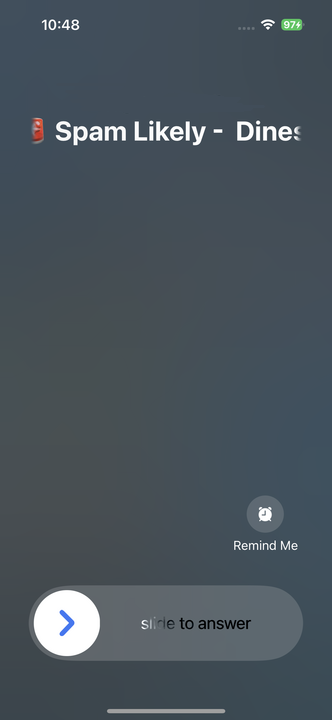
When your team is away from their desk, they'll see "Spam Likely" labels right on their phone screen.
Requirement: Enrollio Mobile App v3.97.3 or later
Where you'll see it: Call lists and call details on iOS and Android
Step-by-Step Setup Checklist
Follow these steps in order. Test each one before moving to the next.
Step 1: Enable Number Intelligence
- Go to Settings → Phone System → Additional Settings → Number Intelligence
- Check "Gather Intelligence on Unknown Phone Numbers"
- Save
- Test: Have a friend call you from an unknown number and check if caller ID appears in your log
Step 2: Create the "Spam Call" Disposition
- Go to Settings → Phone System → Dispositions
- Click Add Disposition
- Name: "Spam Call"
- Save
- Test: Make a test call and verify you see "Spam Call" in the disposition dropdown at the end
Step 3: Build the Auto-Block Automation
- Go to Automations → Create New
- Trigger: Call Details
- Filters:
- Direction = Inbound
- Disposition = "Spam Call"
- Action: Enable DND
- Direction: Inbound
- Channels: Voice only
- Publish
- Test: Call from a personal phone, mark as spam, try calling again—should go to voicemail
Step 4: Add an IVR Menu (Optional)
- Create a new automation
- Trigger: Start IVR
- Map your inbound phone number
- Add Say a Message with your greeting
- Add Gather Input
- Map options 1 and 2 to Connect Call actions
- Set timeout/invalid to repeat once then voicemail
- Publish
- Test: Call your number and walk through each menu option
Step 5: Add Safety Nets
- Tag your VIP contacts
- Edit your spam automation to add VIP bypass logic
- Create a 30-day auto-clear automation
- Test: Try marking a VIP contact as spam—they should NOT be blocked
Measuring Success
Track these metrics to see if your filters are working:
- "Spam Likely" rate: Check call logs for how many inbound calls are flagged
- Spam disposition usage: How often staff mark calls as spam
- IVR completion rate: How many callers press a key vs. hang up (high hang-up rate may mean your menu is too complex)
- Staff feedback: Ask your team if they're getting fewer junk calls
Frequently Asked Questions
Will this block legitimate parents?
Not if you follow the recommended settings. You're only blocking numbers your staff manually marks as spam, plus network-identified spam numbers. Real parents with normal phone numbers will always get through. Use the VIP tag for any families you're extra cautious about.
What if I accidentally mark a parent as spam?
Go to the parent's contact record, click the DND toggle to turn it off, and they'll be able to call again immediately. This is why we recommend starting with "Inbound Voice only"—it won't affect your ability to call them.
Does Number Intelligence work internationally?
Spam detection is most accurate for U.S. phone numbers. Caller ID lookup works in many countries, but coverage varies. Check the Number Intelligence article for current availability.
Can I use a longer IVR menu?
Yes, but keep it short. Every extra step increases the chance a busy parent hangs up. If you need more than three options, consider whether those calls could be handled differently (e.g., "For billing questions, visit our parent portal").
How much does Number Intelligence cost?
It's usage-based—you pay per lookup. Check the Number Intelligence pricing article for current rates. Most centers find the cost is negligible compared to the time saved.
Will this work on my mobile app?
Yes. You'll see "Spam Likely" labels on incoming calls if you're using Enrollio Mobile App v3.97.3 or later. The spam disposition and IVR work the same way on mobile as they do on desktop.