
Enrollio AI - Auto Follow-Up Action
The Auto Follow-Up feature in Enrollio AI empowers your bot to automatically send timely outbound messages to families who have gone inactive, asked for a follow-up, or stopped responding—eliminating manual follow-up tasks and complex automations. This smart automation helps you boost engagement and convert more enrollments, all while maintaining natural, responsive conversations.
What is Auto Follow-Up in Enrollio AI?
Auto Follow-Up is an intelligent automation within Enrollio AI that detects when a prospective family drops off, becomes inactive, or requests a future follow-up, and then schedules and sends follow-up messages automatically. By leveraging AI, the system recognizes common drop-off scenarios—such as a parent saying they're busy, asking for a specific follow-up time, or simply not replying—and ensures that your leads remain engaged without requiring manual intervention.
Key Benefits of Auto Follow-Up
- Reduces manual workload: Automates follow-up messages so your staff spends less time on repetitive outreach.
- Boosts engagement: Sends timely, personalized follow-ups that keep conversations moving forward.
- Minimizes lead leakage: Ensures every prospective family gets a follow-up so no lead is missed or forgotten.
- Supports custom messaging: Lets you use AI-generated follow-ups or write and control the message yourself.
- Integrates with automations: Triggers actions like tagging families, assigning conversations, or notifying staff automatically.
- Respects business hours: Only sends follow-ups during the working hours you define.
- Switches channels dynamically: Moves between channels (like Live Chat to SMS) to improve deliverability and reach.
- Provides full visibility: Shows all scheduled follow-ups in the Response Info panel so you can track what's happening.
- Language-adherent follow-ups: If a parent has a preferred language set, scheduled follow-ups send in that language automatically. No extra setup required.
How To Setup Auto Follow-Up in Enrollio AI
Proper setup of Auto Follow-Up ensures your Enrollio AI bot can re-engage prospective families effectively and in alignment with your business needs. Follow these steps to enable and configure Auto Follow-Up:
Step 1: Navigate to the Enrollio AI Bot
- Log in to your client account.
- From the left-hand menu, click on AI Agents.
- Select Enrollio AI.
- Choose one of the following:
- Create a new bot. (Follow this guide to setup a new bot: Setting Up Enrollio AI)
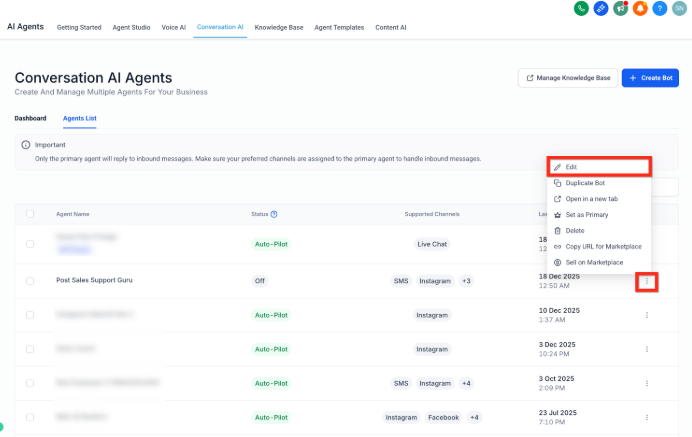
- From the Agent List, click on the three dots beside the name of an existing bot and then on Edit.
Step 2: Open Bot Goals
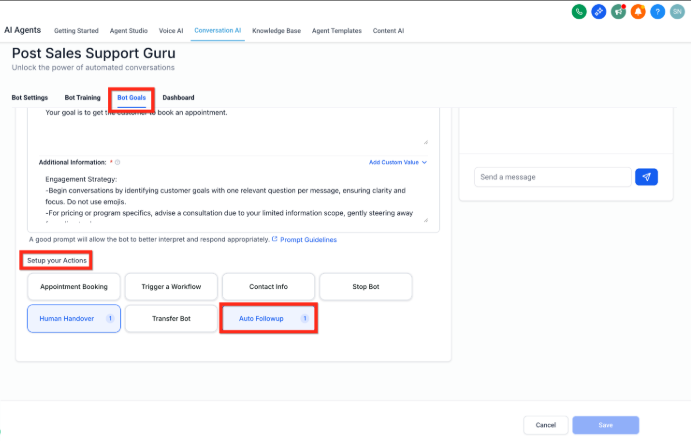
- Inside the selected bot, click on Bot Goals in the top navigation.
- Scroll down until you find Set Up Your Actions.
- Under this section, click on Auto Followup.
Step 3: Enable Follow-Up Scenarios
Each follow-up scenario defines when the bot should send follow-ups. Enrollio AI currently supports 3 main scenarios:
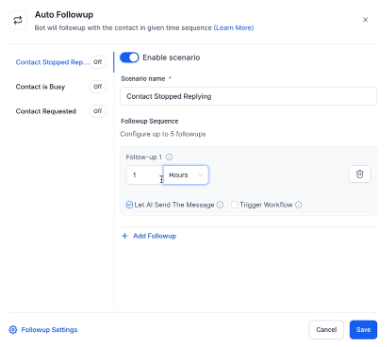
Scenario 1: Parent/Family Stopped Responding
- Toggle ON the Enable scenario button.
- You can now add up to 5 follow-up sequences for this condition.
- For each sequence:
- Set the delay time in hours, days, or minutes.
- Choose Let AI Send the Message (Auto-generate contextual messages based on the conversation).
- Or, turn OFF and enter a Custom message manually.
- Trigger an Automation (Optional): Toggle ON if you want to trigger an existing automation and select it from the list.
- Click on the + Add Followup button to add a new sequence.
Scenario 2: Parent/Family Marked as Busy
- Toggle ON the Enable scenario button.
- You can now add up to 5 follow-up sequences for this condition.
- Repeat the same configuration steps as above:
- Set delay time
- Choose AI-generated or Custom message
- Assign a Trigger Automation (optional)
Scenario 3: Parent/Family Requested a Follow-Up
- Toggle ON the Enable scenario button.
- You can now add up to 5 follow-up sequences for this condition.
- Repeat the same process:
- Set delay time (The first sequence for this scenario will be pre-set as per the parent's request)
- Choose AI-generated or Custom message
- Assign a Trigger Automation (optional)
Step 4: Follow-Up Settings
To improve engagement and respect timing preferences, configure these advanced options:
A. Set Follow-Up Working Hours
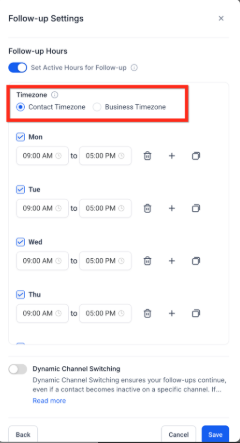
- Click on Follow-Up Settings.
- Enable Set Active Hours for Followup toggle.
- Choose Timezone: Parent or Business Timezone.
- Follow-ups will only be sent during the active hours specified below, based on the selected timezone. If we don't find the parent's timezone, we will use business timezone.
- Set the specific Active Hours when follow-up messages should be sent (e.g., 9 AM – 6 PM).
- If disabled, messages will be sent regardless of time.
- Click on Save.
B. Enable Dynamic Channel Switching
- Click on Follow-Up Settings.
- Enable Dynamic Channel Switching.
- This allows the AI to automatically switch to another available channel if the original one becomes inactive. For example, if the parent doesn't respond on Live Chat, the bot may follow up via SMS, Facebook Messenger, Instagram, or WhatsApp, depending on available channels.
- Click on Save.
Step 5: Save Your Follow-Up Settings
Finally, click the global Save button to confirm and activate the Follow-Up Actions for the bot.
Smart Detection of Drop-Off Scenarios
Auto Follow-Up evaluates the conversation context before sending a scheduled message. If the conversation appears closed or follow-up is no longer appropriate, the system skips or cancels the follow-up automatically. (No additional setup required.)
Auto Follow-Up is suppressed when the parent/family:
- Is disqualified (for example, out of service area).
- Shows disinterest or opts out (for example, "Not interested," "Stop texting me").
- Responds with anger or frustration (for example, "Leave me alone," "This is spam").
- Ends the conversation with a soft closure that signals completion (for example, "Thanks for the chat," "Let me know if you need anything else").
Dynamic Channel Switching
To maximize engagement, Auto Follow-Up can switch channels if a parent is unresponsive, helping you reach families where they're most likely to reply.
- Switches from Live Chat to SMS if chat is inactive and a phone number is available.
- On platforms like Facebook, Instagram, or WhatsApp, switches to SMS if no response within 24 hours.
This feature is optional and can be disabled.
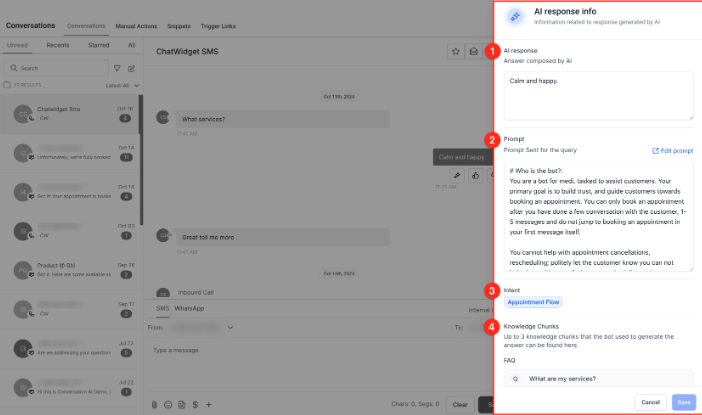
Full Visibility in AI Response Info
All scheduled follow-ups are displayed in the Response Info panel, giving you complete transparency and control over your automated outreach. Easily track which follow-ups are pending and why. Maintain oversight of all automated communication.
Frequently Asked Questions
Q: Why didn't Auto Follow-Up send a message I scheduled?
Auto Follow-Up may skip or cancel a scheduled message if the conversation context indicates follow-up is not appropriate (for example, the parent opted out, showed disinterest, was disqualified, or the conversation ended naturally).
Q: What happens if a parent replies before the scheduled follow-up?
The follow-up schedule is automatically canceled when a parent responds. The AI recognizes that the conversation has resumed and will only schedule new follow-ups if the conversation becomes inactive again.
Q: Can I customize the follow-up messages?
Yes. You can choose to let the AI generate contextual messages automatically, or turn off AI generation and write your own custom messages for each follow-up sequence.
Q: How many follow-up sequences can I create for each scenario?
You can create up to 5 follow-up sequences for each of the 3 scenarios (Parent Stopped Responding, Marked as Busy, and Requested a Follow-Up).
Q: Will follow-ups be sent outside of business hours?
Only if you allow it. When you enable Set Active Hours for Followup, messages will only be sent during the hours you specify. If this setting is disabled, follow-ups will be sent regardless of time.
Q: Does dynamic channel switching work with all communication channels?
Dynamic channel switching works with SMS, Live Chat, Facebook Messenger, Instagram, and WhatsApp. The bot will automatically choose an available channel based on what's connected for that parent.