
What Is Dashboard Duplication?
Dashboards live inside a specific client account. You can clone a dashboard to make a copy within the same account, or duplicate it to copy it into a different client account.
You'll need access to both client accounts to duplicate dashboards between them.
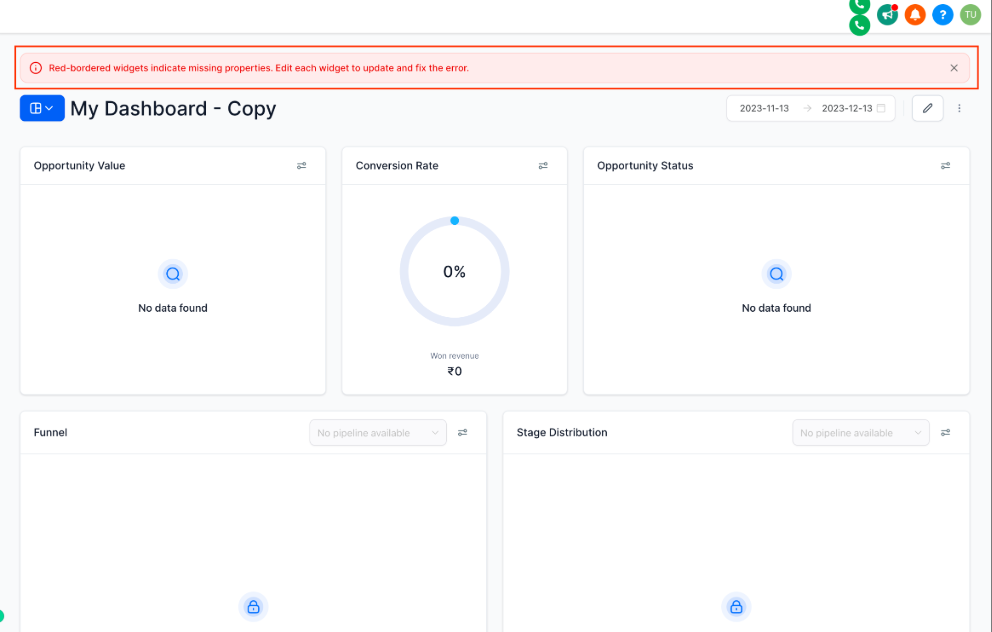
Important: Data sources won't be duplicated. If your original dashboard pulls data from custom values, the duplicate dashboard will show red widgets that need to be deleted or reconnected to the appropriate data sources in the new account.
How to Duplicate a Dashboard
Step 1: Start the Duplication
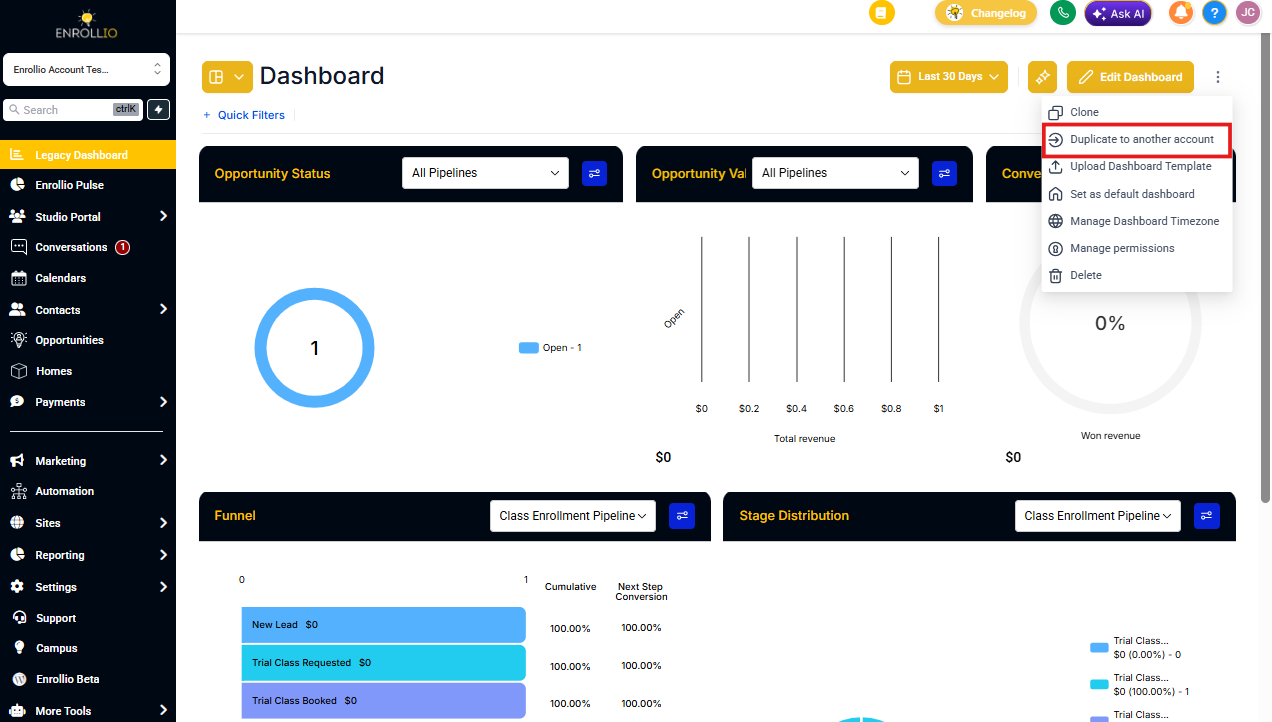
Navigate to your client account and click Dashboards in the left sidebar. Find the dashboard you want to copy, click the three-dot menu, and select Duplicate to another client account.
Step 2: Choose Your Destination
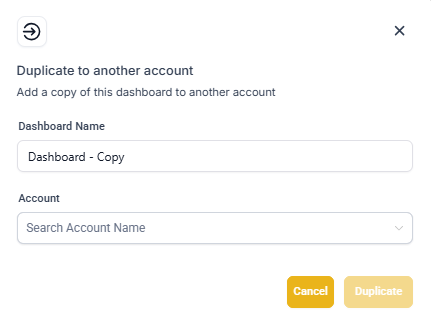
In the popup window, give your new dashboard a name and select which client account should receive the copy. Click Duplicate to create it.
Your dashboard will now appear in the target client account.
Step 3: Fix Broken Data Connections
If any widgets used data sources that don't exist in the new client account, you'll see red borders and an "error while loading data" message.
You have two options:
- Delete the widget if it's not needed in this account
- Reconnect it to an appropriate data source that exists in the new account
Pro Tip: If you're duplicating dashboards across multiple client accounts that track the same metrics, set up your data sources first. This way you can quickly reconnect widgets instead of rebuilding them from scratch.
Related Articles
- How to Edit a Dashboard
- How to Pin Favorite Dashboards
- How to Manage Dashboard Permissions