
Business Profile Settings - Physical Address & Locale
Your business physical address and locale settings are critical components of your Enrollio account. These settings control how dates, times, and locations appear across your enrollment pages, parent communications, and automated messages.
To learn more about Business Profile Settings and how to navigate there, see: Business Profile Settings Overview
Table of Contents
Business Physical Address
Enter your center's official physical address exactly as it appears on your EIN documentation. This address serves as your single source of truth across Enrollio and may be used for business verification purposes.
Pro Tip: This address can be automatically inserted into enrollment forms, parent communications, and landing pages using custom fields — no need to type it repeatedly.
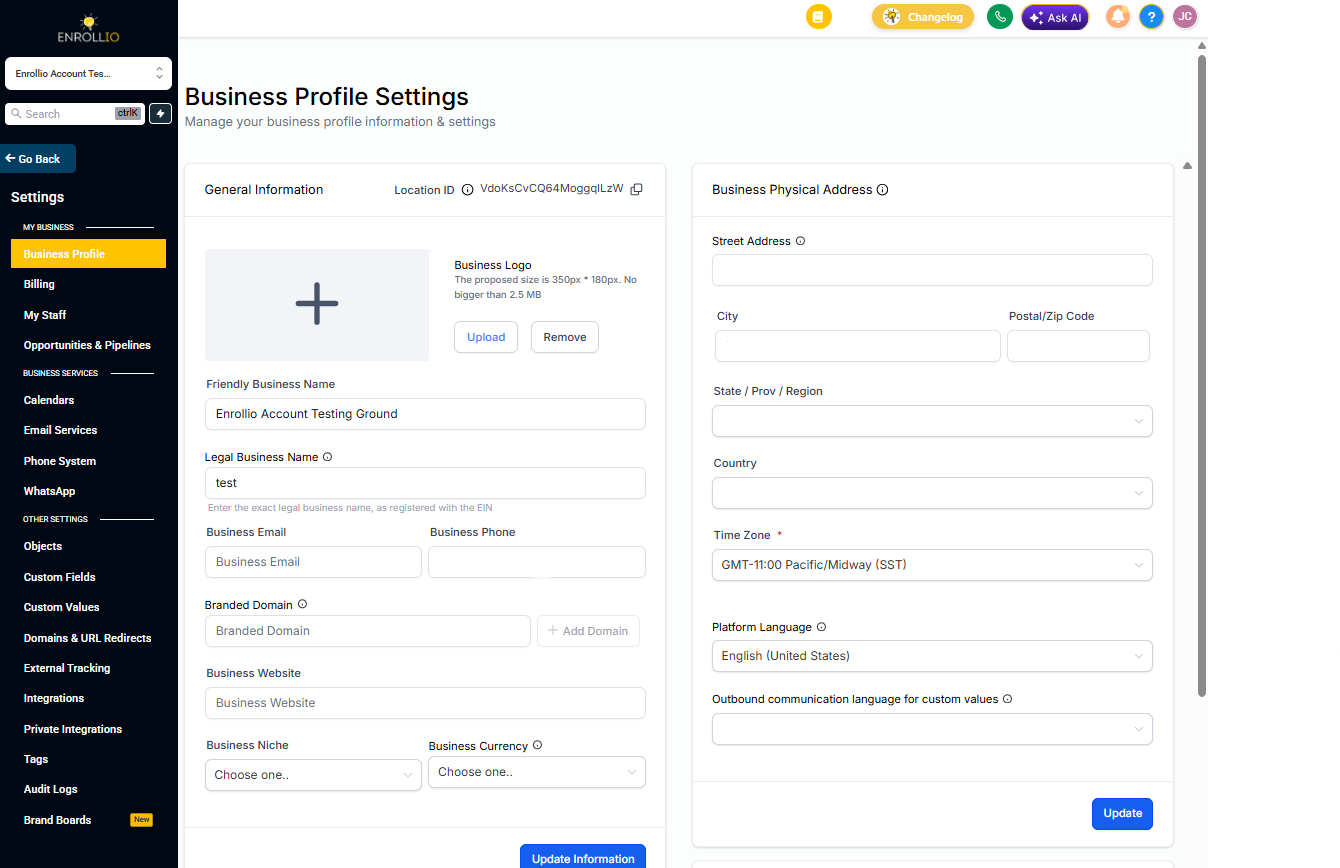
Time Zone
Your time zone setting determines when automated messages send and how appointment times display to parents. Choose the time zone where your center operates.
Some features let you override this default — for example, when scheduling tour reminder texts or setting up email campaigns. Always double-check both your Business Profile time zone and the individual automation settings to ensure messages send at the right time.
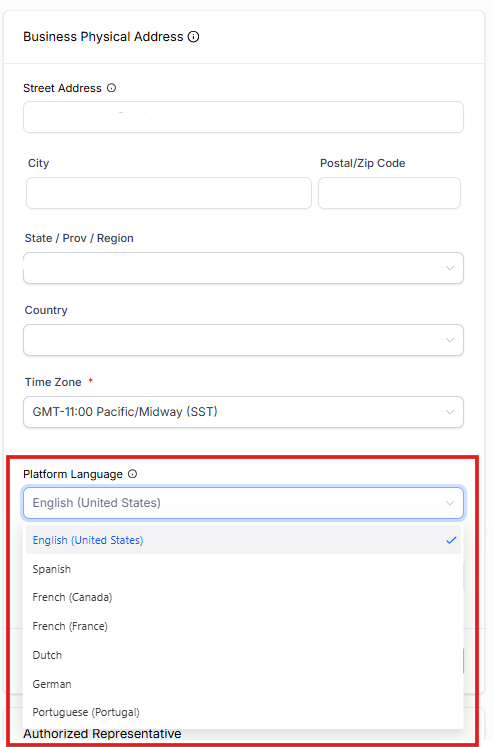
Platform Language
This setting controls what language you see when logged into Enrollio. If you primarily work in English, keep this set to English. If you and your staff prefer Spanish, switch to Spanish.
Note: Payment pages seen by parents (invoices, payment links, subscription checkouts, and enrollment form payments) inherit this language setting. If you serve bilingual families, consider which language most parents prefer when making payments.
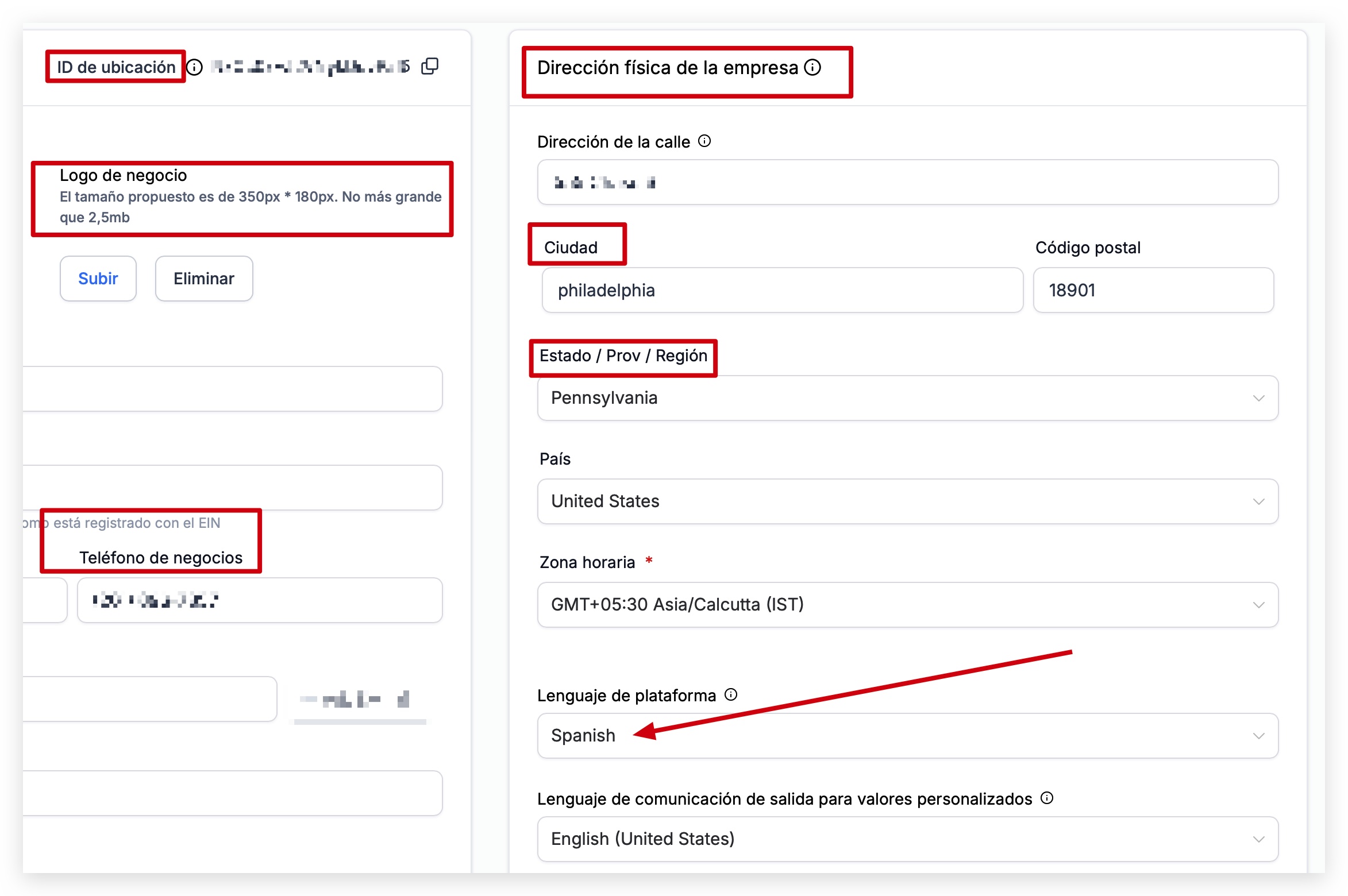
Example: Platform Language Set to Spanish
When you change Platform Language to Spanish, all menu items, buttons, and labels in your Enrollio dashboard display in Spanish.
Outbound Communication Language for Custom Values
This setting determines how dates and times appear in messages you send to families. When you use custom fields like {{appointment.start_time}} in a text or email, Enrollio formats that information according to this language preference.
For example, if set to English, dates appear as "Monday, January 15" — but in Spanish, the same date displays as "lunes, 15 de enero."
Supported Languages
- English
- Spanish
- French (France)
- French (Canada)
- Dutch
- German
- Portuguese (Brazil)
- Portuguese (Portugal)
- Italian
- Swedish
- Danish
- Finnish
- Norwegian
Custom Fields Affected by Language Setting
The following custom fields automatically format according to your Outbound Communication Language. Use these in tour confirmations, enrollment reminders, or parent update messages:
- {{appointment.start_time}}
- {{appointment.end_time}}
- {{appointment.only_start_date}}
- {{appointment.only_end_date}}
- {{appointment.only_start_time}}
- {{appointment.only_end_time}}
- {{appointment.month}}
- {{appointment.day_of_week}}
- {{right_now.time}}
- {{right_now.day}}
- {{right_now.day_of_week}}
- {{right_now.month}}
- {{right_now.month_english}}
- {{right_now.month_name}}
- {{right_now.middle_endian_date}}
- {{right_now.little_endian_date}}
- {{right_now.hour}}
- {{right_now.hour_ampm}}
- {{right_now.second}}
- {{right_now.date}}
Saving Your Changes
After updating any of these settings, click Save at the bottom of the Business Profile page. Then verify your changes by checking:
- A test enrollment page or booking calendar
- A sample tour confirmation email or text
- Any landing pages that display your address or appointment times