
Business Profile Settings - General Information
Your General Information settings control your brand identity and key account properties across Enrollio. Set your logo, business names, contact details, branded links, and other core information so every feature uses accurate, on-brand data.
To learn more about Business Profile Settings and how to access this panel, see: Business Profile Settings Overview
Table of Contents
- Location ID
- Business Logo
- Friendly Business Name
- Legal Business Name
- Business Email
- Business Phone
- Branded Domain
- Business Website
- Business Niche
- Business Currency
- API Key
Location ID
Your Location ID is a unique identifier for your childcare center's account in Enrollio. If you contact support, they may ask for this ID to quickly locate your account and troubleshoot issues.
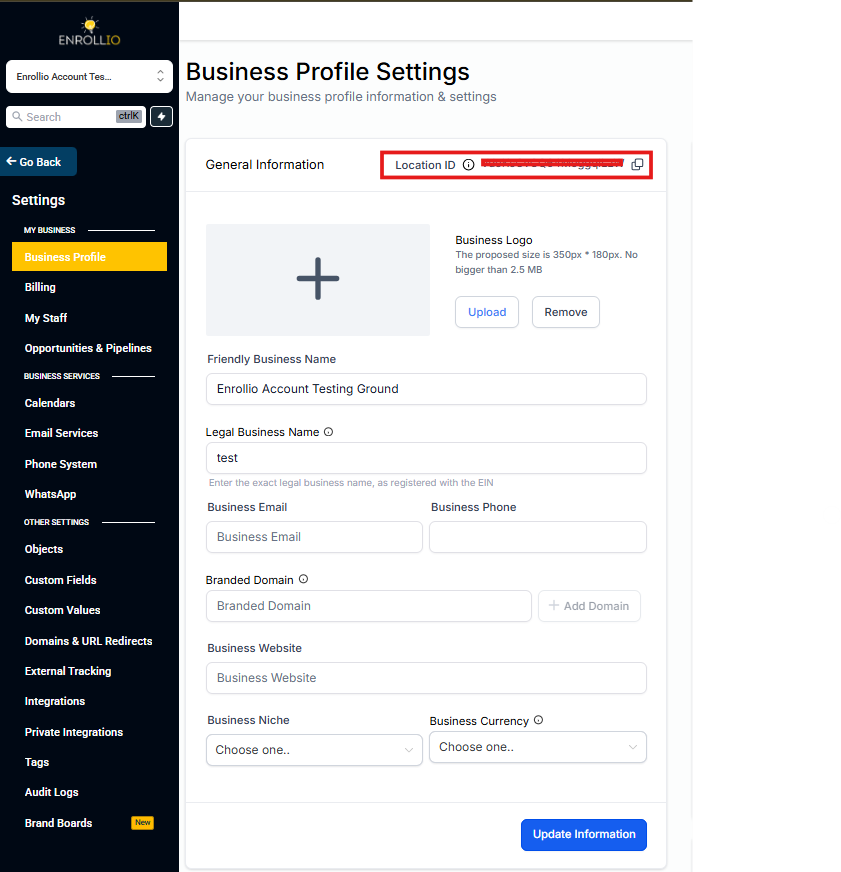
Business Logo
Upload your center's logo here. This logo appears throughout Enrollio — on invoices, emails, and anywhere you've added the logo placeholder in your messaging.
You can reference your logo in automations and templates using: {{location.logo_url}}
Friendly Business Name
This is the everyday name of your childcare center. It's used throughout Enrollio when you reference your center's name in text messages, emails, and automations.
Reference it in messaging with: {{location.name}}
Example: "Sunshine Childcare Center" or "Little Learners Preschool"
Legal Business Name
Enter your official business name exactly as it appears on your license, registration paperwork, and tax documents. This name is used for compliance and legal purposes.
Example: "Sunshine Childcare Center, LLC" or "Little Learners Academy Inc."
Business Email
Enter the primary email address for your childcare center. This email appears when you use the email placeholder in messages, automations, and templates.
Reference it with: {{location.email}}
Example: info@sunshinechildcare.com
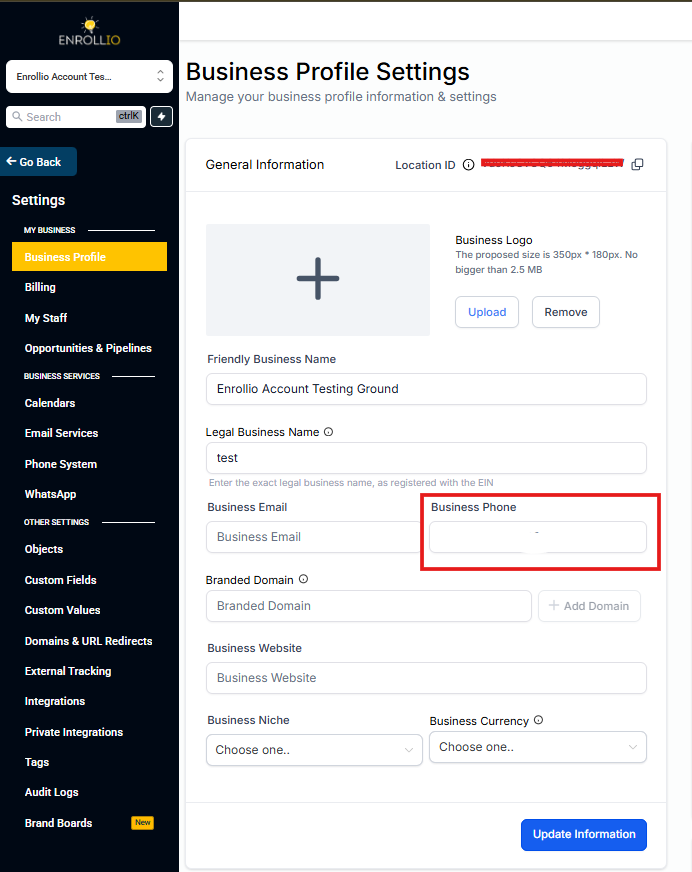
Business Phone
Enter the main phone number for your center. This number appears when you use the phone placeholder in messages, automations, and templates.
Reference it with: {{location.phone}}
If you want this to match the number you use for calls and text messages, copy your Enrollio phone number and paste it here.
Branded Domain
Connect a custom domain to make all your Enrollio pages match your center's website. When you set up a branded domain, your enrollment forms, tour booking pages, and parent portals will use your custom URL instead of a generic Enrollio link.
Example: Instead of enrollio.com/your-center, families see enroll.sunshinechildcare.com
See these articles for setup instructions:
Business Website
Enter your childcare center's main website URL. This appears when you use the website placeholder in your communications.
Reference it with: {{location.website}}
Example: https://www.sunshinechildcare.com
Business Niche
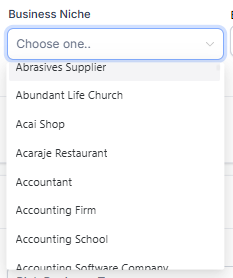
Select the category that best describes your childcare center from the dropdown menu. If your center fits multiple categories, choose the one that represents your primary focus.
Examples: Daycare, Preschool, After-School Program, Infant Care, Montessori
Business Currency
Choose your default currency for tuition payments and invoicing. This setting applies automatically across all payment pages and enrollment flows.
If you don't select a currency, Enrollio defaults to the currency of your business's physical address country.
API Key
Your API key is a unique code that lets you connect Enrollio to other applications. You'll need this key if you're setting up custom integrations or connecting third-party tools to your Enrollio account.
Keep this key secure — anyone with access to it can interact with your Enrollio data.
Save Your Changes
After updating your General Information, click the Update Information button at the bottom of the page.
Double-check a few places to confirm your changes appear correctly — try previewing an email template, viewing an invoice, or checking your enrollment page.