
Parents who visit your enrollment site can now share photos and documents right in the chat—no more "can you email me that?" back-and-forth.
What You'll Learn
- How file attachments work in your chat widget
- How to turn them on (hint: they're already enabled)
- What parents can upload, and how you'll see it
- How to let Enrollio AI respond to images automatically
What Are Chat Widget Attachments?
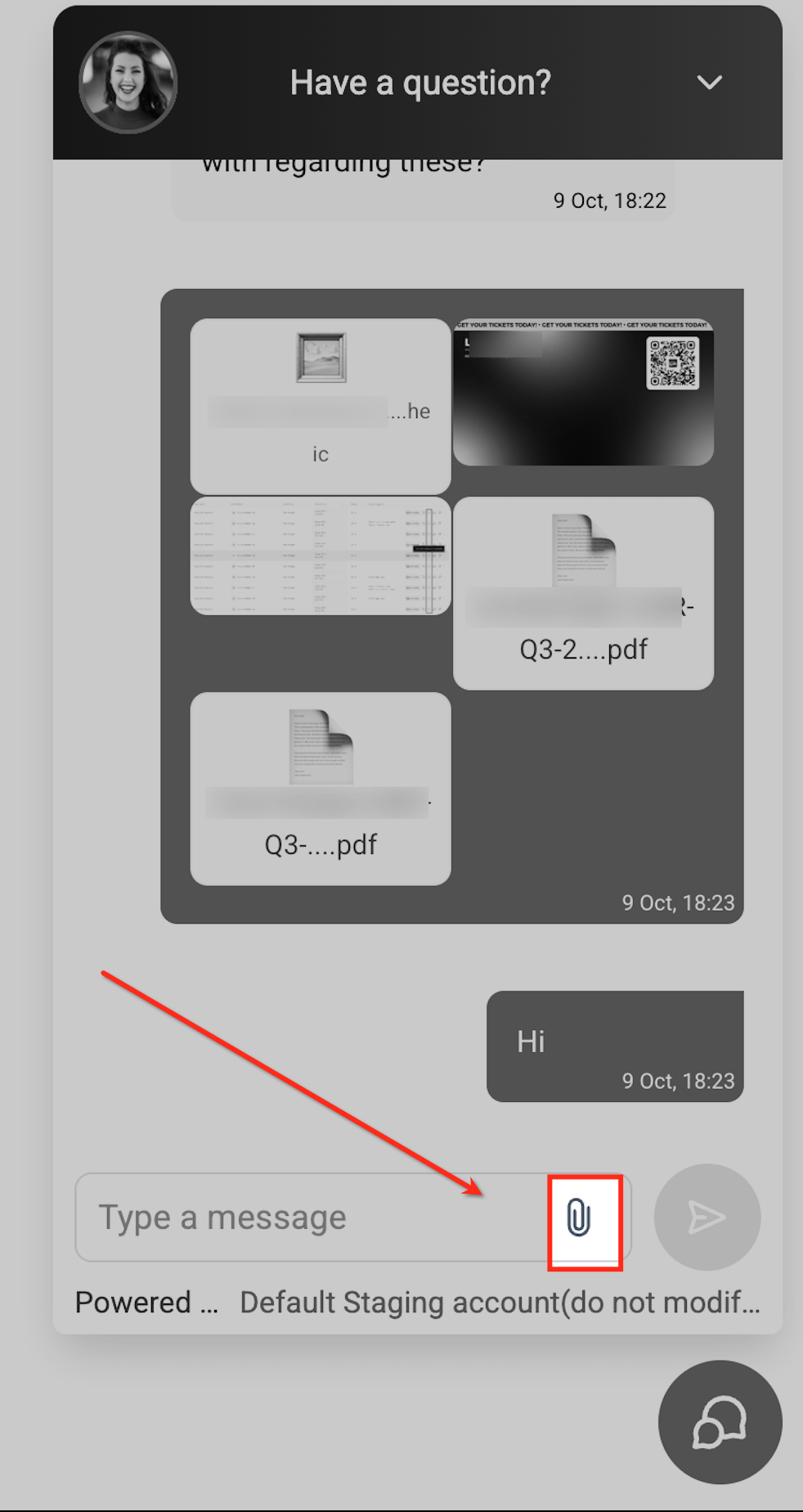
When you add Enrollio's live chat widget to your enrollment site, parents automatically get a paperclip button. They can drag-and-drop or click to upload:
- Up to 5 files per message
- Images (.jpg, .jpeg, .png, .heic) or PDFs
- 20 MB max per file
You'll see those files in your Conversations inbox, just like any other message attachment.
Why This Matters for Your Center
Faster tour bookings. A parent can send a photo of their child's immunization record or ask about a specific classroom by sharing a screenshot—you get the context you need to answer on the spot.
Less email ping-pong. No more "Can you send that form again?" Everything stays in one conversation thread.
Mobile-friendly. Parents on their phones can snap a quick photo or pull from their camera roll without leaving the chat.
How to Set Up Chat Attachments
Good news: if you're already using the live chat widget, attachments are turned on by default.
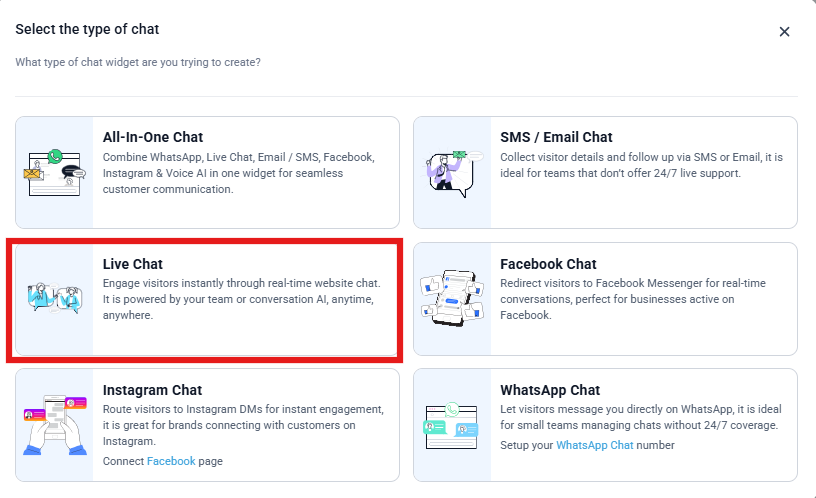
- Go to Sites → Chat Widget.
- Open your existing Live Chat widget (or create one if you haven't yet).
- Deploy the widget to your enrollment site using the embed code.
That's it. The paperclip icon appears automatically for anyone who opens the chat.
Test It Before Parents Do
- Open your enrollment site in a regular browser window.
- Click the chat bubble, then click the paperclip icon.
- Choose a test image or PDF (under 20 MB).
- Type a quick message and hit send.
- Check your Conversations inbox—the attachment should appear with the message.
What Parents Can Upload
| File Types | .jpg, .jpeg, .png, .heic, .pdf |
|---|---|
| Files Per Message | 5 max |
| Max File Size | 20 MB each |
Security note: Enrollio automatically blocks files with weird characters (like repeated spaces or < > +) to keep your inbox safe. If a parent tries to upload something too big or unsupported, they'll see a friendly error and can try again.
How Parents Upload Files
From a Computer
Parents can either:
- Drag and drop files from their desktop or file explorer straight onto the chat widget, or
- Click the paperclip to browse and select files
From a Phone or Tablet
Tapping the paperclip opens the device's camera or photo gallery picker. Parents can snap a live photo or choose an existing image—perfect for quick questions on the go.
How You'll See Attachments in Conversations
When a parent sends a file, it appears right in the message thread:
- Images (.jpg, .png) show a preview you can click to expand
- HEIC and PDFs show the filename with a download button
You can save any file to your Media Library or add it to the parent's Documents tab using the three-dot menu on the message.
Let Enrollio AI Respond to Images Automatically
If you're using an AI agent to handle first replies, you can let it analyze screenshots and photos—great for answering "What does your playground look like?" or "Can you explain this pricing sheet?"
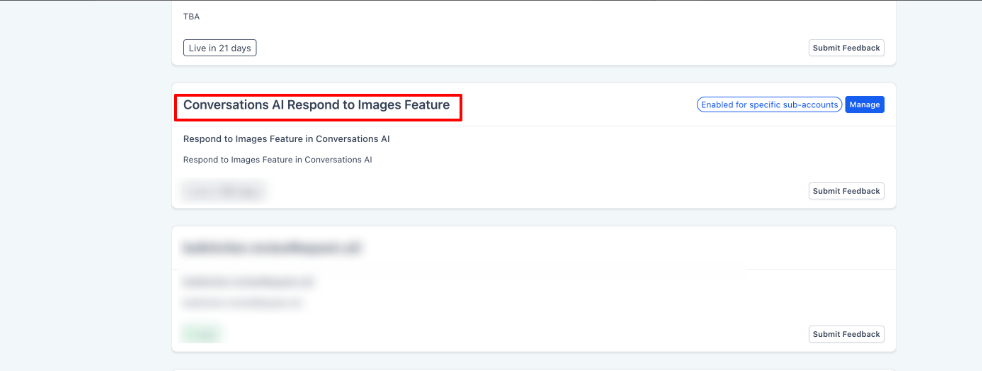
- Go to Enrollio Dashboard → Settings → Labs.
- Open the Client Account tab.
- Toggle on Respond to images.
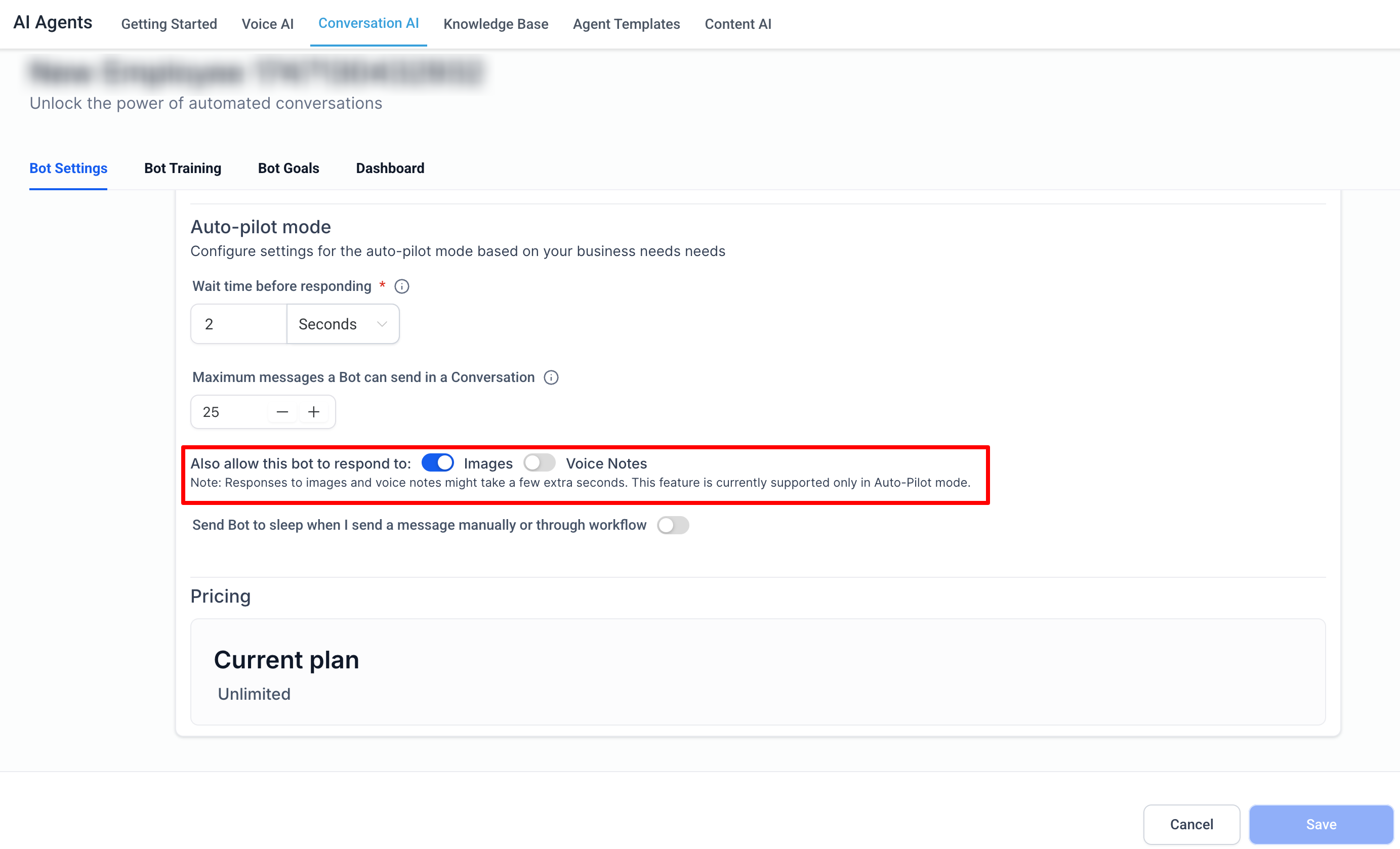
- In your AI Agent settings, enable Allow this bot to respond to images.
Note: Enrollio AI can read images but not PDFs (yet).
Frequently Asked Questions
Can I send files back to parents in the chat?
Not yet—but we're working on it. For now, you can attach files when you reply via email or text from the Conversations inbox.
What happens if a parent tries to upload a 25 MB file?
The chat widget clears it and asks them to choose a file under 20 MB.
Why doesn't drag-and-drop work for me?
Make sure you're dragging from your file explorer or Finder window—not from another browser tab or app.
Can parents upload videos?
Not right now. This first release supports images and PDFs only.
Do attachments still work after business hours?
Yes. If your chat is set to offline mode, parents can still leave a message with attachments. You'll see it in Conversations when you're back online.
Can I save a parent's uploaded file to their Documents tab?
Absolutely. Click the three-dot menu on any inbound message and choose Add to Documents.
Will AI read text inside a PDF?
Not yet. Enrollio AI currently analyzes images only.
Pro Tips
- Test on mobile first. Most parents will chat from their phones—make sure your widget looks good on smaller screens.
- Set expectations in your welcome message. Add a note like "Need to share a document? Click the paperclip!" so parents know the feature exists.
- Use attachments to speed up tours. Ask parents to send a photo of their child's schedule or special needs ahead of time so you're prepped before they visit.