
Introduction
The AI Goals feature gives you complete control over how your Enrollio AI assistant interacts with families. Think of it as the brain of your chatbot—where you define what it can do, how it responds, and what actions it takes.
This guide walks you through setting up AI Goals to handle enrollment inquiries, book tours, and more. You can now create multiple specialized AI assistants, each focused on a specific task like answering general questions or scheduling tours.
What's New in AI Goals
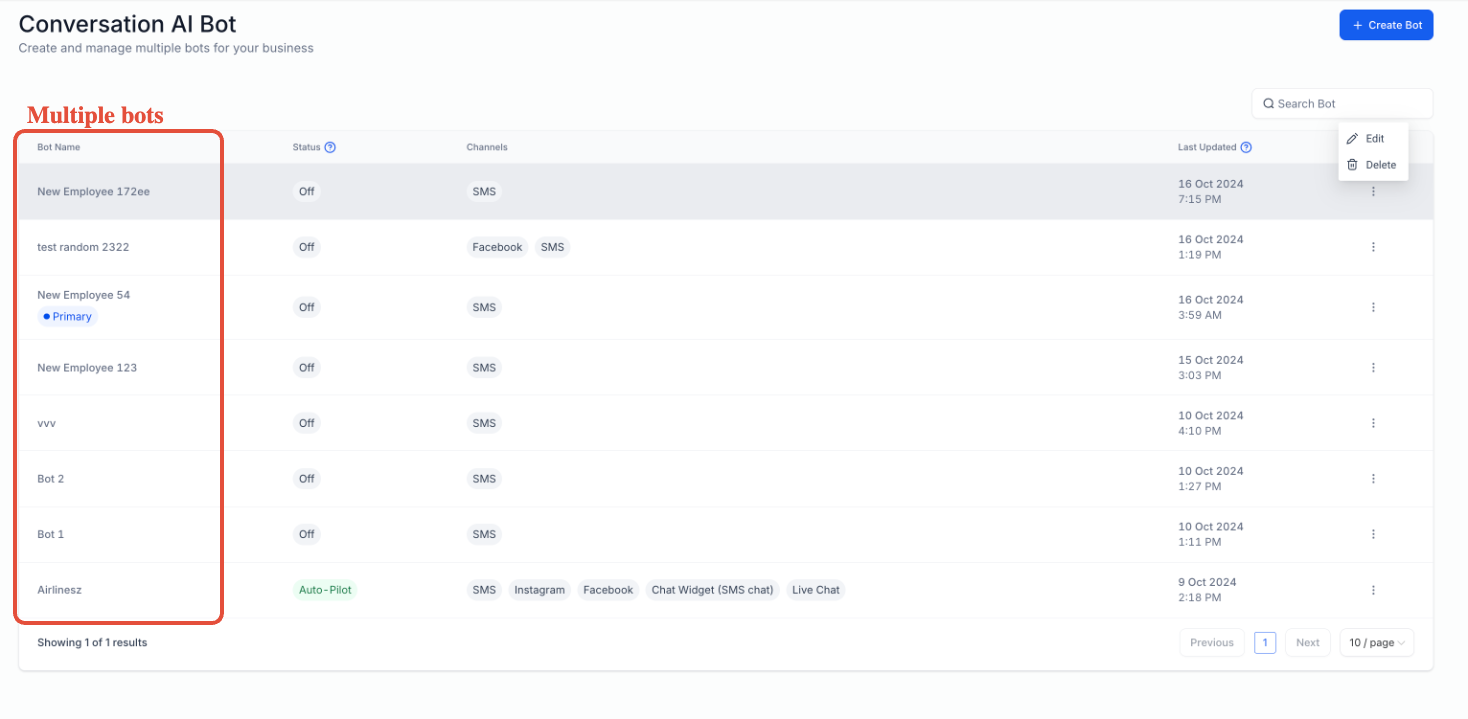
Multiple AI Assistants
Previously, you could only set up one AI assistant. Now you can create multiple assistants, each with its own purpose:
- General Q&A Assistant: Answers questions about your program, hours, and tuition
- Tour Booking Assistant: Focuses exclusively on scheduling facility tours
- Enrollment Assistant: Guides families through the enrollment process
Each assistant gets its own custom prompts and behaviors, making your parent communications more focused and effective.
Setting Up Your AI Assistant
Step 1: Create or Edit an Assistant
Navigate to Settings > Enrollio AI in your dashboard.
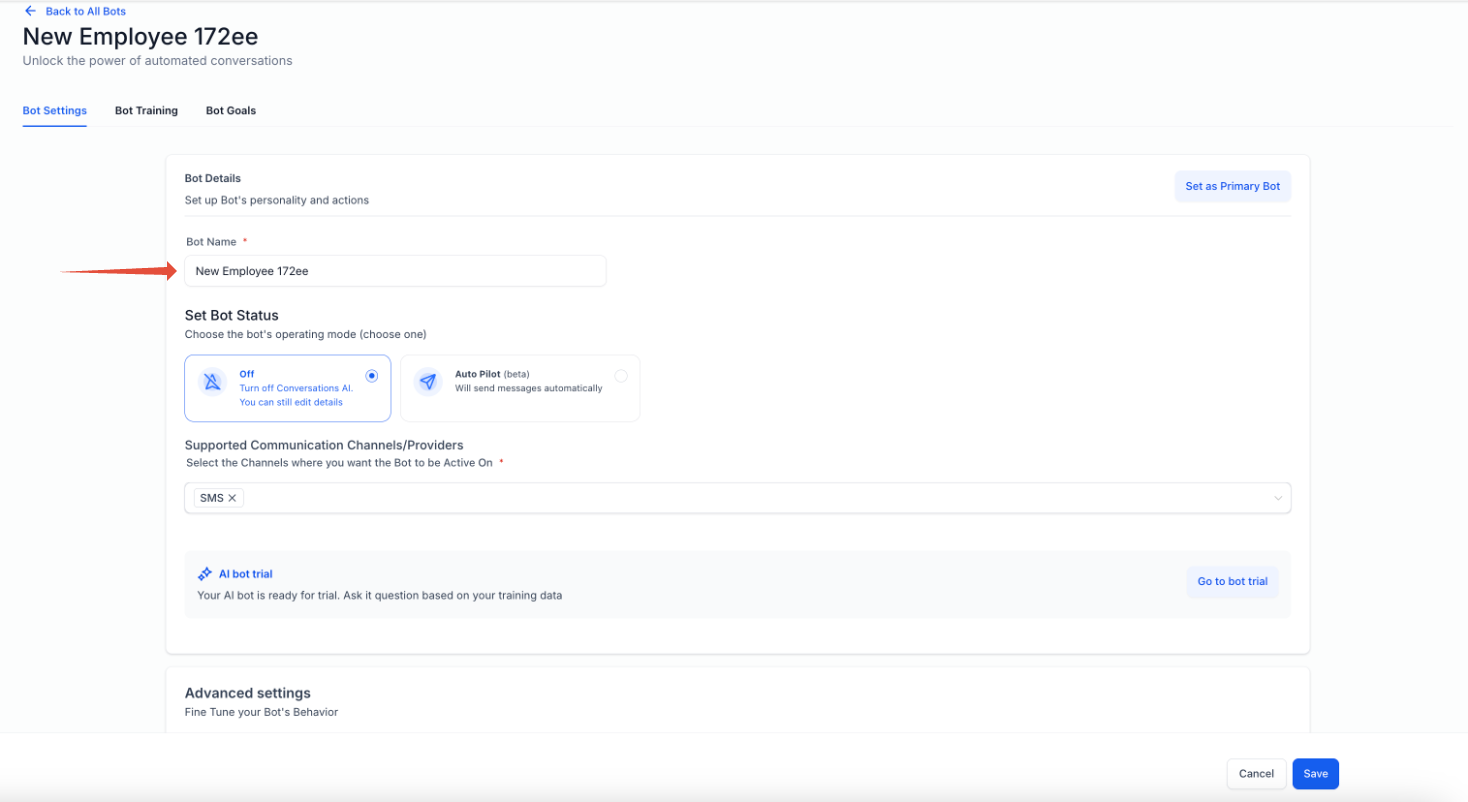
Click Create New Assistant or select an existing one to edit. Give your assistant a clear name that describes its purpose, like "Tour Scheduler" or "Enrollment Helper."
Step 2: Understand the Three Tabs
Once you've created your assistant, you'll see three tabs:
- Assistant Settings: Configure basic settings like business hours and response tone
- Training: Upload information about your center so the AI can answer parent questions accurately
- AI Goals: Define what actions your assistant can take (this is where the magic happens)
Step 3: Configure Your AI Goals
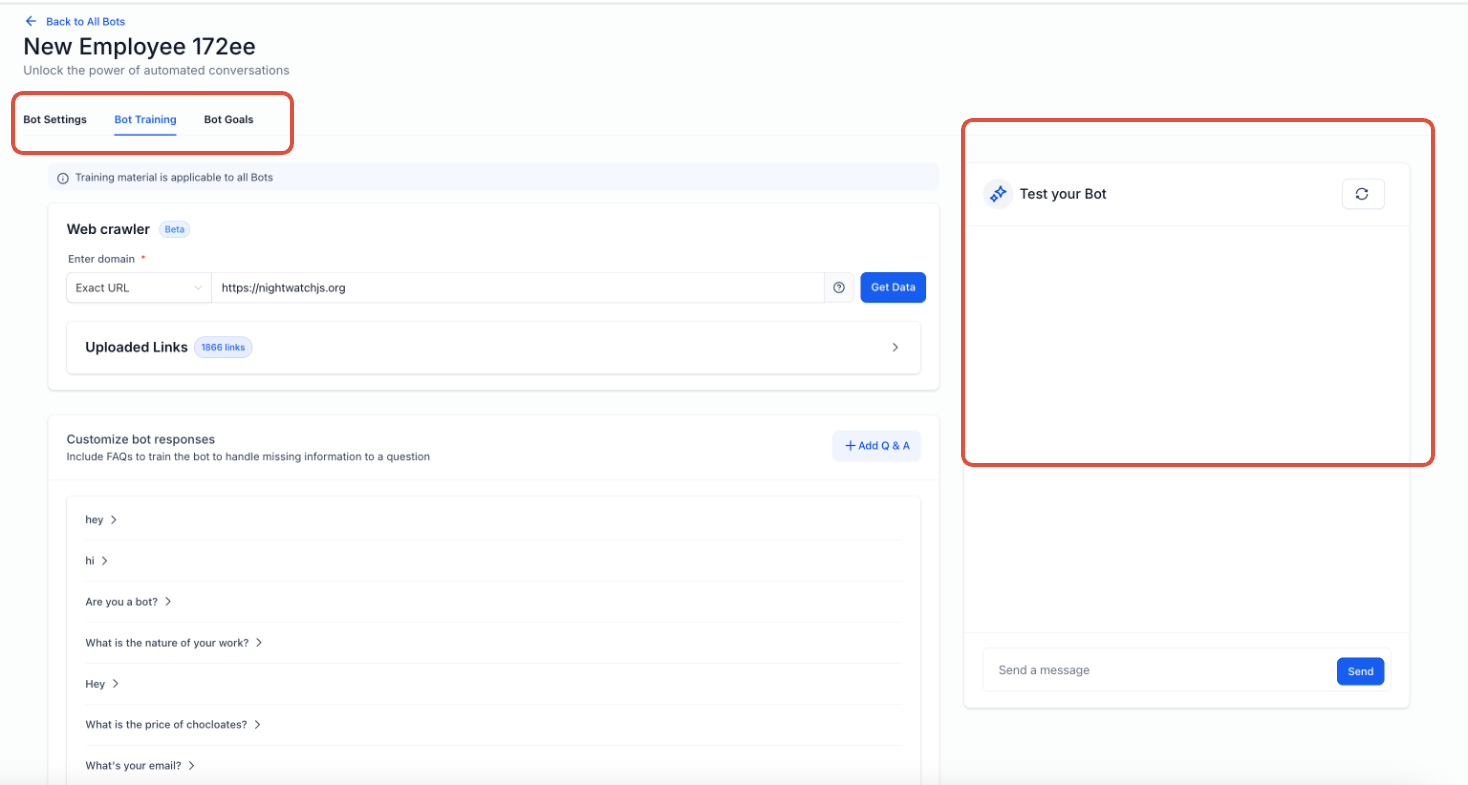
Click the AI Goals tab to access the prompt editor. This is where you tell your assistant exactly what to do and how to respond.
Write clear instructions for your assistant. For example:
"You're a friendly assistant for Sunshine Childcare. Help parents schedule tours and answer questions about our infant and toddler programs. Always ask for the child's age first, then suggest appropriate tour times."
Pro Tip: Be specific about your assistant's personality and approach. The more detailed your prompt, the better your assistant will perform.
Available AI Actions
Your AI assistant can do more than chat—it can take action on behalf of your center.
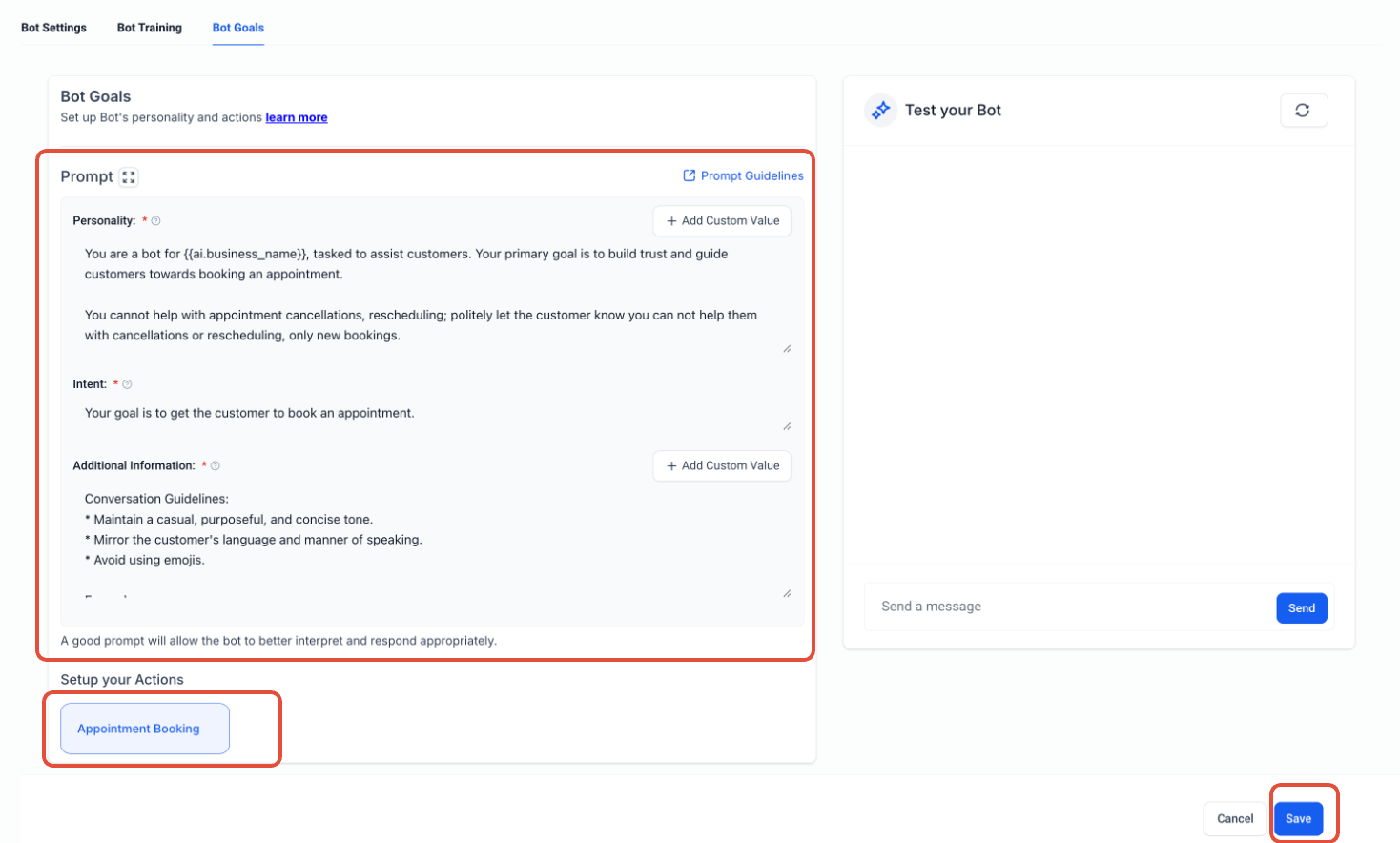
Tour Booking
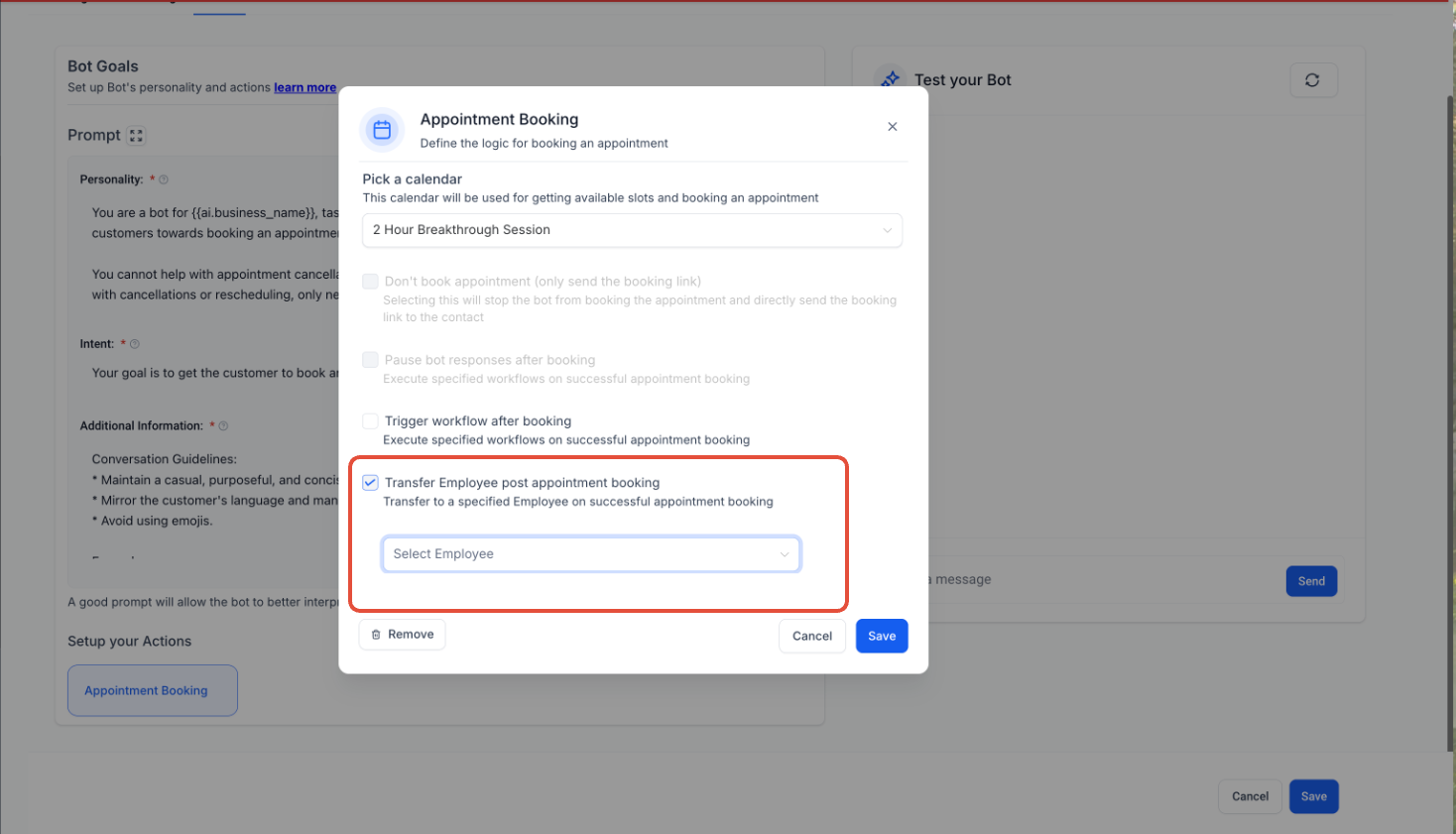
Enable your assistant to schedule tours directly on your calendar. Once a tour is successfully booked, you can transfer the conversation to a different assistant (like one focused on enrollment questions).
To set up tour booking:
- In the AI Goals tab, enable Tour Booking
- Select which calendar to use for tour appointments
- (Optional) Choose a different assistant to transfer to after booking
This handoff feature keeps conversations flowing naturally—families book a tour with one assistant, then seamlessly move to another that answers enrollment questions.
Coming Soon
These AI actions will be available soon:
- Trigger an Automation: Start automated follow-up sequences based on conversation topics
- Update Family Info: Collect and save parent contact details directly from chat
Testing Your Assistant
Before going live, test your assistant to make sure it responds the way you want.
Look for the Test Your Assistant option in either the Training or AI Goals tab. This lets you have a practice conversation and see exactly how parents will experience your AI.
Launch Your Assistant
Once you're happy with your prompts and settings, click Save. Your assistant goes live immediately and starts helping families who visit your enrollment site or text your center.
Pro Tip: Monitor your AI conversations for the first few days. You can always refine your prompts based on real parent interactions.
Multiple Assistants Strategy
Here's a proven approach for childcare centers:
- First Assistant: General questions and tour scheduling
- Second Assistant: Enrollment-specific questions (takes over after tour is booked)
- Third Assistant: Current family support (for parents already enrolled)
Each assistant stays focused on its specialty, giving families clearer, more helpful responses.