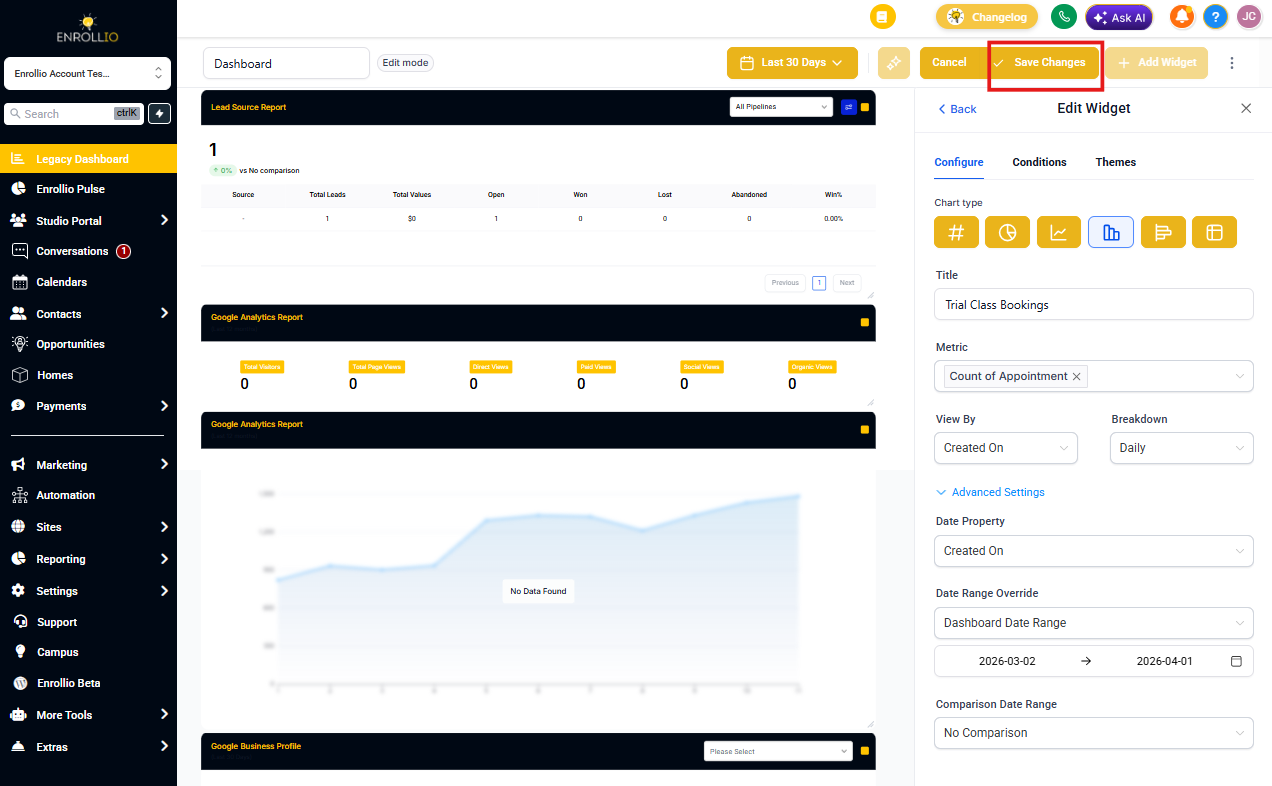
The "Duplicate Widget" feature lets you quickly copy existing widgets on your dashboard. This saves time when you're creating widgets with similar settings — instead of building from scratch, duplicate an existing one, make your adjustments, and you're done.
This is especially helpful when you're tracking similar metrics across multiple enrollment pipelines or programs.
Step 1: Enter Dashboard Edit Mode
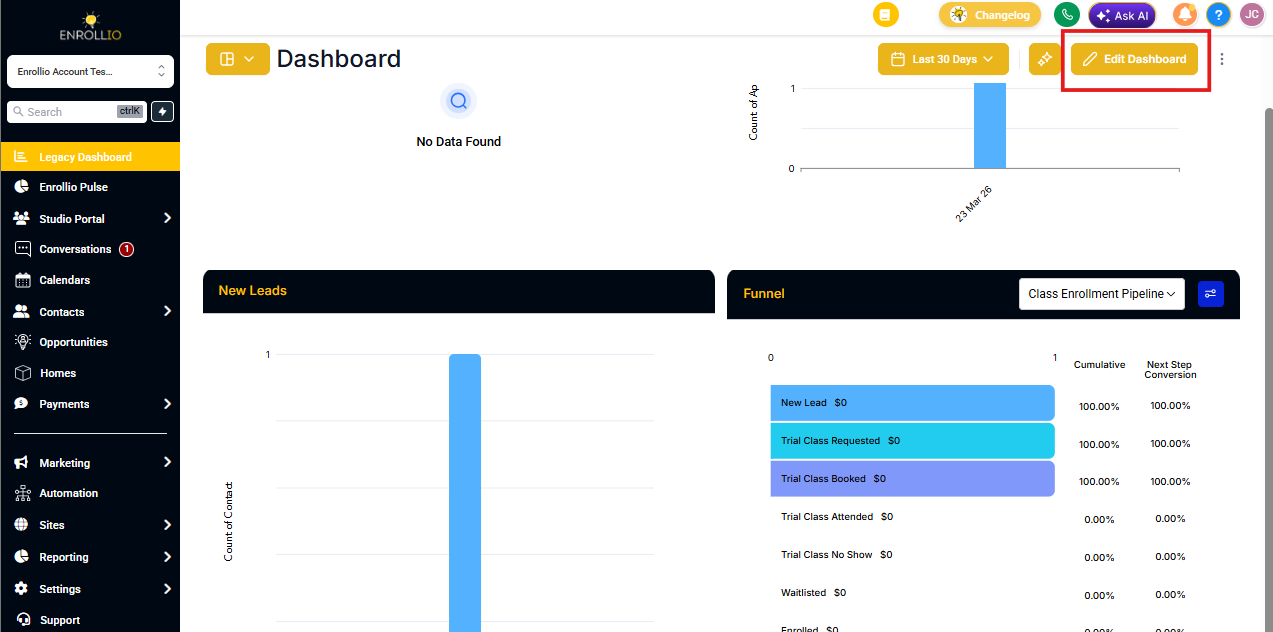
Navigate to the dashboard where you want to duplicate a widget.
Click the Edit button to enable edit mode for the dashboard.
Step 2: Duplicate the Widget
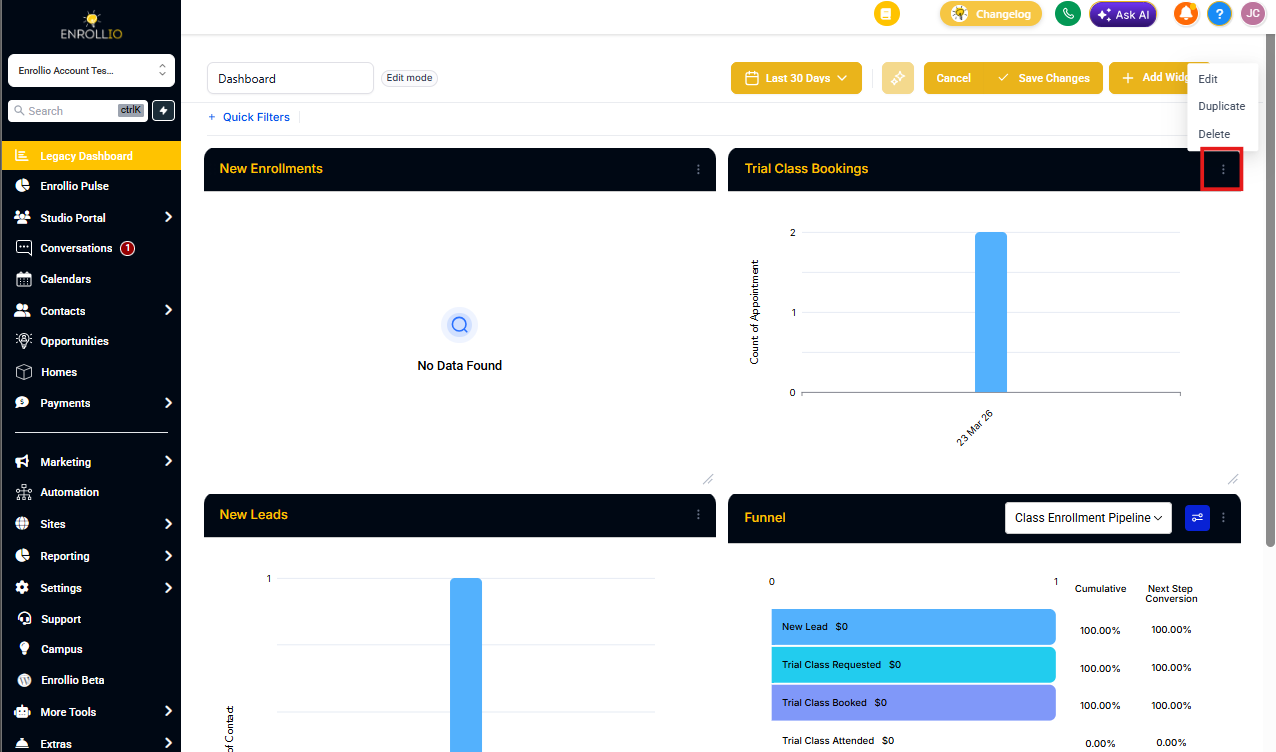
- Locate the widget you want to duplicate.
- Click the three-dot menu (⋮) in the top-right corner of the widget card.
- Select Duplicate from the dropdown menu.
A duplicate of the widget will appear on your dashboard immediately.
Step 3: Customize the Duplicated Widget and Save Your Changes
Click on the duplicated widget to open its settings and make any changes you need — update the title, adjust filters, or modify date ranges.
Once you've made your edits, click Save to finalize the widget.