
Make your Enrollio dashboard work harder for you by adding custom titles, helpful text boxes, and visual elements. These organizational tools help you create a command center that's both functional and easy to navigate.
What You Can Add
Titles
Create clear sections on your dashboard to group related information. Use titles to organize enrollment metrics, parent communications, and tour scheduling widgets into logical categories.
Text Boxes
Add instructions, reminders, or context directly on your dashboard. Perfect for onboarding new staff members or creating quick-reference guides for interpreting enrollment data.
Images
Upload your center's logo, brand graphics, or visual guides. Images make your dashboard more engaging and can reinforce your brand identity across your team.
How to Add Dashboard Elements
- Open the dashboard you want to customize
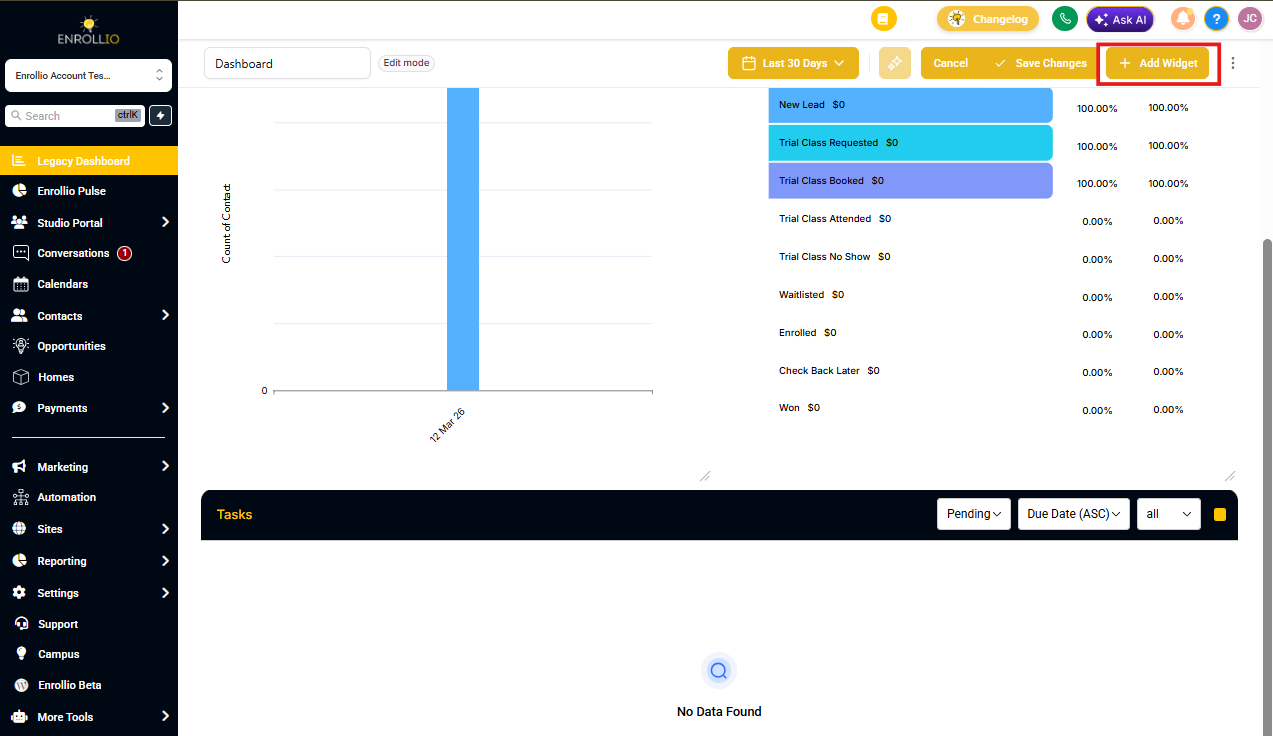
- Click Edit mode in the top right corner
- Click Add widget
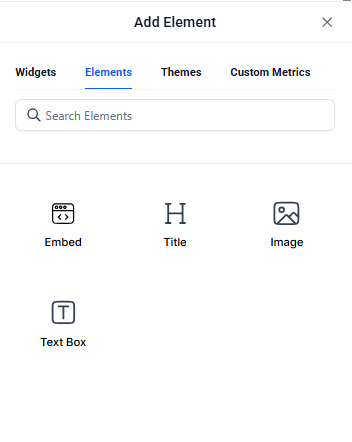
- Switch to the Elements tab
- Choose Title, Text Box, or Image
- Configure your element:
- Titles: Enter your heading text and choose formatting
- Text boxes: Add your message, instructions, or notes
- Images: Upload your file and adjust sizing
- Click Save to add it to your dashboard
Why This Matters
Better Organization: Group enrollment metrics, parent communication stats, and tour scheduling data into clearly labeled sections. Your team can find what they need faster.
Built-in Training: Use text boxes to add context about what specific metrics mean or how to respond to certain data. New team members can get up to speed without constant questions.
Professional Appearance: Add your center's logo and brand colors to create a cohesive, polished look that reinforces your childcare brand.
Ideas for Childcare Centers
- Add a title like "Parent Communications" above widgets showing text message response rates and email open rates
- Create a text box with instructions for handling waitlist inquiries
- Upload your center's logo to brand internal dashboards
- Add a "Weekly Goals" text box to track enrollment targets
- Use titles to separate "Tours This Week" from "New Enrollments" sections