
Customize your dashboard layout by dragging and dropping widgets exactly where you want them. Organize your most important enrollment metrics, tour bookings, and family data for quick access.
Step 1: Switch to Edit Mode
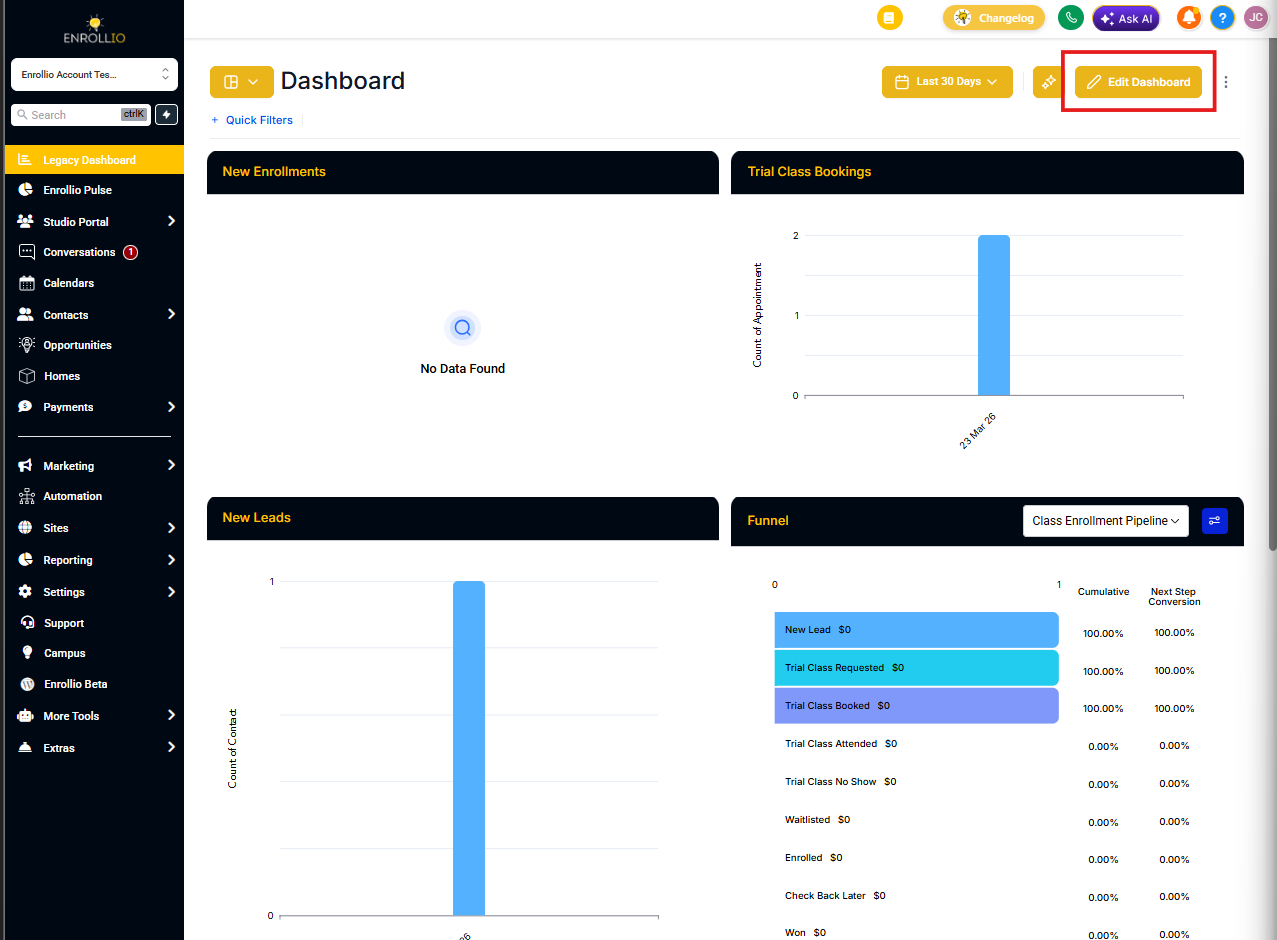
On your dashboard, click the EDIT button in the top right corner.
Step 2: Drag and Drop Widgets
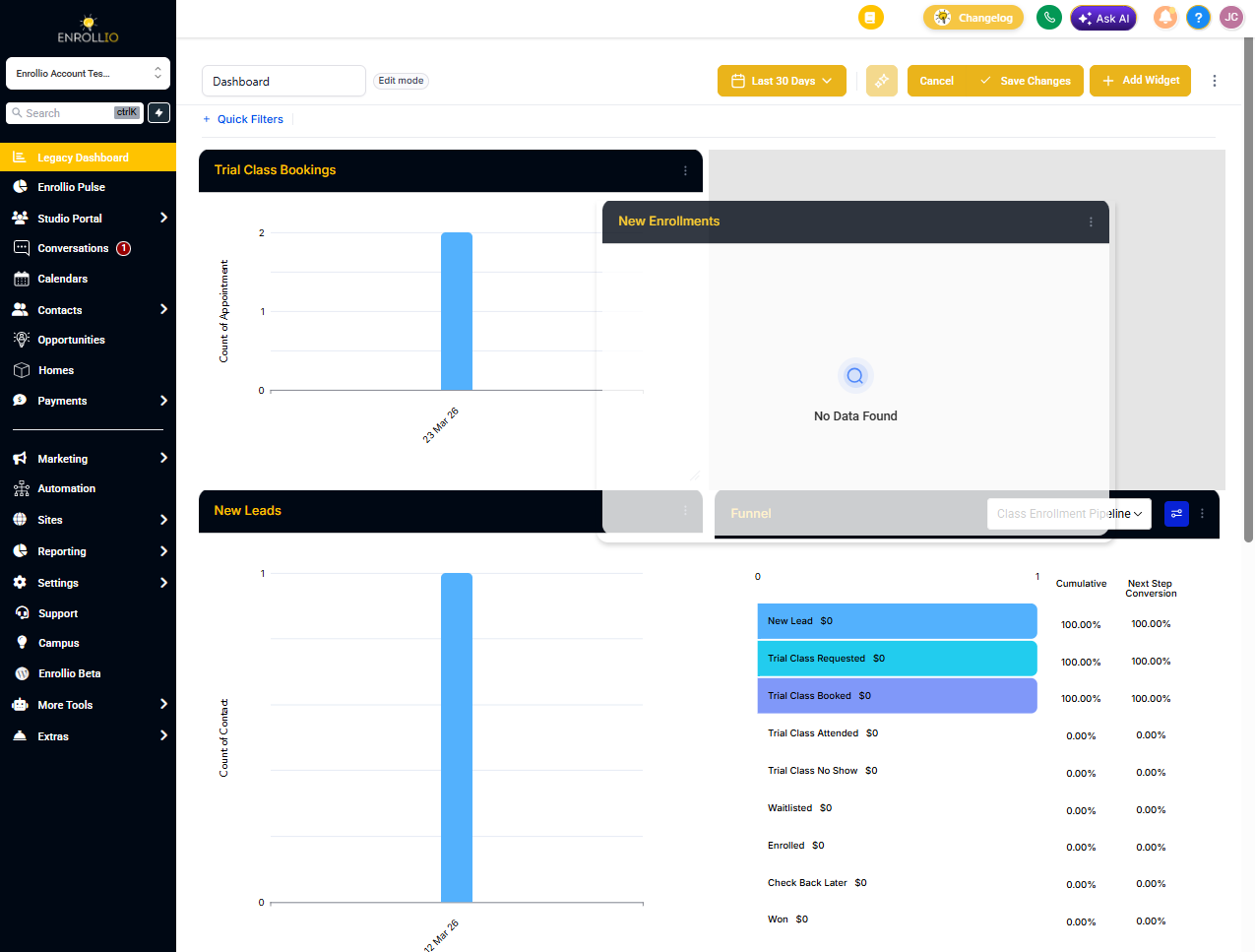
Click and hold any widget, then drag it to your desired location. Release to drop it in place.
You can rearrange as many widgets as you need while in Edit Mode. All changes are flexible until you save.
Step 3: Save Your Changes
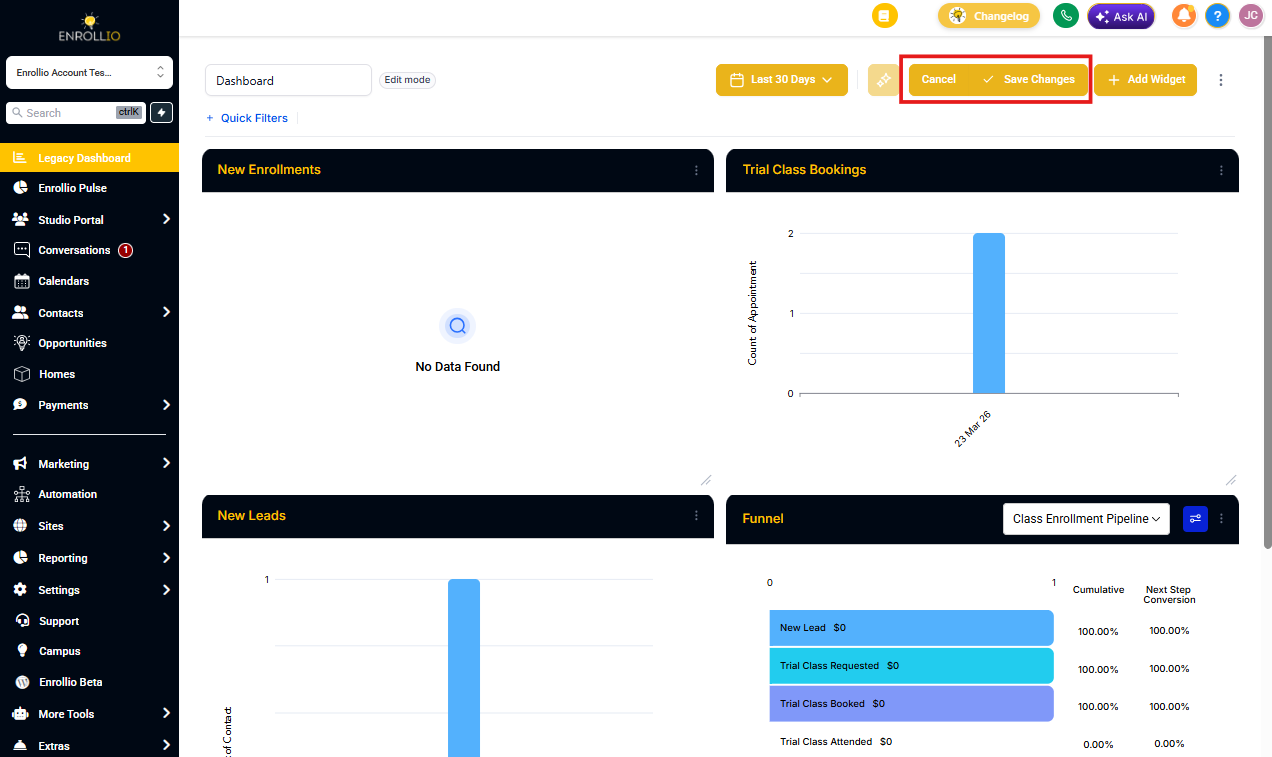
Click Save to apply your new layout.
If you want to undo your changes, click Cancel and your widgets will return to their previous positions.
Frequently Asked Questions
Will my widget arrangement affect other users?
Your changes apply only to your personal dashboard view. If you're an admin, you may have the option to set a default layout for all team members.
What happens if I move a widget to the wrong spot?
Simply drag it again to reposition it. Nothing is saved until you click Save, so feel free to experiment with different layouts.
Related Articles
- Removing a Widget
- Adding a Widget to the Dashboard
- Customizing a Widget
- Resizing Widgets