
Keep Your Most Important Dashboards at Your Fingertips
When you're managing enrollments, tours, and families, you need quick access to the metrics that matter most. Pinning your favorite dashboards keeps them at the top of your list—no scrolling or searching required.
What Does Pinning a Dashboard Mean?
Pinning marks a dashboard as a favorite, ensuring it always appears at the top of your dashboard list. If you have multiple dashboards tracking different aspects of your childcare business—like enrollment trends, tour bookings, or waitlist activity—pinning lets you prioritize the ones you check most often.
How to Pin a Dashboard
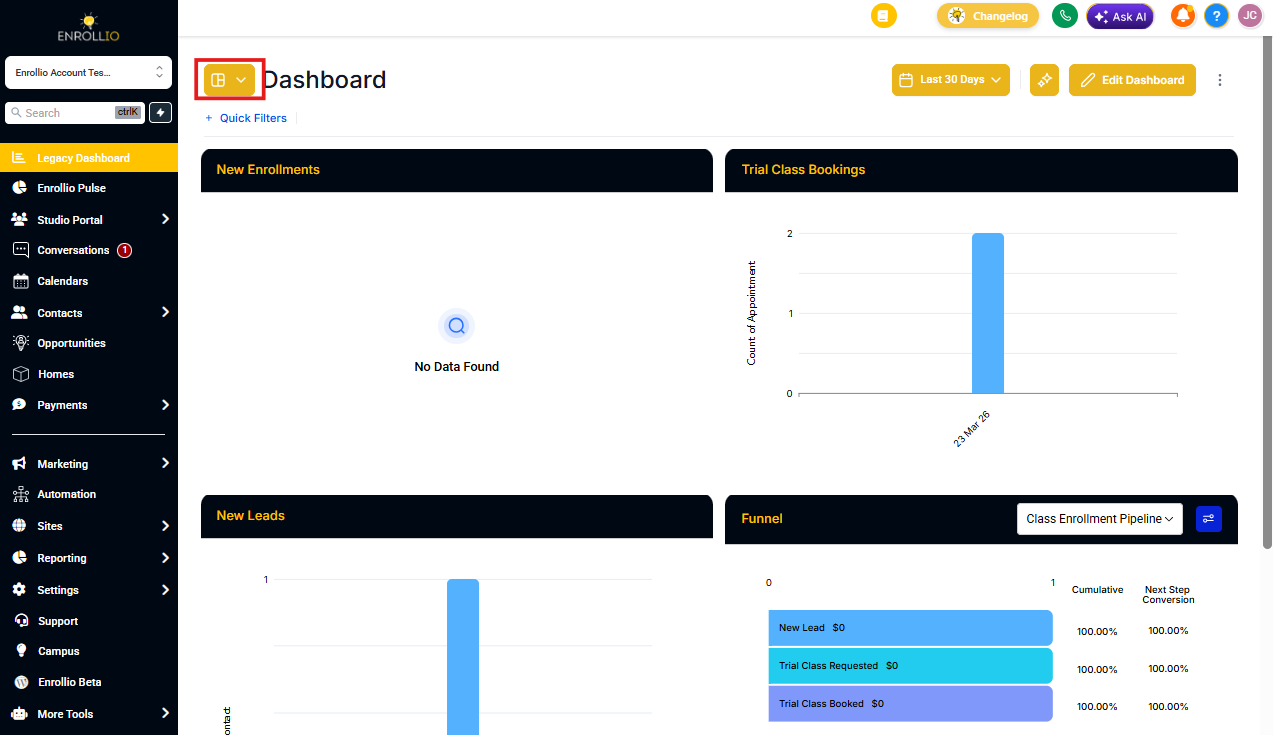
Step 1: Open Your Dashboard Menu
Navigate to Client Account > Dashboard and click on the dashboard selection menu at the top of the page.
Step 2: Find the Dashboard You Want to Pin
Use the search bar or scroll through the list to find the dashboard you want to pin. You might be looking for your enrollment pipeline dashboard, tour activity dashboard, or any custom dashboard you've created.
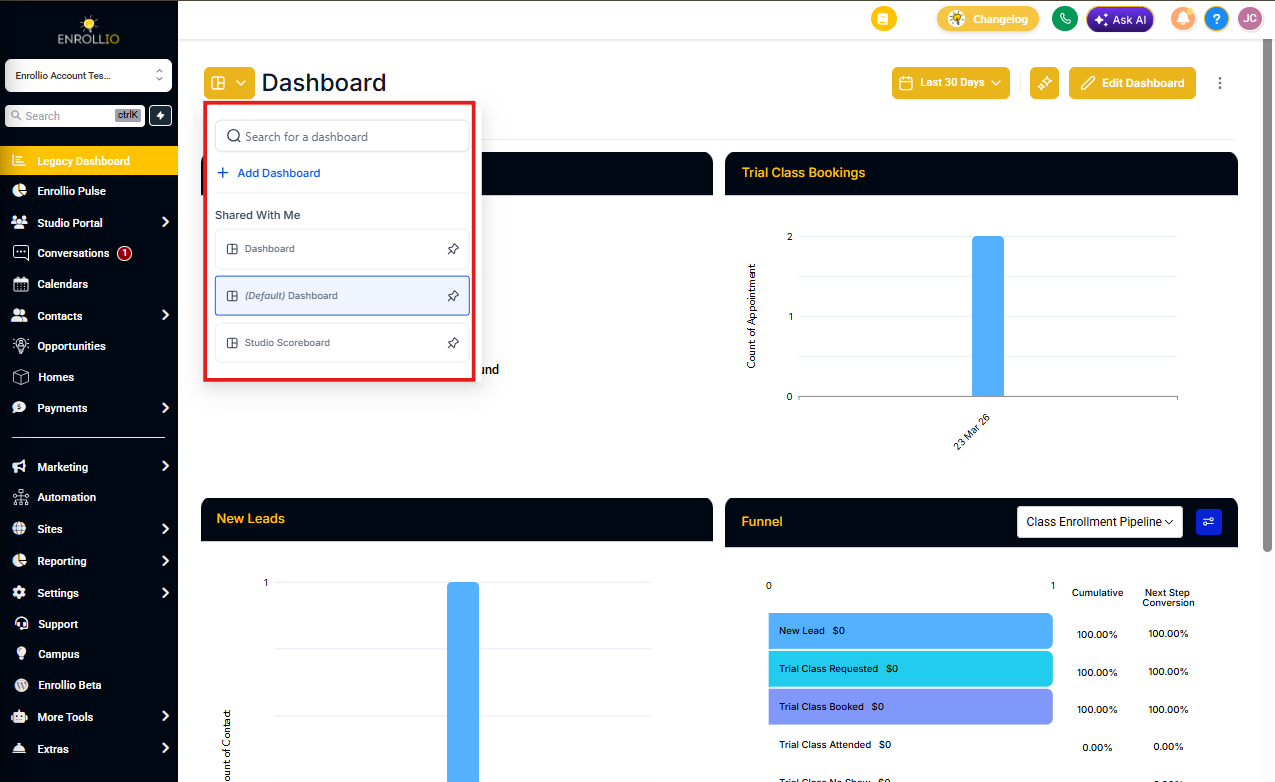
Step 3: Pin It
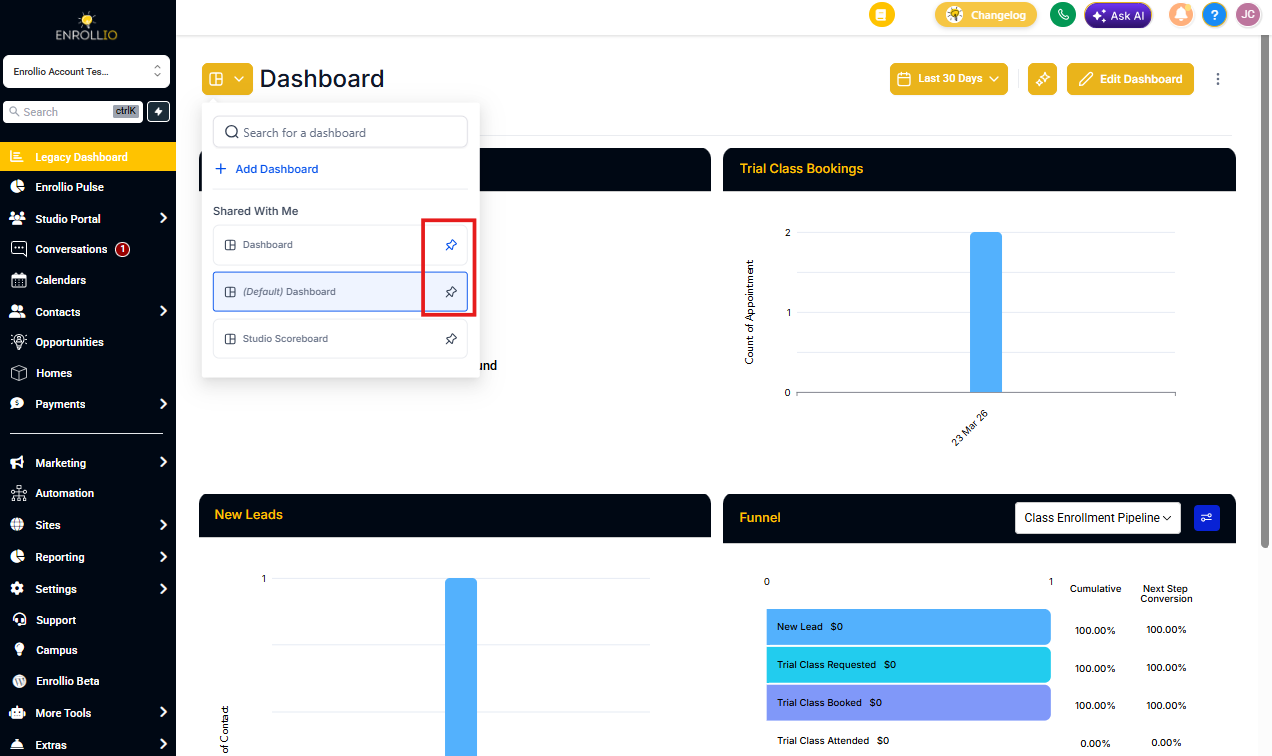
Click the pushpin icon next to the dashboard name. The icon will change from gray to blue, and the dashboard will move to the top of your list.
You can pin multiple dashboards—they'll all stay at the top, making it easy to switch between your most-used views.
Related Articles
- How to Create a Custom Dashboard
- How to Edit a Dashboard
- How to Manage Dashboard Permissions