
Attach Files to Enrollment Documents & Templates
Send enrollment forms, contracts, and all supporting files in a single email. Upload images, PDFs, or other documents directly to your templates—parents receive everything they need without extra follow-up messages.
Overview
You can upload multiple files (SVG, PNG, JPG, or PDF, up to 15 MB each) directly inside any document or template. When you send the document—manually or through an automation—those files arrive in the parent's inbox as standard, downloadable email attachments.
This means one email can include your enrollment contract plus your program handbook, fee schedule, health forms, and anything else families need to get started.
Why Attach Files to Documents
Single-email delivery: Parents receive the contract and all supporting materials in one message, reducing confusion and speeding up enrollment.
No extra tools required: Eliminate third-party file-sharing links for a seamless experience on both ends.
Automation-ready: Attachments send automatically when documents are triggered by automations—no extra configuration needed.
Easy file management: Upload, preview progress, or delete files directly from the Document Settings panel before sending.
No external download links: Parents open attachments directly from the email, reducing extra clicks and building trust.
How to Upload Attachments
Follow these steps to add files to any enrollment document or template.
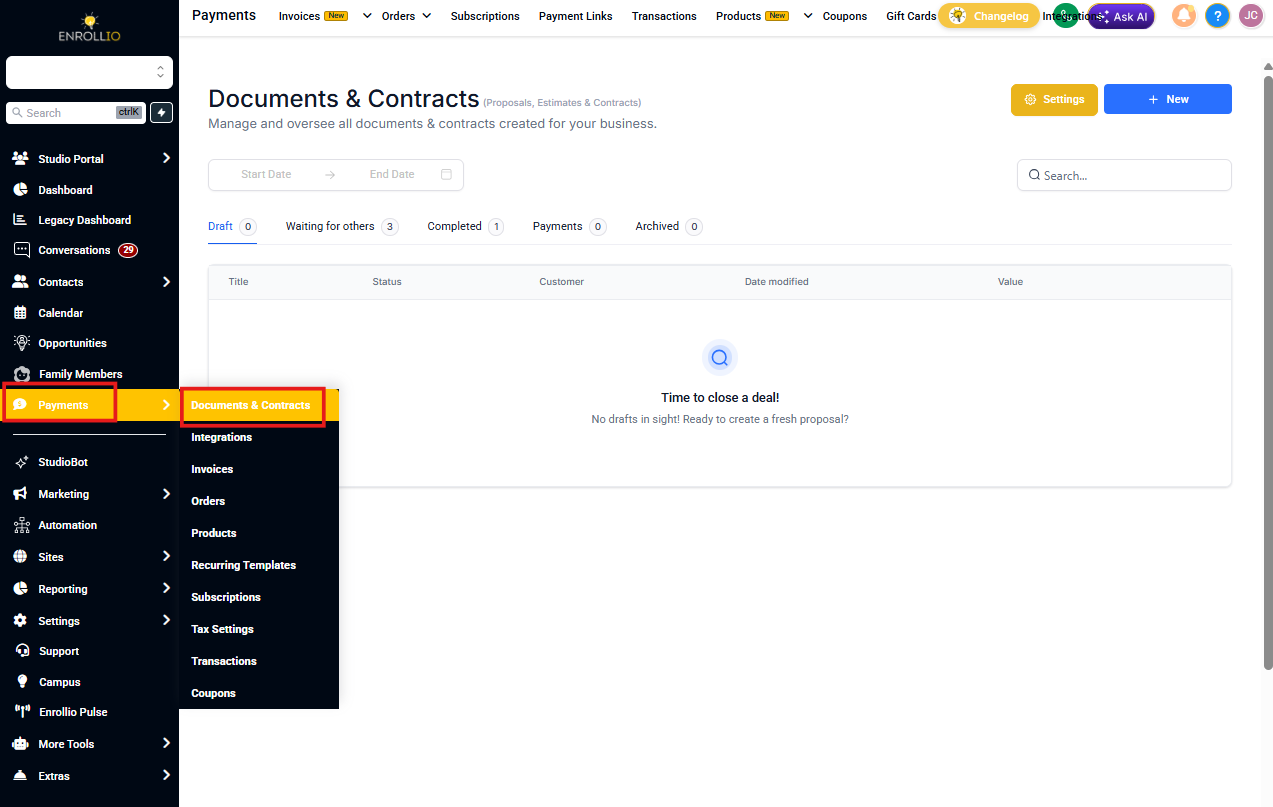
Step 1: Navigate to Documents & Contracts
- Click Payments in the left navigation menu
- Click the Documents & Contracts tab in the top ribbon
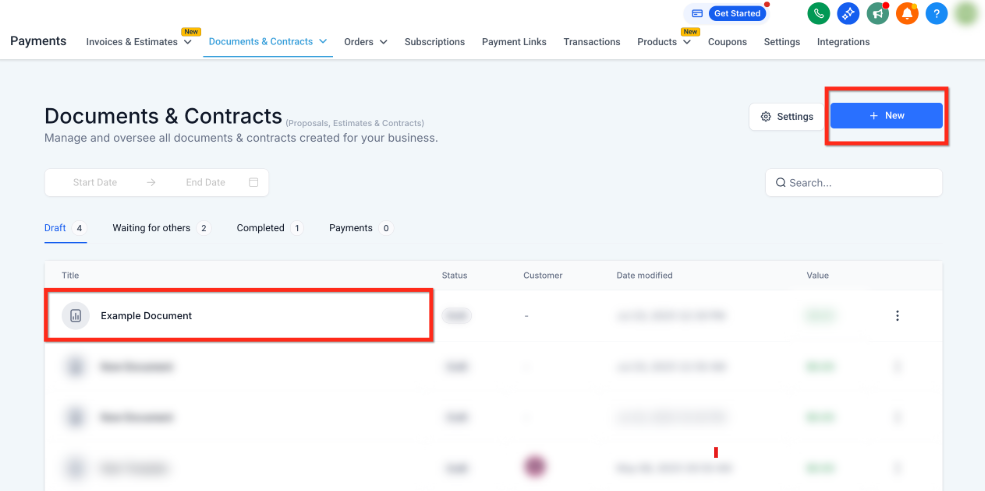
Step 2: Create New or Open Existing Document
- To edit an existing document or template, click its name in the list
- To create a new one, click the blue + New button in the top-right corner
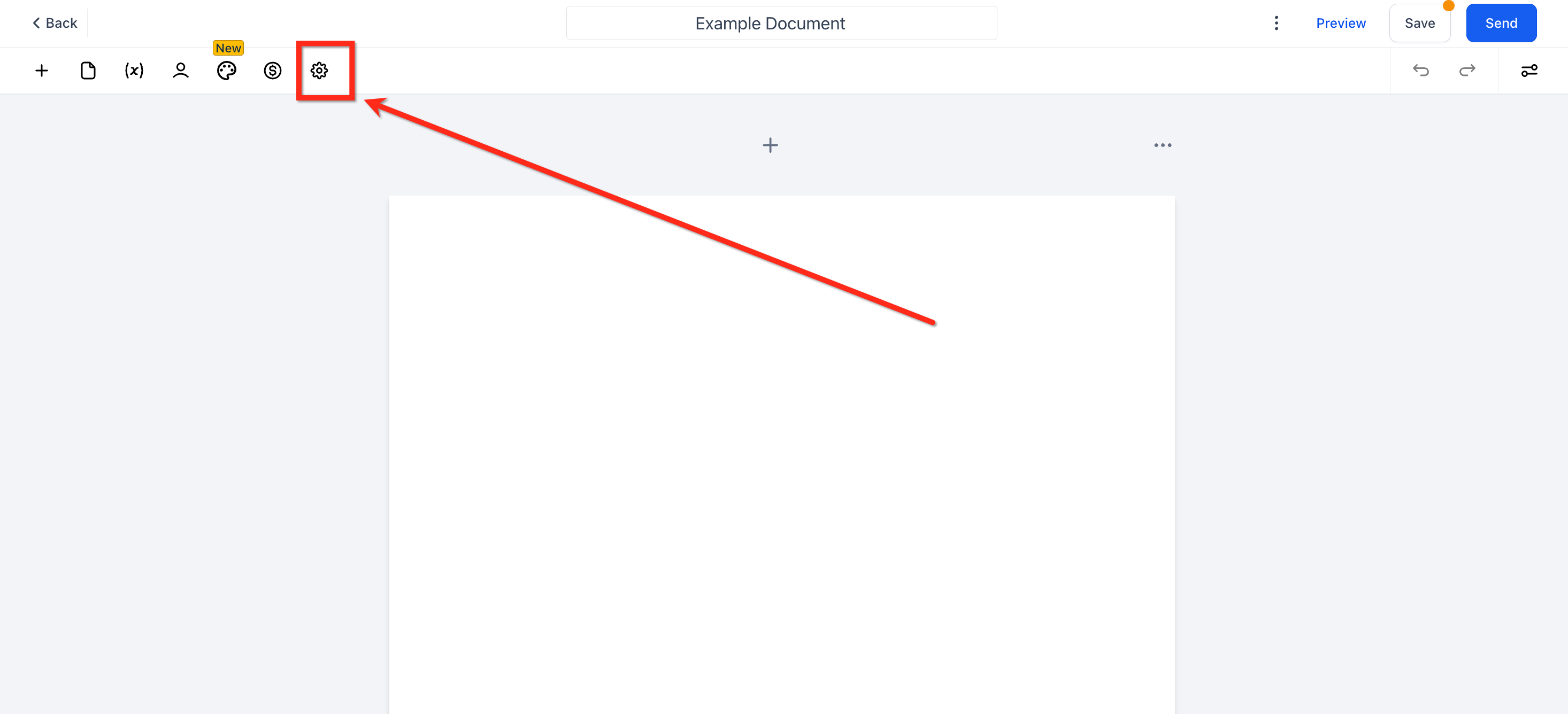
Step 3: Open Settings
Click the Gear icon (Settings) in the upper-left corner of the document builder.
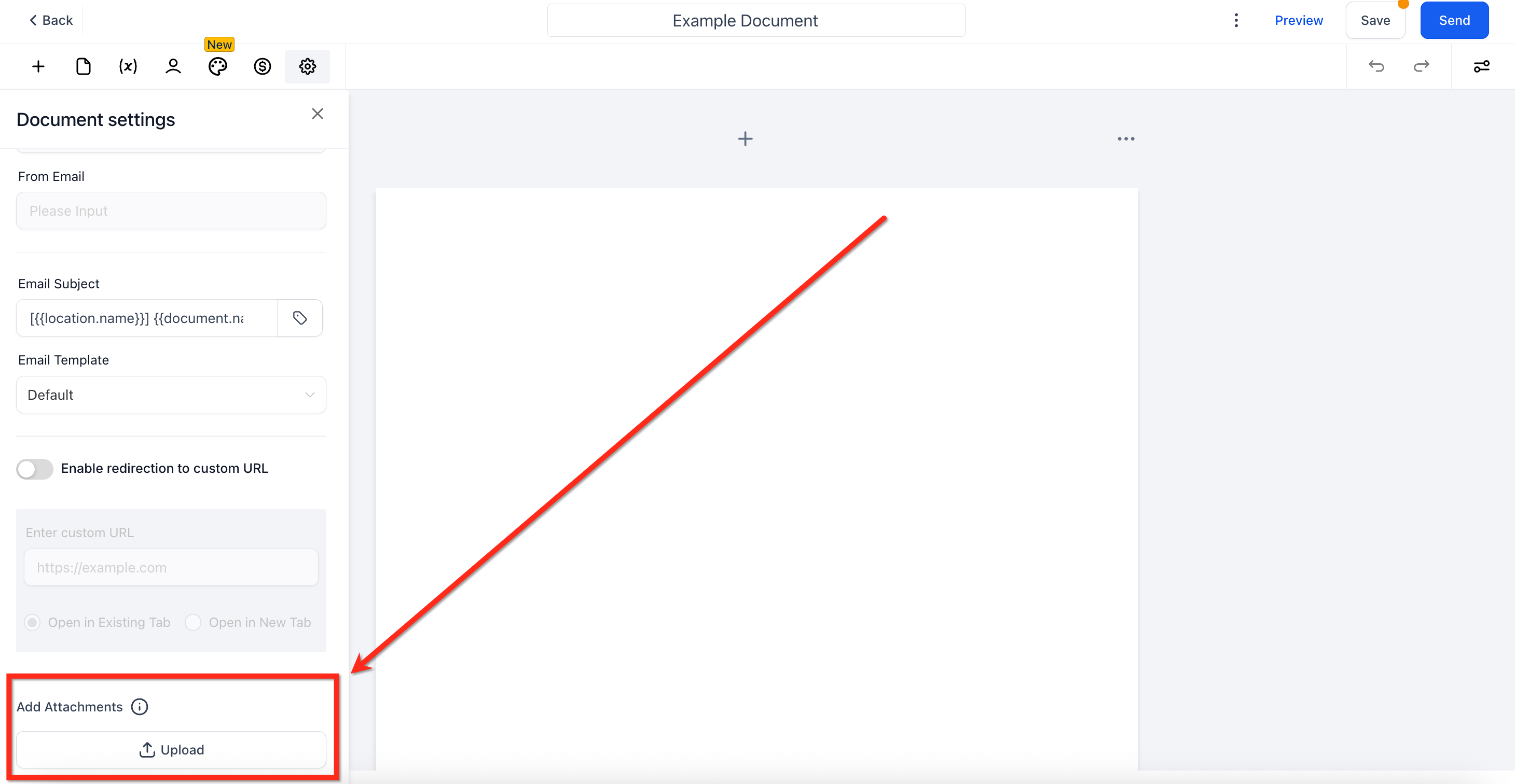
Step 4: Select and Upload Files
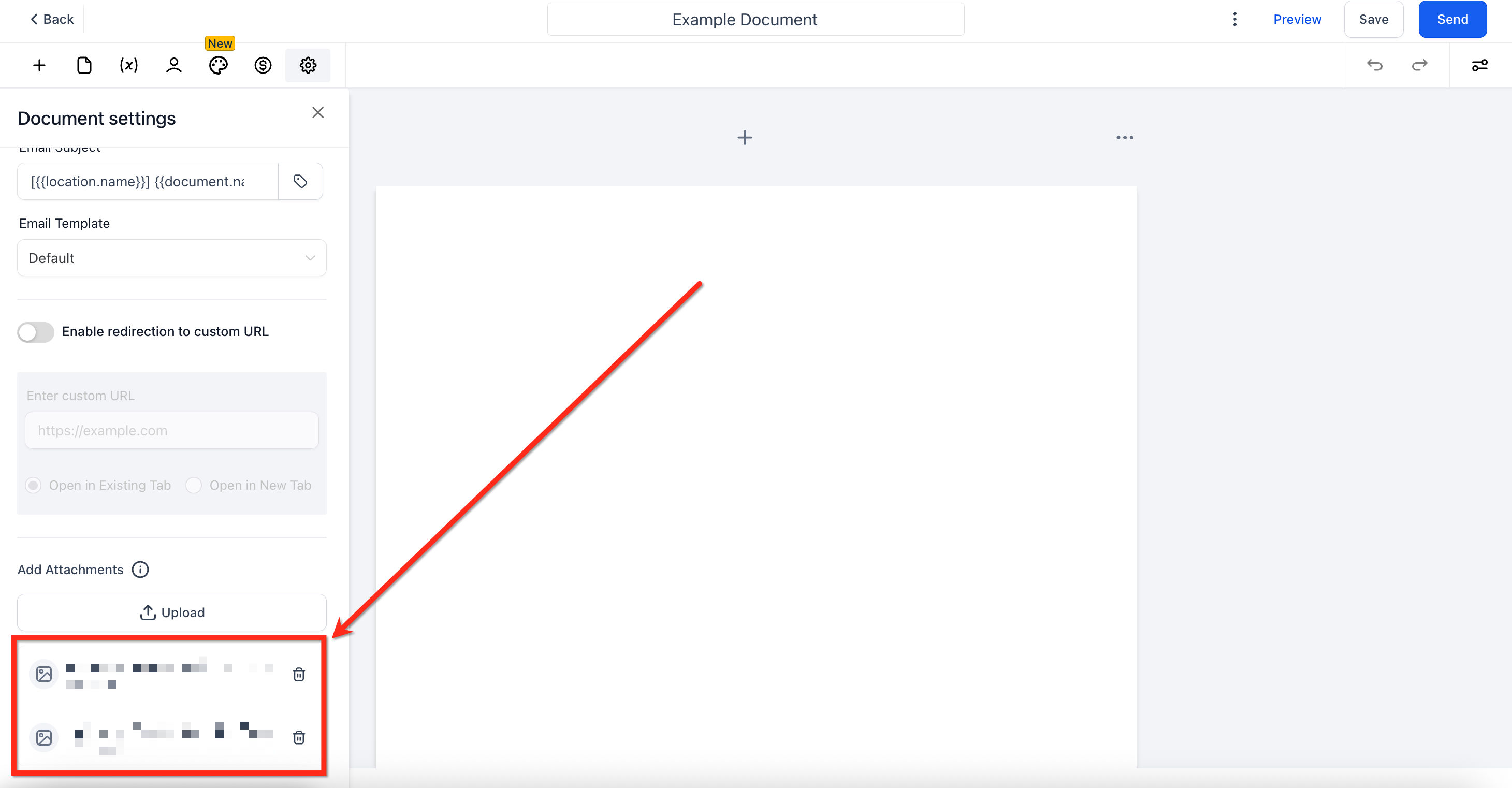
- Scroll to the Add Attachments section
- Click Upload
- Drag-and-drop or browse to select SVG, PNG, JPG, or PDF files (15 MB or smaller)
- Click Upload to confirm
Step 5: Review Progress & Save
- Watch the real-time upload progress bar until it reaches 100%
- Remove any file by clicking the Trash Can icon next to it
- Click Save to commit your changes
Pro tip: Attach your most frequently needed documents—like your program handbook or licensing information—to your enrollment template. Every new family will automatically receive them when you send the contract.
Supported File Types & Limits
Keep these boundaries in mind to ensure your emails deliver successfully.
- Accepted formats: SVG, PNG, JPG, PDF
- File size limit: 15 MB per file
- Attachment limit: Up to 5 attachments per document
- Total email size: Keep under 20 MB for best deliverability
Frequently Asked Questions
What happens if my file is larger than 15 MB?
The upload will fail. Compress or split the file and try uploading again. Most PDFs can be compressed using free online tools without losing quality.
Can I attach multiple files?
Yes, you can upload up to 5 attachments per document. Keep the total email size under 20 MB for best deliverability.
Do attachments send when a document is triggered by an automation?
Yes. Any attachments added to the template automatically send with the email when triggered through an automation—no extra configuration needed.
Will attachments copy over if I duplicate a document or template?
Yes. When you duplicate a document or template, any existing attachments are duplicated as well. You can remove or replace them in the new copy.
Can parents download these files on mobile?
Yes. Attachments appear as standard email attachments that parents can open and download on any device.