
What is the Documents & Contracts Feature?
The Documents & Contracts feature lets you create branded, legally binding templates — such as enrollment agreements, parent handbooks, or service contracts — and automatically send them through automations based on specific triggers like a tag being added or an enrollment pipeline stage change.
This automation ensures documents are delivered at the right moment in your enrollment process, eliminates manual follow-up, and helps streamline your enrollment or onboarding workflow.
Key Benefits of Sending Documents & Contracts Automatically
Document automation helps streamline your enrollment pipeline while keeping interactions polished and compliant.
- Send contracts automatically when specific triggers happen
- Use reusable templates with dynamic content (custom values)
- Collect legally binding e-signatures in seconds
- Include pricing/program lists directly inside the document
- Track document delivery, signing status, and completion
- Set up automations for follow-up actions once a document is signed
How to Create a Document or Contract Template
Templates are reusable and can include logos, custom values, pricing tables, and more.
Step 1: Open a New Document Template
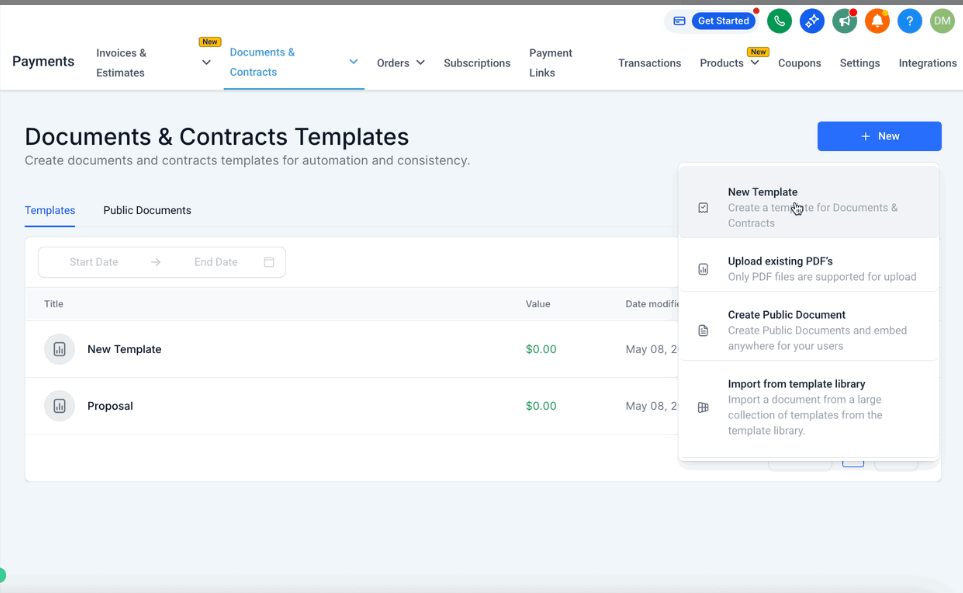
- Navigate to Payments > Documents & Contracts > Templates
- Click + New → Create New Template
- Give your template a name (e.g., "Enrollment Agreement")
Step 2: Design the Document Template
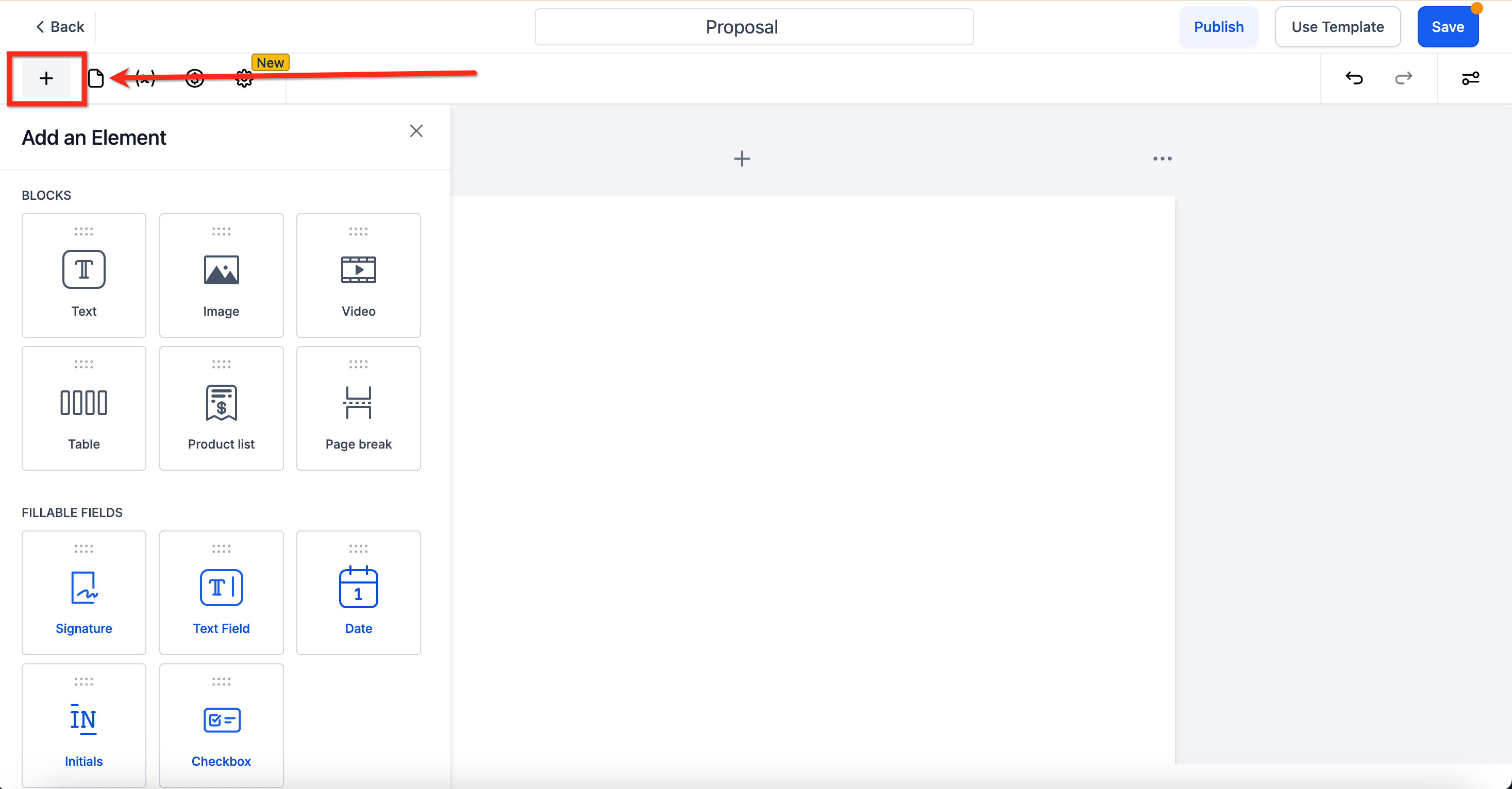
Use Add Element to build your document:
- Image: Upload your center's logo or branding element
- Text: Add contract terms, program descriptions, policies, etc.
- Custom Values: Insert dynamic fields like parent name, child name, or email
- Product List: Include programs or services with pricing pulled from your catalog
- Signature Box: Add a space for the parent to sign
Click Save to store your template for future use.
Note: You can edit a saved template anytime from the Templates tab. However, changes won't apply retroactively to documents already sent or saved as drafts.
How to Send the Document Automatically
You can automatically send a document template when a specific event happens, such as a tag being added or an enrollment pipeline stage change.
To use the "Send Documents & Contracts" action, your template must be saved, and the parent/family must have a valid email address.
Step 1: Create a New Automation
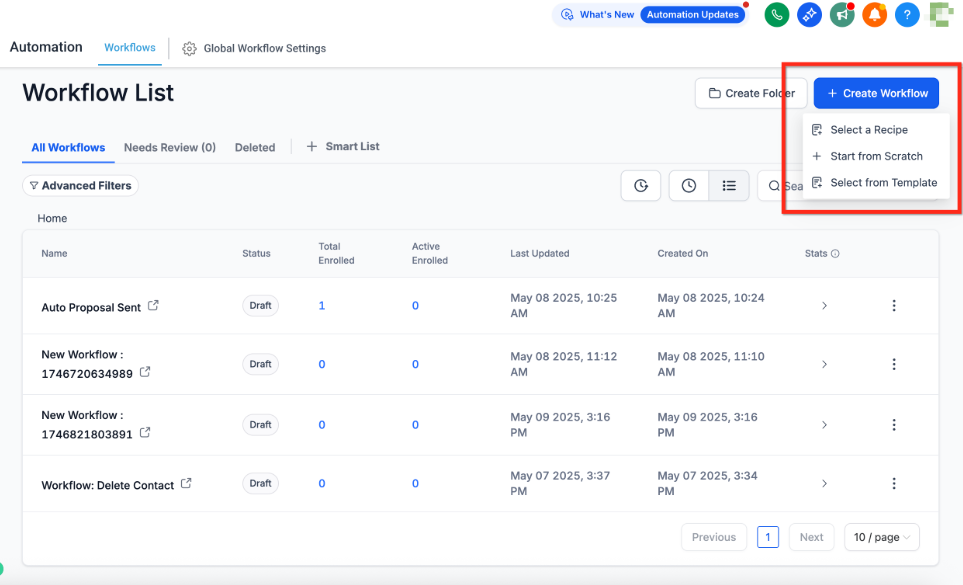
- Go to Automation > Automations
- Click + Create Automation, and choose Start from Scratch
Step 2: Design the Automation
- Select a trigger (such as Tag Added or Enrollment Opportunity Updated)
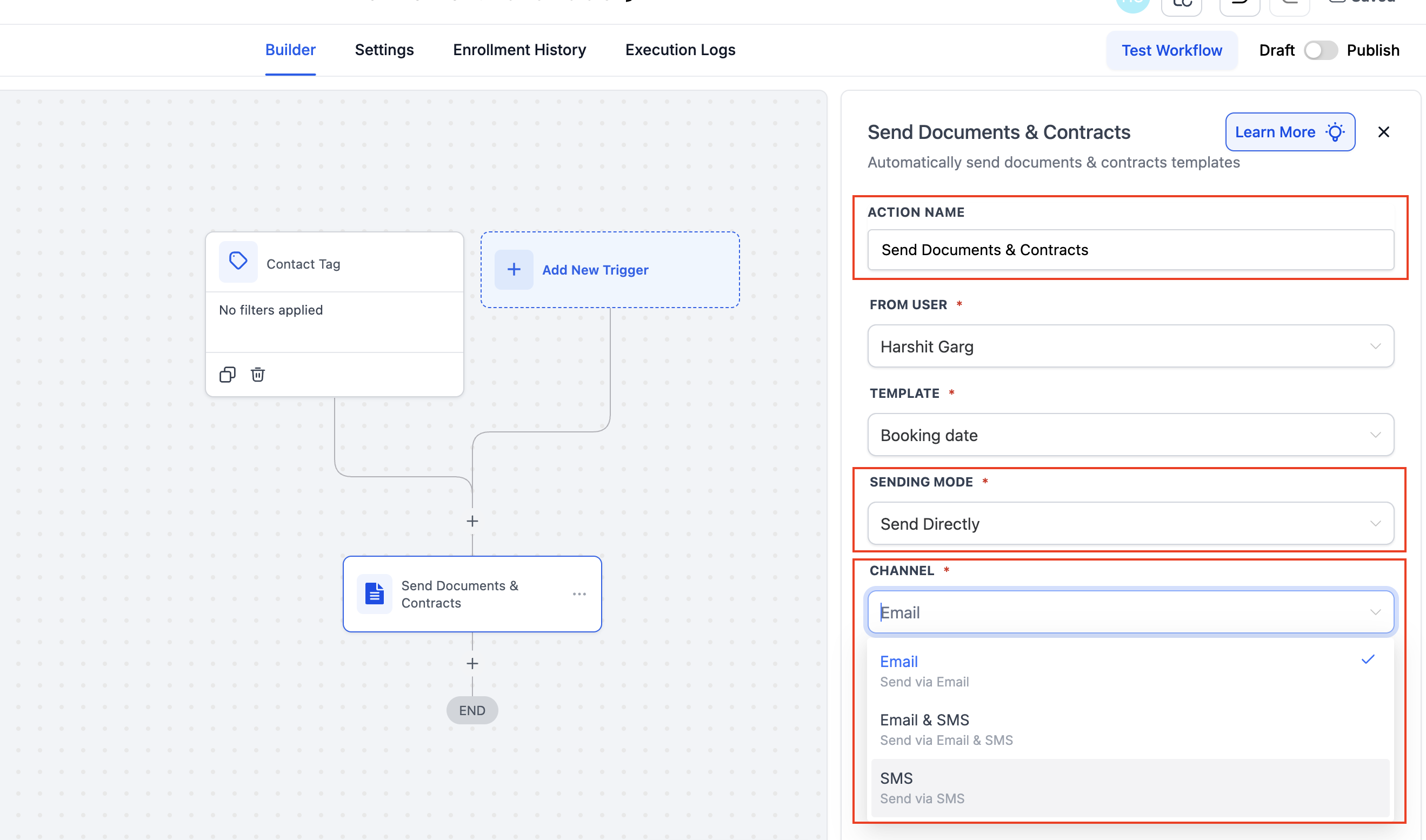
- Add the Send Documents & Contracts action:
- Give the action a name
- Choose the user the document should be sent "from"
- Select the saved template (e.g., "Enrollment Agreement")
- Choose whether to Send Directly or Create as Draft
- Choose a channel: Email, Text Message, or both
- Click Save and then Publish the automation
Pro Tip: Use "Create as Draft" if you want to review and manually send documents later.
Note: Even when you choose Text Message, the system still requires the parent/family to have an email on file. If the family does not have an email, the contract can still be generated, but it will remain in Drafts until an email is added.
Set Signer to "Sender" in the Template
Designating a signer as "Sender" lets automations assign the correct internal user at runtime, so you don't need to edit the template for each sender.
Steps (Template Editor)
- Go to Payments → Documents & Contracts → Templates and click New (or edit an existing template)
- Add a Signature (or other fillable) field to the document
- In the field Properties, set To be signed by → Sender
What "Sender" means: "Sender" is your internal signer, resolved dynamically by the automation (either the From user or the Template Owner).
Map Sender Fields (Assign Sender Fields To)
When your template includes Sender fields, the automation can assign them to the correct internal signer at send time—no manual edits.
Steps (Automation)
- Add the Send Documents & Contracts action to your automation
- Select the From user (controls who sends the document and notifications)
- Choose a Template that includes fields set to To be signed by → Sender
- Under Assign Sender Fields To, select:
- From User — the automation's sender signs, or
- Template Owner — the user who last updated the template signs
- Choose Sending Mode and Channel (Email or Direct), then Save and publish
Behavior: If the chosen template has Sender fields, they're assigned before sending.
What the Parent Receives
Once triggered, the parent receives an email with a secure link to the document. The email includes their name and the agreement or contract details.
They can click the link and complete the signature directly in their browser — no login or downloads required.
How to Track Document Status
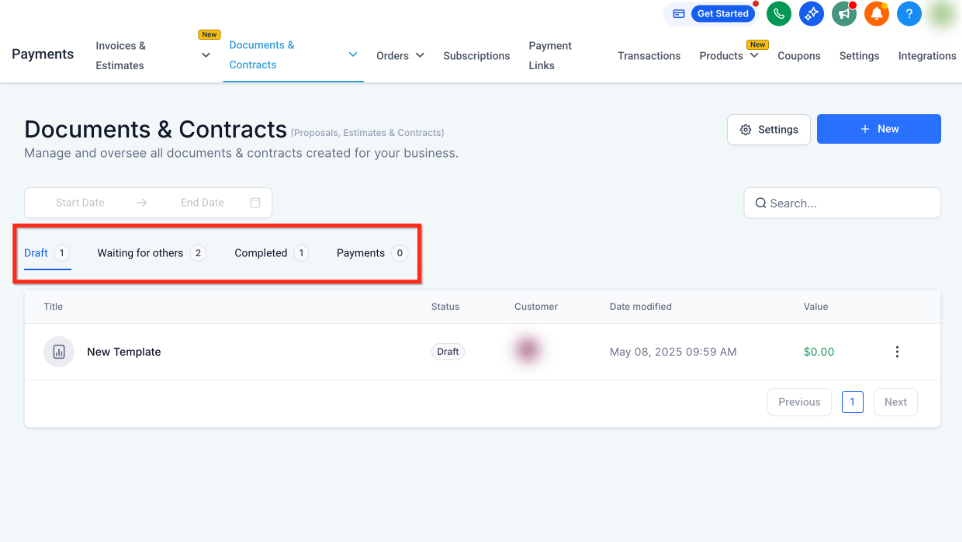
You can monitor whether a document is in draft, sent, viewed, or completed — all from the Documents & Contracts dashboard.
- Go to Payments > Documents & Contracts > All Documents and Contracts
- Use the tabs at the top to filter by:
- Drafts
- Waiting for Others
- Completed
- Payments
Frequently Asked Questions
Can I edit a document after it's sent?
Only if you selected "Create as Draft." If sent directly, the document becomes locked and cannot be edited.
What happens if the parent doesn't sign?
The document remains in "Waiting for Others." You can resend or manually follow up with the family.
Can I send documents to more than one person?
Yes, use Multiple Recipient Support to assign signature elements to multiple people in a single document.
Can I collect payment when someone signs?
Yes. If your template includes a product list with pricing, you can enable payment collection using Stripe or another payment integration.
Are signed documents legally binding?
Yes, Enrollio's e-signature process complies with major digital signature regulations for legality and auditability.
Can recipients sign documents on mobile?
Yes — documents are mobile-friendly and can be signed directly from their phone's browser.
Can I preview the document before it's sent?
Yes. Choose "Create as Draft" mode during setup to preview and manually send after final review.
What happens if I try to send a contract via text message but the family has no email?
The contract will be created but will remain in Drafts. You'll need to add an email to the family's profile before the contract can be successfully sent.
Why does text message delivery still require an email address?
We currently use the family's email as a required identifier for tracking, version history, and contract lifecycle management. Even if the contract is delivered by text message, an email must exist in the family profile to maintain system integrity.