
Track Enrollments with Google Analytics 4
Google Analytics 4 (GA4) is the latest version of Google's analytics platform. It gives you a comprehensive view of how families interact with your childcare center across different devices and platforms.
With GA4 integration in Enrollio, you can track parent behavior across your enrollment pages, website, and marketing campaigns. GA4 uses machine learning to surface insights and offers advanced event tracking to help you understand your enrollment funnel.
What You'll Learn
- How to set up Google Analytics 4 in your Enrollio automations
- Where to find your Measurement ID and API Secret
- How to create custom events to track enrollment actions
Setting Up Google Analytics 4 in Automations
Enrollio supports both Google Analytics 4 and Universal Analytics, so you can choose the platform that works best for your center. This guide focuses on GA4, the recommended option for new setups.
Step 1: Create or Open Your Automation
Navigate to Automations in Enrollio and either create a new automation or open an existing one where you want to track enrollment events.
Add the Add to Google Analytics action to your automation.
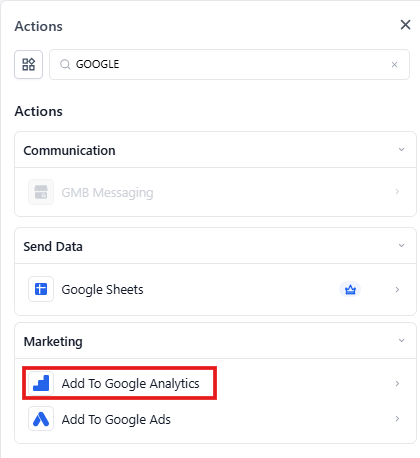
Step 2: Select Google Analytics 4
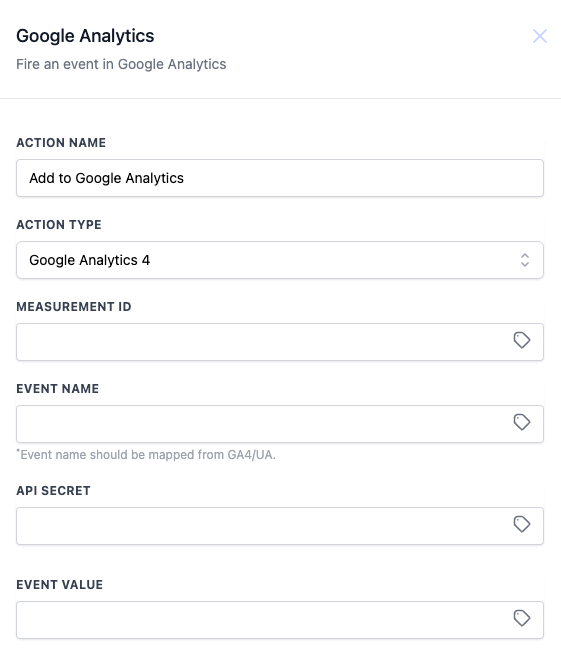
In the action settings, find the Action Type dropdown and select Google Analytics 4.
Step 3: Get Your Measurement ID
Open your Google Analytics account in a new tab. You'll need to grab your Measurement ID from your data stream.
In Google Analytics:
- Click Admin in the bottom left corner
- Select Data Streams under the Property column
- Click on your data stream (create one if you haven't already)
- Copy the Measurement ID at the top right (it looks like G-XXXXXXXXXX)
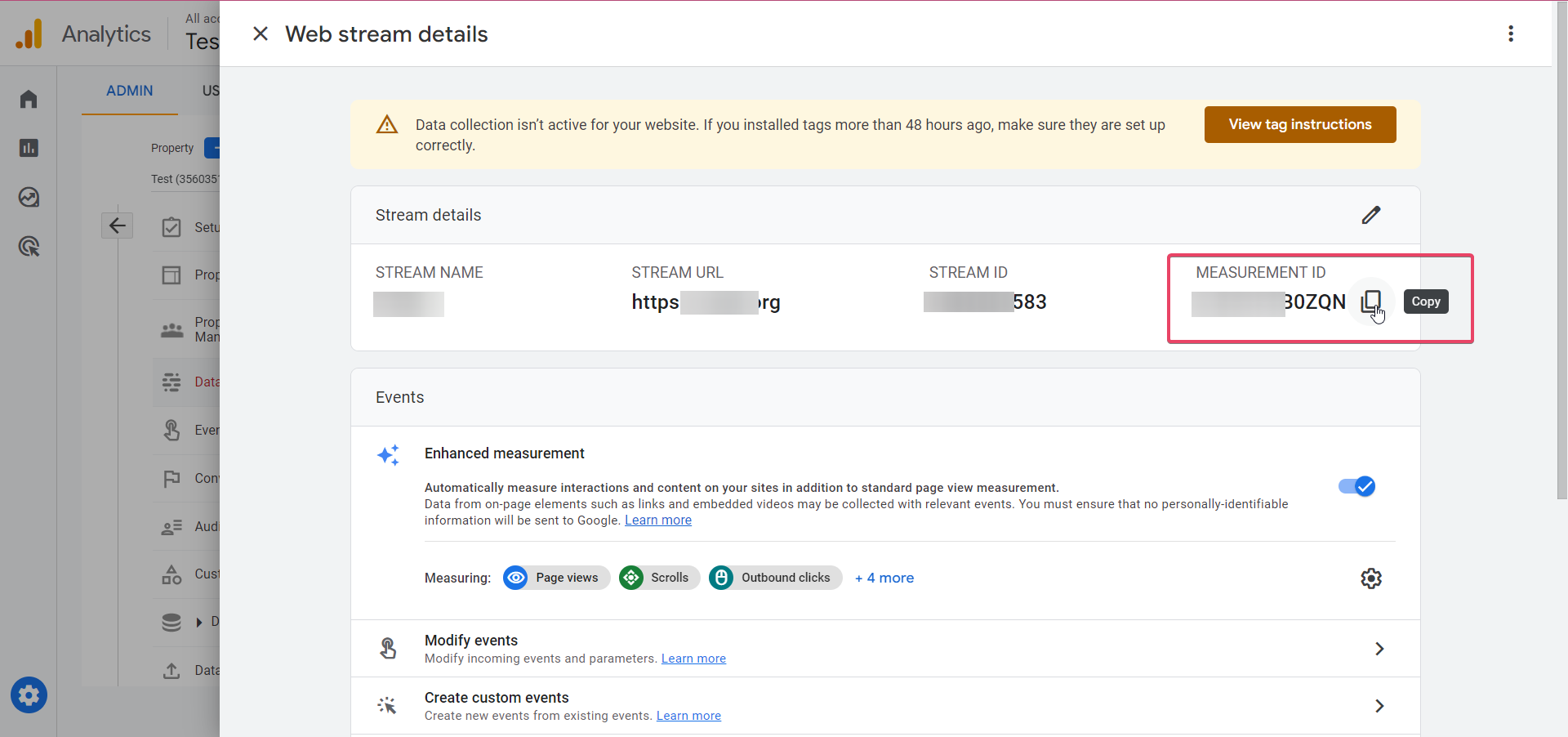
Paste the Measurement ID into the Measurement ID field in your Enrollio automation action.
Step 4: Create a Custom Event Name
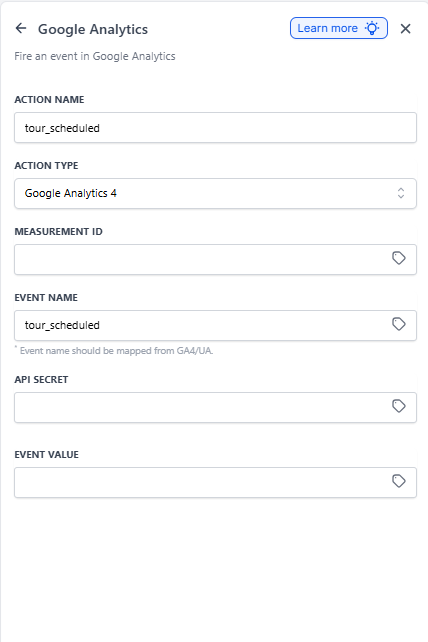
Choose a descriptive name for the event you want to track. This could be something like enrollment_started, tour_scheduled, or application_submitted.
Your event name will appear in your Google Analytics dashboard alongside standard events, so make it clear and recognizable.
Step 5: Get Your API Secret
Back in Google Analytics, you'll need to generate an API Secret for secure data transmission.
In Google Analytics:
- Go to Admin → Data Streams
- Click on your data stream
- Scroll down and click Measurement Protocol API secrets
- If this is your first time, you'll need to acknowledge Google's privacy disclosures
- Click Create
- Give your API secret a descriptive name (like "Enrollio Integration")
- Click Create again
- Copy the Secret Value that's generated
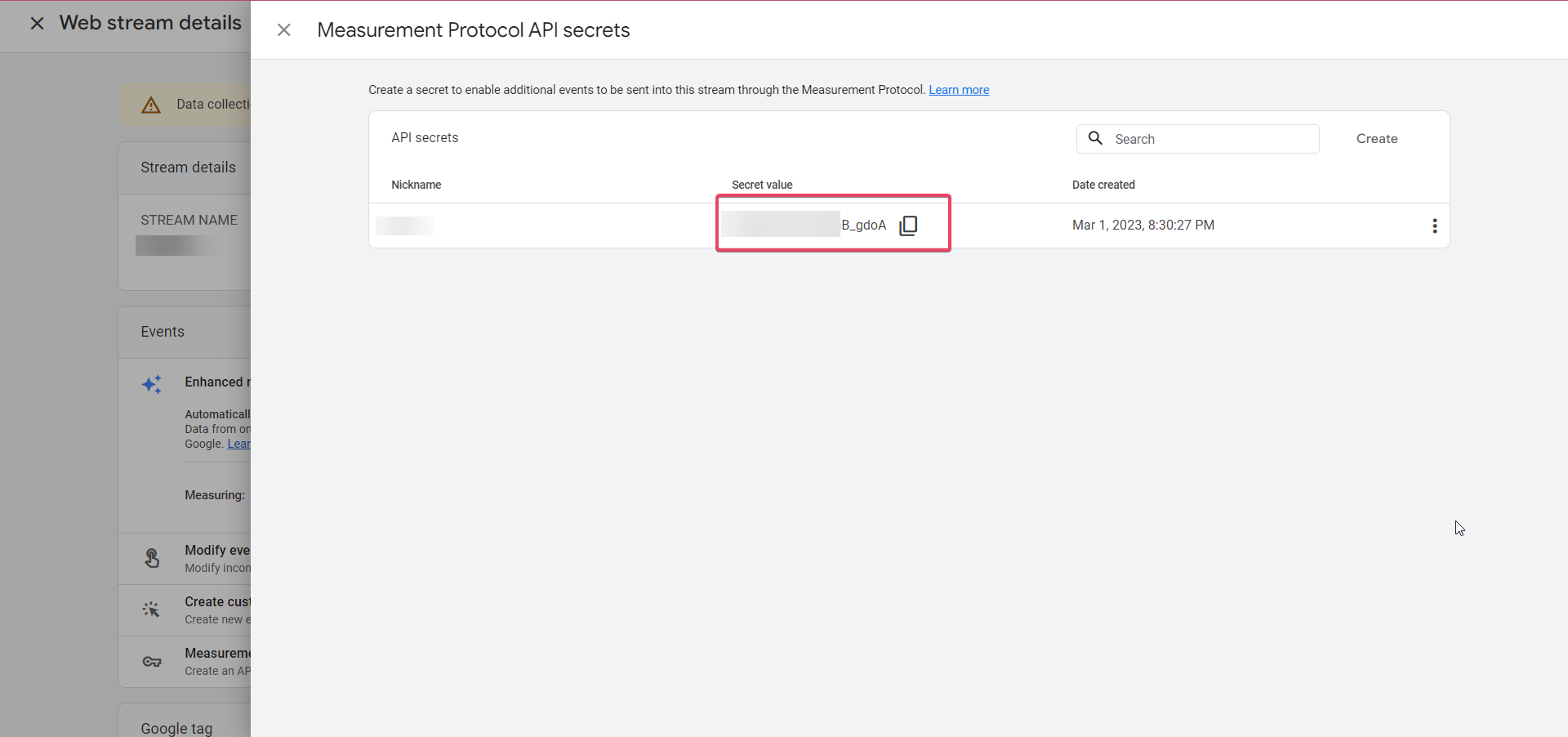
Paste the API Secret into the API Secret field in your Enrollio automation action.
Step 6: Save and Publish
Click Save Action, then Save your automation. When you're ready to start tracking, click Publish.
What Happens Next
Once your automation is live, Enrollio will send event data to Google Analytics whenever the automation runs. Remember, it takes 24-48 hours for the data to show up in your GA4 reports.
You can then create custom reports in Google Analytics to track your enrollment funnel, see which marketing channels drive the most tours, and understand how families engage with your center.
Common Use Cases
- Track tour bookings: Fire an event when a parent schedules a tour
- Monitor application starts: See when families begin the enrollment process
- Measure enrollment conversions: Track completed enrollments from first inquiry to signed contract
- Analyze campaign performance: Connect your Facebook or Google Ads to enrollment outcomes