
Troubleshooting Google Ads Reporting
Google Ads is one of the most effective ways to attract prospective families to your childcare program. But tracking your ad performance accurately is crucial to understanding your return on investment.
If your Google Ads data isn't showing up correctly in Enrollio, follow these troubleshooting steps to identify and fix common setup issues.
Three Common Setup Issues
Most Google Ads reporting problems come down to one of these three issues:
- Google Ads account not properly connected to Enrollio
- UTM tracking template added in multiple places
- Duplicate campaign, ad set, or ad names
Let's walk through how to check and fix each one.
1. Verify Your Google Ads Integration
First, confirm your Google Ads account is connected to Enrollio:
- Go to Settings → Integrations
- Find Google Ads in your integration list
- Check that the status shows "Connected"
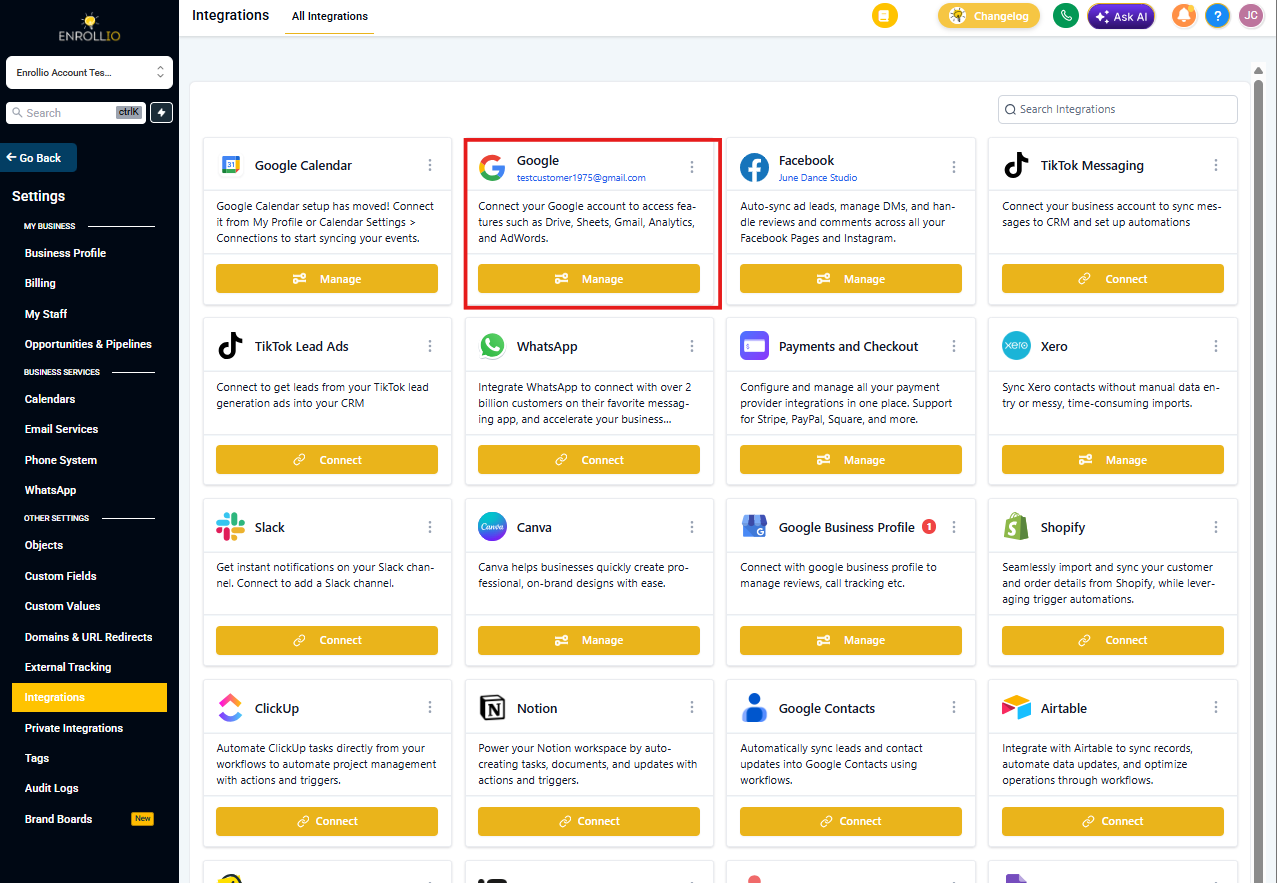
If it's connected, verify the Gmail address:
- The email shown in Enrollio must match the one associated with your Google Ads account
- This user needs admin permissions in your Google Ads account (not just manager access)
Important: The Gmail account connected in Enrollio must have a User or Admin role in Google Ads — not a Manager role. Manager-level access won't allow proper data syncing.
2. Check Your UTM Tracking Template
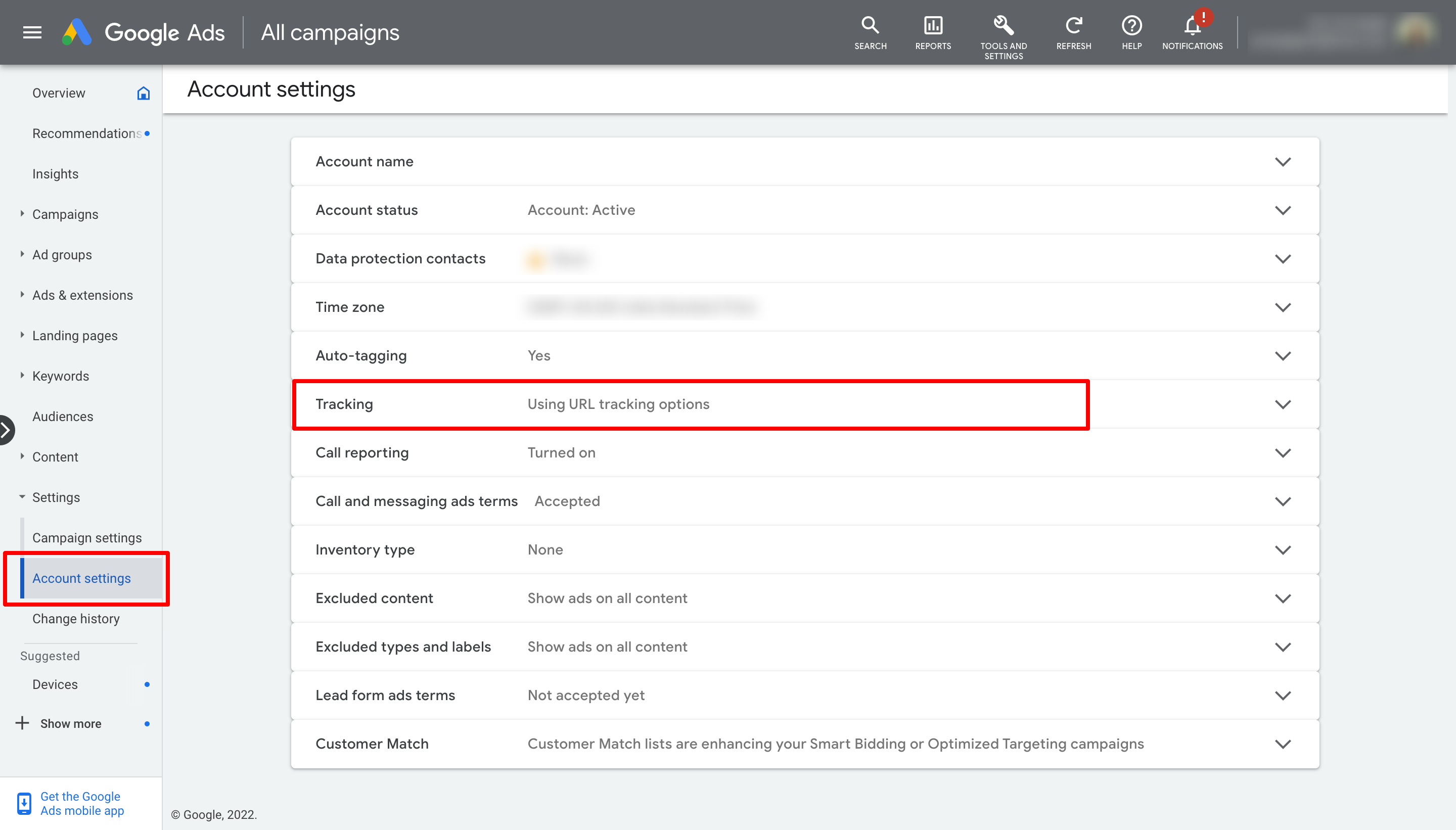
UTM tracking templates tell Enrollio where your traffic comes from. The problem? You can only add the tracking template in ONE place.
Choose one of these locations:
- Account settings (applies to all campaigns)
- Campaign level (applies to that campaign only)
- Individual ad level
If you add tracking templates in multiple places, Google Ads uses this hierarchy: Account → Campaign → Ad. This creates conflicts that break your reporting.
Critical: UTM tracking is case-sensitive. Your parameters must be lowercase exactly as shown in your template — no capital letters anywhere.
3. Use Unique Names for Everything
Every campaign, ad set, and ad must have a unique name. Duplicate names cause Enrollio to show the same prospective family in multiple places, inflating your numbers.
❌ Wrong Setup (What Not to Do)
| Campaign Name | Campaign ID | Ad Group | Ad |
|---|---|---|---|
| Winter Enrollment | 12345 | Sport Programs 1 | Soccer Preschool 1 |
| Winter Enrollment | 12345 | Sport Programs 2 | Soccer Preschool 1 |
Notice "Soccer Preschool 1" appears twice. When a prospective family clicks either ad, Enrollio will count them in both ad sets.
✅ Correct Setup (What to Do)
| Campaign Name | Campaign ID | Ad Group | Ad |
|---|---|---|---|
| Winter Enrollment | 12345 | Sport Programs 1 York | Soccer Preschool 1.1 York Logo |
| Winter Enrollment | 12345 | Sport Programs 2 John | Soccer Preschool 1.2 John Logo |
Each ad now has a unique identifier, ensuring accurate tracking.
Example UTM Parameter Structure
https://example.com?utm_source=adwords&utm_medium={SoccerPreschool1.1}&utm_campaign={WinterEnrollment}&utm_content={sportprograms1}&utm_keyword={sports}&utm_matchtype={e}&campaign_id={12345}&ad_group_id={123456789}&ad_id={sportprograms}Pro Tip: If you need to rename a campaign, ad set, or ad in Google Ads, don't just edit the existing one. Enrollio will keep using the old UTM parameters, so your reporting will stop working. Instead, create a new campaign with the new name and pause the old one.
Still Having Issues?
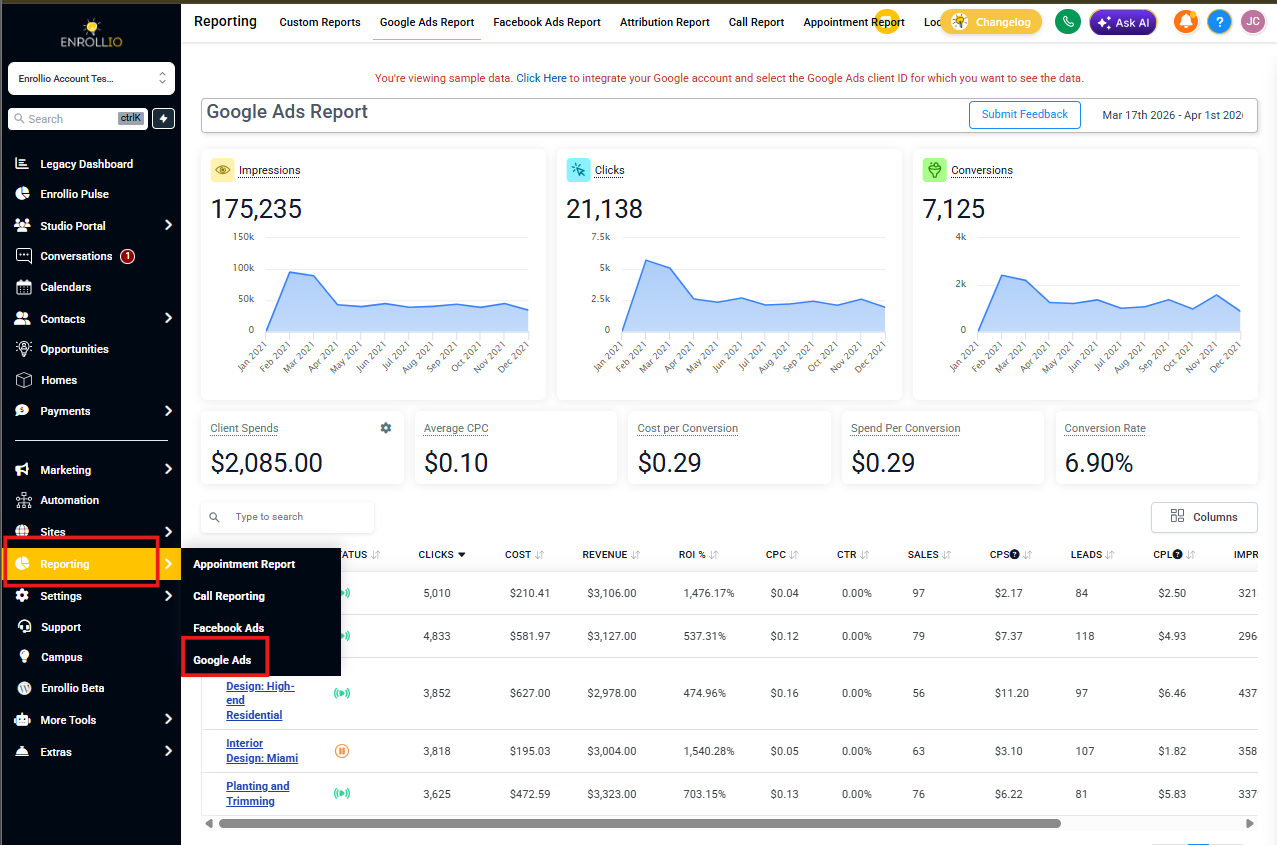
If you've checked all three items above and your Google Ads data still isn't appearing correctly:
- Wait 24-48 hours — Google Ads data can take time to sync
- Check that your landing pages are actually using the UTM parameters in your ads
- Review your Google Ads conversion tracking setup
- Contact Enrollio support with specific examples of missing data
Related Articles
- How to Set Up Google Ads Reporting
- Understanding Attribution Sources in Enrollio
- Google Ads Terminology for Childcare Marketing