
Track Your Enrollment Performance at a Glance
The Sales Efficiency widget gives you a real-time view of how quickly and effectively you're converting prospective families into enrollments. Add it to your dashboard to monitor key metrics that matter most to your childcare business.
What This Widget Shows You
The Sales Efficiency widget displays three critical metrics:
- Average Enrollment Duration: See how long it takes, on average, for enrollment opportunities to close. This helps you identify bottlenecks in your enrollment process.
- Total Sales Value: Track the total value of your enrollments to measure overall performance and revenue.
- Sales Velocity: Measure how quickly you're moving families through your enrollment pipeline to ensure efficient conversions.
You can filter all these metrics by team member, making it easy to track individual performance and coach your staff effectively.
How to Add the Sales Efficiency Widget
Follow these steps to add this widget to your dashboard:
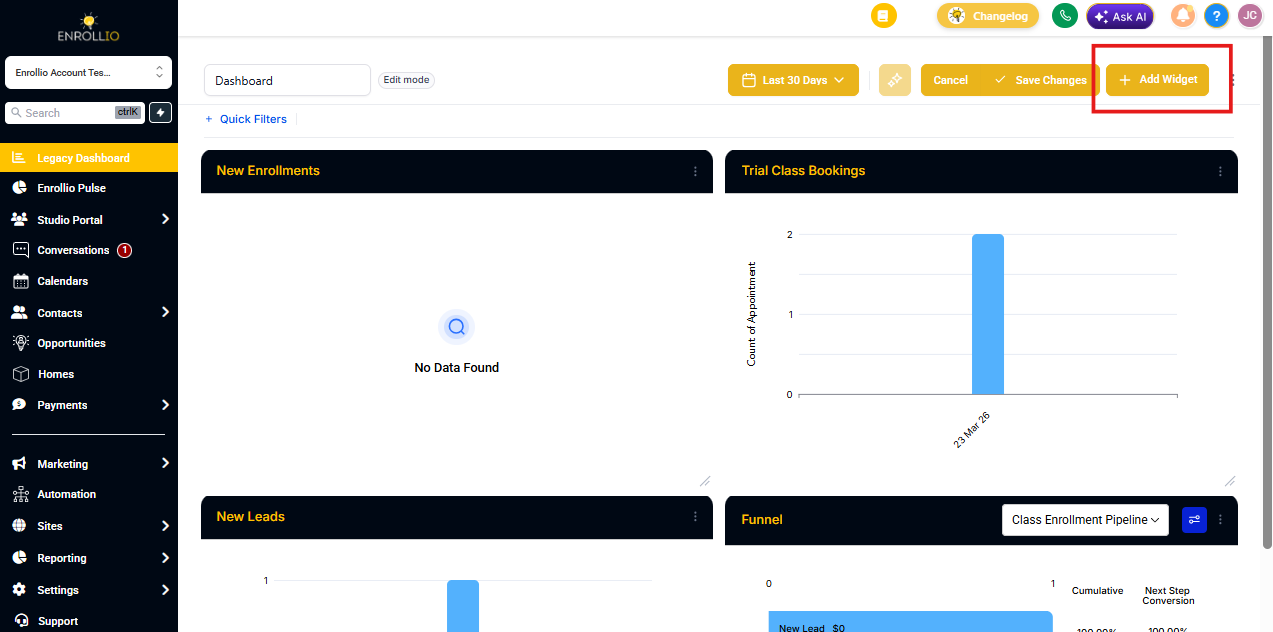
- Navigate to your Dashboard in Enrollio
- Click Add Widget in the top right corner
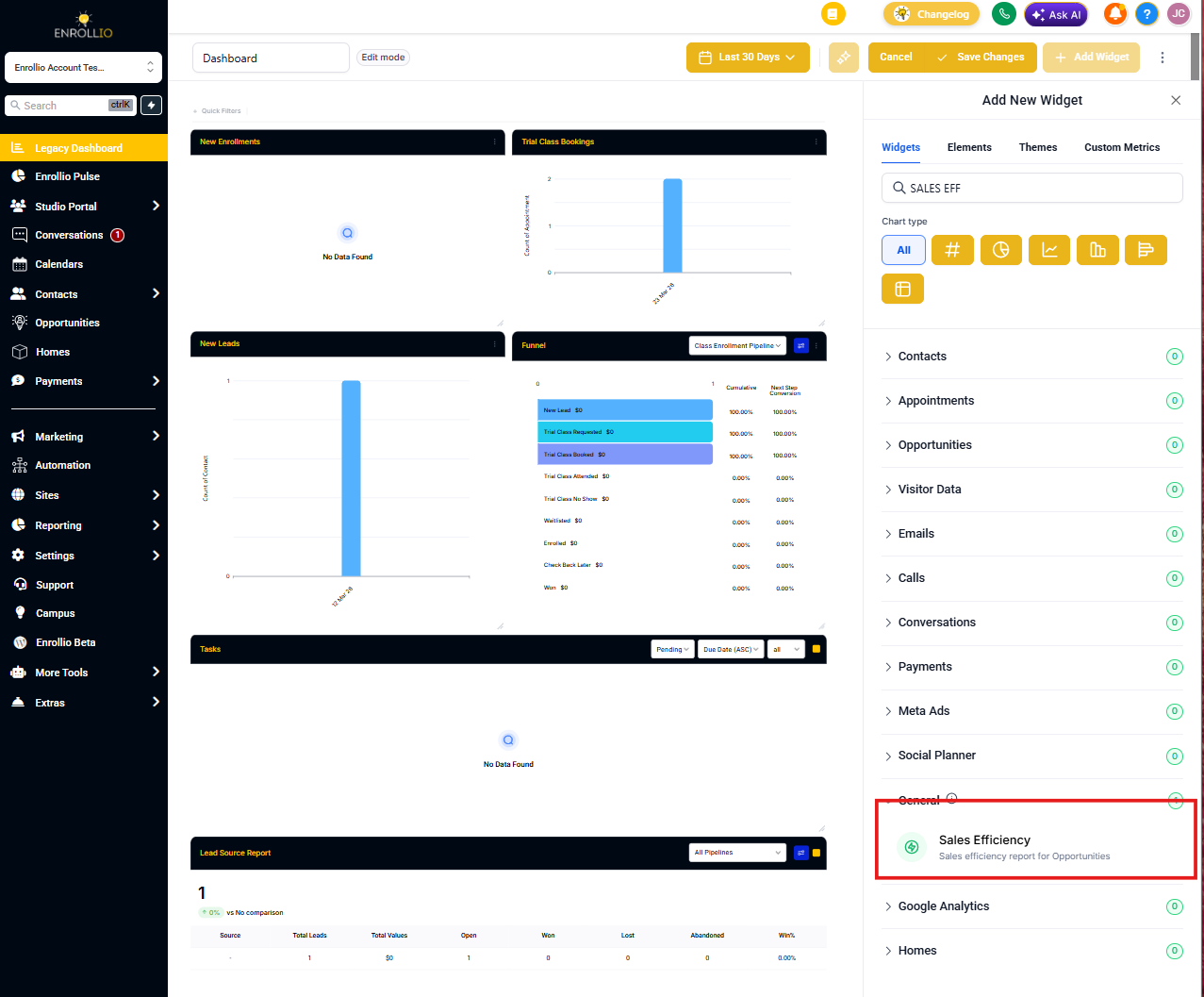
- Select Sales Efficiency from the general widgets section
- Configure your filters (optional) — you can filter by specific team members or date ranges
- Click Add to Dashboard
Using the Widget to Improve Your Enrollment Process
Once added, use this widget to:
- Spot trends: Are enrollments taking longer to close during certain months? This might indicate seasonal challenges or staffing needs.
- Coach your team: Filter by individual staff members to identify who might need additional training or support.
- Set benchmarks: Establish target enrollment durations and velocities for your center, then track progress toward those goals.
Customizing Your View
You can resize and rearrange this widget just like any other dashboard widget. Click and drag the edges to resize, or click and hold the widget header to move it to your preferred location on the dashboard.
For more information about customizing your dashboard with other widgets, check out our article on Creating and Adding Dashboard Widgets.