
Keep your dashboard data aligned with your local time by customizing your timezone settings. This ensures enrollment metrics, tour schedules, and parent activity show up in the timezone you work in.
Important Notes
- Your timezone selection applies to all dashboards you view in Enrollio
- Timezone changes only affect internal metrics — third-party widgets display in their own timezones
- Each team member can set their own timezone preference
How to Change Your Dashboard Timezone
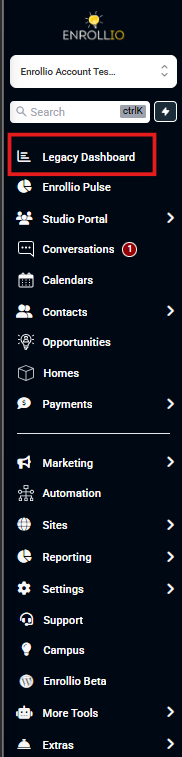
Step 1: Open Your Dashboard
Click Dashboard in the left navigation bar to access your main dashboard view.
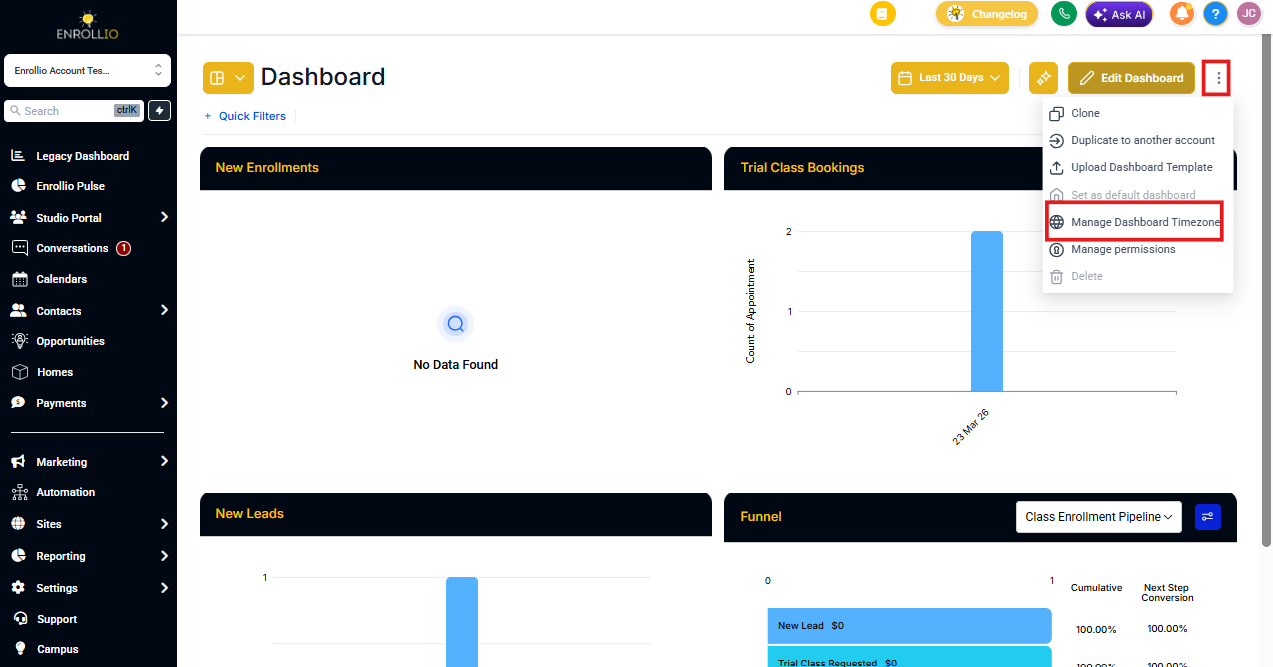
Step 2: Access Timezone Settings
Click the 3-dot menu icon in the top right corner of your dashboard. Select Manage Dashboard Timezone from the dropdown menu.
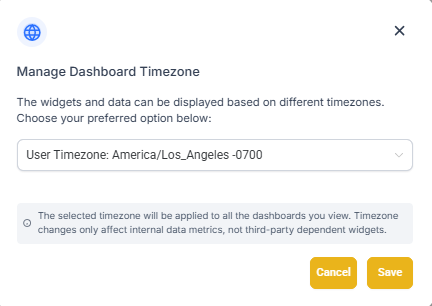
Step 3: Choose Your Timezone
Select your preferred timezone from the dropdown menu, then click Save.
Pro Tip: If you manage multiple centers across different timezones, set your dashboard to your primary location's timezone to keep enrollment data consistent.
What Changes With Timezone Settings
Your timezone affects how these metrics display:
- Tour appointment times
- Parent inquiry timestamps
- Enrollment opportunity dates
- Automation activity logs
- Report date ranges