
Dashboard owners can customize their reporting setup by editing dashboards. You can modify the dashboard name, update permissions, add new custom widgets, and edit existing widgets.
Note: Custom dashboards and widgets are available on Pro ($297) and Premium ($497+) plans.
Step 1: Navigate to Your Dashboard
Go to the specific dashboard you want to edit.
Important: Only dashboard owners can edit a dashboard.
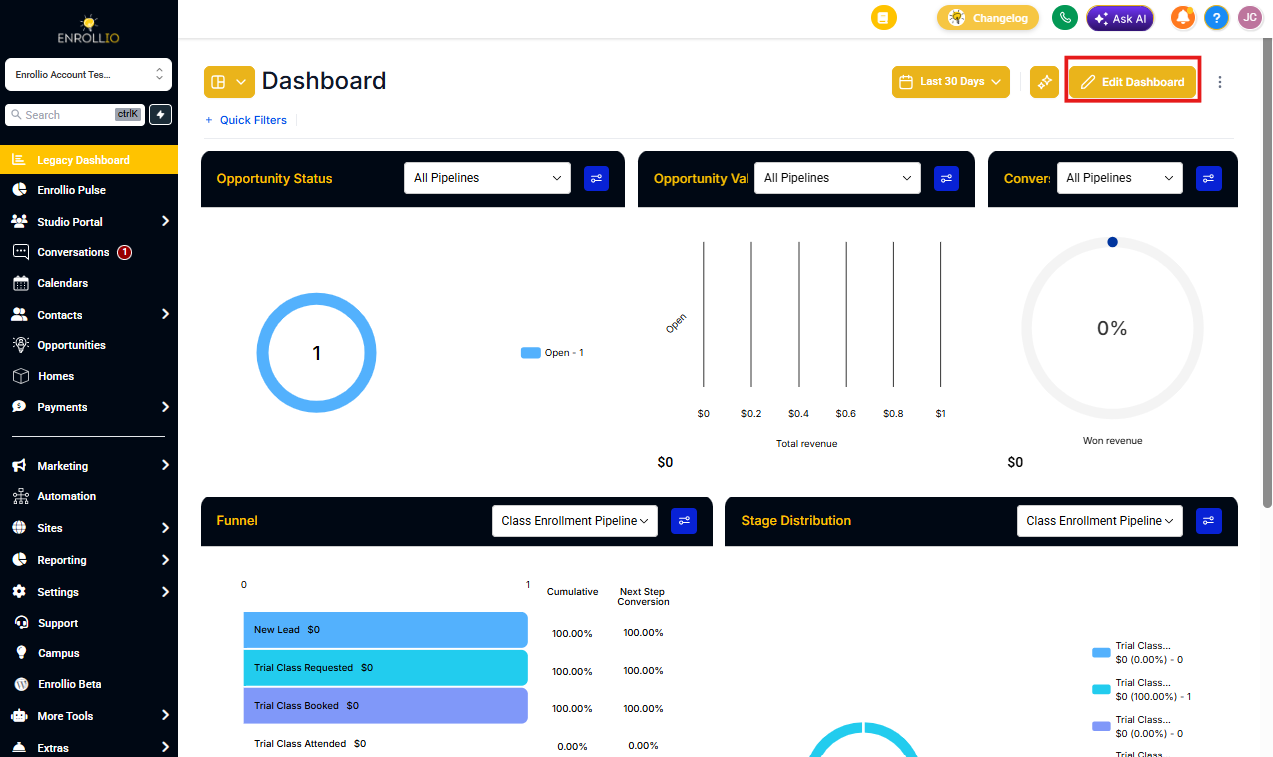
Step 2: Enter Edit Mode
Click the pencil edit icon in the top right corner. This opens the dashboard editor.
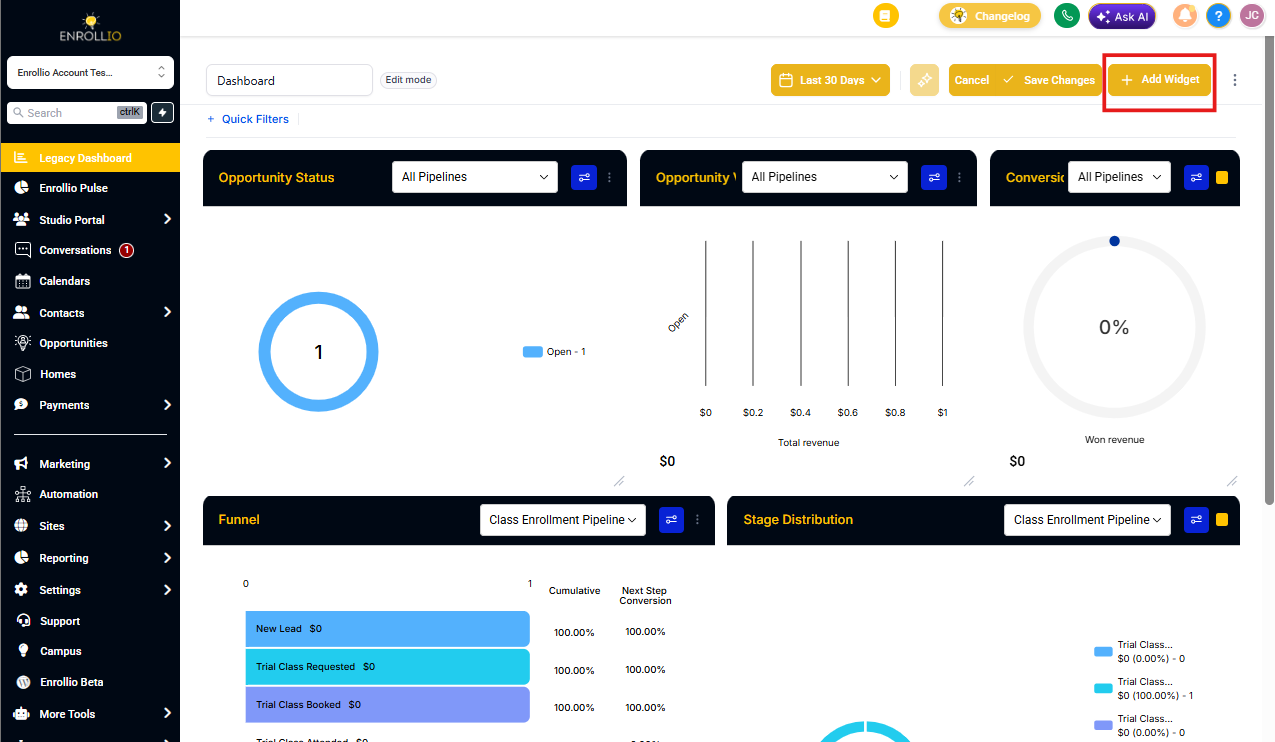
Step 3: Update the Dashboard Name
If needed, click on the dashboard name and type a new name that better reflects your reporting needs.
Step 4: Add New Widgets
Click "Add Widgets" to add new custom widgets to your dashboard. This lets you track the metrics most important to your childcare center — like enrollment trends, tour bookings, or family engagement.
For detailed instructions on adding custom widgets, see Adding Widgets to Your Dashboard.
Step 5: Save Your Changes
Click "Save Changes" to apply your modifications.
Pro Tip: Create separate dashboards for different areas of your business — one for enrollment metrics, another for marketing performance, and one for daily operations.