
Global Custom Colors in Color Picker
Global Custom Colors let you save your brand colors once and reuse them everywhere in Enrollio. Add your color palette in Brand Boards and it appears automatically in color pickers across emails, enrollment pages, and forms. Colors stay in sync—update a saved color and every design using that color updates automatically.
What are Global Custom Colors?
Global Custom Colors are reusable color swatches you define under Brand Boards → Global Settings. They appear in the Color Picker throughout Enrollio so your team can apply the exact same brand colors, keep everything consistent, and update them from one place when your branding changes.
How it differs from Design Kit colors
Design Kit colors live inside a Brand Board and also appear in pickers. Global Custom Colors are an additional, centrally managed palette designed for fast reuse and two-way syncing. Both can appear in the picker, but Global Custom Colors only show after you add at least one color.
Key Benefits of Global Custom Colors
- Consistency Across Assets: Maintain the same look and feel across all your enrollment pages, emails, and forms.
- Time-Saving: Update a color once, and it reflects everywhere instantly.
- Easy Rebranding: If you manage multiple locations, clone enrollment pages and quickly rebrand each location just by updating the global colors.
- Always Accessible: Global colors show up in every color picker.
- Quick Import: Bring in your existing custom values for faster setup.
Sync Behavior & Best Practices
Understanding how sync works helps you change colors confidently without breaking live designs.
Two-way sync on applied instances
Updating a saved global color updates all designs that used that specific global swatch. Your enrollment pages, emails, and forms stay in sync automatically.
Key things to know
- Add at least one color: The Global Custom Colors section appears in the picker only after you create at least one color, helping distinguish it from Design Kit colors.
- Plan rebrands: For large changes, duplicate designs if needed, then adjust global colors to propagate updates consistently.
Using Global Settings to Add, Edit & Delete Global Colors
Use Global Settings to add, name, organize, and manage the colors your team will reuse across Enrollio. Creating at least one color enables the Global Custom Colors section to appear inside the Color Picker.
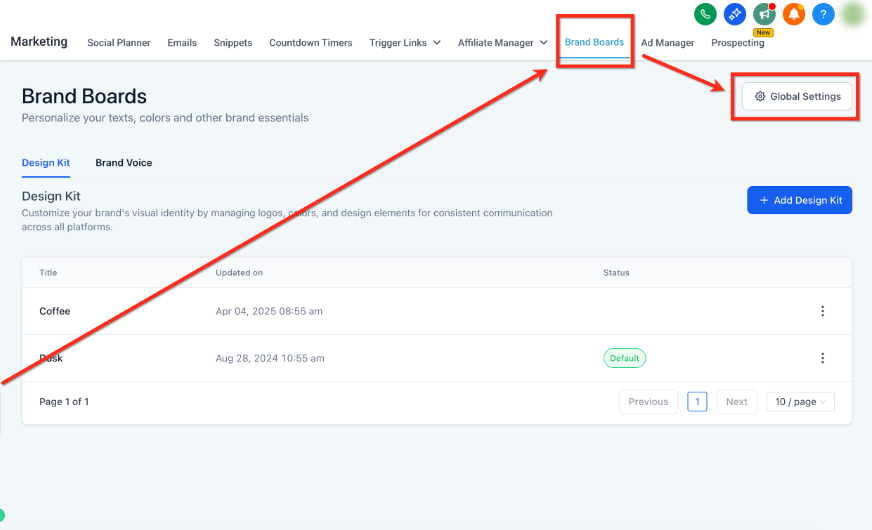
Add a New Global Color
- Go to Marketing → Brand Boards → Global Settings.
- Click + Add then Add New.
- Enter a Name (e.g., Primary, Accent, Background) and a HEX/RGB value (for example: #1A73E8) or select a color from the color picker.
- Click Save.
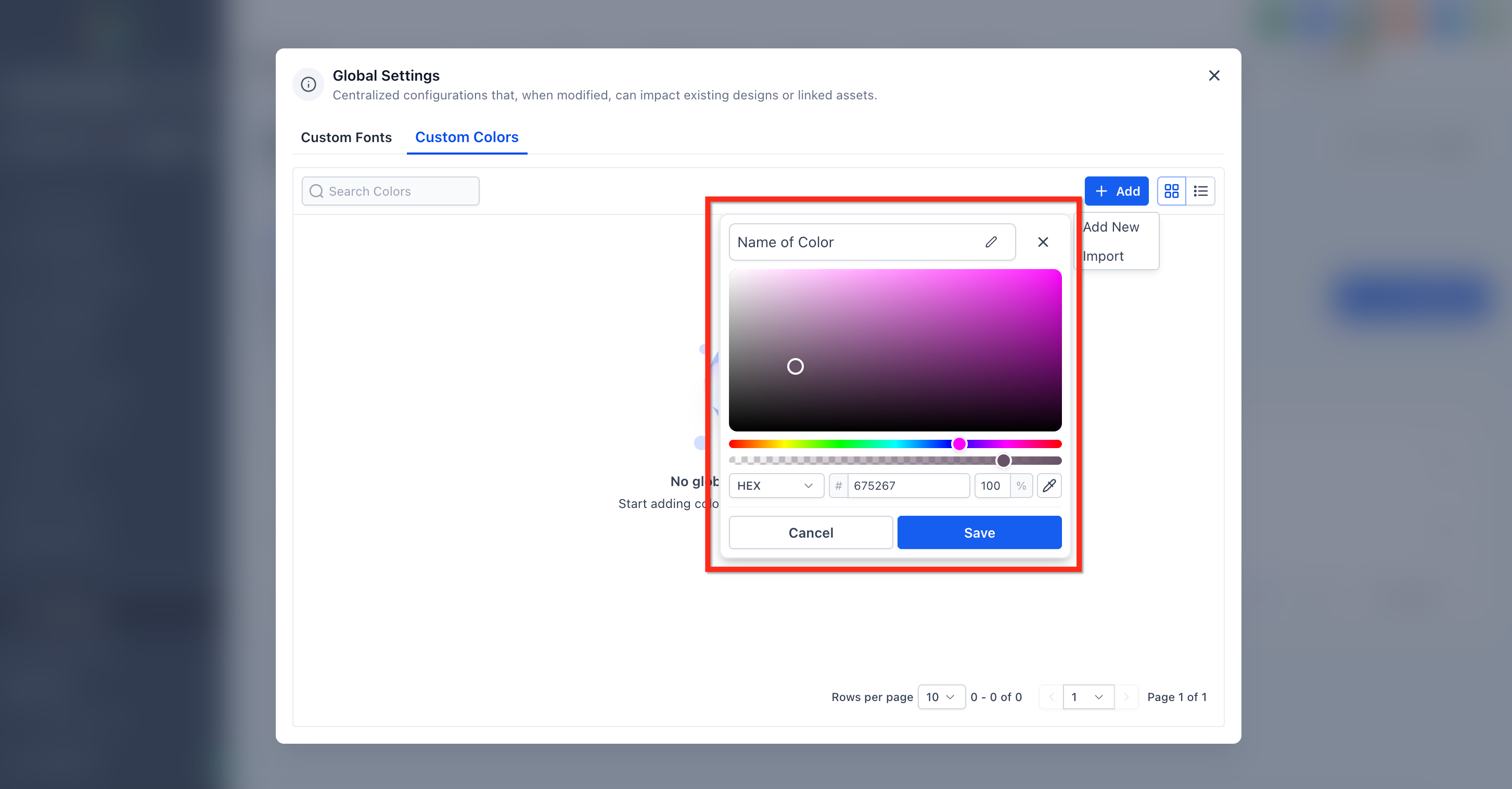
Edit, Rename, or Delete a Global Color
You can edit, rename, and delete existing Global Colors from within Global Settings in Brand Boards.
- To delete a Global Color, click the trash can icon.
- To edit or rename a Global Color, click the Edit (pencil) icon. This opens the color picker where you can make the required edits.
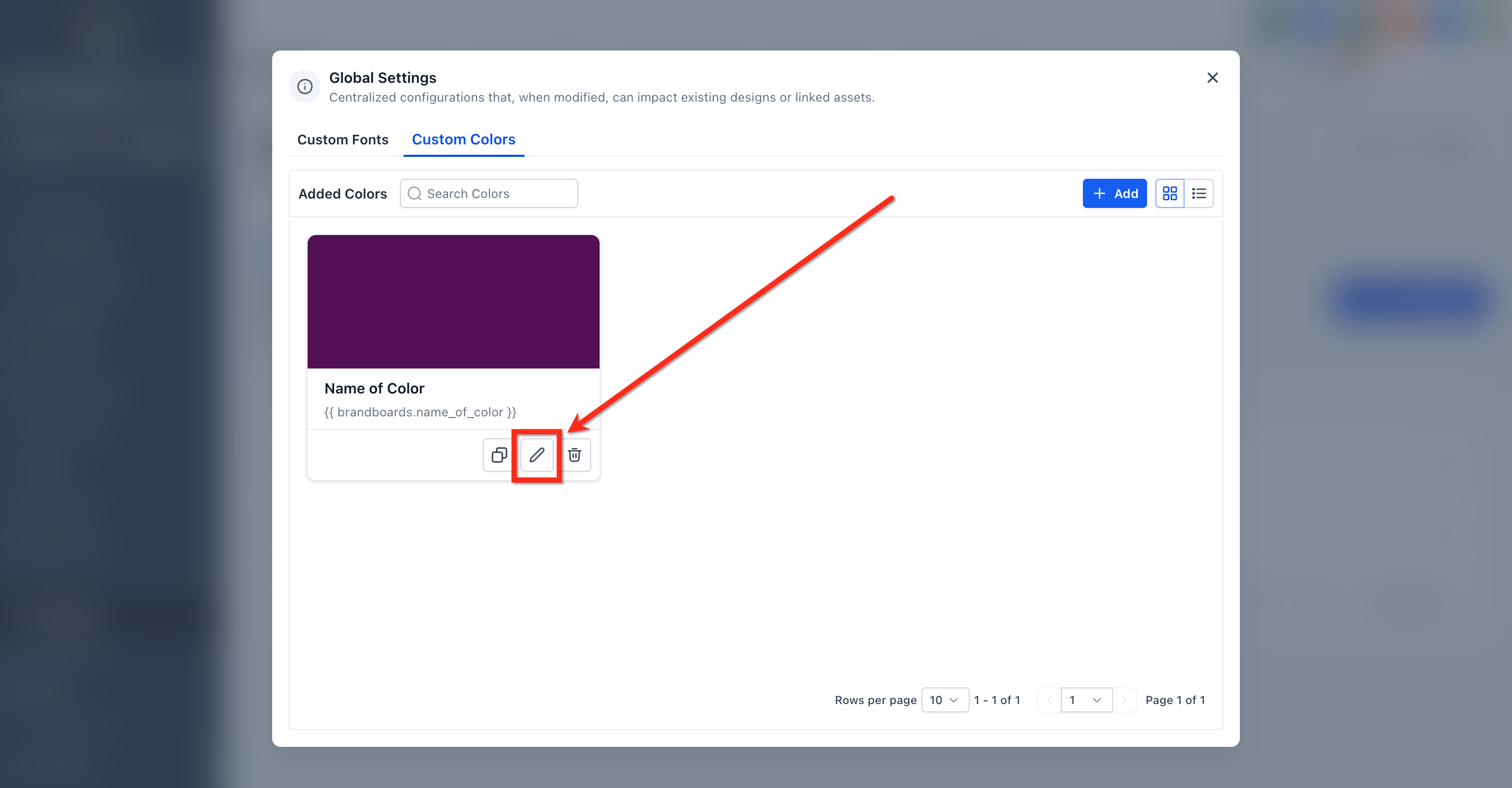
Import Global Custom Colors from Custom Values
If you already store brand colors as Custom Values, import them to quickly populate your Global Custom Colors palette. Import copies eligible values into Global Settings for central management.
Before You Start
- Confirm your Custom Values contain valid color entries (commonly HEX codes like #000000).
- Use clear names (e.g., Primary_Color, Button_BG) to make mapping easier when importing.
Import Steps
- Go to Marketing → Brand Boards → Global Settings.
- Click + Add then Import.
- Select the Custom Values that represent colors and click Import.
- If any selected value isn't a valid color (e.g., not a HEX code), skip or correct it before importing.
Using Global Custom Colors in Builders (Color Picker)
Once at least one Global Custom Color is saved, a "Global Custom Colors" group appears in the Color Picker inside supported builders. This makes it easy to apply the exact, approved swatches everywhere.
Where you'll see it
- Emails (drag-and-drop builder)
- Enrollment Pages & Sites (page builder)
- Forms & Surveys
Apply a Global Color within an Editor
- Open the builder (e.g., Email, Enrollment Page, or Form) and select any element with a color setting (text, button, background, border).
- Open the Color Picker.
- Click a swatch under Global Custom Colors to apply it.
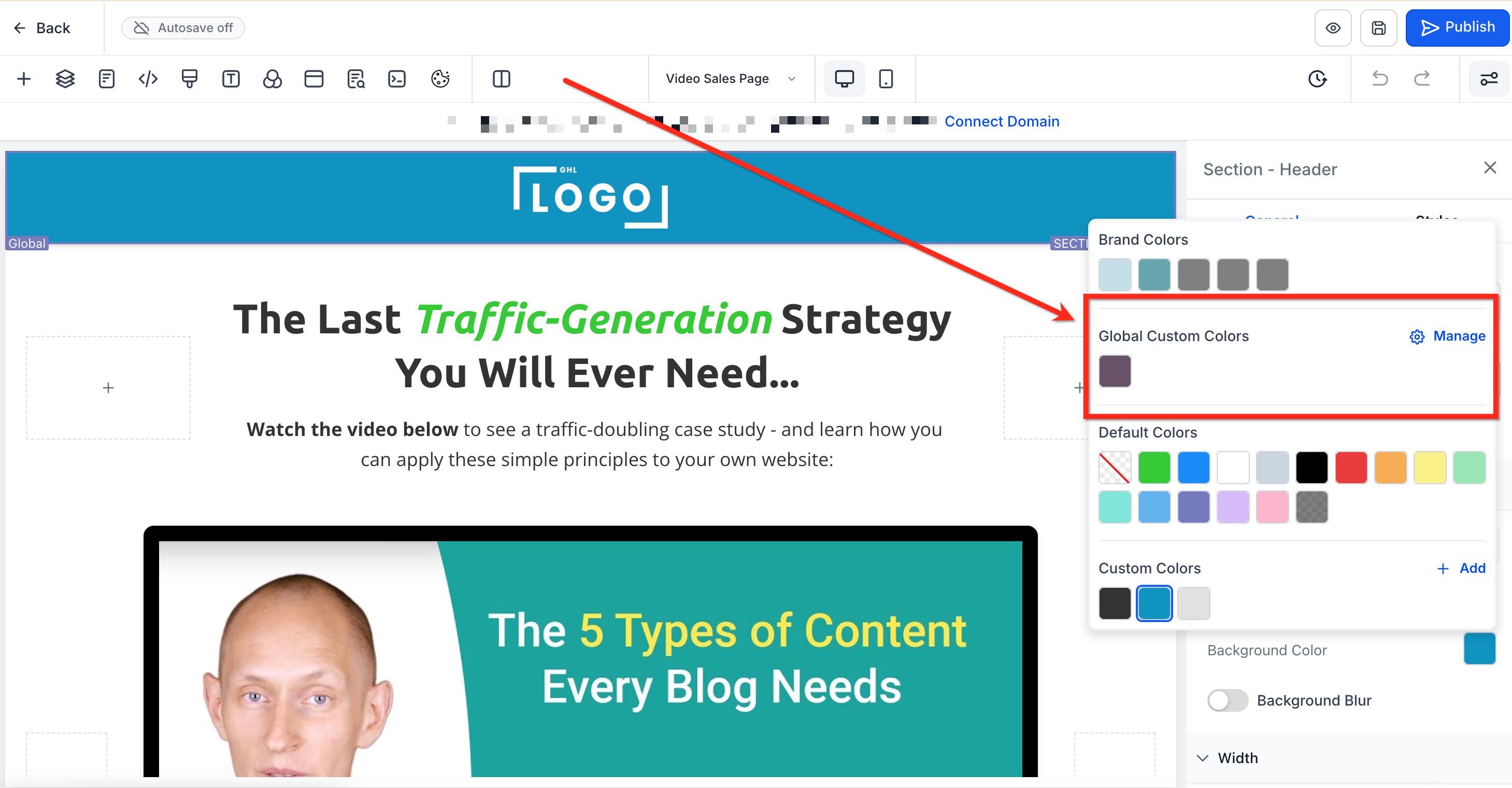
Manage from the Color Picker
Click Manage in the Color Picker to jump directly to Global Settings (when available), where you can add or adjust colors without leaving your current work.
Frequently Asked Questions
Will changing a Global Color update my existing assets?
Yes. Global Custom Colors are two-way synced. Any change reflects instantly across all designs where that color is applied.
Why don't I see Global Colors in the color picker?
The section only appears if you've added at least one color in Global Settings.
Can I import my existing custom value based colors?
Yes. You can import them from the Custom Values section into Global Settings. This creates a copy and does not remove the original custom values.
How is this different from Design Kit colors?
Design Kit colors are for quick access only and do not sync. Global Custom Colors sync across all assets automatically.
Can I use this when managing multiple locations?
Absolutely! If you manage multiple childcare locations, you can clone enrollment pages and emails, then simply update the Global Colors to instantly rebrand for each location.