
Why Refresh a Template?
When you make changes to a client account (like new automations, forms, or enrollment pages), your existing template does not update automatically. To capture these new changes and make them available for future imports or updates, you need to manually refresh the template.
How to Refresh a Template
- Go to your Enrollio Dashboard
- Click the Account Templates tab from the left-hand menu
- Find the template you want to update
- Click the Refresh icon next to that template
- Select which new or modified assets you want to include
- Click Refresh to finalize the update
Note: After you click Refresh, Enrollio loads the selected assets from the source client account. You'll see a progress indicator showing how many assets have been loaded. If some assets fail to load, the refresh will still continue for the others instead of stopping the entire process.
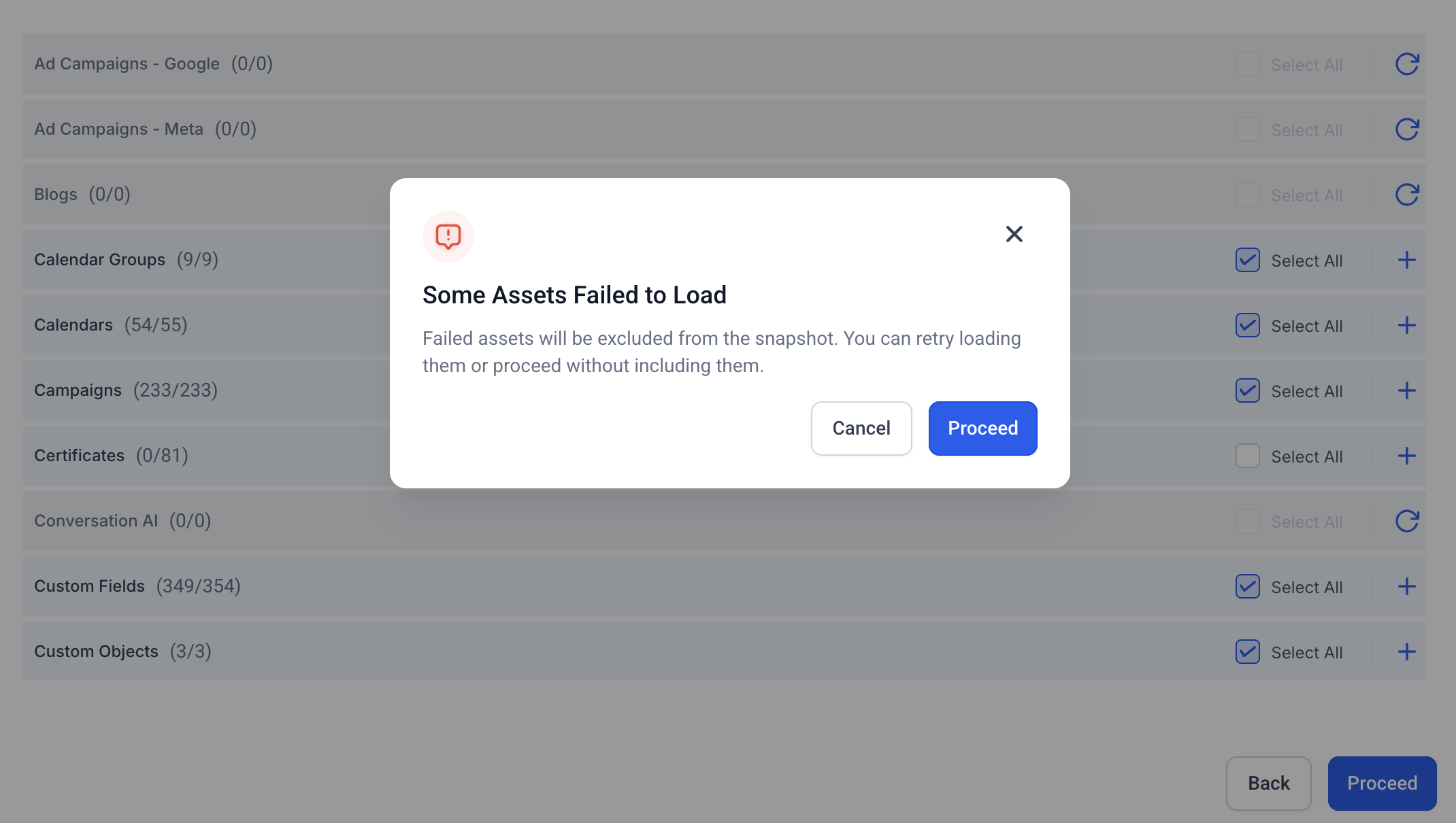
Handling Failed Assets During Refresh
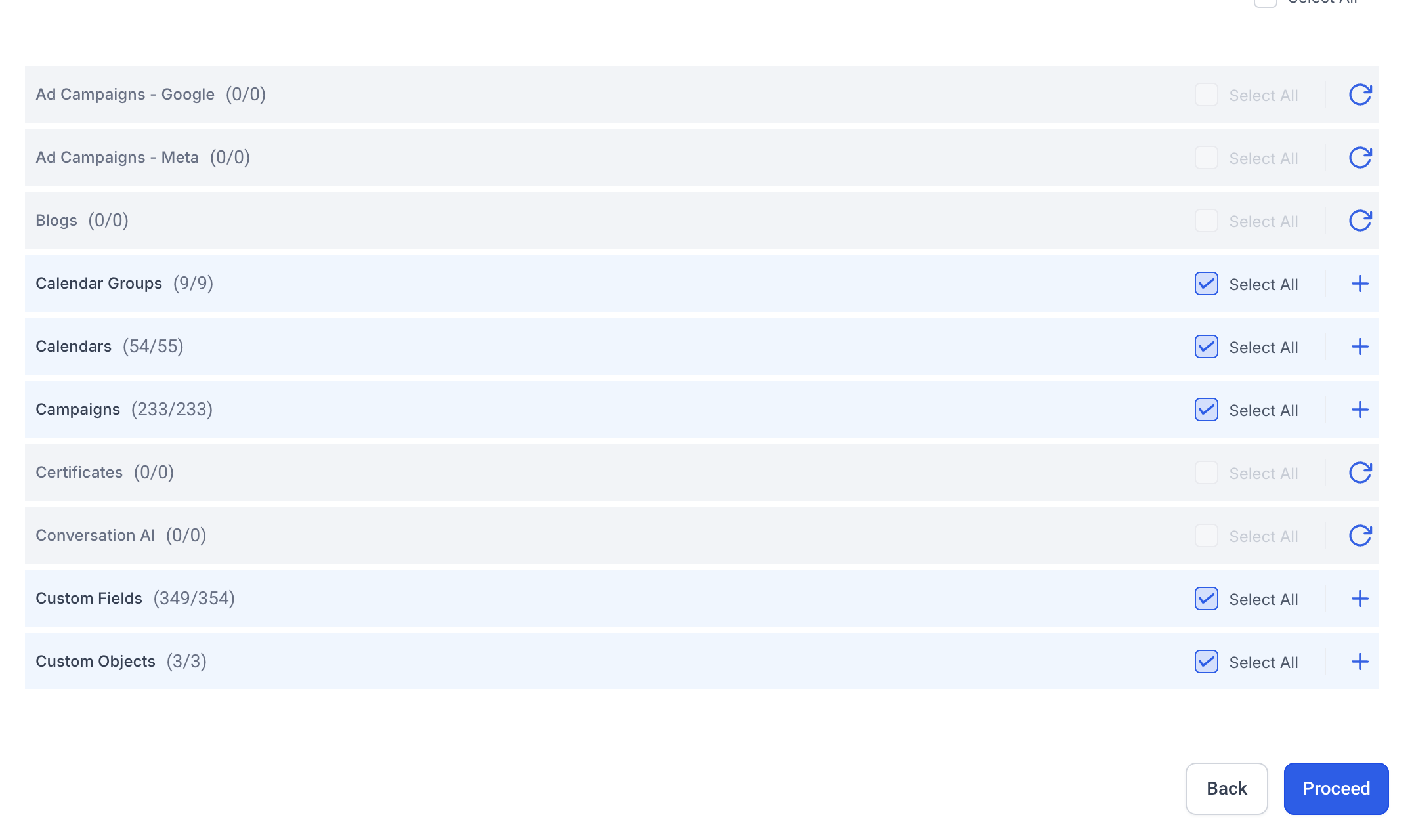
If one or more assets fail to load during a refresh, they will be marked as failed while the rest of the selected assets continue processing. You can retry loading only the failed assets instead of restarting the entire refresh.
This helps you fix temporary issues (like intermittent timeouts) without blocking the overall template update.
Automation Cleanup After Template Refresh
If a template refresh removes steps inside automations that were created from the template (for example, deleting a wait step), Enrollio automatically removes any families that were waiting on the deleted step so they don't get stuck.
What You'll See
- A one-time heads-up appears the next time you open an affected automation (shown only when it applies)
- In Execution Logs, the automation records an entry labeled "Removed by - Template Refresh" with more details in the side panel
Note: This applies only to automations created from templates when a refresh deletes steps. Directly deleting a step in an automation already removes waiting families.
What Happens When You Click "Push Updates"?
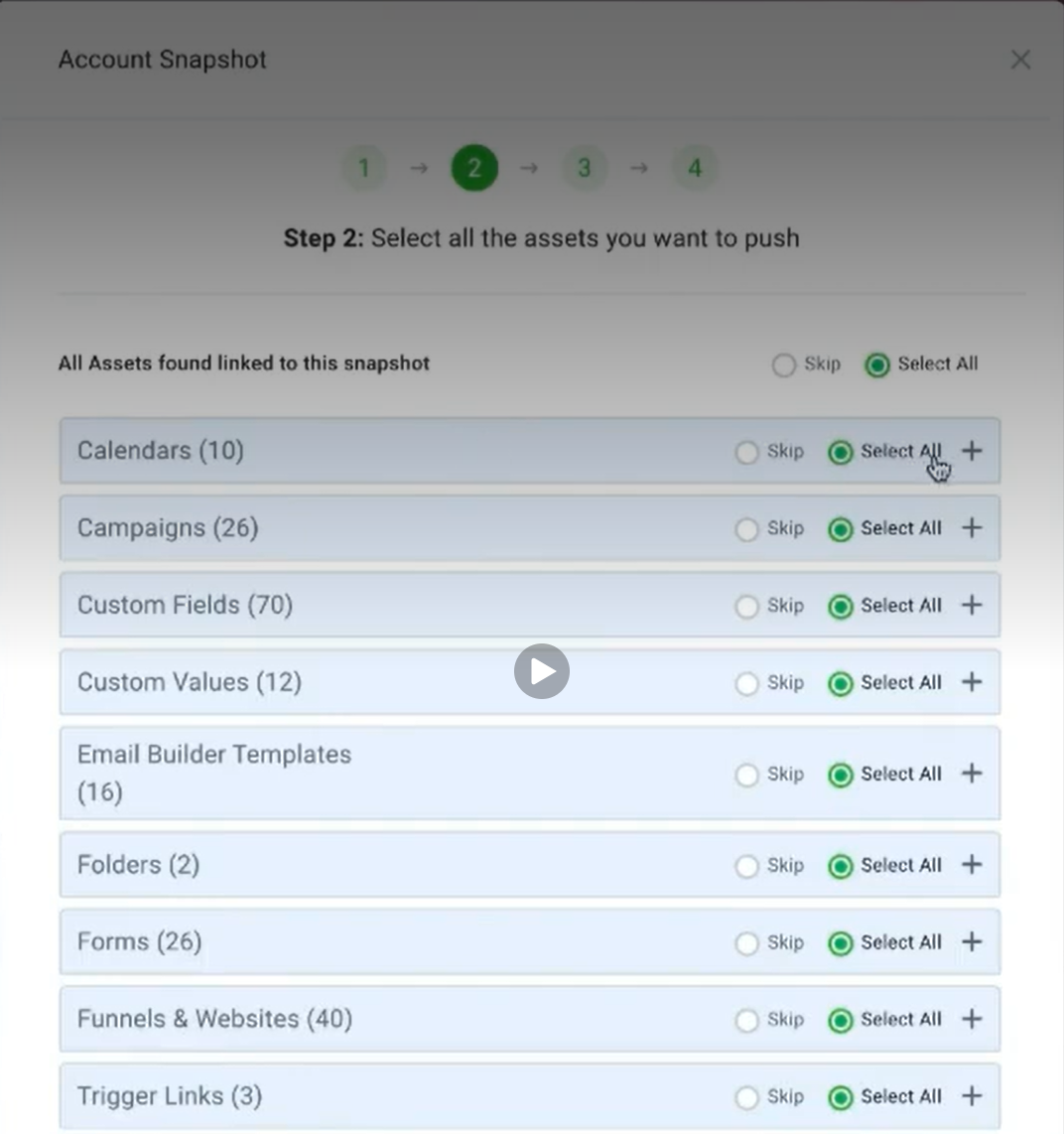
After refreshing a template, you'll see the "Push Update" button available for that template. Clicking it lets you:
- Select which client accounts (that previously imported this template) should receive the update
- Choose the assets to push (e.g., only automations, or specific forms)
- Manually sync updates into those client accounts without reloading the entire template

💡 Pro Tips
- Always refresh your template before sharing or pushing updates
- Use the Push Update feature to sync selected changes to client accounts
- Pushed updates are selective, not destructive — existing data stays safe
- Updates only push to client accounts inside your own Enrollio account