
Resize Dashboard Widgets
Quickly adjust widget sizes by dragging the corners to expand or shrink them. This helps you customize your dashboard view to focus on the metrics that matter most for your childcare center.
Step 1: Switch to Edit Mode
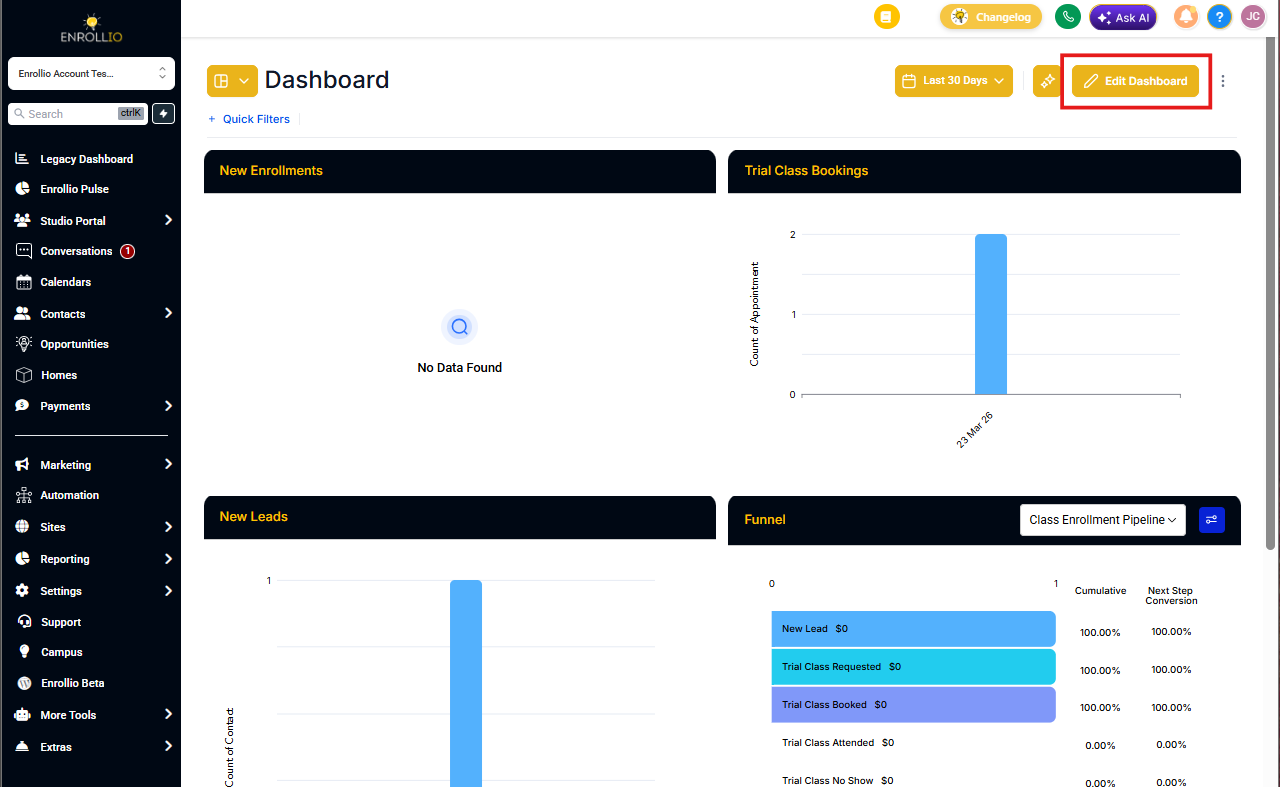
On your dashboard, click the EDIT button at the top of the page.
Step 2: Click and Drag the Corner Icons
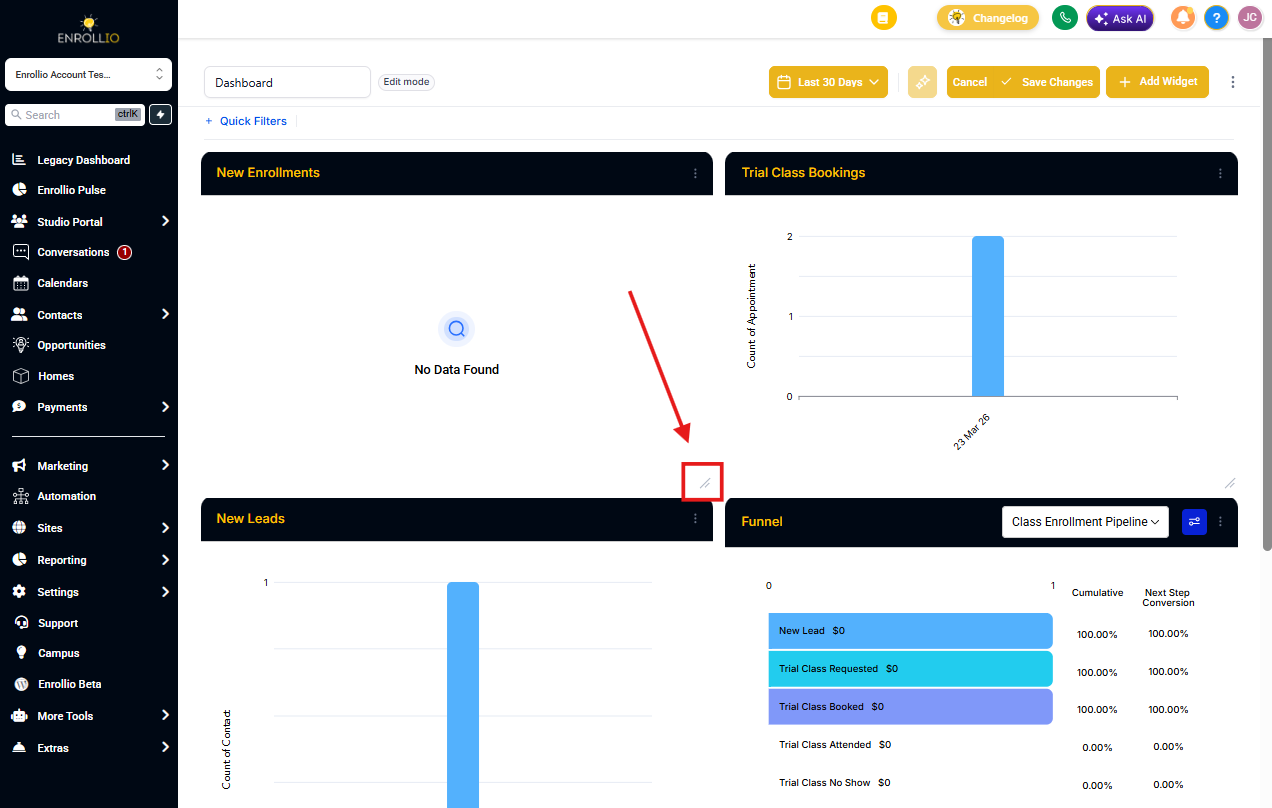
Locate the arrow icons at the corners of any widget. Click and drag these corners to resize the widget larger or smaller.
Expand widgets to see more detailed data at a glance, or shrink them to fit more information on a single screen.
Step 3: Save Your Changes
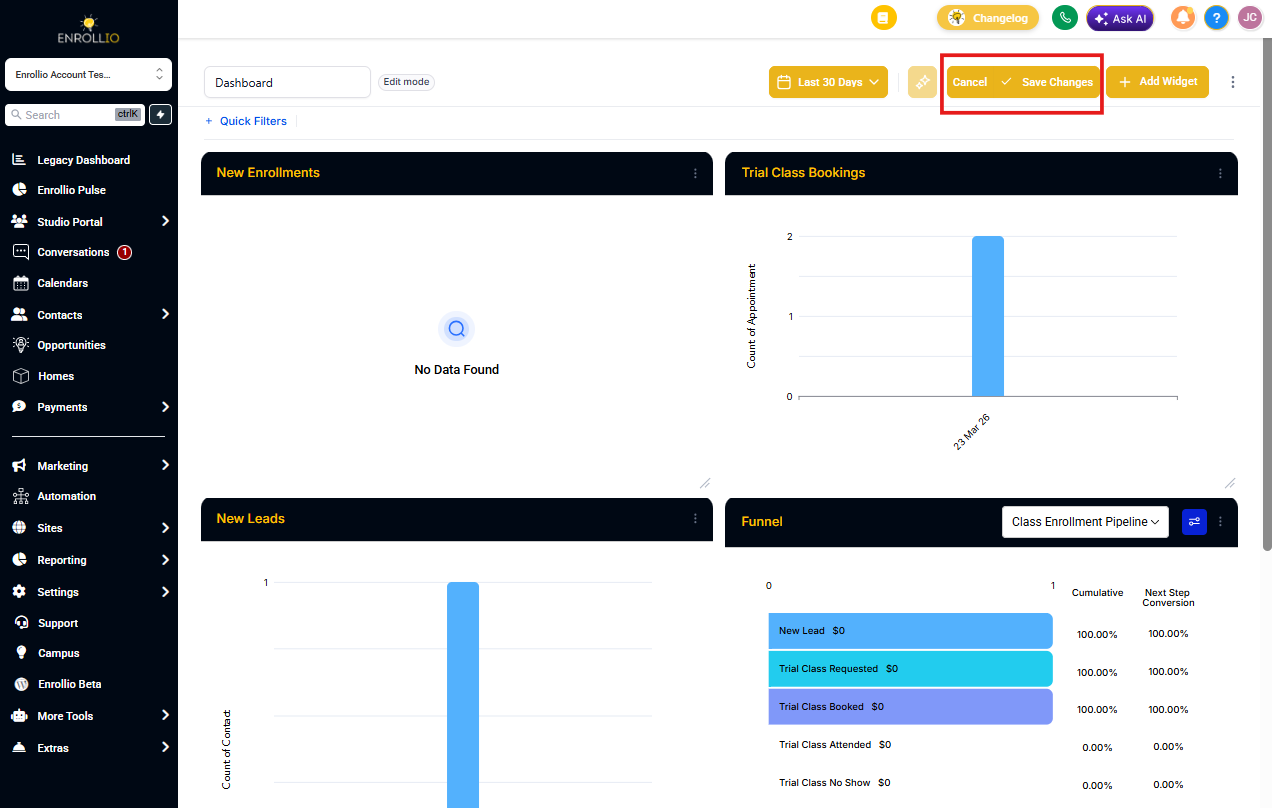
When you're happy with your layout, click SAVE CHANGES at the top of the dashboard.
If you want to undo your changes, click Cancel instead. Your widgets will return to their previous sizes.
Note: Custom dashboards are available on the Professional plan ($497/month) and above. If you're on the Starter ($97) or Growth ($297) plan, upgrade to unlock dashboard customization features.