
Overview
Control exactly when parents and staff receive and sign your enrollment contracts and documents. With signing order, you can require one person to review and sign before the next person receives their copy — perfect for director approvals or multi-parent enrollment agreements.
Key Features
- Enable/disable signing order: Choose whether recipients sign in a specific order or all at once
- Drag and drop reordering: Rearrange signers with a simple click and drag
- Sequential email delivery: When signing order is enabled, each recipient gets their email only after the previous person signs
- Simultaneous sending: When signing order is disabled, all recipients receive their emails at the same time
When to Use Signing Order
Signing order is especially useful for:
- Enrollment contracts that need director approval before parents sign
- Staff agreements requiring manager review first
- Multi-parent families where one parent needs to sign before the other
- Policy acknowledgments with approval workflows
How to Enable and Configure Signing Order
Step 1: Access Your Document
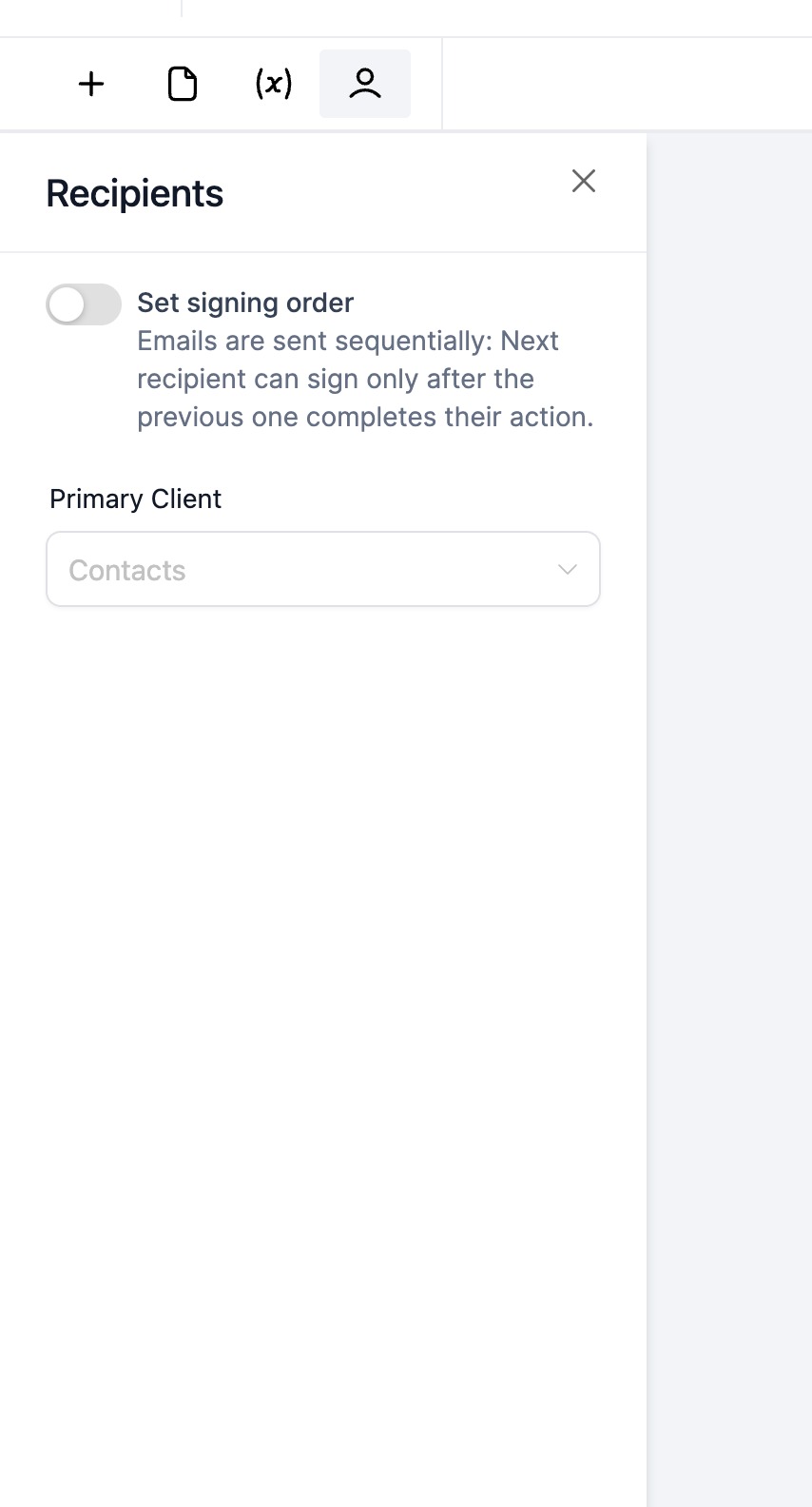
Navigate to the document or contract you want to send. This works for both new documents and templates you're sending to families.
Step 2: Turn On Signing Order
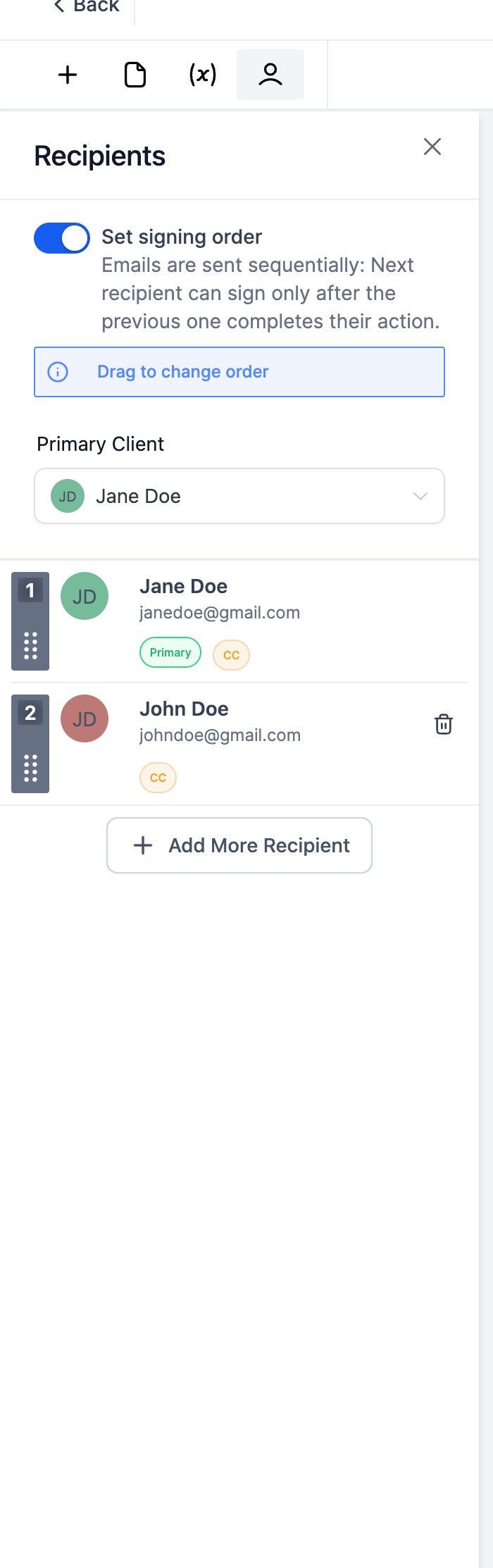
Look for the Signing Order toggle in the recipient section. Click it to enable sequential signing.
Step 3: Arrange Your Signers
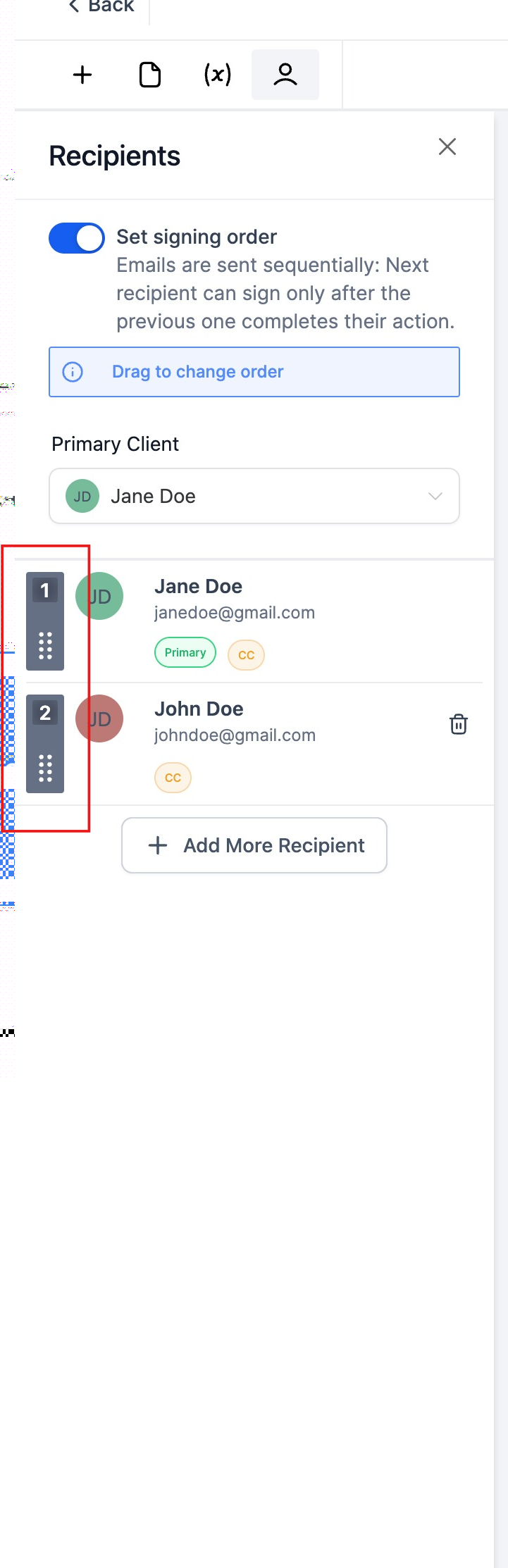
- Click and hold on a recipient's name
- Drag them up or down to set their position in the signing sequence
- Release to lock in the new order
The person at the top of the list signs first, followed by the second person, and so on.
Step 4: Send Your Document
Once your signing order is set, send the document as usual. Each recipient will receive their email notification only after the previous signer completes their signature.
How Email Notifications Work
With Signing Order Enabled
Emails are sent one at a time based on your sequence. The first person receives their email immediately. Once they sign, the second person automatically receives their email, and so on.
With Signing Order Disabled
All recipients receive their signing emails at the same time. Everyone can sign whenever they're ready, in any order.
Common Use Cases
Director Approval First
Set your director or enrollment coordinator as the first signer to review and approve contract terms. Once they sign, the parent automatically receives their copy to complete.
Two-Parent Households
For families with two parents, you can require one parent to sign first. This is helpful when one parent typically handles enrollment decisions.
Staff Onboarding
Have your HR manager or lead teacher review and sign staff agreements first, then automatically send to the new employee for their signature.
Frequently Asked Questions
What happens if someone doesn't sign?
The sequence pauses until that person completes their signature. The next recipient won't receive their email until the current signer finishes.
Can I change the order after sending?
No, once a document is sent, the signing order is locked. You'll need to void the document and resend with a new order if needed.
Do recipients know they're in a signing order?
Recipients only see their own signing request. They won't know if others need to sign before or after them unless you tell them.