
Multi-Select in Media Storage
Enrollio's Media Storage now features Multi-Select capabilities, letting you perform bulk actions like moving, downloading, and deleting files all at once. This makes managing your childcare center's photos, forms, and documents faster and more efficient.
What is Multi-Select in Media Storage?
The Multi-Select feature lets you select multiple files or folders at the same time in your Media Storage. Instead of moving or deleting files one by one, you can handle dozens at once — perfect when you're organizing enrollment documents, tour photos, or parent communication materials.
Benefits of Using Multi-Select
Efficient File Management
Select multiple files at once by clicking checkboxes or dragging your mouse across items. This makes it easy to organize large batches of enrollment forms, parent documents, or classroom photos.
Bulk Actions
Move, download, or delete selected files in one operation. No more clicking through dozens of files individually — save time for what matters most: your families and students.
User-Friendly Interface
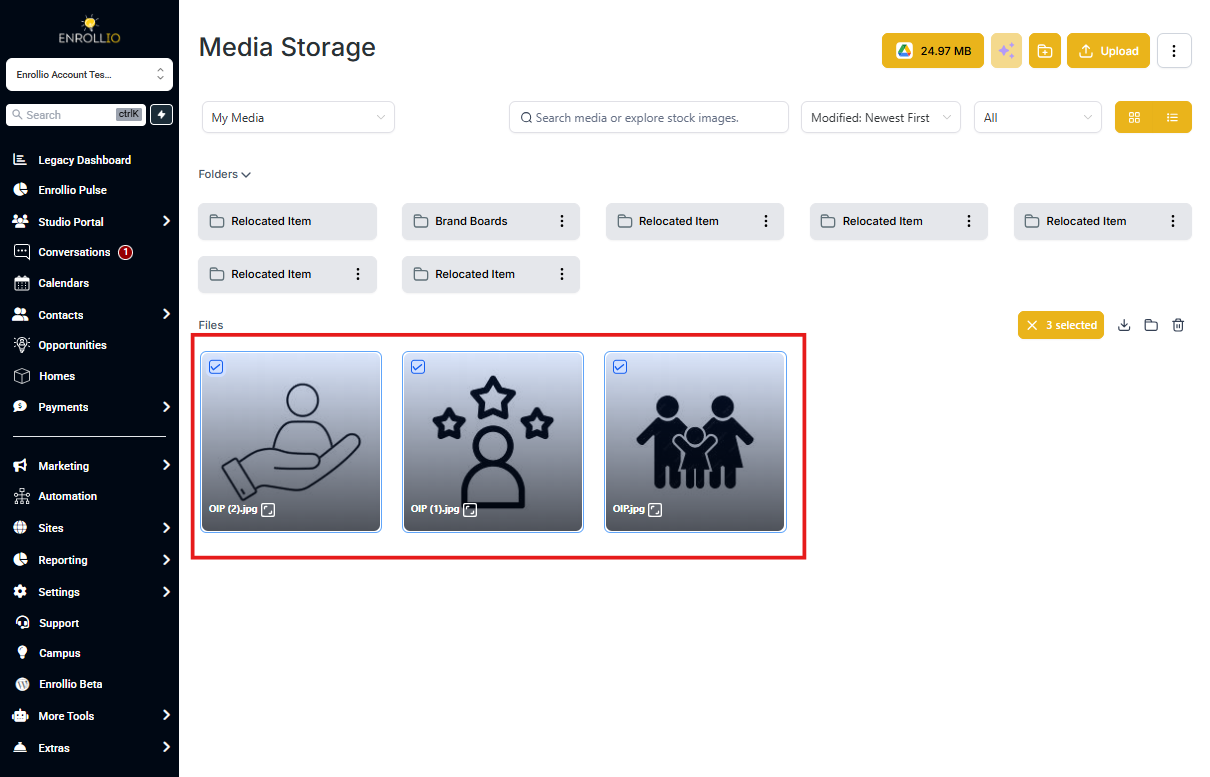
Enter multi-select mode by dragging to select or using the "Select" option in the three-dot menu. Selected files show a checkmark at the top left corner so you always know what you're working with.
Multi-Select Media in Grid View
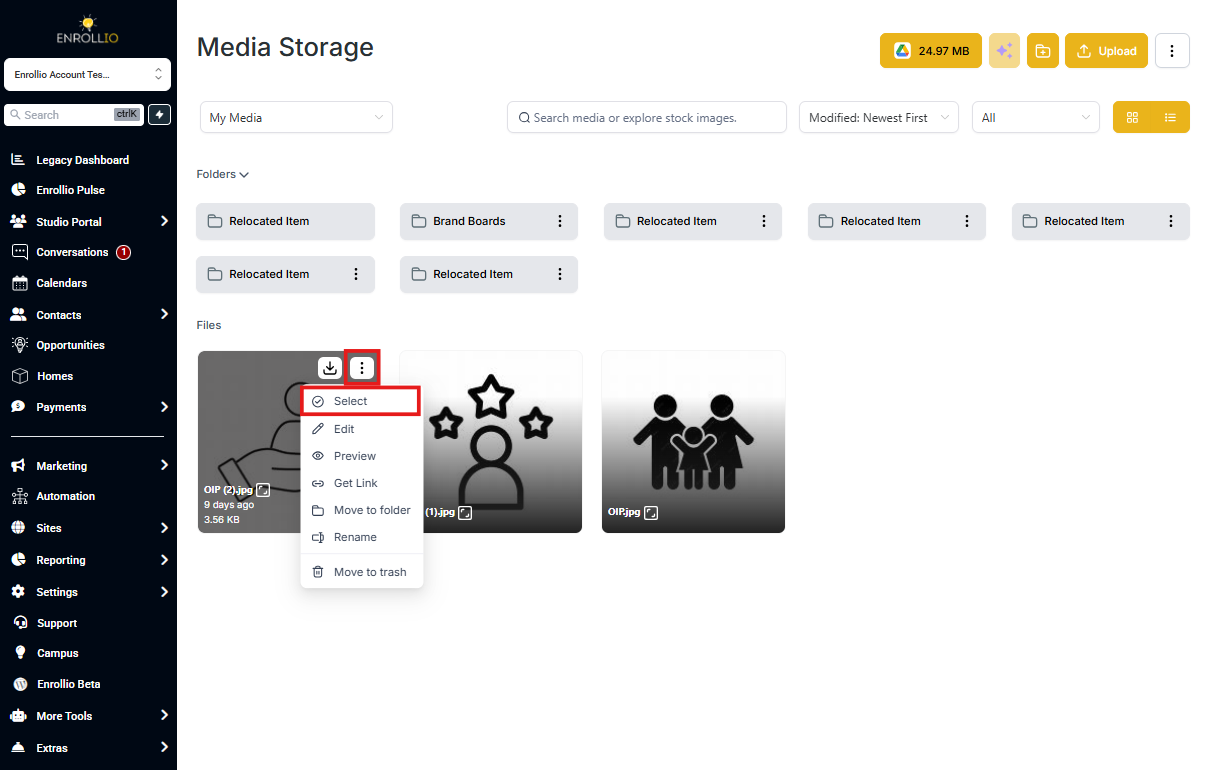
In Grid View, you have two ways to select files:
- Click and drag your mouse across the files you want to select
- Click the three-dot menu on any file and choose "Select"
Selected files and folders will display a checkmark in the top left corner.
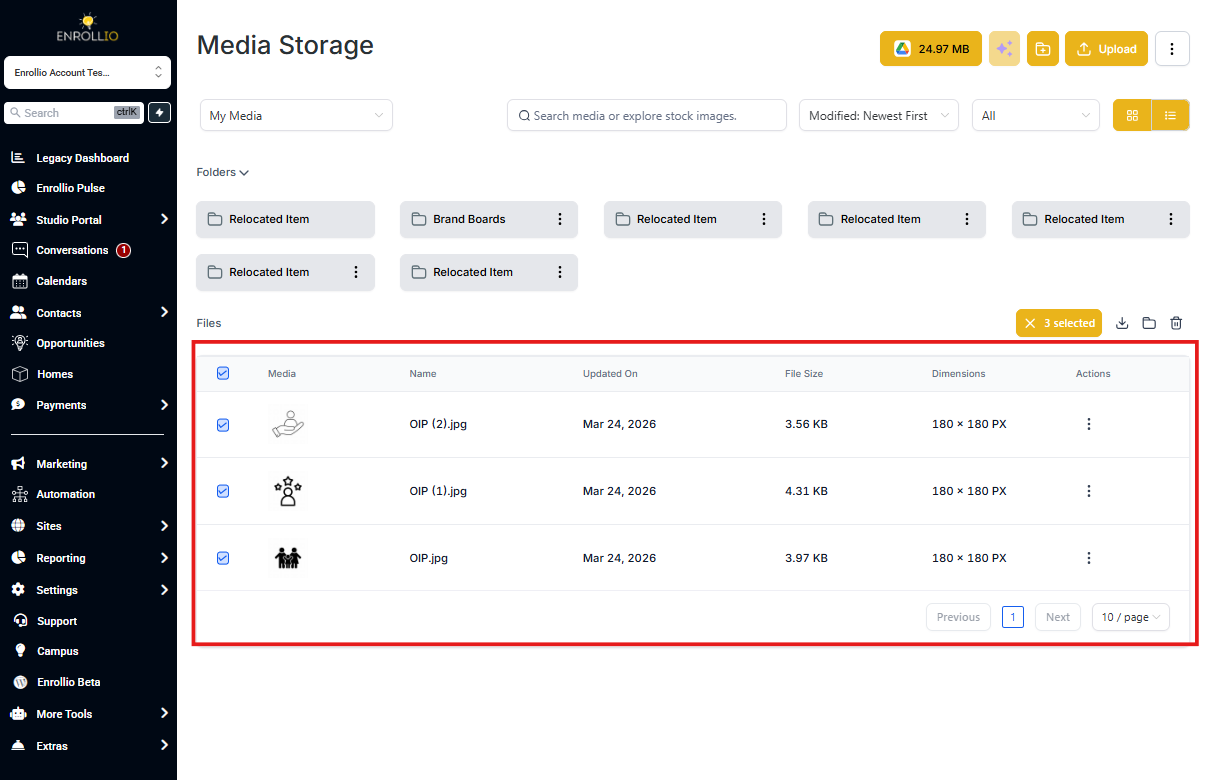
Multi-Select Media in List View
In List View, use the checkboxes next to each file or folder to select multiple items. This view is especially helpful when you're working with long lists of enrollment documents or forms.
Performing Multi-Select Bulk Actions
Once you've selected your files, use the action buttons at the top to:
- Move: Relocate files to a different folder
- Download: Save files to your computer
- Delete: Remove files from Media Storage
Important Limitations
- Files larger than 2 GB will be skipped during multi-download and must be downloaded individually
- When in multi-select mode, "Rename" and "Get Link" options are disabled to keep bulk actions simple and prevent errors
Frequently Asked Questions
Can I select files across different folders using Multi-Select?
Currently, Multi-Select works within a single folder at a time. To manage files across different folders — like moving enrollment forms from your "Pending" folder to your "Completed" folder — perform actions within each folder separately.
Are there any file types that cannot be selected using Multi-Select?
Multi-Select supports all file types in Media Storage, including PDFs, images, videos, and documents. However, certain actions may be restricted based on file type. For example, some file types may not support previewing.
How does Multi-Select handle files with the same name during bulk actions?
If you move or download multiple files with the same name, Enrollio will prompt you to rename or skip files to prevent overwriting. This protects your important enrollment documents and parent communications from being accidentally replaced.
Is there a limit to the number of files I can select at once?
Yes, you can select up to 100 files at a time for bulk actions. If you try to select more than 100 files, you'll see a notification. For larger operations, break your selection into smaller batches.