
Never miss a chance to connect with a prospective family. When a parent calls your childcare center and you can't pick up, Enrollio can automatically send them a friendly text message so they know you'll get back to them soon.
This guide walks you through setting up the missed call text back feature for your phone numbers in Enrollio.
Important Note
The missed call text back feature triggers a text message for every missed call—even if the same parent calls multiple times in a short window. To avoid sending multiple texts to the same family, consider creating a custom automation that adds a 20-minute wait step or uses tags to track first call, second call, etc.
Step 1: Open Your Settings
Log into your Enrollio account and click Settings in the left-hand menu. This is where you manage all backend controls for your account.

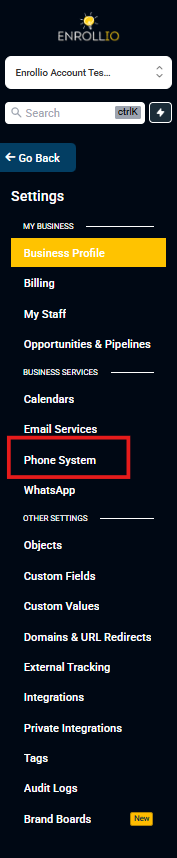
Step 2: Go to Phone Numbers
In the Settings menu, click Phone Numbers in the left sidebar. This section controls all phone-related settings for your childcare center.
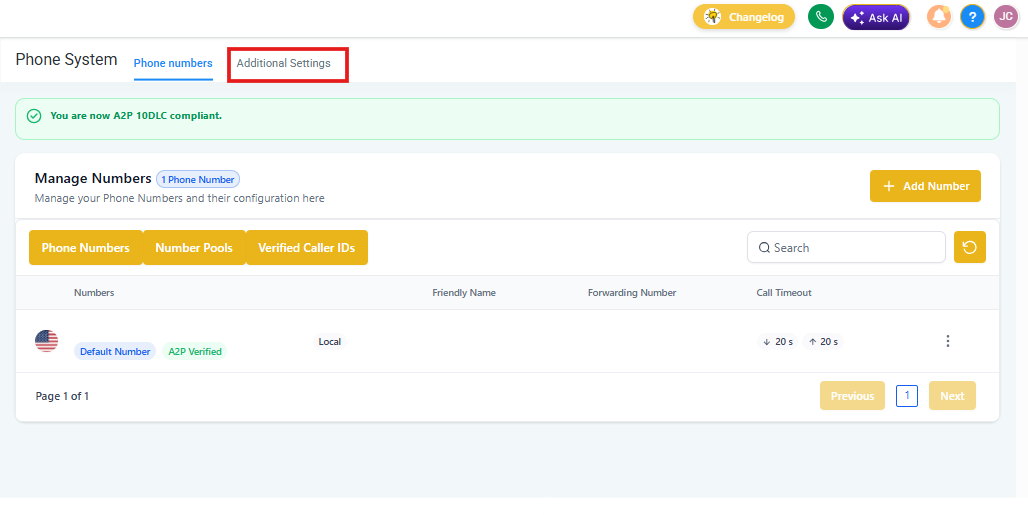
Step 3: Open Advanced Settings
Once you're in the Phone Numbers section, click the Advanced Settings tab at the top. You'll find controls here for voicemail, missed call text back, and call scripts.
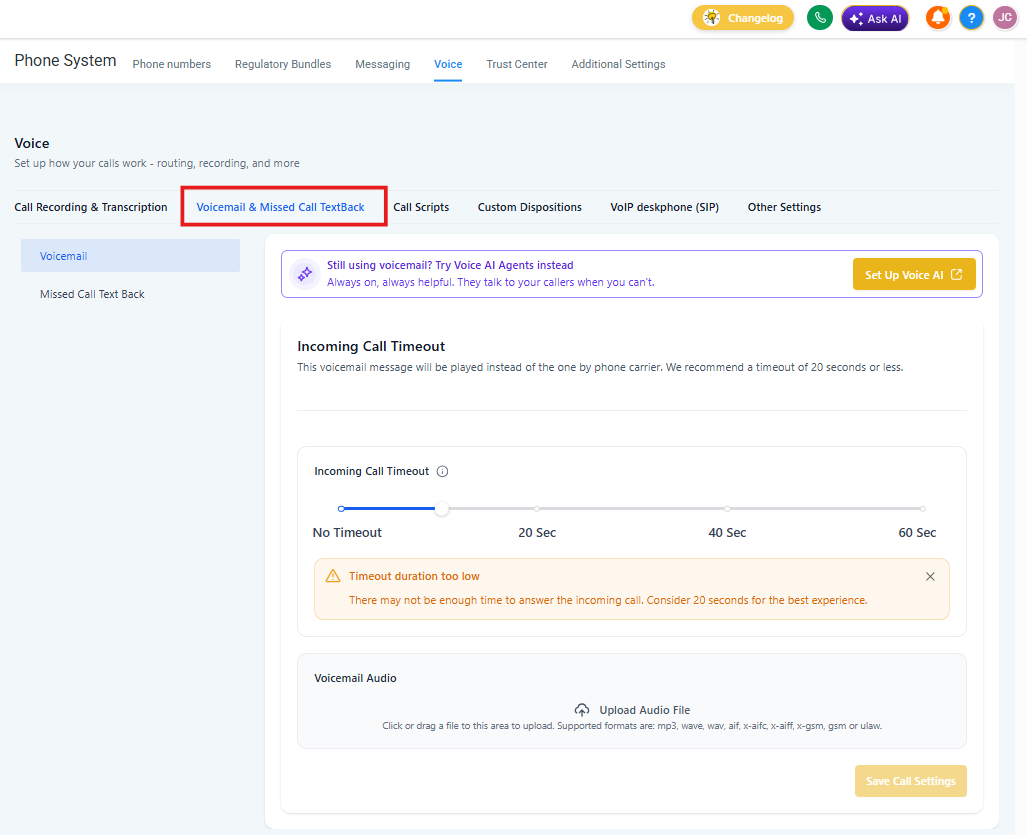
Step 4: Navigate to Voicemail & Missed Call Textback
Within Advanced Settings, click the Voicemail & Missed Call Textback tab. This is where you'll configure your text back preferences.
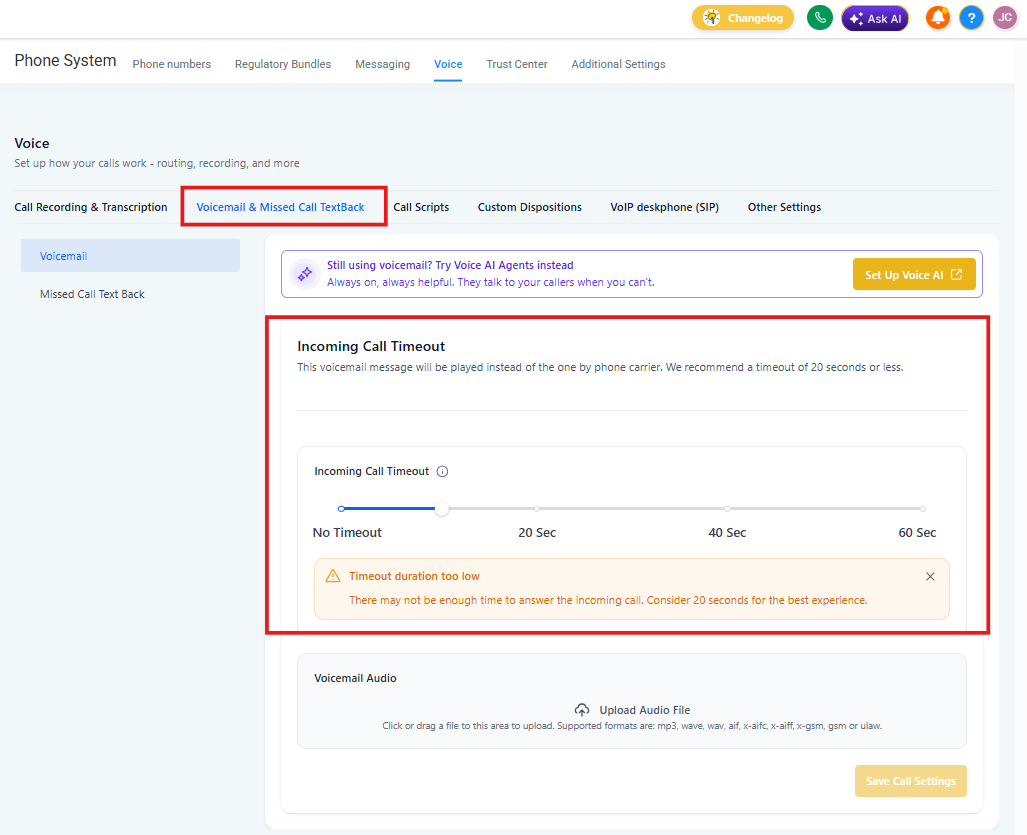
Step 5: Set Your Call Timeout
The "Incoming Call Timeout" setting determines how long your phone rings before the missed call text triggers. Use the slider to choose a duration—we recommend 10 to 20 seconds.
Pro Tip
If you have a receptionist or front desk staff, set a longer timeout (20 seconds) to give them time to answer. If you're mostly mobile, 10-15 seconds works well.
Step 6: Add a Custom Voicemail (Optional)
You can upload a custom voicemail greeting if you'd like. Upload a pre-recorded file in MP3 or WAV format. This plays instead of your carrier's generic voicemail message.
This is optional—skip this step if you're fine with the default voicemail.
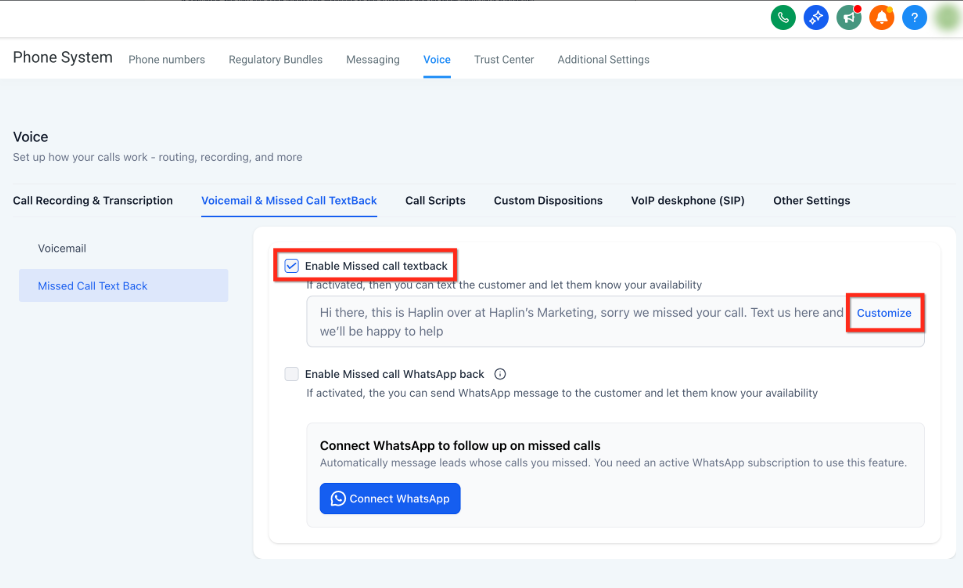
Step 7: Enable Missed Call Text Back
Scroll to the bottom of the page and check the "Enable Missed Call Text Back" checkbox. Then click Customize to write the message that goes out when you miss a call.
Step 8: Craft Your Text Message
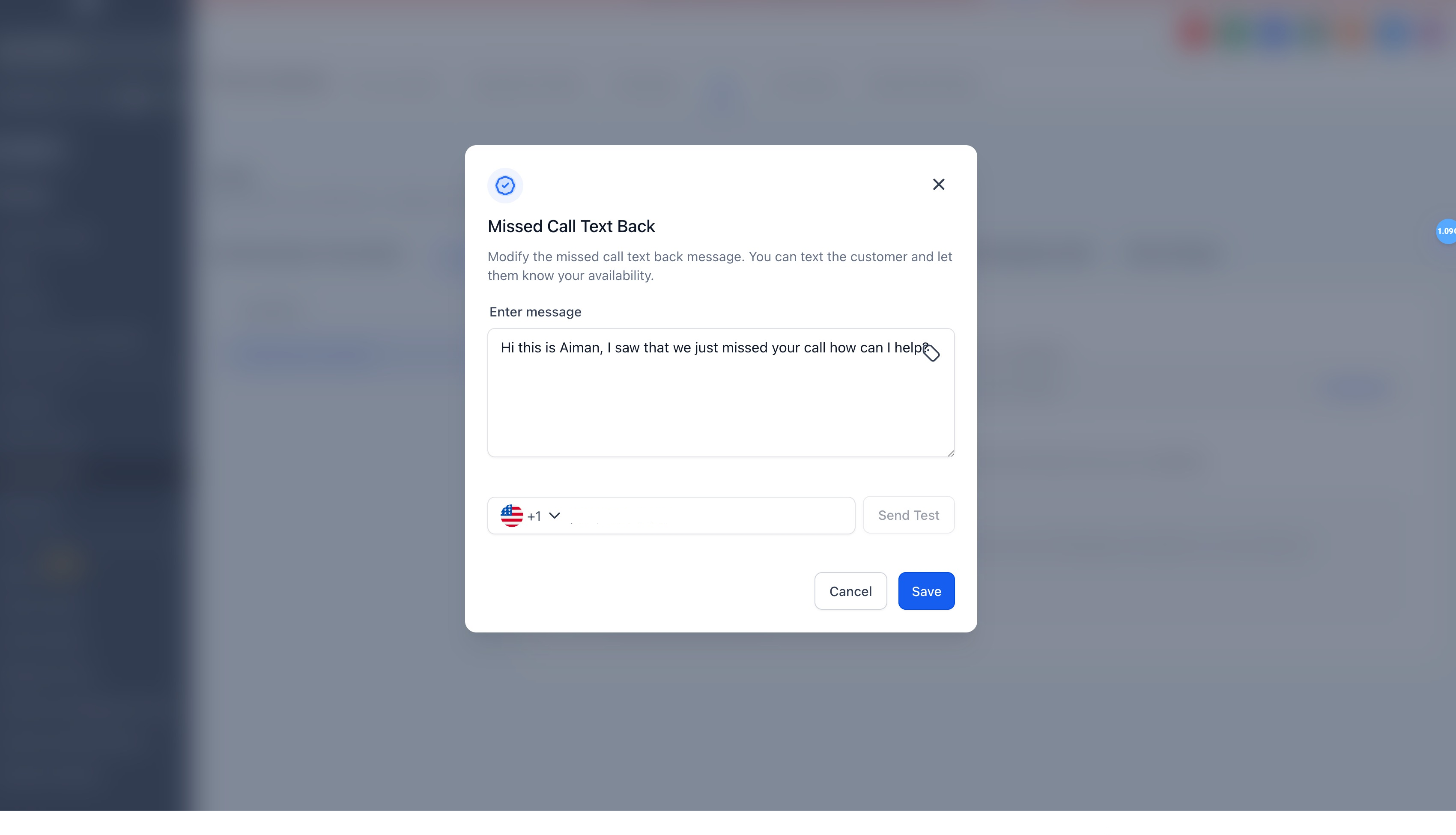
A pop-up opens where you can write your automated response. In the message field, type what you want parents to receive when they miss you.
Example message:
"Hi! Thanks for calling [Your Center Name]. We missed your call but we'll get back to you as soon as possible. You can also reply to this text and we'll respond right away!"
You can use the custom value icon to insert dynamic placeholders like the parent's first name—but these only work if the family is already in your system from a previous interaction.
Pro Tip
Keep your message warm and personal. Parents appreciate knowing their call matters and that you'll respond quickly.
Step 9: Select a Test Number
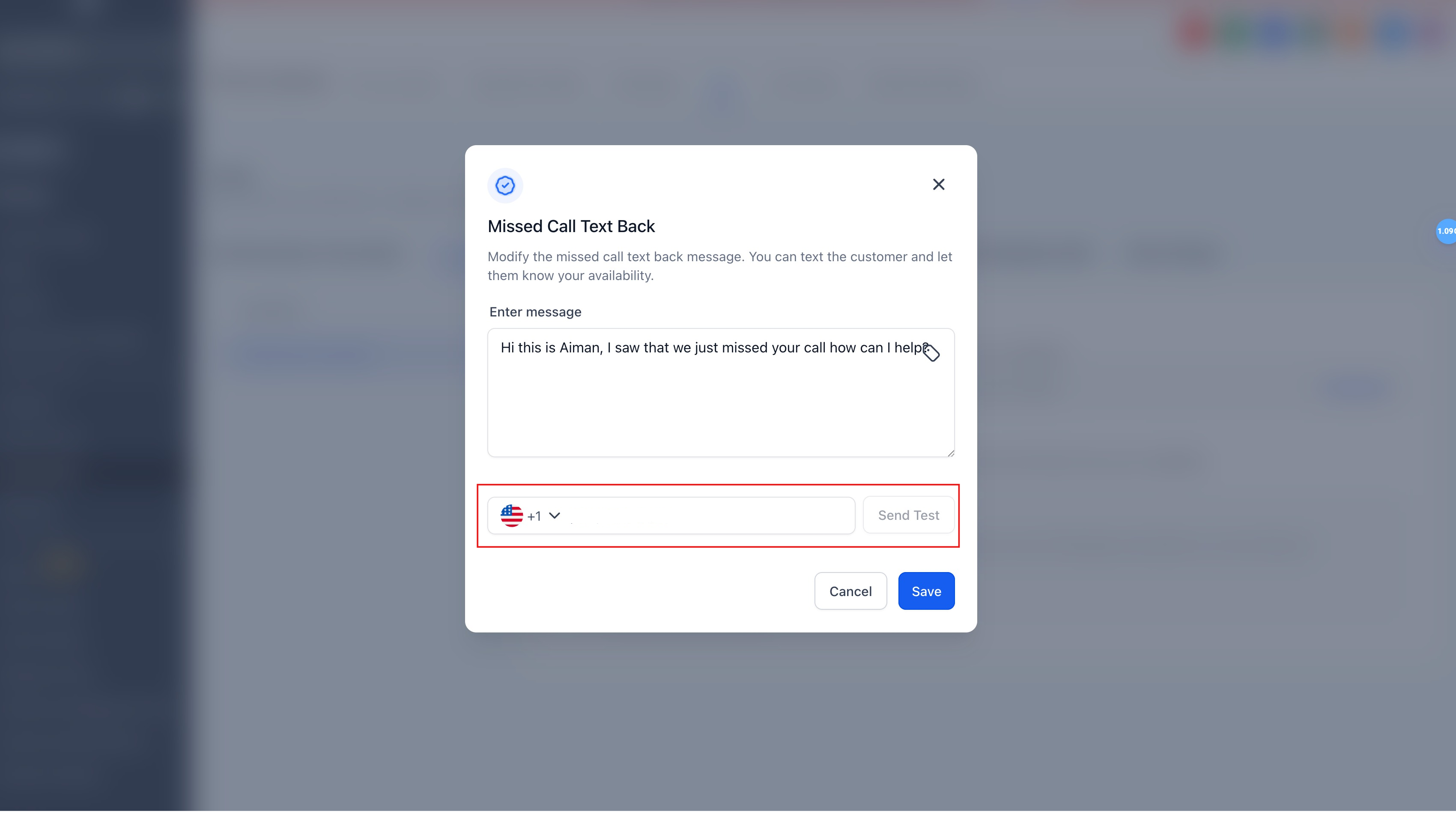
Below the message editor, select which phone number you want to use to send a test message. The dropdown shows all your connected Enrollio phone numbers.
Step 10: Test and Save
Click Send Test to send yourself a preview of the message. This helps you see exactly how it will appear to parents.
Once you're happy with how it looks, click Save to activate your missed call text back settings.
You're All Set!
Your missed call text back is now active. Every time a parent calls and you can't answer, they'll automatically receive your friendly text message. You can come back and adjust the message anytime from the same settings.