
How to Attach Images to Text Messages Using Custom Values
Custom values let you create reusable content across your Enrollio account. One powerful use? Attaching images to text messages sent through automations — perfect for sharing enrollment forms, campus photos, or welcome packets with families.
This guide shows you how to set up image attachments using custom values, making your automations more flexible and easier to manage.
Why Use Custom Values for Images?
Instead of uploading the same image multiple times across different automations, create one custom value and reuse it everywhere. Update the image once, and it changes across all your automations automatically.
How to Attach Images to Text Messages
Step 1: Create Your Custom Value
- Click Settings in the left sidebar
- Select Custom Values
- Click + Add Custom Value
- Give it a clear name (example: "Welcome Packet Image" or "Campus Photo")
- Paste the direct URL to your image file
- Click Save
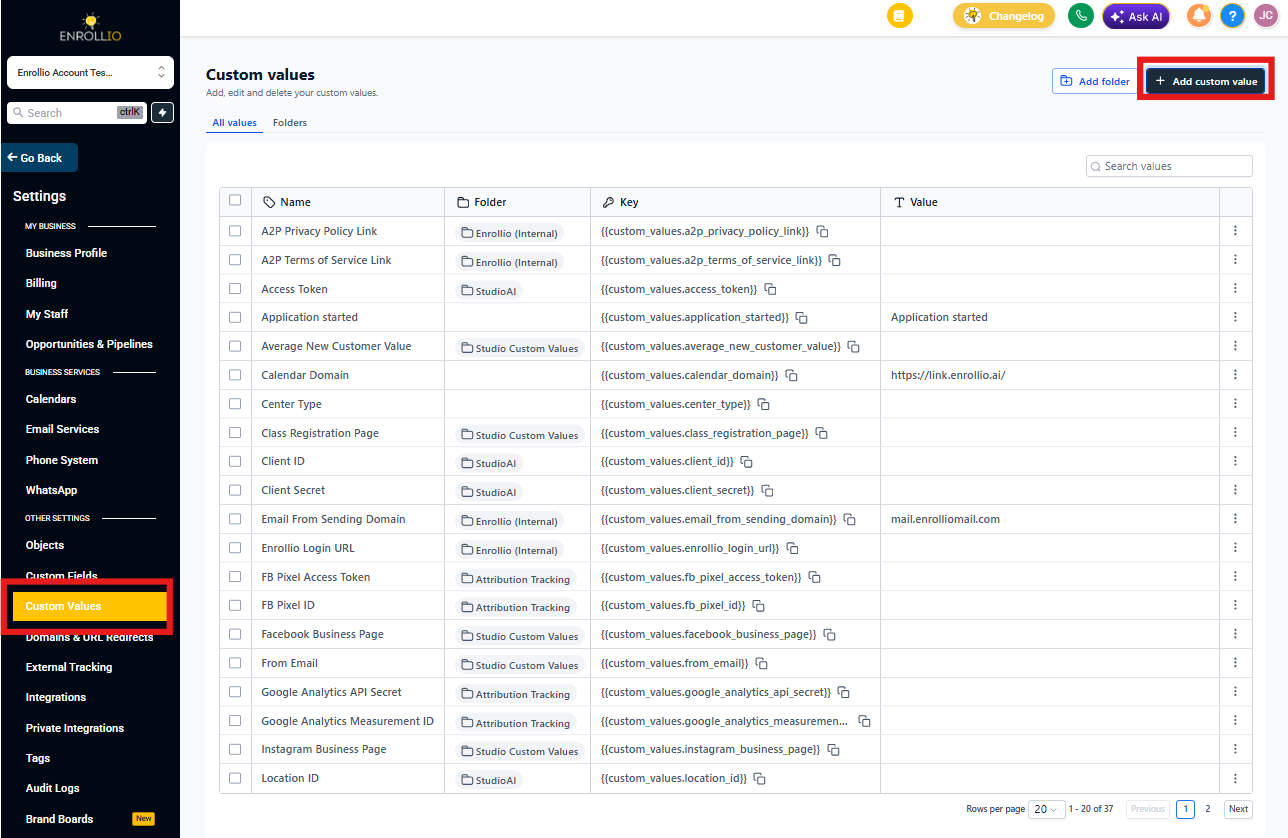
Step 2: Add the Image to Your Automation
- Open the automation where you want to send the text message
- Add or edit a Send SMS action
- In the message field, type your text as usual
- Click the attachment icon or attachment field
- Select Custom Values
- Choose your image custom value from the list
- Save your automation
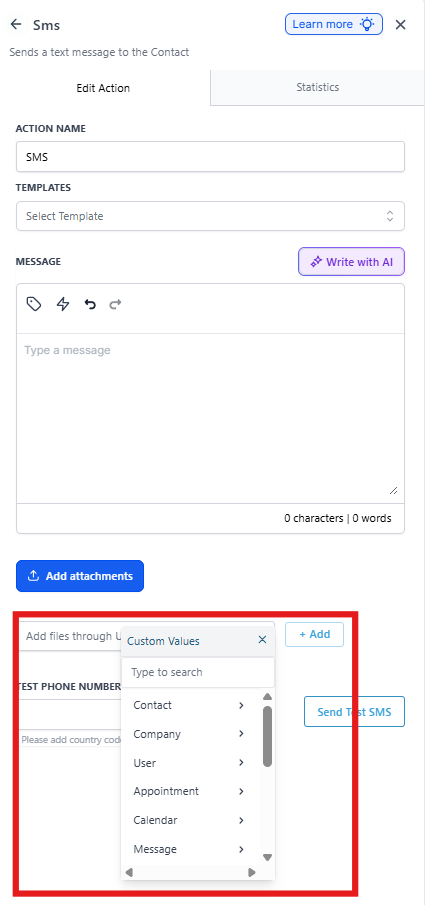
Important: Carrier Image Size Limits
Mobile carriers restrict how large image files can be in text messages. If your image is too large, parents won't receive it properly. Here are the maximum sizes by carrier:
| Carrier | Standard Number | Toll-Free Number |
|---|---|---|
| AT&T | 0.6 MB | 0.6 MB |
| Sprint | 1.4 MB | 0.6 MB |
| T-Mobile | 1.5 MB | 0.6 MB |
| Verizon | 0.675 MB | 0.6 MB |
Supported Image File Types
You can attach these image formats to text messages:
- JPEG (.jpg, .jpeg)
- PNG (.png)
- GIF (.gif)
Troubleshooting
My Image Isn't Showing Up When I Test
Try these fixes:
- Check for spaces: Make sure your image URL has no spaces. Copy it into a new browser tab — if the image loads, the URL works.
- Verify file size: Check that your image meets the carrier size requirements above. Images that are too large won't send.
- Confirm it's a direct link: The URL must point directly to the image file, not a preview page. It should end with .jpg, .png, or .gif.
- Test the custom value: Create a test landing page, add the custom value there, and preview it. If the image appears, your custom value is set up correctly.
Parents Report Not Receiving Images
This usually means the image is too large for their carrier. Compress your image to under 0.6 MB and update your custom value.
Common Use Cases for Childcare
- Welcome packets: Send new families a branded welcome image with enrollment next steps
- Campus photos: Share facility photos with prospective families after tour requests
- Event flyers: Attach digital flyers for open houses or parent events
- Forms and documents: Send visual guides or fillable forms (keep under size limits)