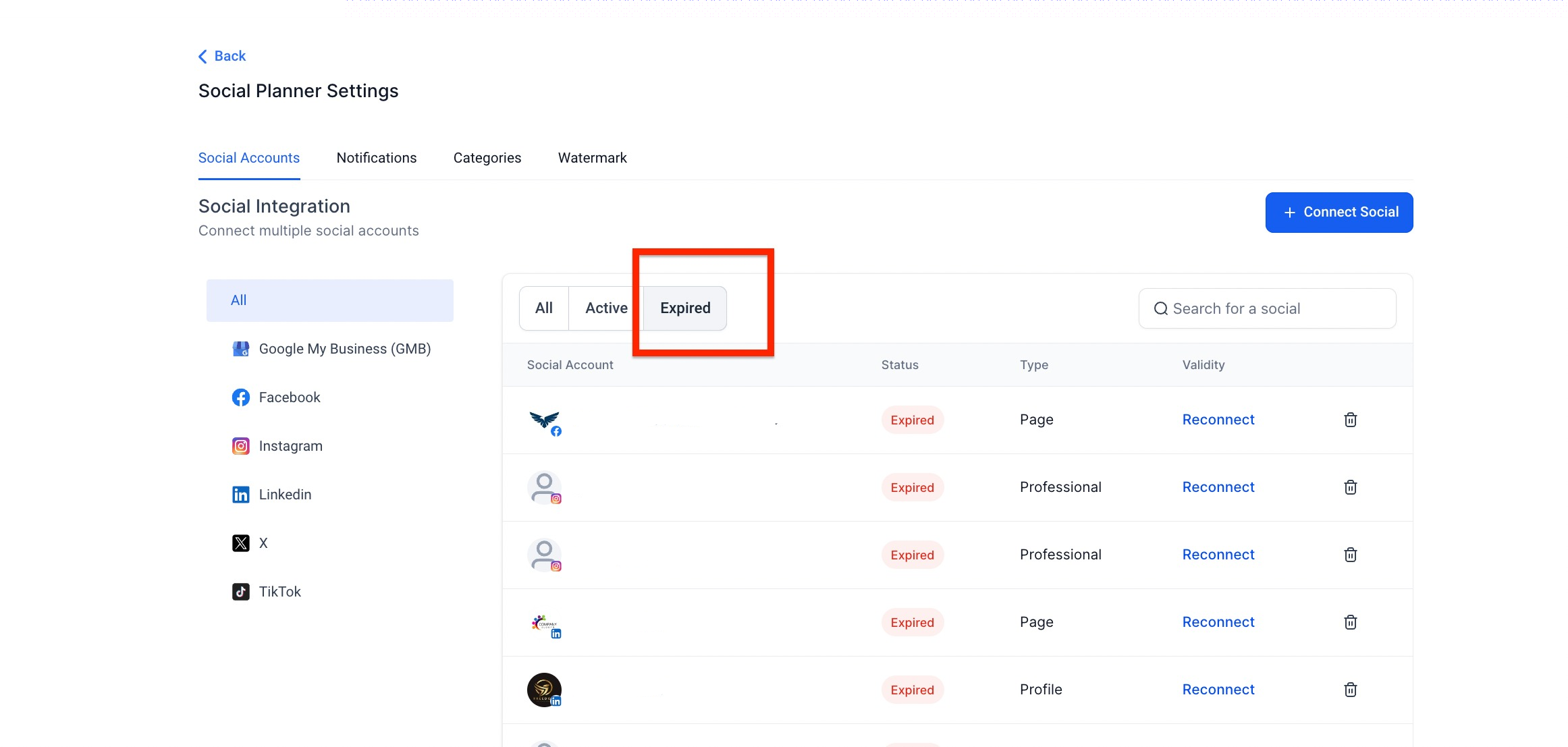
This guide helps you troubleshoot issues when publishing to your childcare center's Facebook page through Enrollio's Social Planner. If you're having trouble, work through these steps to find your solution.
Quick Navigation
- Facebook Pages Not Showing in the List
- Facebook Post Failed to Publish
- Unable to Reconnect a Page or Group
Facebook Pages Not Showing in the List
When connecting your Facebook account to Enrollio, you need to grant all the required permissions. Here are the most common reasons pages don't appear:
Content Permission is Missing (Business Manager Access)
You need direct admin rights to your Facebook page — Business Manager access isn't enough. Enrollio's Social Planner requires both content and insight permissions when you connect.
To check and fix your permissions:
- Log in to Facebook with the account that manages your page
- Click your profile icon and select Facebook Page
- Go to your Facebook page and click Manage
- In the left panel, look for Page Access
- Check if you're listed with full access to the page
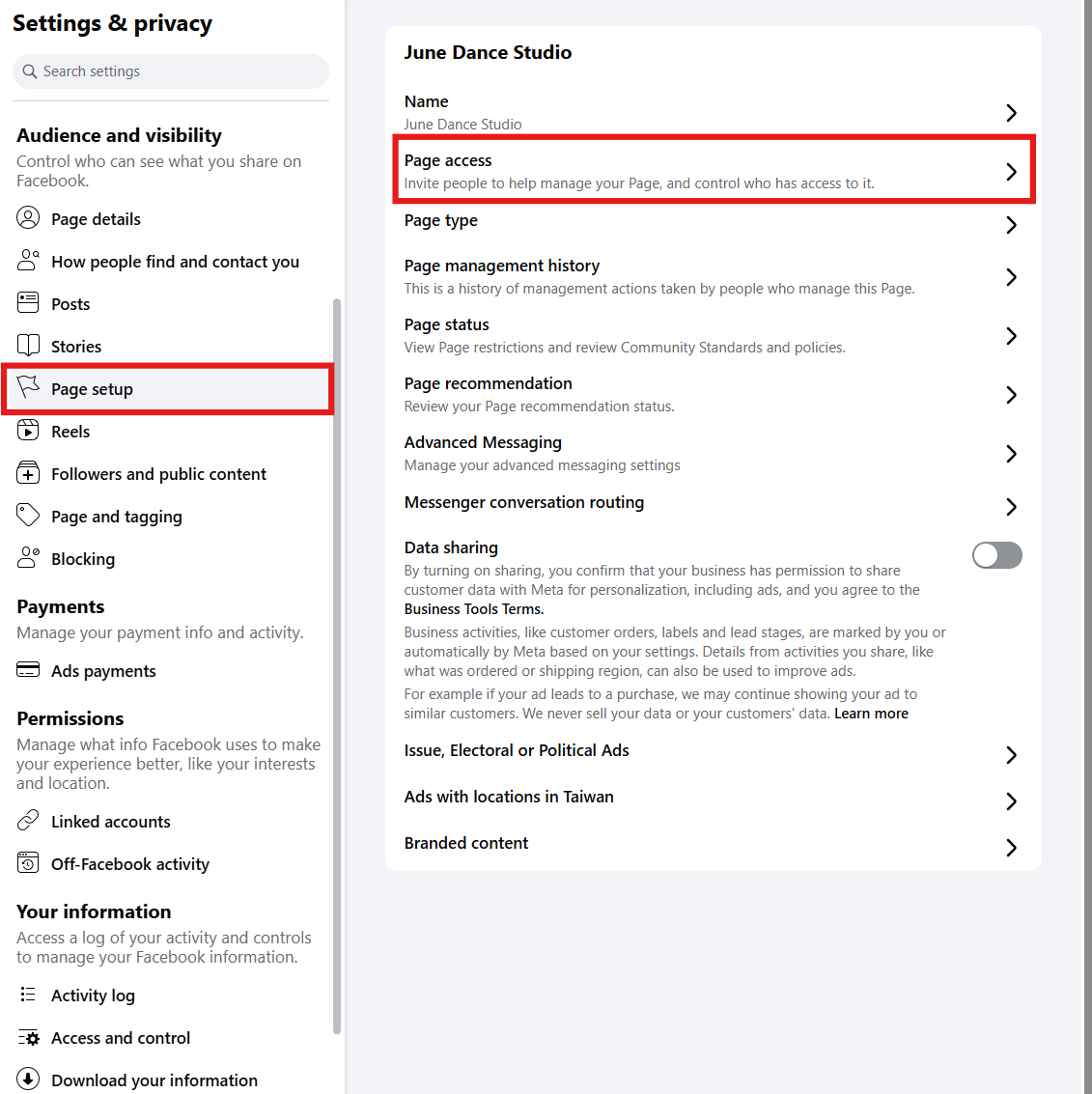
If you don't see yourself listed with full access, ask the page owner/admin to add you with full permissions.
My Page is Missing (I'm an Admin)
If you initially connected some pages but can't see all of them when trying to add more, the original connection didn't include permission for all pages.
To add missing pages:
- Log in to Facebook with your admin account
- Click your profile picture icon and go to Settings and Privacy
- Select Settings
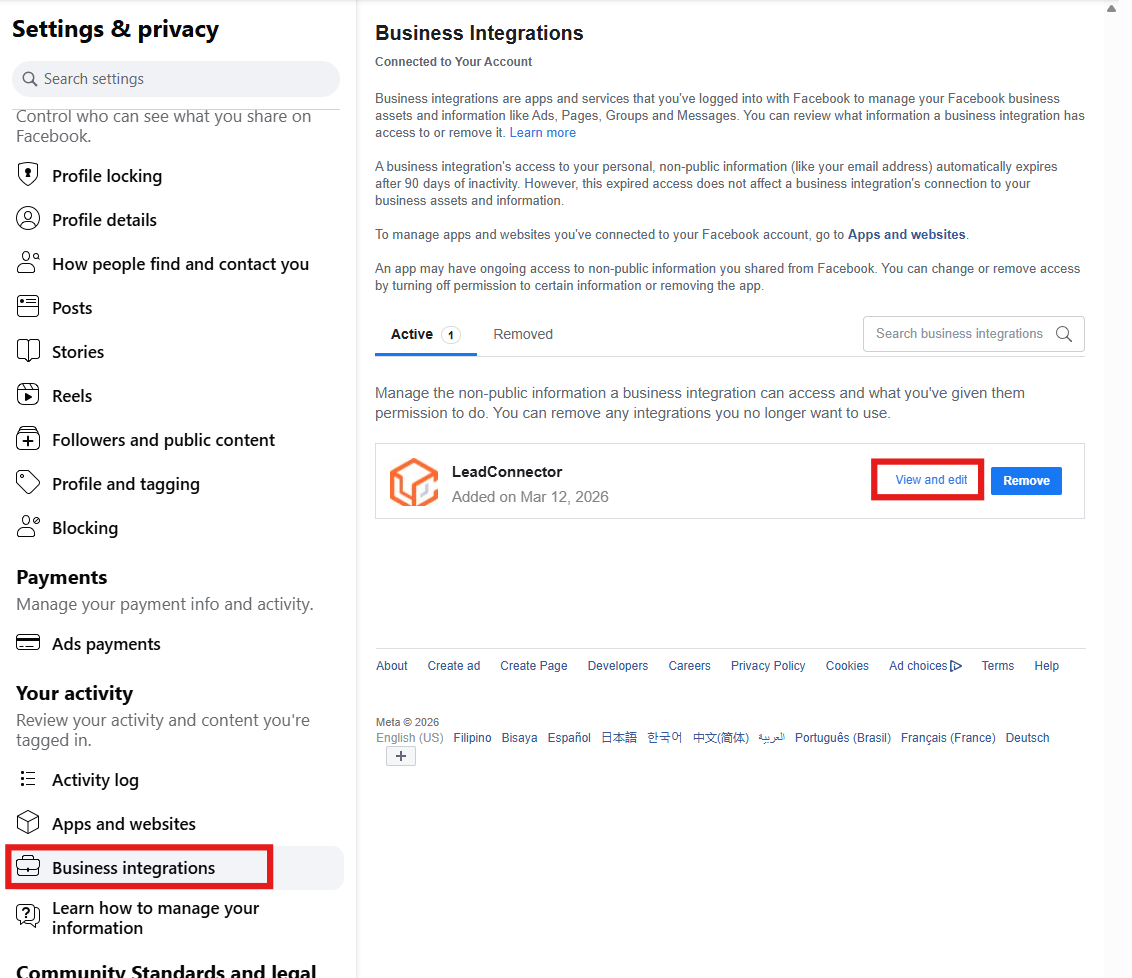
- Navigate to Business Integrations and find Enrollio
- Click View and Edit
- In the popup, make sure all permissions are granted and all your pages are selected
- Click Save
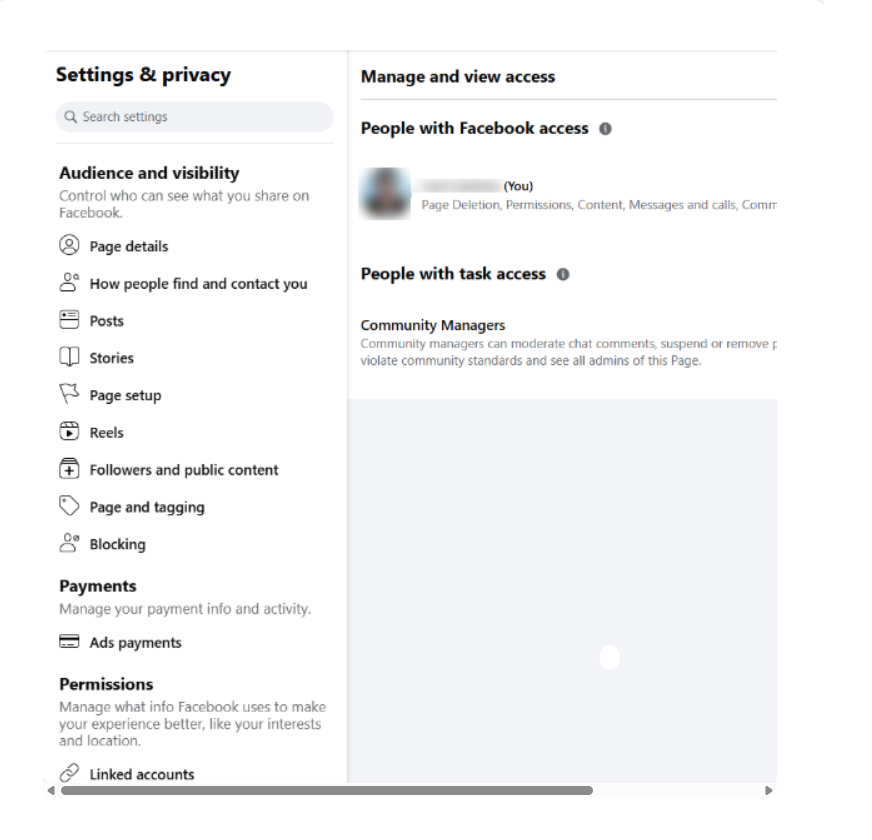
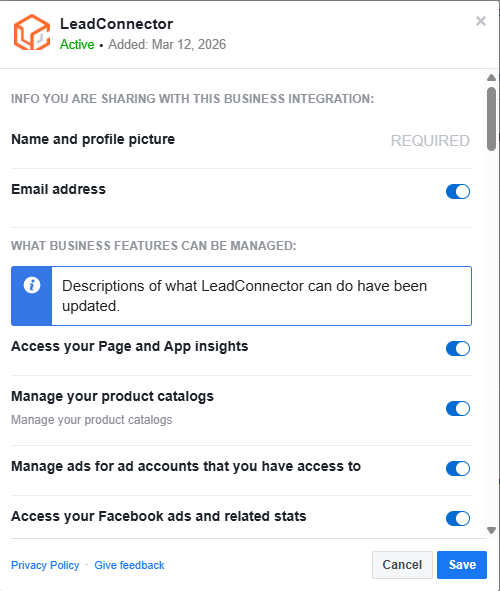
Now go back to Enrollio: Social Planner > Settings > Integrations and reconnect your Facebook account. Your previously missing pages should now appear.
Facebook Post Failed to Publish
Here are the most common publishing errors and how to fix them:
1. Abusive/Reported Content or Link Goes Against Community Standards
Error message: "Your message couldn't be sent because it includes content that other people on Facebook have reported as abusive" or "This link goes against our Community Standards."
Solution: Review your post content and links. Facebook has flagged something as inappropriate. Remove or replace the flagged content and try publishing again.
2. Error Validating Access Token
Error message: "The session has been invalidated because the admin changed their password or Facebook changed the session for security reasons."
This happens when:
- You changed your Facebook password
- You haven't posted to Facebook from Enrollio in 90+ days
- Facebook refreshed your session for security
Solution: Reconnect your Facebook account in Social Planner > Settings > Integrations.
3. Two-Factor Authentication Required
Error message: "The user must be an administrator, editor, or moderator of the page."
Solution: If your Facebook business page has two-factor authentication enabled, you must also enable two-factor authentication on your personal Facebook account. After enabling it, reconnect your account to Enrollio.
4. Manage Permissions Must Be Granted
This typically happens when: You're managing a Facebook page for your childcare center where someone else added you as an administrator.
Solution: Make sure you have full administration access to the page. When connecting to Enrollio, grant the "manage_permissions" for the Pages section.
5. Missing or Invalid Image
Solution: If you scheduled a post with an image and the image link is no longer valid, the post will fail. Check that your images are still accessible and re-upload if needed.
6. An Unknown Error Occurred
This usually means: Your Facebook page access token doesn't have sufficient permissions. Posts may publish sometimes but fail other times.
Solution: Reconnect your Facebook pages in Social Planner > Settings > Integrations and make sure you grant all permissions during the connection process.
7. The URL You Supplied is Invalid
What's happening: When you include a link in your post, Facebook needs to index it. If Facebook's servers are overloaded, they can't index the link in time and throw this error.
Solution: Wait a few minutes and try publishing again. Facebook will have indexed the link by then, and the post should go through.
Unable to Reconnect a Page or Group
Important: You must reconnect using the same Facebook account that originally connected the page or group to Enrollio.
Example: If Emily connected your center's Facebook page using her account, and now Alex (an account admin) wants to reconnect it because the integration expired, Alex has two options:
- Use Emily's Facebook account to reconnect
- Ask Emily to reconnect using her own account
To reconnect:
- Go to Social Planner > Settings (gear icon)
- Navigate to Integrations
- Find accounts with expired tokens and click Disconnect
- Click Connect to reconnect
- You must be a page admin to continue
- Return to Social Planner and verify the token is no longer expired