
Maintaining consistent branding across your enrollment pages, emails, and forms can be time-consuming. With Global Custom Colors, you can define your brand colors once and use them everywhere. Any updates to these colors instantly reflect across all your materials, saving you time and effort.
What Are Global Custom Colors?
Global Custom Colors are your brand colors stored in Global Settings under Brand Boards. They're two-way synced, meaning if you update a color, it automatically updates everywhere you've used it—enrollment pages, emails, forms, parent portals, and more.
By default, these colors appear in every color picker across Enrollio.
How Are They Different from Design Kit Colors?
Design Kit Colors: Quick-access colors available in the design builder. They don't sync, so updating them won't change your existing designs.
Global Custom Colors: Stored at the brand level with two-way sync. Update once, and the change applies everywhere that color is used.
In short: Design Kit = static quick access. Global Custom Colors = dynamic, synced brand consistency.
Why Use Global Custom Colors?
- Consistency Across Materials – Maintain the same look and feel in all your enrollment pages, emails, and forms.
- Time-Saving – Update a color once, and it reflects everywhere automatically.
- Easy Rebranding – Quickly refresh your brand by updating colors in one place.
- Always Accessible – Global colors show up in every color picker throughout Enrollio.
- Quick Import – Bring in your existing custom color values for faster setup.
How to Set Up Global Custom Colors
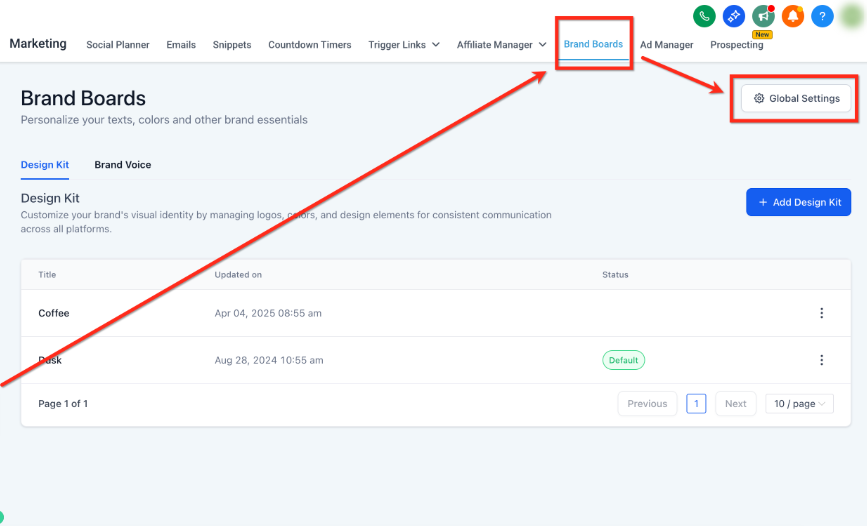
Step 1: Open Global Settings
Navigate to Marketing → Brand Boards → Global Settings.
Step 2: Add or Manage Colors
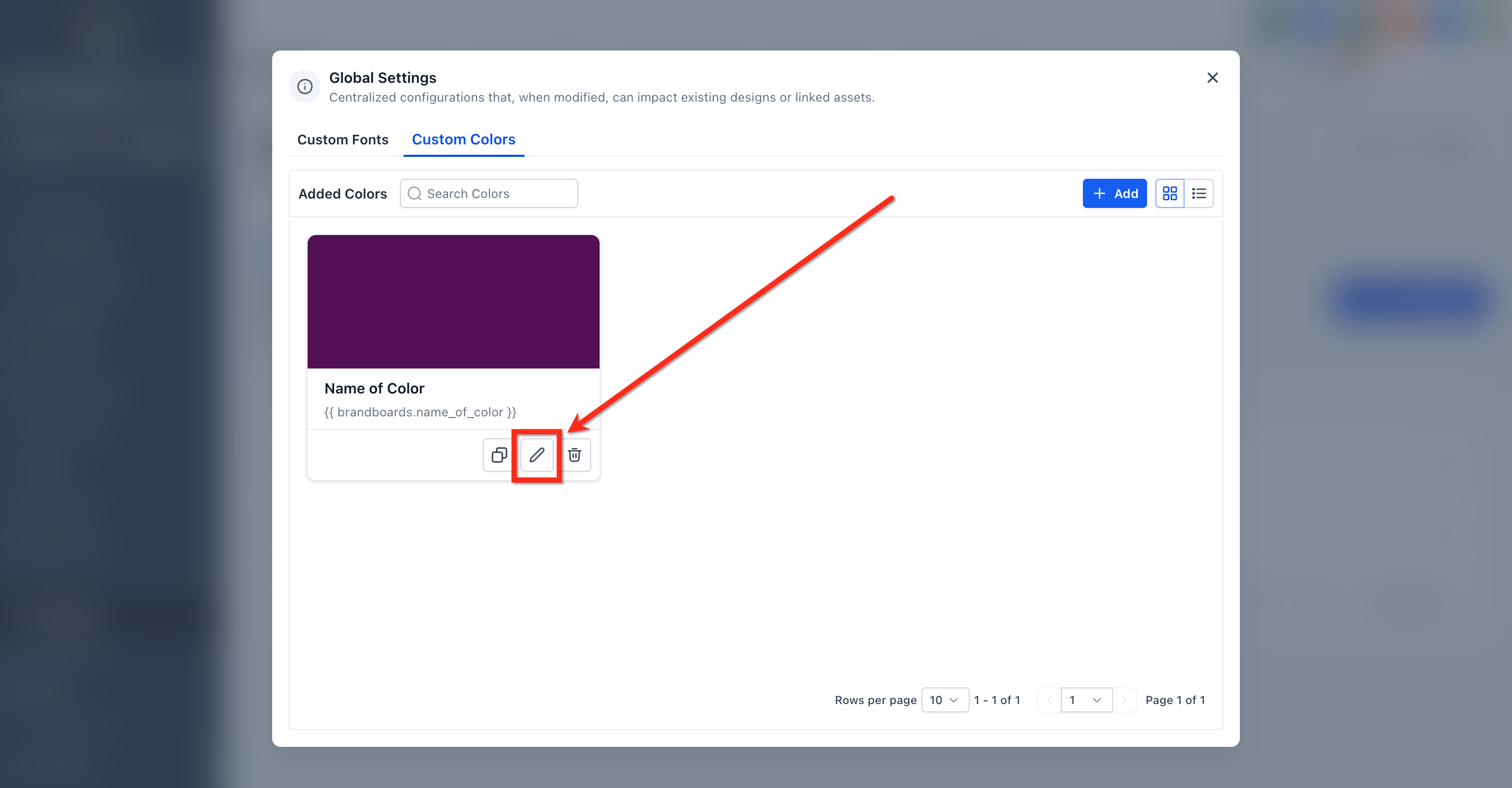
- Add New Color → Give it a name (like "Primary Blue" or "Accent Orange") and enter the hex code.
- Edit → Update color details anytime to keep your branding current.
- Delete → Remove colors you're no longer using.
Step 3: Import Existing Colors (Optional)
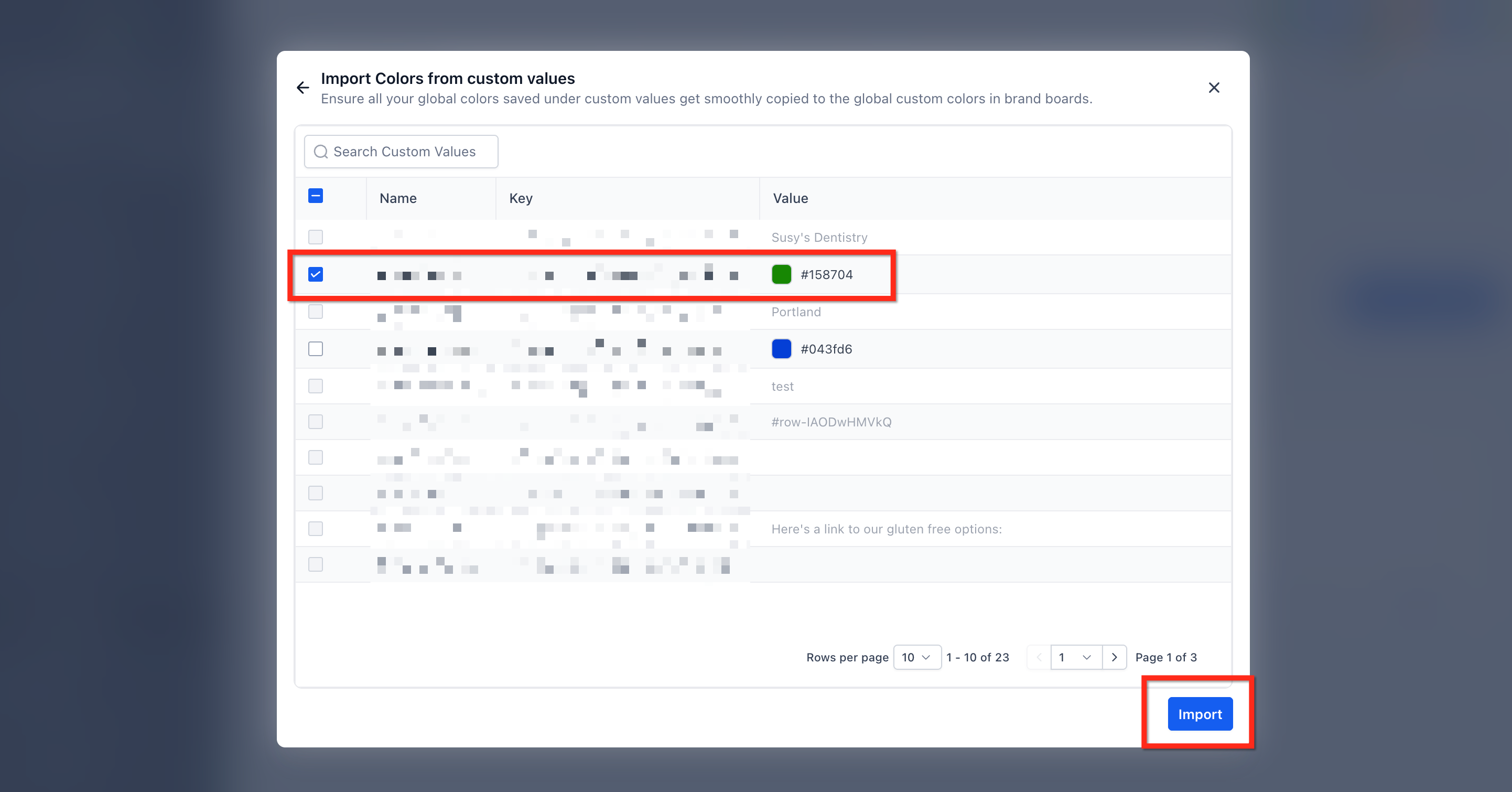
If you've already defined custom colors elsewhere in Enrollio:
- Click New and then choose Import.
- Select the colors you want to import and proceed.
Note: This creates a copy of your existing colors—it doesn't automatically convert all previous uses to Global Custom Colors.
Step 4: Use in Your Designs
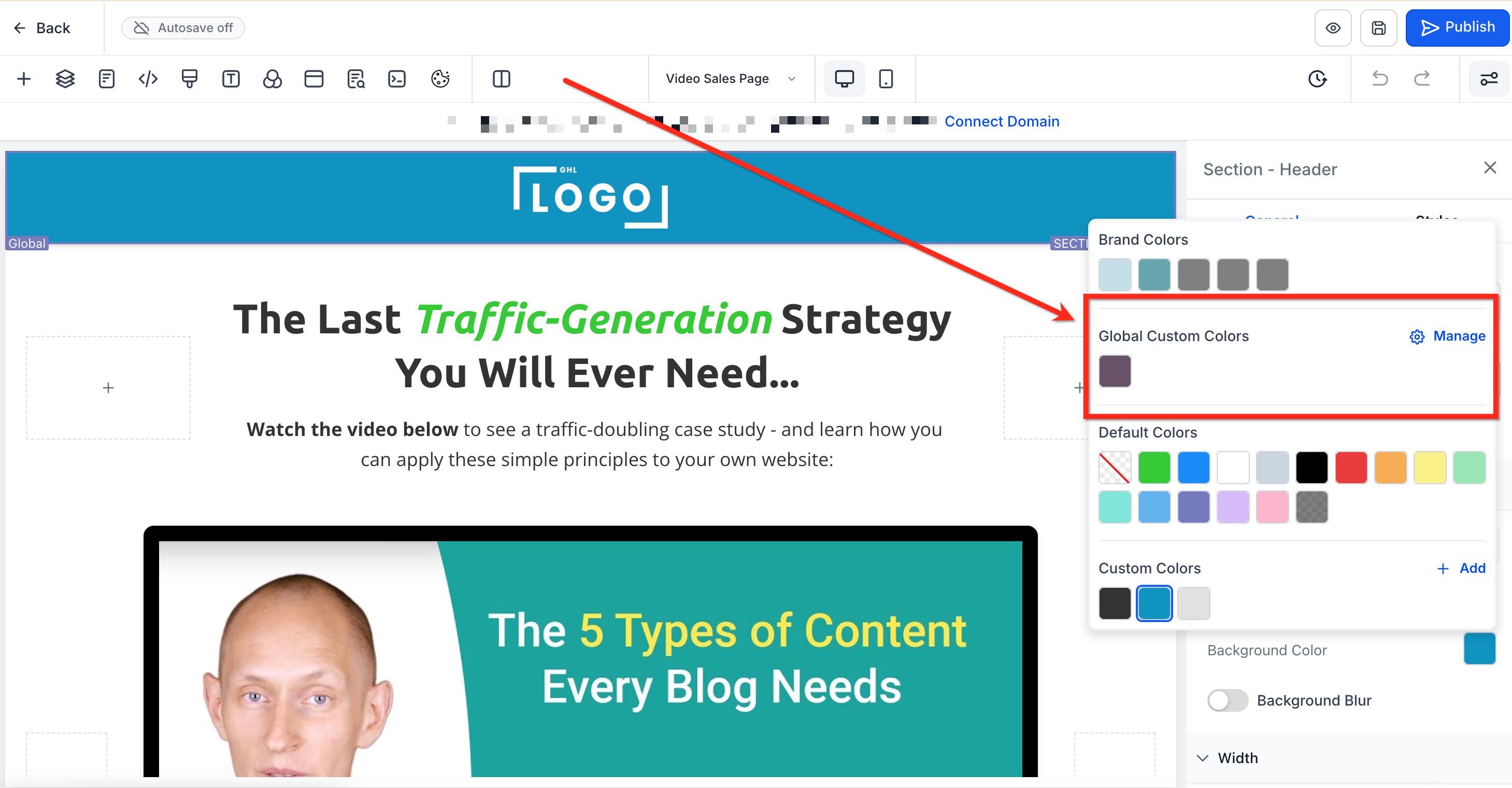
Open the Color Picker in enrollment pages, emails, forms, or parent portals. Your Global Custom Colors will appear automatically in the picker.
You can also use Manage inside the picker to add or edit colors on the fly.
Frequently Asked Questions
Will changing a Global Color update my existing materials?
Yes. Global Custom Colors are two-way synced. Any change reflects instantly across all enrollment pages, emails, and forms where that color is applied.
Why don't I see Global Colors in the color picker?
The Global Custom Colors section only appears if you've added at least one color in Global Settings. Add your first color, and it'll show up automatically.
Can I import my existing custom colors?
Yes. You can import them from the Custom Values section into Global Settings. This creates a copy—it doesn't automatically replace all previous color uses with the global version.
How is this different from Design Kit colors?
Design Kit colors are for quick access only and don't sync to existing designs. Global Custom Colors sync across all materials whenever you make a change.
What happens if I delete a Global Color that's being used?
The color will be removed from the Global Settings, but materials already using that color will retain it as a static color value. Future designs won't have access to it unless you re-add it.