
How to Clear Cache on Mac
Safari
-
Click "Safari" → "Settings…" (in newer macOS versions, “Preferences” is now called “Settings”).
-
Go to the Advanced tab.
At the bottom, check the box:
“Show features for web developers”After you check that box, the Develop menu will appear in the top menu bar.
Now, on the top menu bar, click Develop.
Choose “Empty Caches” from the dropdown menu.
Firefox
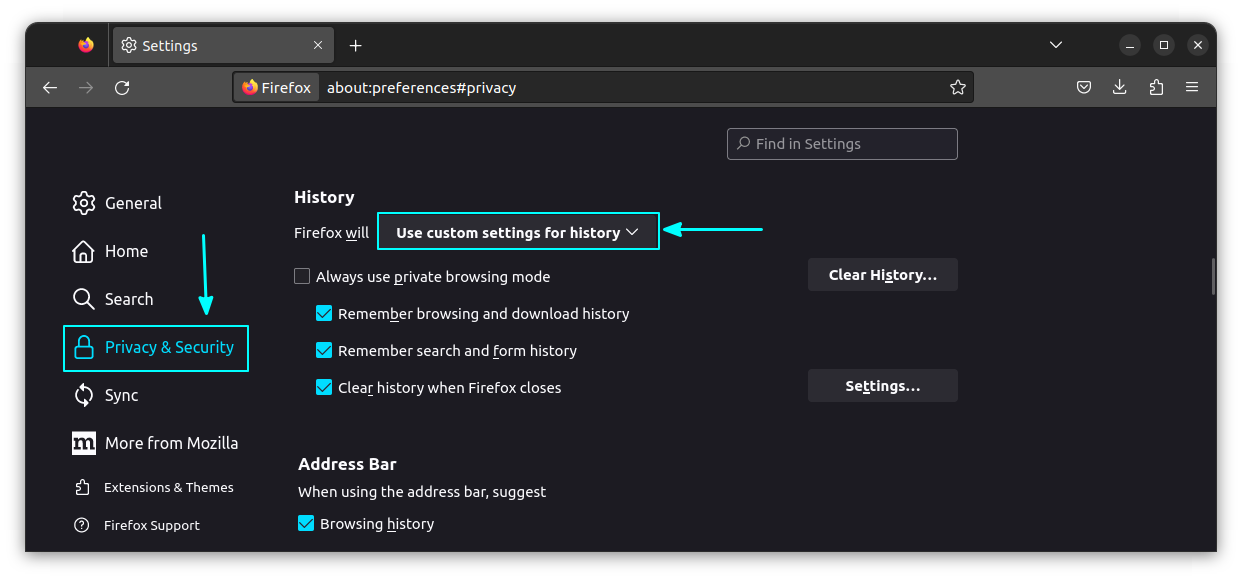
Click the menu button and select Settings.
Select the Privacy & Security panel.
In the Cookies and Site Data section, click 'Clear Data'
Remove the check mark in front of Cookies and Site Data.
With Cached Web Content check marked, click the 'Clear' button.
Close the about:preferences page. Any changes you've made will automatically be saved.
Chrome
On your computer, open Chrome.
At the top right, click the 3 vertical dots.
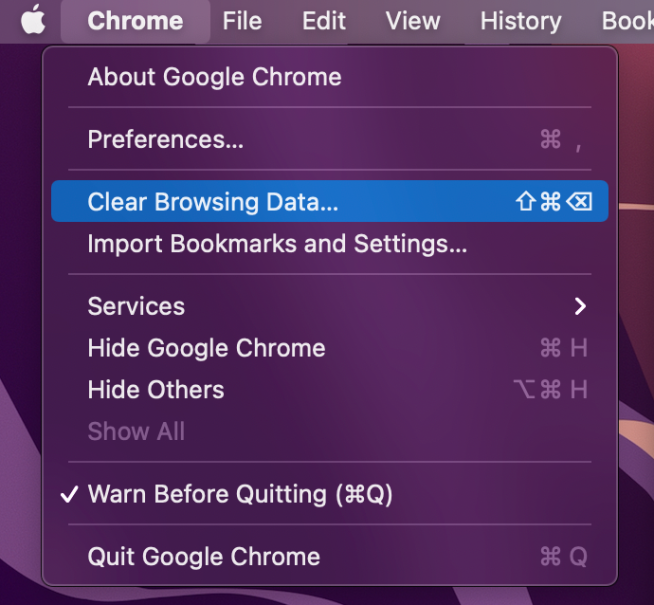
Click "More Tools" then click "Clear Browsing Data".
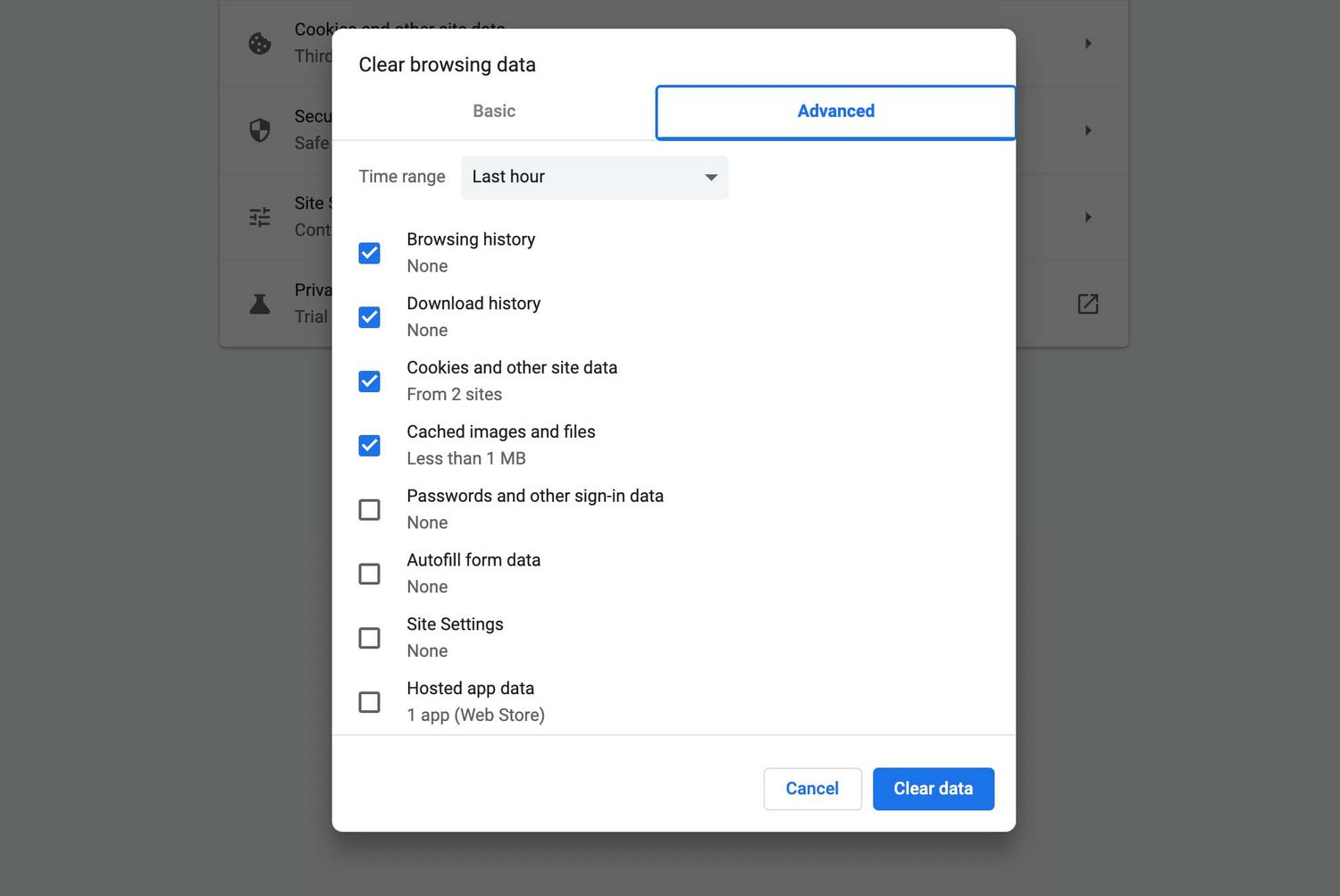
At the top, choose a time range. To delete everything, select All time.
Next to "Cached images and files," check the box.
Click "Clear Data".
Refresh the page.
How to Clear Cache on Windows
Google Chrome (Windows)
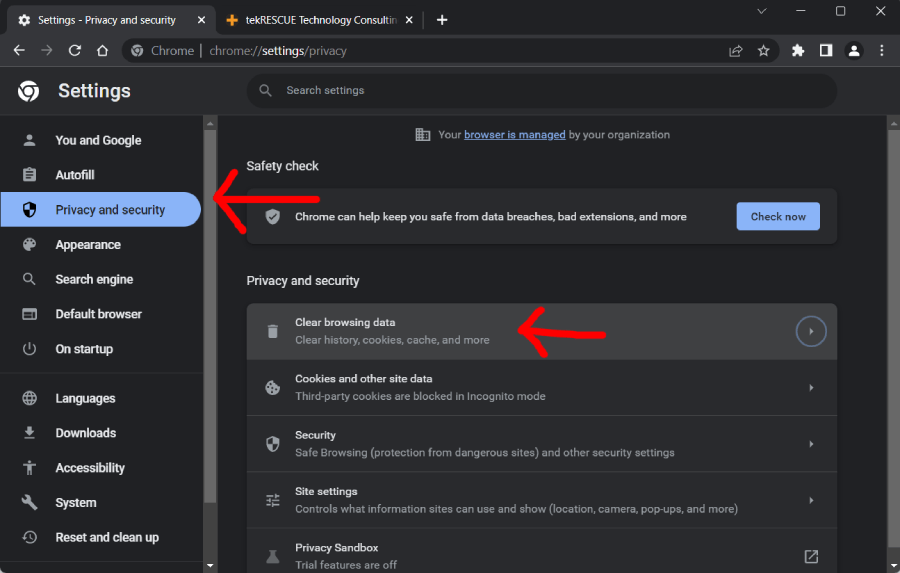
Open Chrome and click the ⋮ menu → Settings → Privacy and security → Clear browsing data.
-
In the dialog:
Choose Time range: All time
Check Cached images and files (you can uncheck others if preferred)
Click Clear data
Mozilla Firefox (Windows)
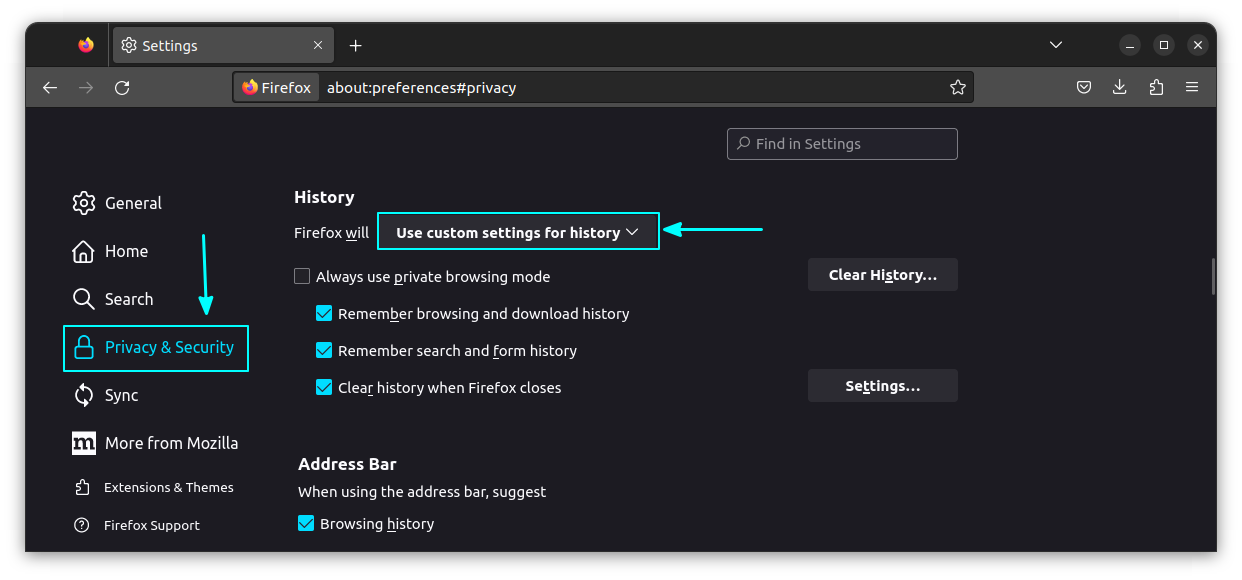
Open Firefox, click the ☰ menu → Settings (or Options) → Privacy & Security.
Under Cookies and Site Data, click Clear Data…, check Cached Web Content, and click Clear.
Microsoft Edge (Windows)
Open Edge, click the ⋯ menu → Settings → Privacy, search, and services.
Under Clear browsing data, click Choose what to clear, select Cached images and files and set Time range: All time, then click Clear now.
NOTE: For best results, close and reopen the associated browser window once completed.