
Jackrabbit Sync keeps your Jackrabbit classes, students, and enrollments in sync with your Enrollio CRM account automatically — no exports, no spreadsheets, no third-party automation tools. Once it's connected, families, students, and enrollments from Jackrabbit show up as contacts in your CRM with the tags and pipeline moves you choose.
Before you start
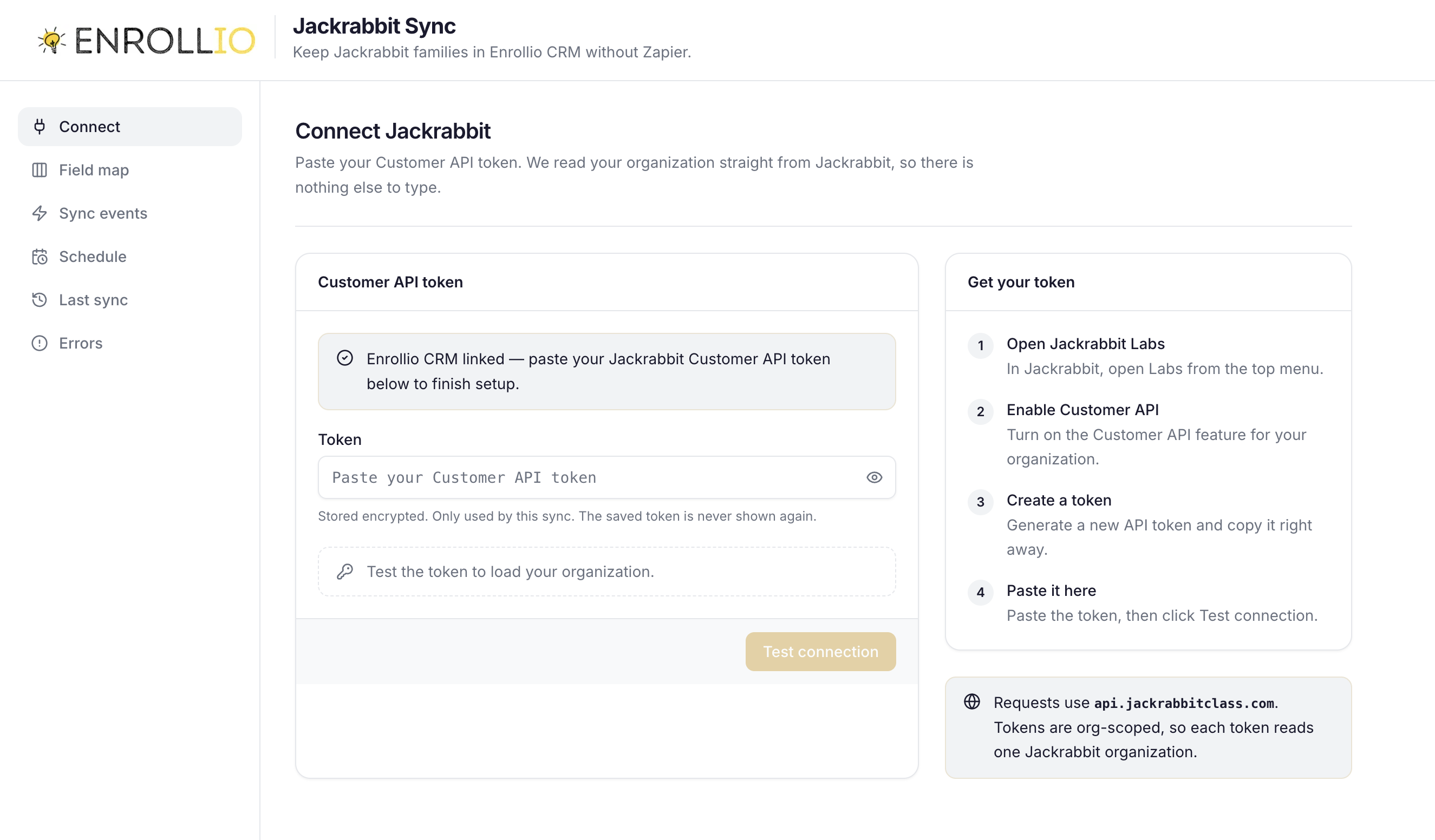
You need a Jackrabbit Customer API token. If you don't have one:
- In Jackrabbit, open Labs from the top menu.
- Turn on the Customer API feature for your organization.
- Create a new API token and copy it right away — Jackrabbit only shows it once.
Step 1 — Open Jackrabbit Sync
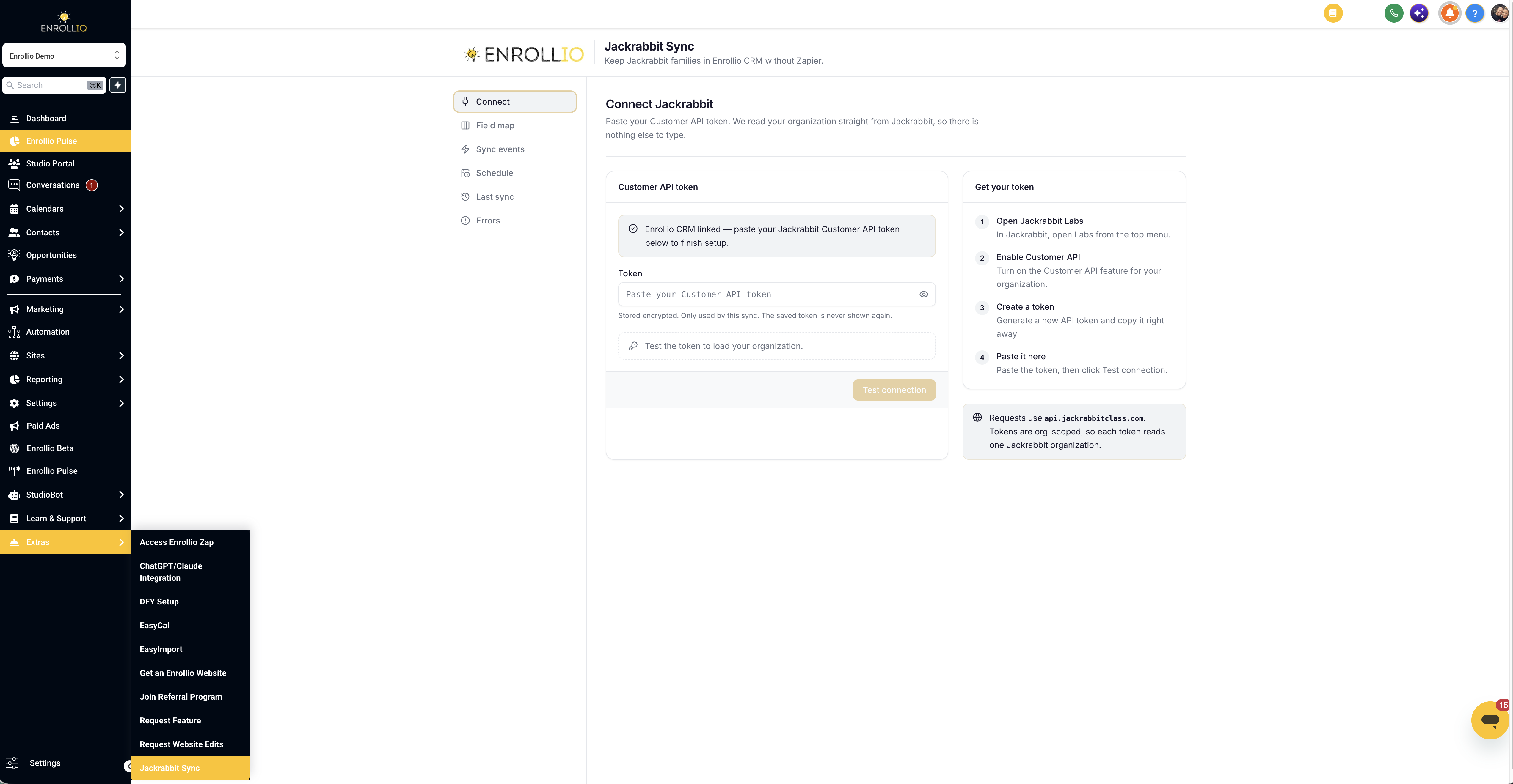
Jackrabbit Sync lives inside your CRM. In the left sidebar, click Jackrabbit Sync. You'll be signed in automatically — no extra password.
Step 2 — Connect
On the Connect tab, paste your Customer API token and click Test connection. We read your organization name straight from Jackrabbit to confirm the token is right. When it passes, save — your CRM side is already linked from install, so there's nothing else to connect.
Step 3 — Field map
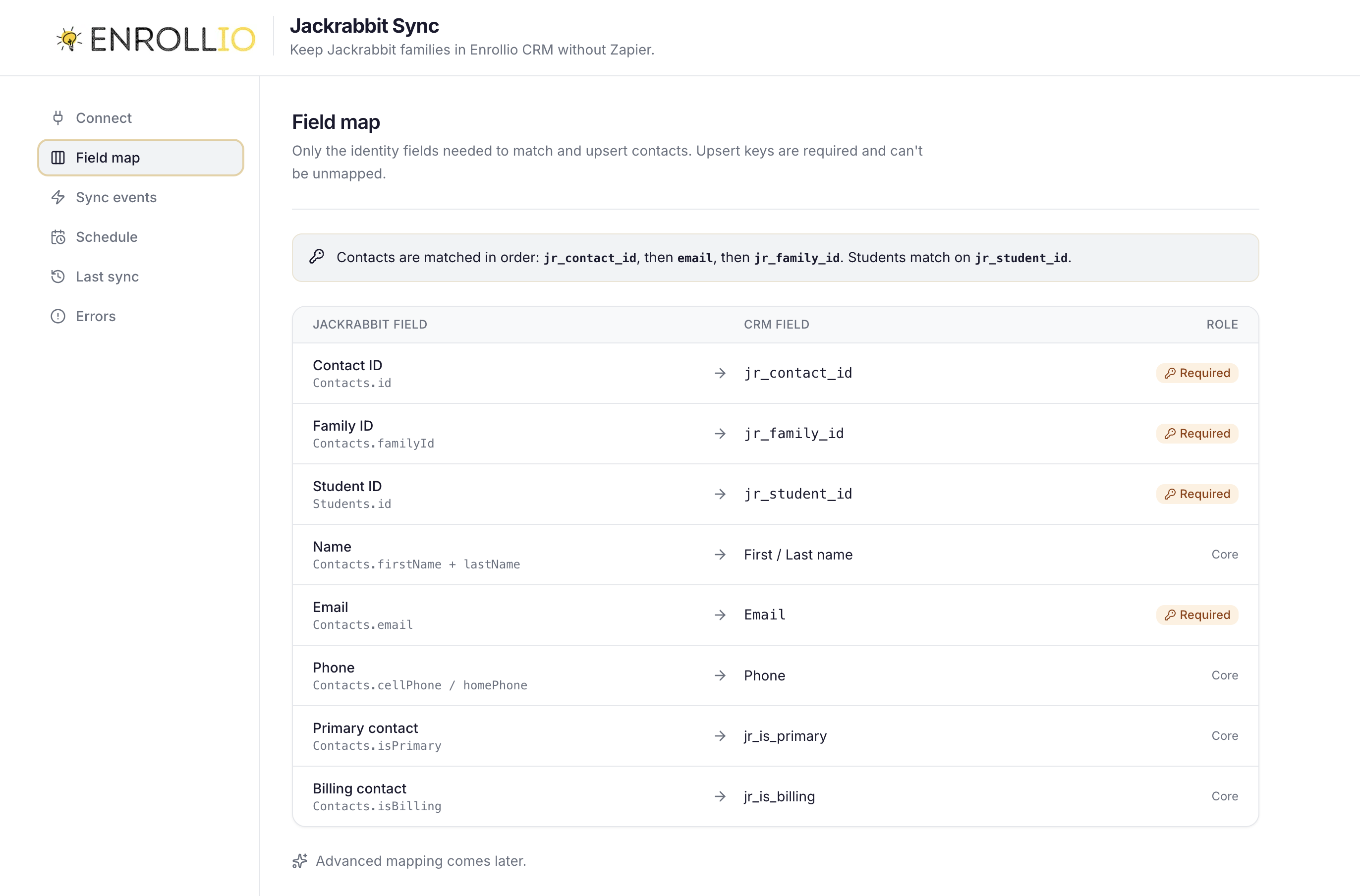
The Field map tab controls which Jackrabbit fields land on your CRM contacts — parent name, email, phone, student details. The defaults work for most studios; change a mapping only if your CRM uses different fields.
Step 4 — Sync events
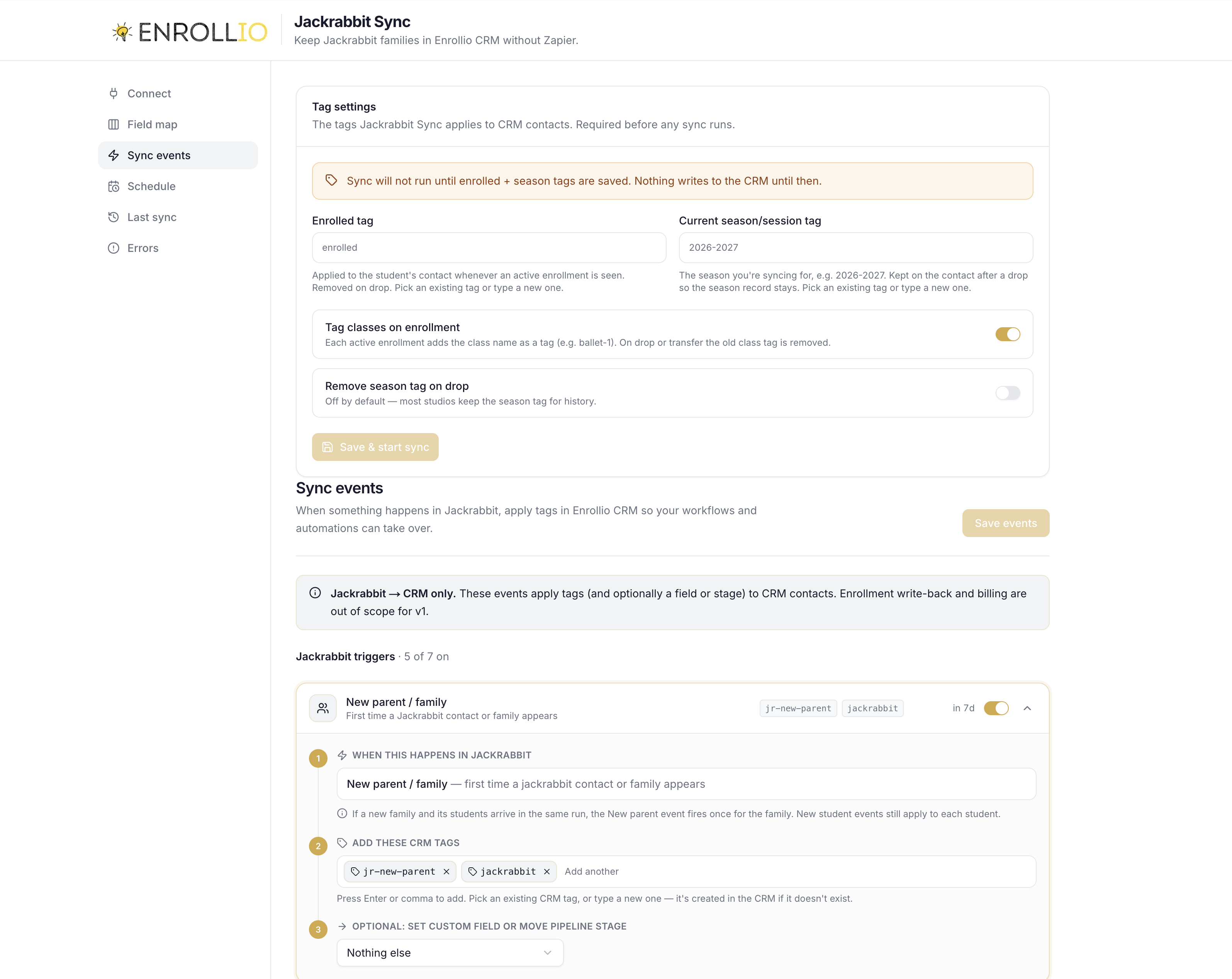
This is where the rules live. For each Jackrabbit event — new enrollment, drop, transfer — you choose what happens in the CRM:
- Add or remove tags — pick from your existing CRM tags (the box autocompletes them) or type a new one and it's created for you.
- Move to a pipeline stage — pick the pipeline and stage from dropdowns populated from your CRM.
- Set a custom field — pick the CRM field and the value, including Jackrabbit variables like the class name.
A typical setup: tag 2026 enrolled + a season tag on enrollment, move the contact to your Enrolled stage, and remove the enrolled tag on drop.
Step 5 — Schedule
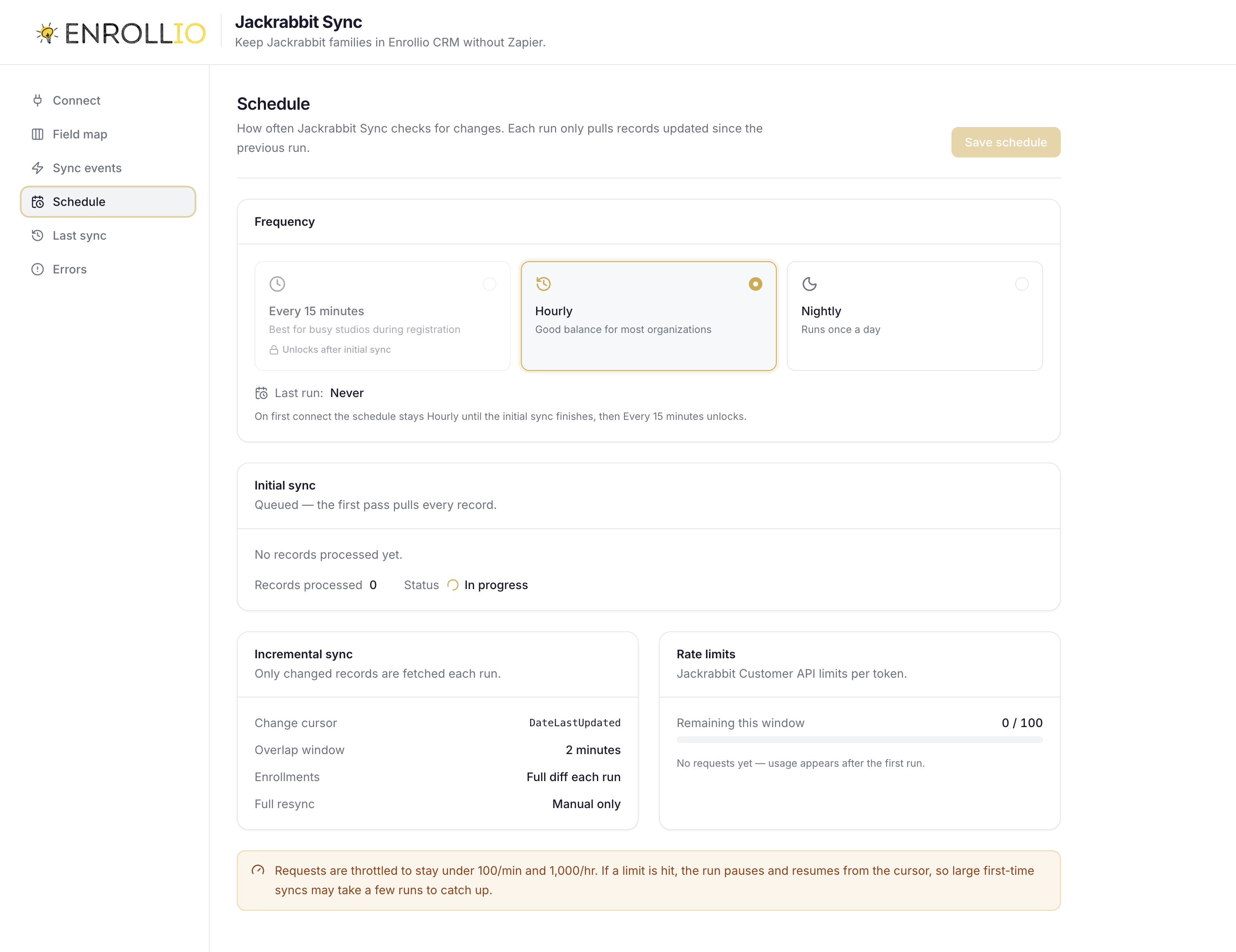
Choose how often sync runs. Incremental syncs pick up only what changed since the last run; the first run after connecting does a full pull so existing families land in the CRM too.
Step 6 — Last sync and Errors
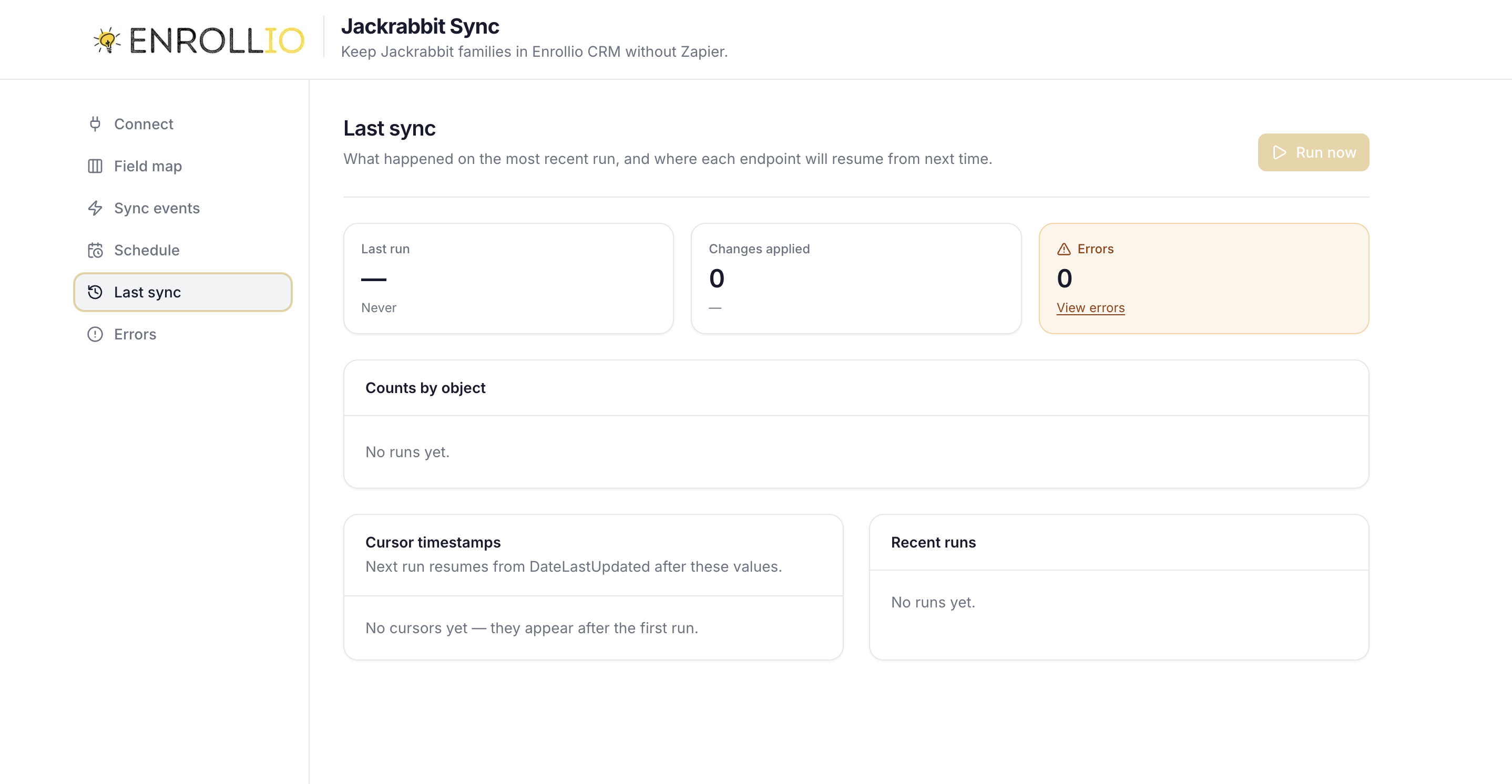
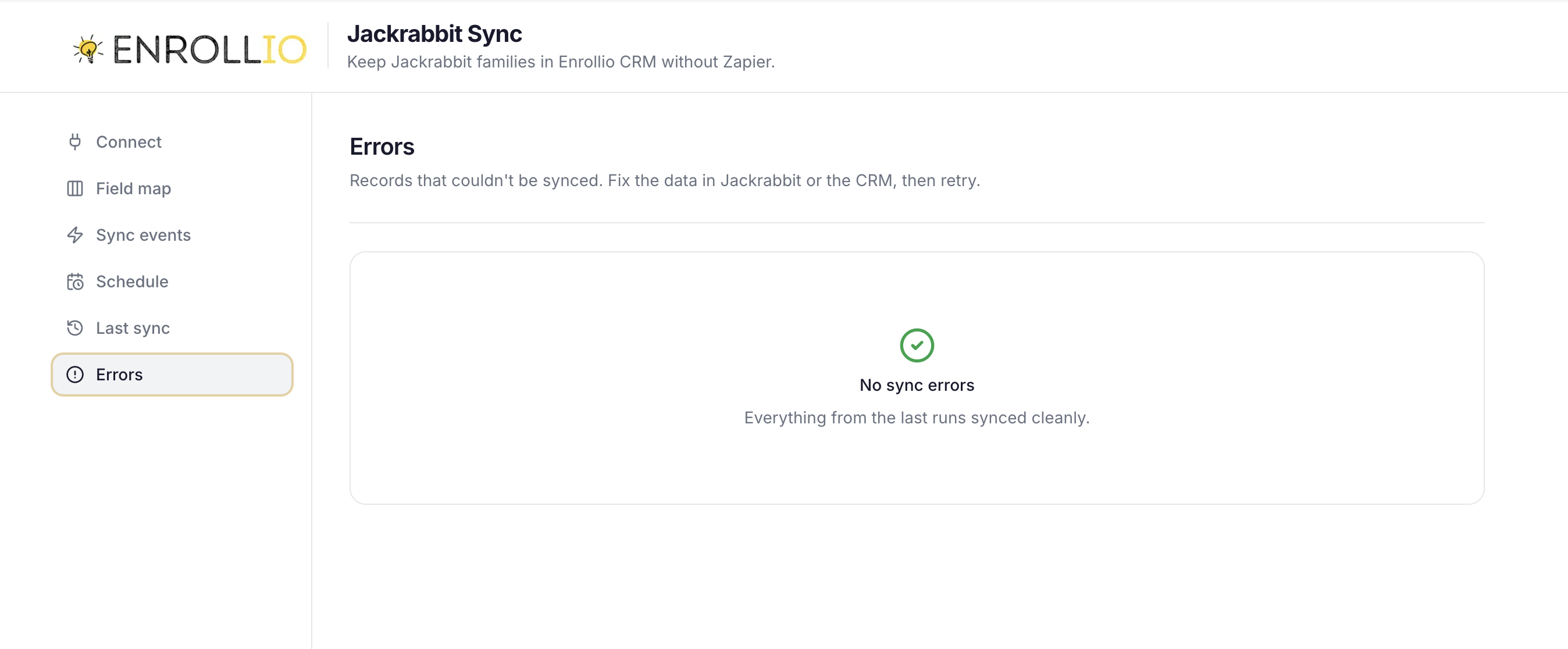
Last sync shows the most recent run — what was pulled, updated, and tagged. Errors lists anything that failed with a retry button, so nothing fails silently.
Good to know
- Your Jackrabbit token is stored encrypted and is never shown again after you save it.
- Contacts are matched by email — no duplicates if a family already exists in your CRM.
- New CRM leads can be pushed back into Jackrabbit automatically — that's the reverse-sync option in Sync events.
- If you rotate your Jackrabbit token, paste the new one on the Connect tab and you're done.
Questions? Message support or email our support team at support@enrollio.ai