
Purpose
You can now automate Google Contacts directly inside Workflows — eliminating the need for manual syncing between your CRM and Google. Keep your contacts and groups aligned automatically and save hours of repetitive work.
What’s New
Triggers (from Google Contacts → Enrollio)
-
New Contact → Starts a workflow when a new contact is created in Google Contacts.
-
New Group → Starts a workflow when a new contact group is created in Google Contacts.
Actions (from Enrollio → Google Contacts)
-
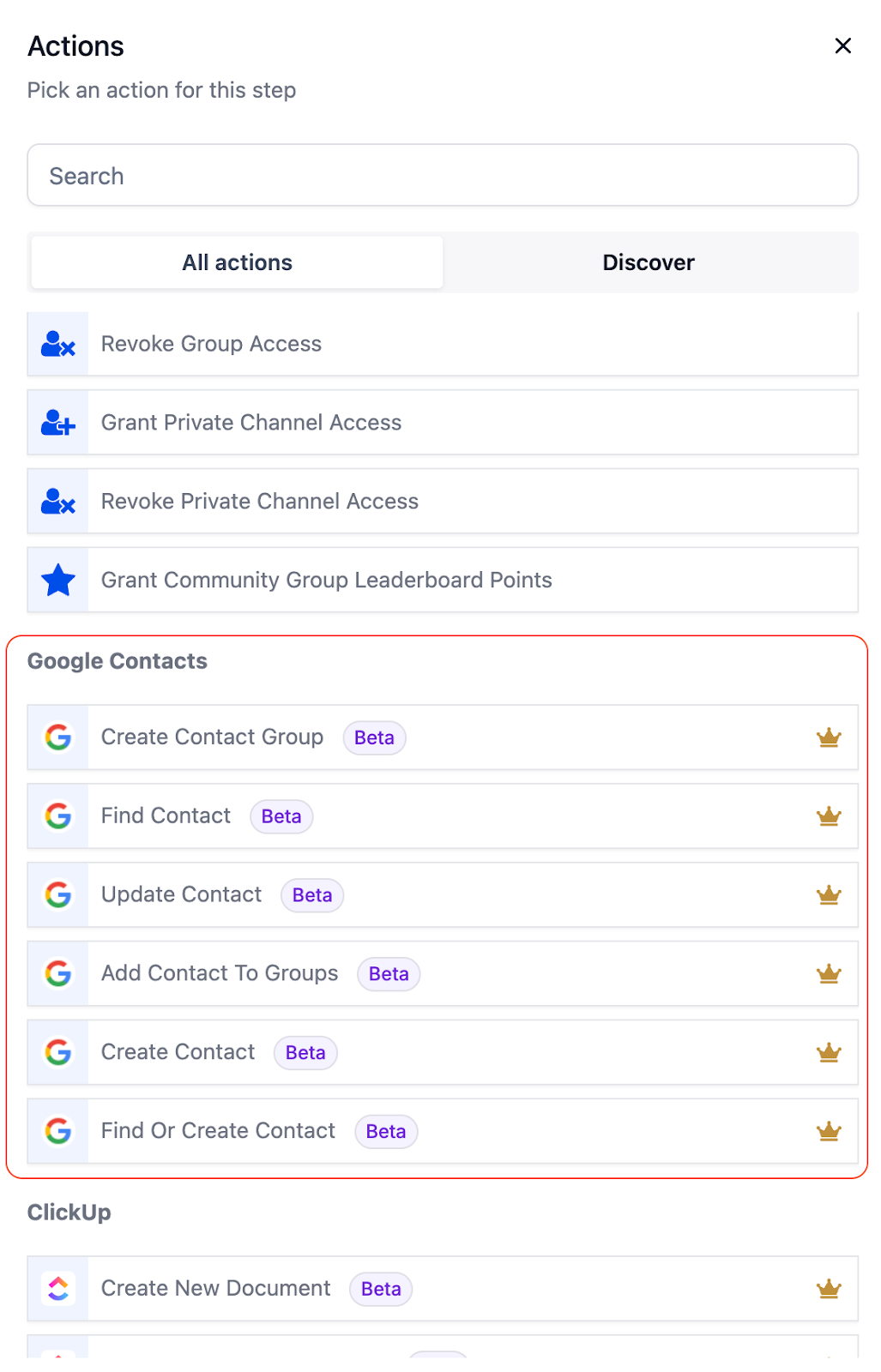
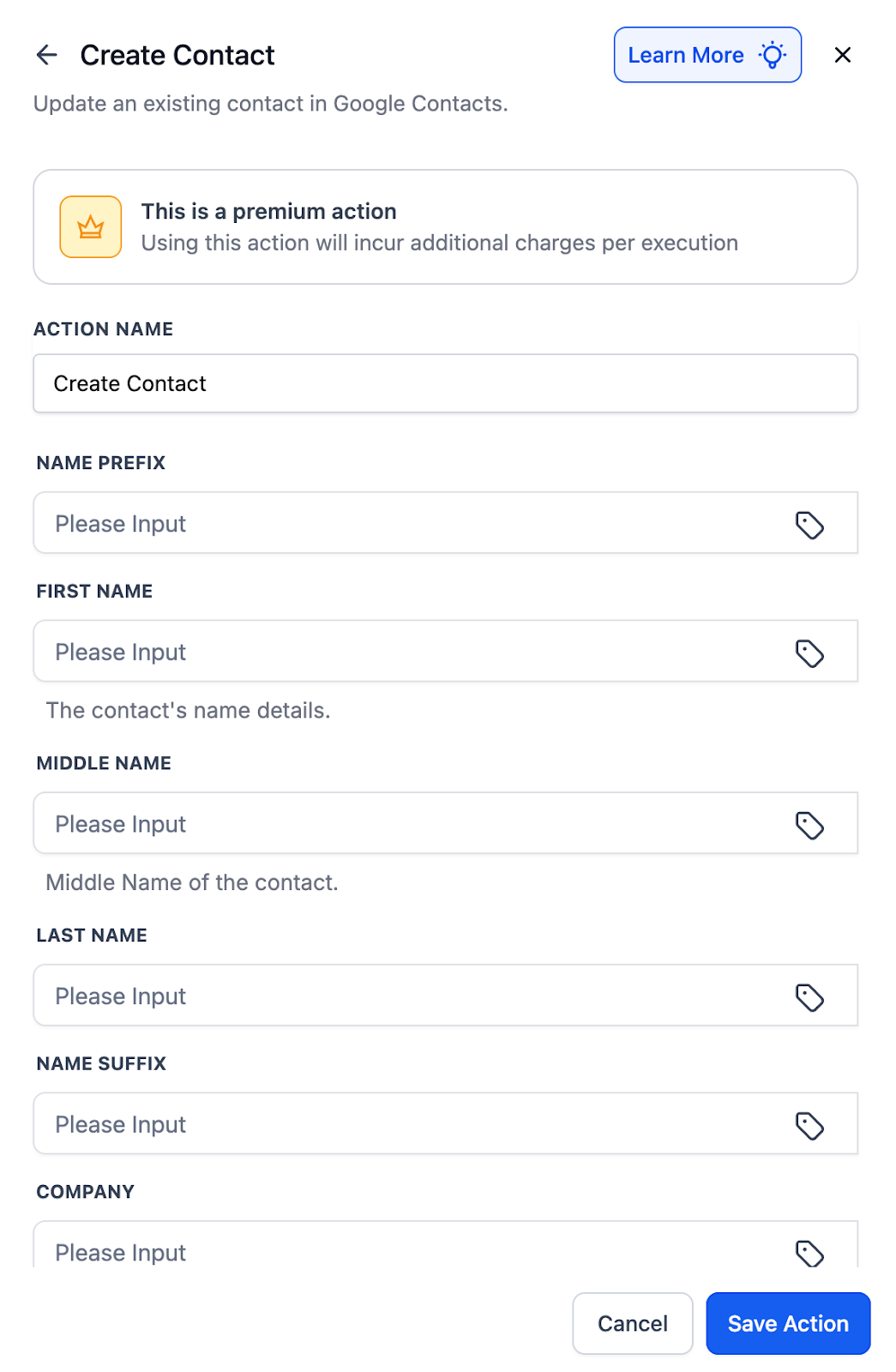
Create Contact → Instantly add a new contact in Google Contacts.
-
Update Contact → Keep details like phone, email, and address up to date.
-
Find Contact → Search by name, email, or phone number.
-
Find or Create Contact → Updates an existing contact if found, otherwise creates a new one.
-
Create Group → Build new Google Contact groups for segmentation.
-
Add Contact to Groups → Automatically place contacts into one or more groups.
Why This Matters
With these new Google Contacts actions and triggers, you can:
-
Keep CRM and Google synced → No more duplicates or outdated records.
-
Reflect leads instantly → Every new lead, booking, or form submission is added to Google Contacts.
-
Create mirrored groups → Align Google Groups with CRM segments for smarter targeting across Google apps.
Example Use Cases
-
Appointments → Google Contacts
When a new appointment is booked in Enrollio, automatically create a Google Contact and add them to a “Consult Calls” group.
-
Forms → Contacts
A website form submission triggers a Find or Create Contact action — ensuring the contact is updated if they exist, or created if they don’t.
-
CRM Segmentation → Groups
When a pipeline stage changes (e.g., “Won”), update the Google Contact and add them to a “Customers” group.
-
Onboarding → Google
Add new records from your onboarding system (like Notion or Sheets) into Google Contacts automatically.
How to Connect
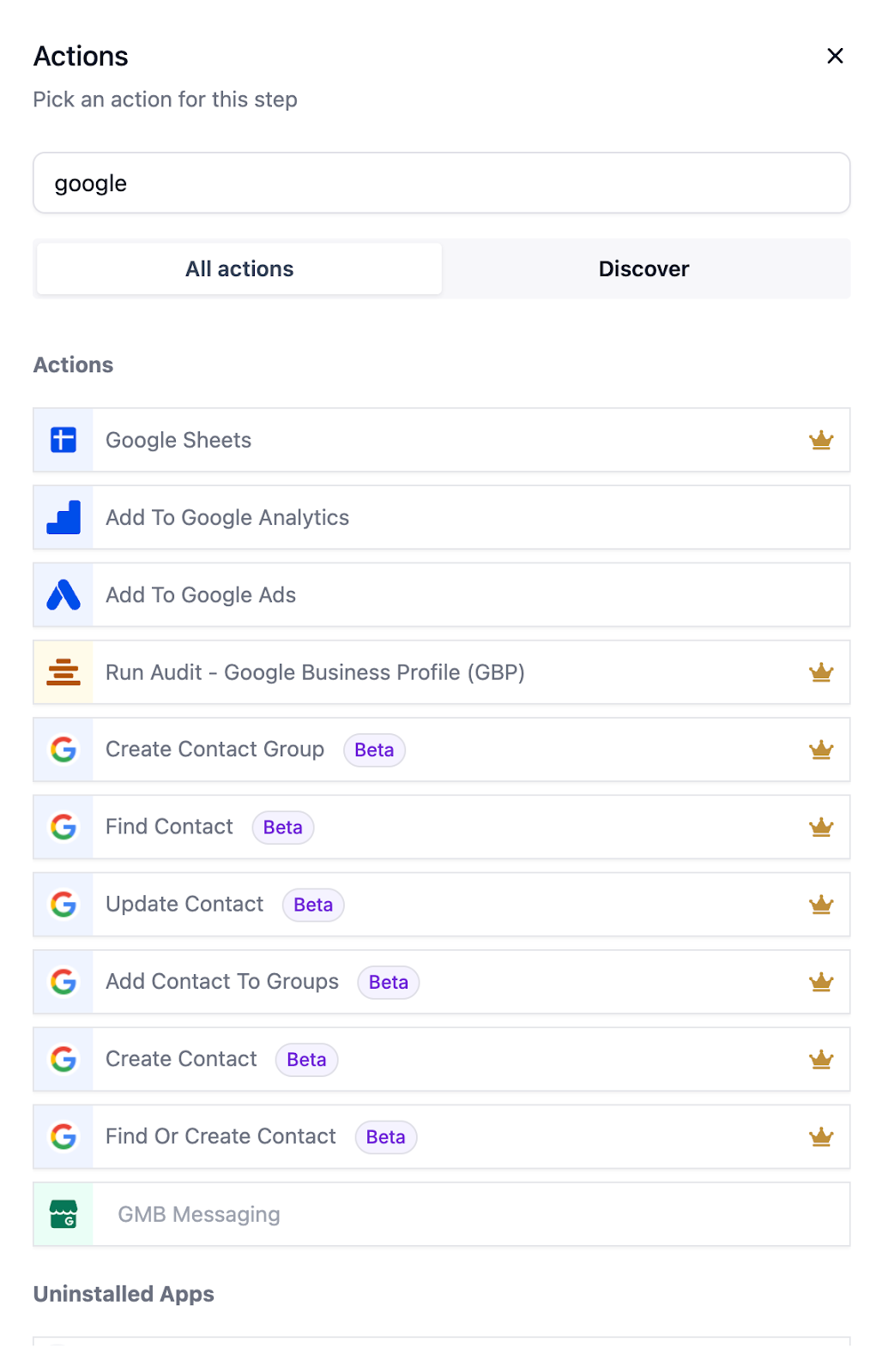
- Open Workflow Builder and search for Google Contacts actions or triggers.
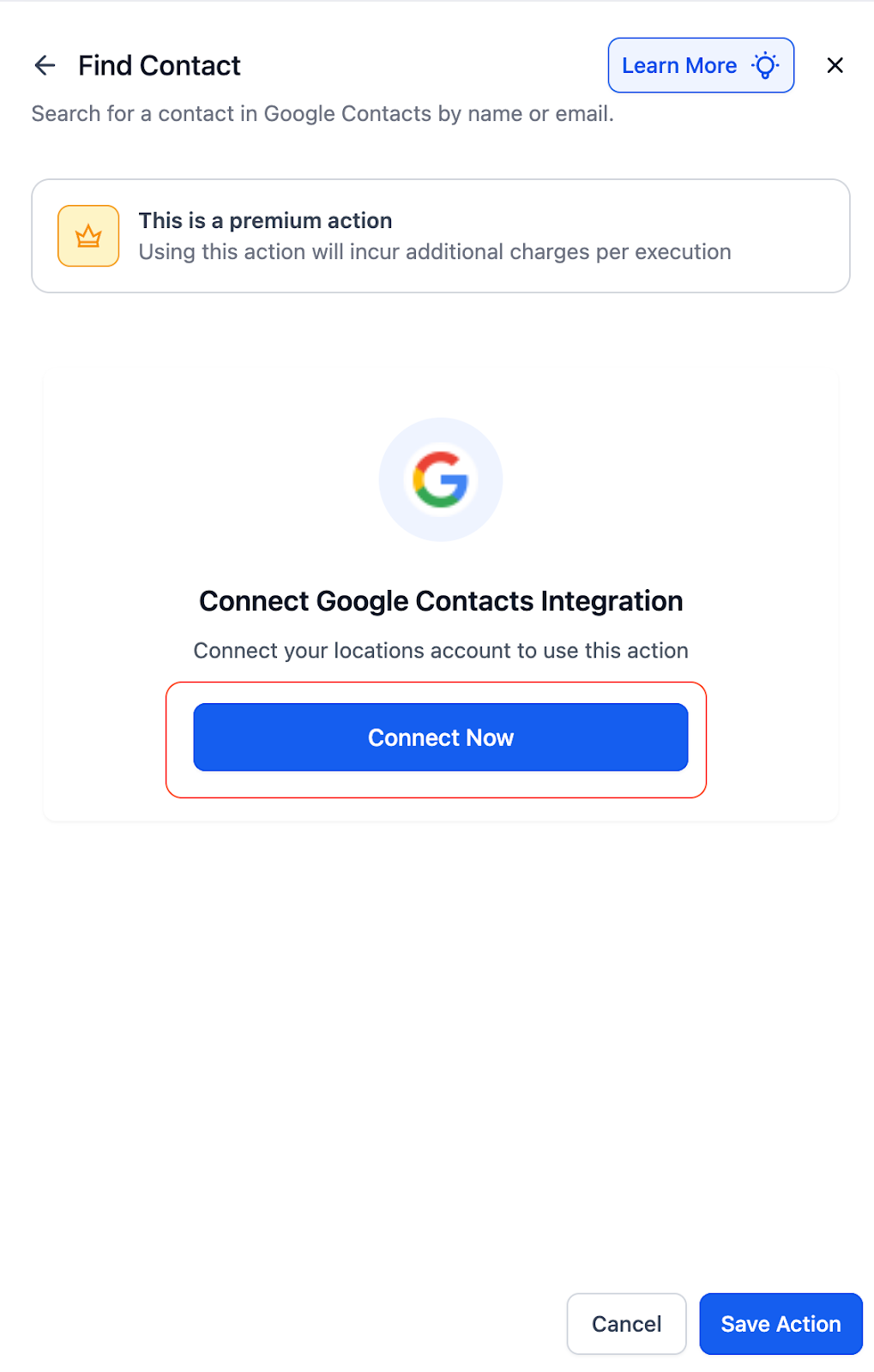
- Click Connect and sign in with your Google account.
 mpted,
- Once connected, you can add Google Contacts steps to any workflow.
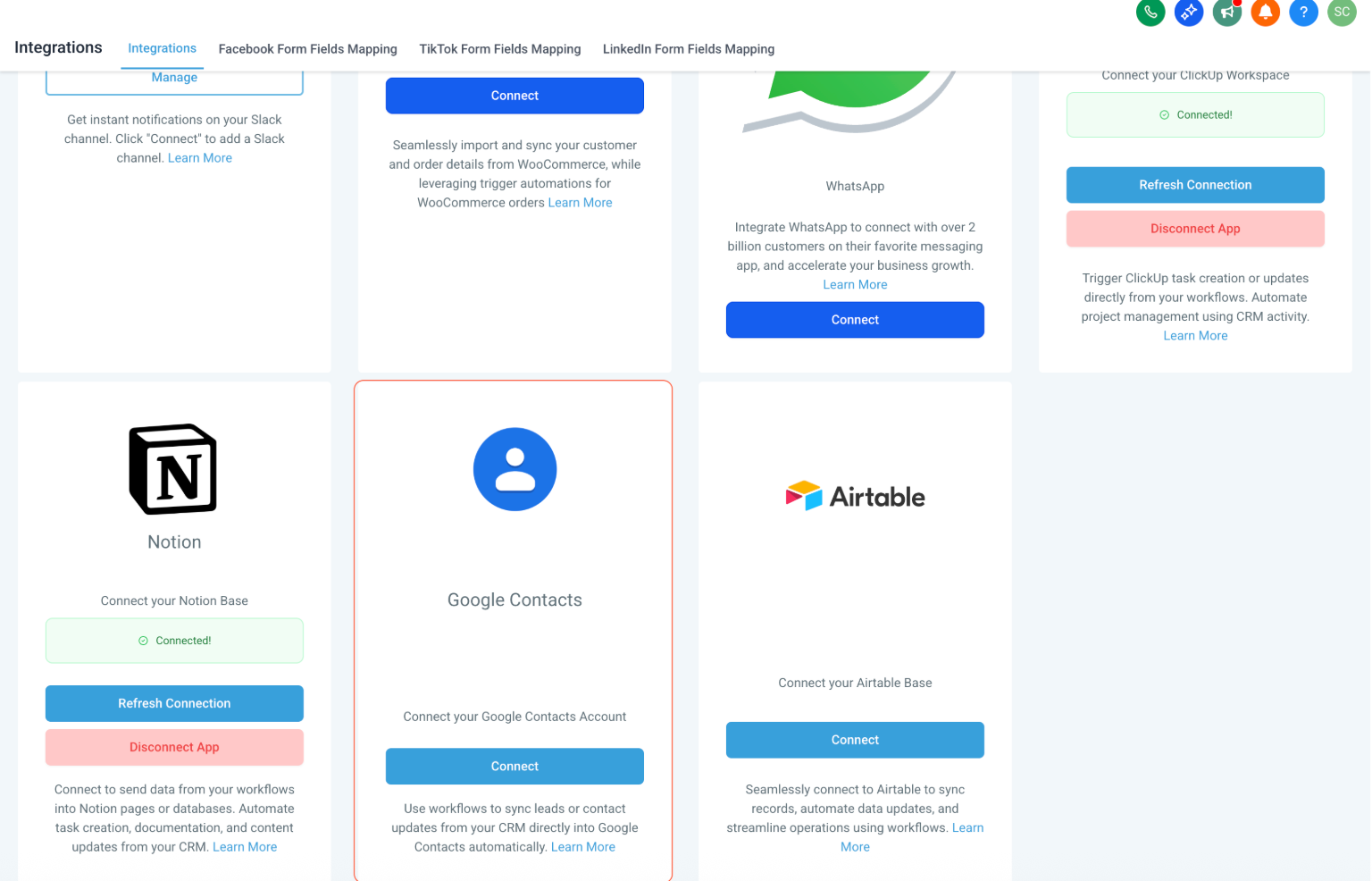
- Alternatively, go to Settings → Integrations → Google Contacts to connect first.
Notes & Details
-
Polling Interval → Google Contacts triggers check for new contacts or groups every 5 minutes.
- Works with all Google accounts (personal Gmail or Google Workspace).
-
Dynamic grouping supported → Contacts can be grouped automatically based on tags, pipeline stages, or other workflow logic.
Need Help?
If you run into issues or want help building your Google Contacts automations, reach out to support@enrollio.ai and our team will guide you.