
This method only works if your lead platform sends confirmation or notification emails whenever a new lead signs up.
Step 1: Set Up Gmail Forwarding
Log into your Gmail account.
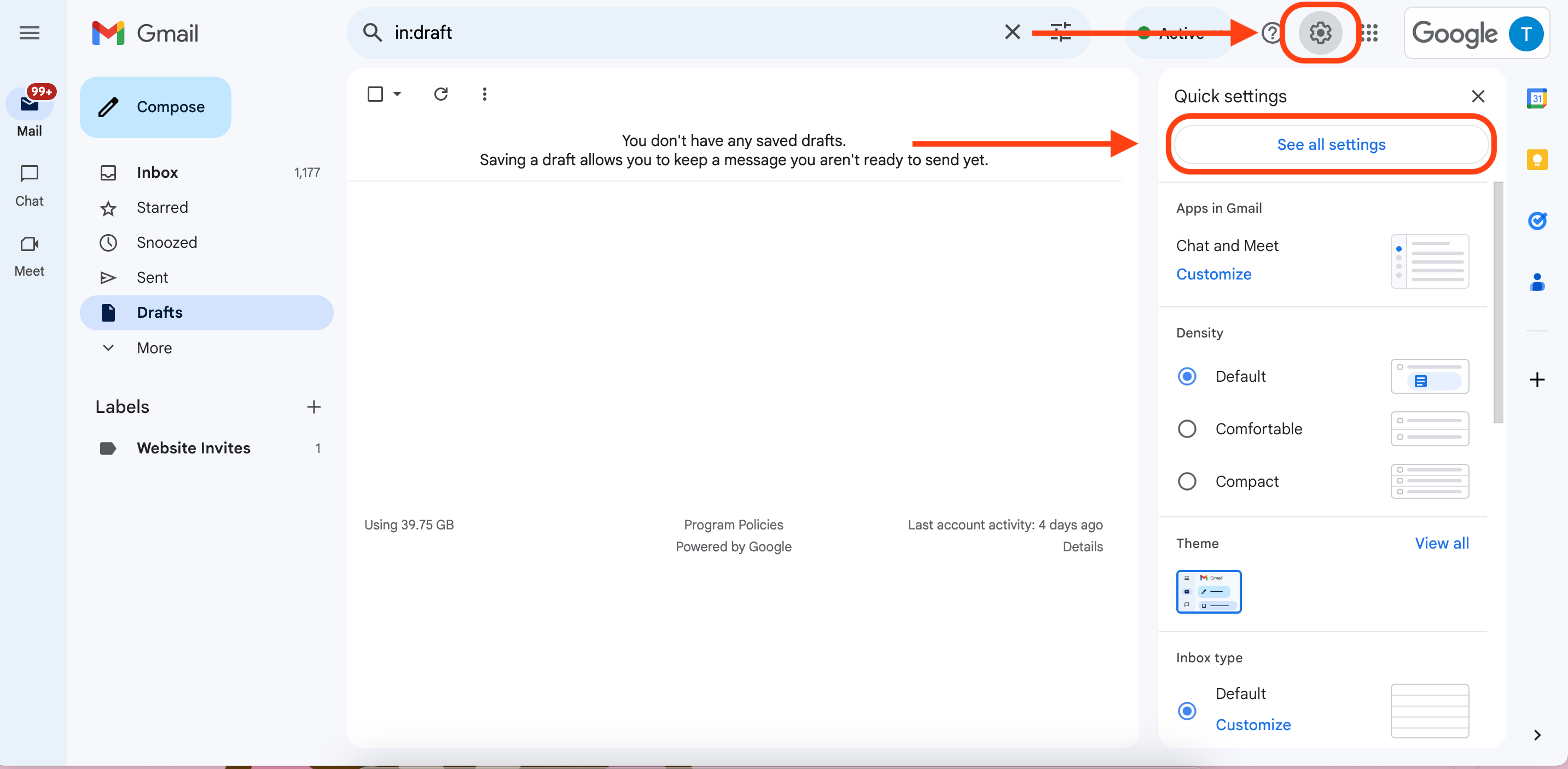
Click the gear icon on the top right, then click ‘See all settings.’
-
In the settings, go to the 'Forwarding and POP/IMAP' tab.
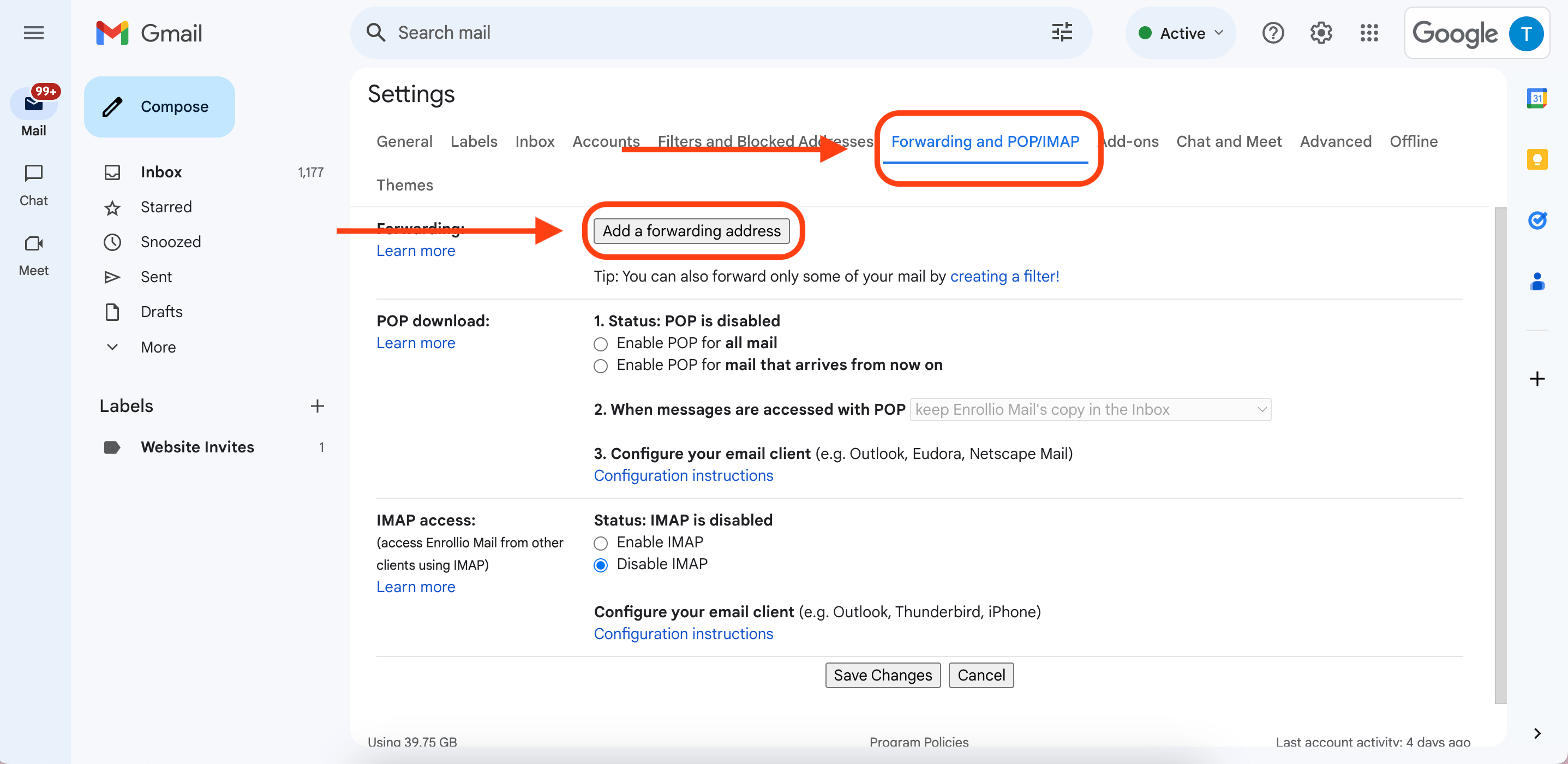
Click ‘Add a forwarding address.’
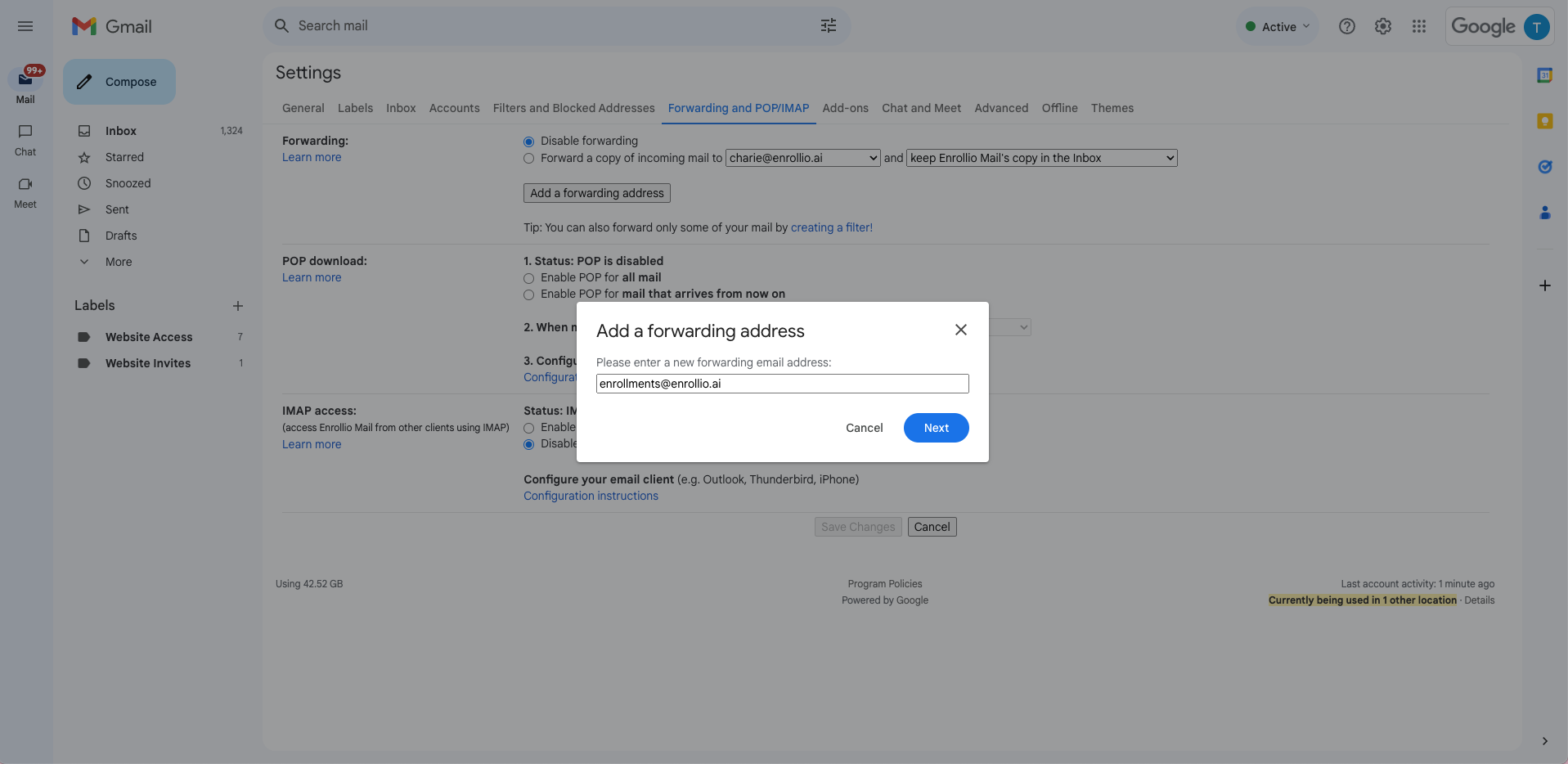
Enter the forwarding email address (leads@enrollio.ai). Click Next.
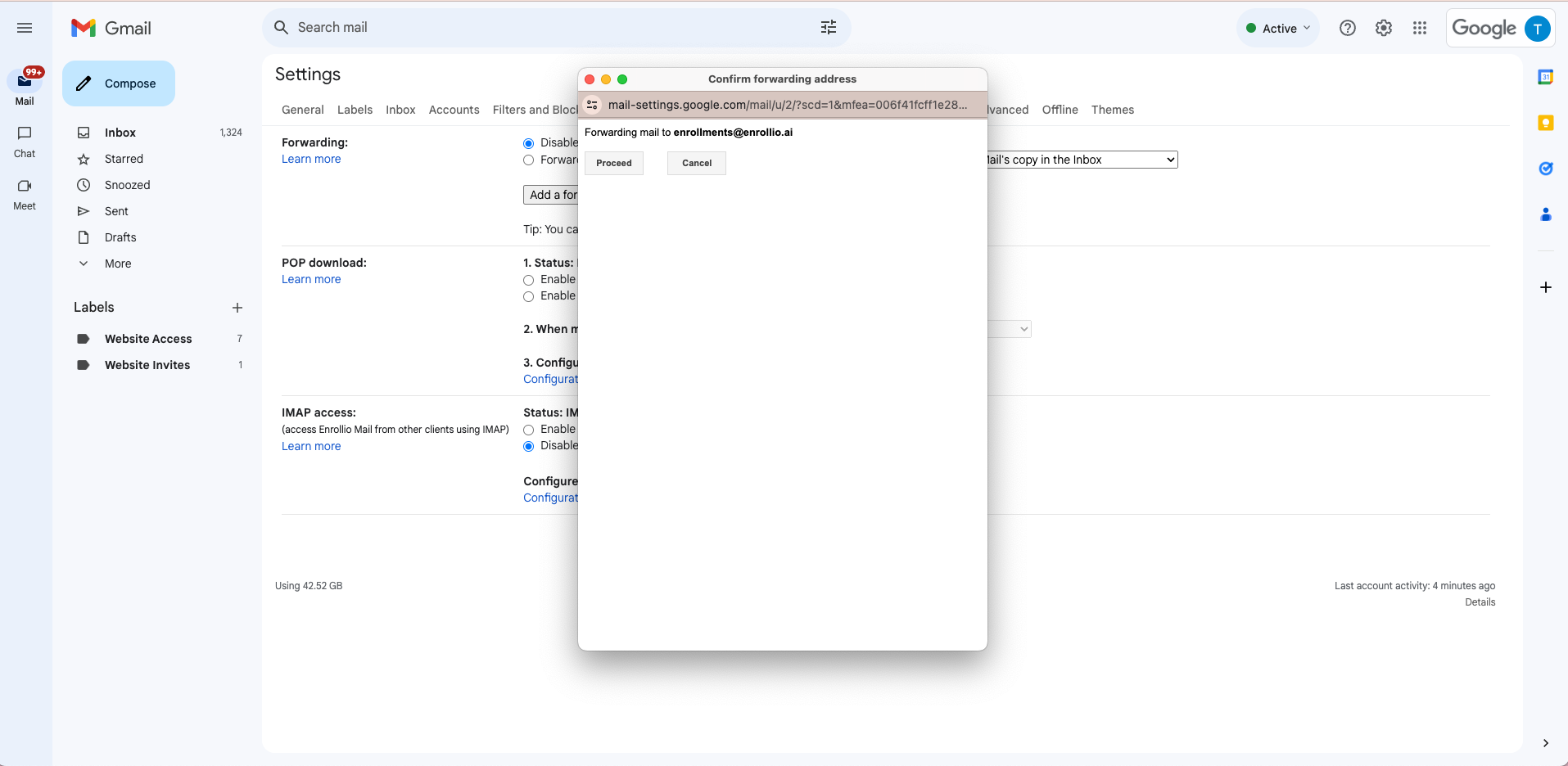
A pop-up will appear. Click Proceed.
A pop-up will appear. Click Proceed.
-
You’ll get a Gmail confirmation message. If it says verification is required, let support know—we’ll approve it for you.
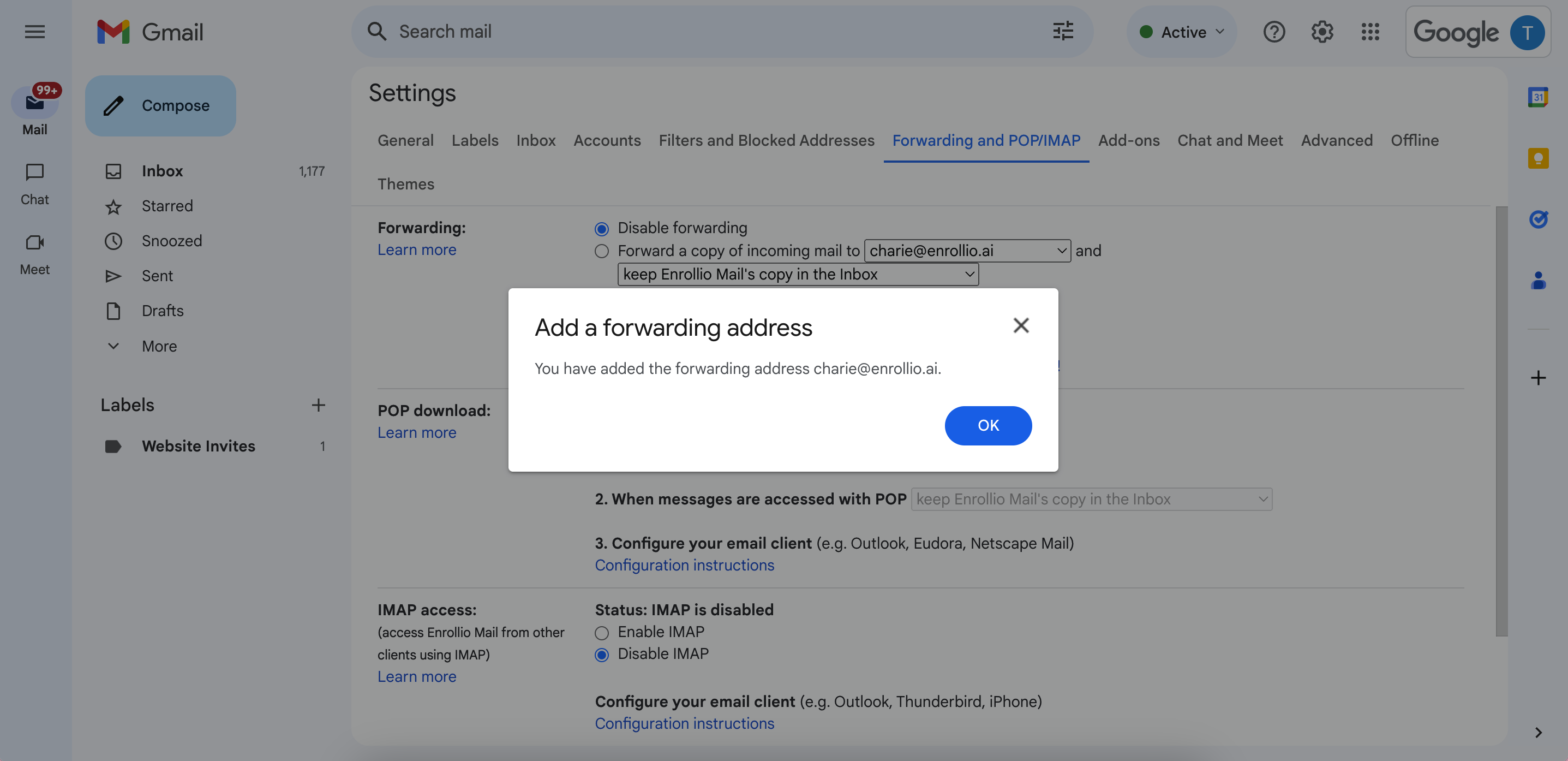
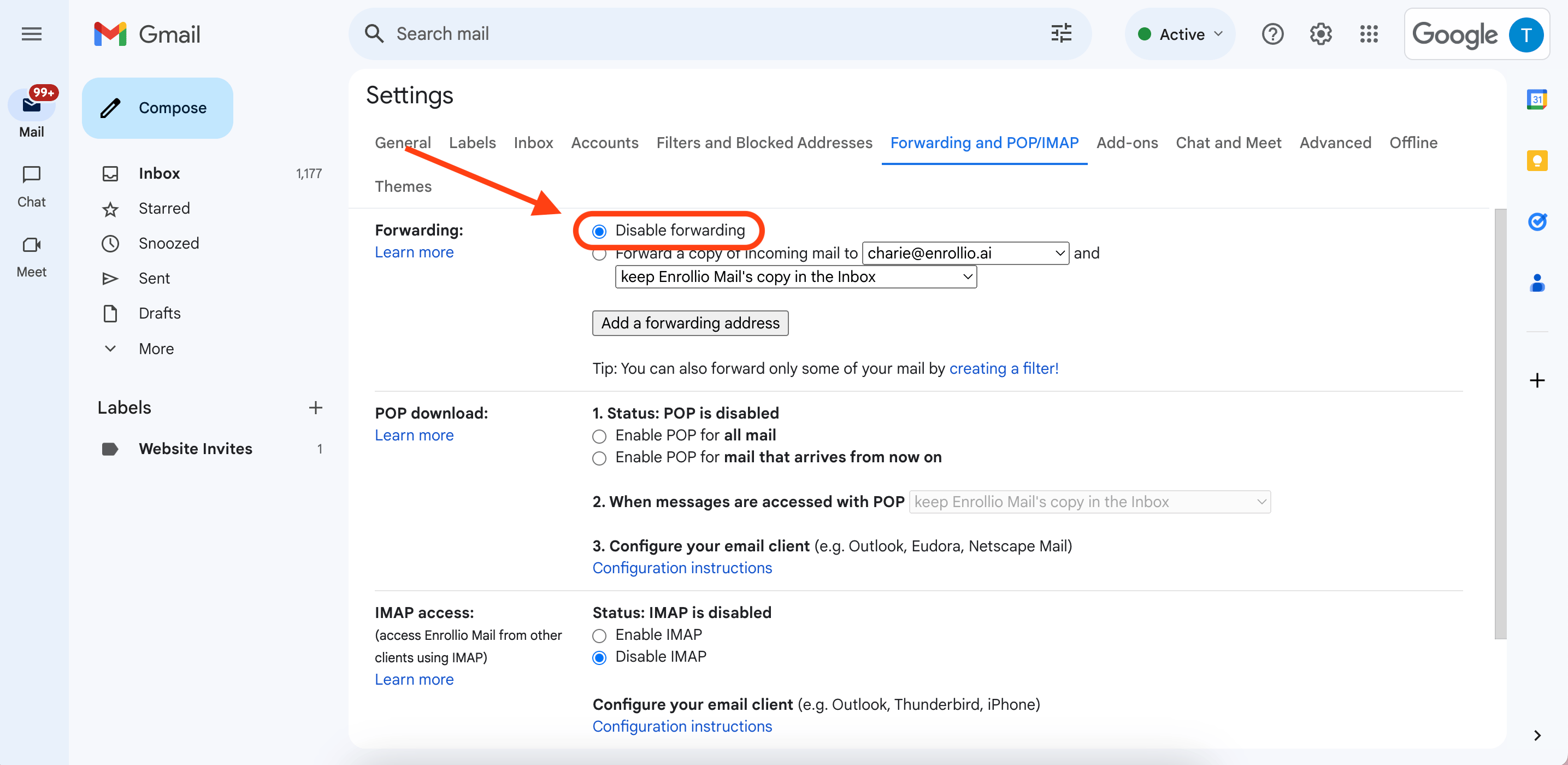
Important: Once verified, make sure ‘Disable Forwarding’ is selected so not all emails get forwarded—just the filtered lead emails. Click ‘Save Changes.’
Step 2: Create a Filter for Lead Emails
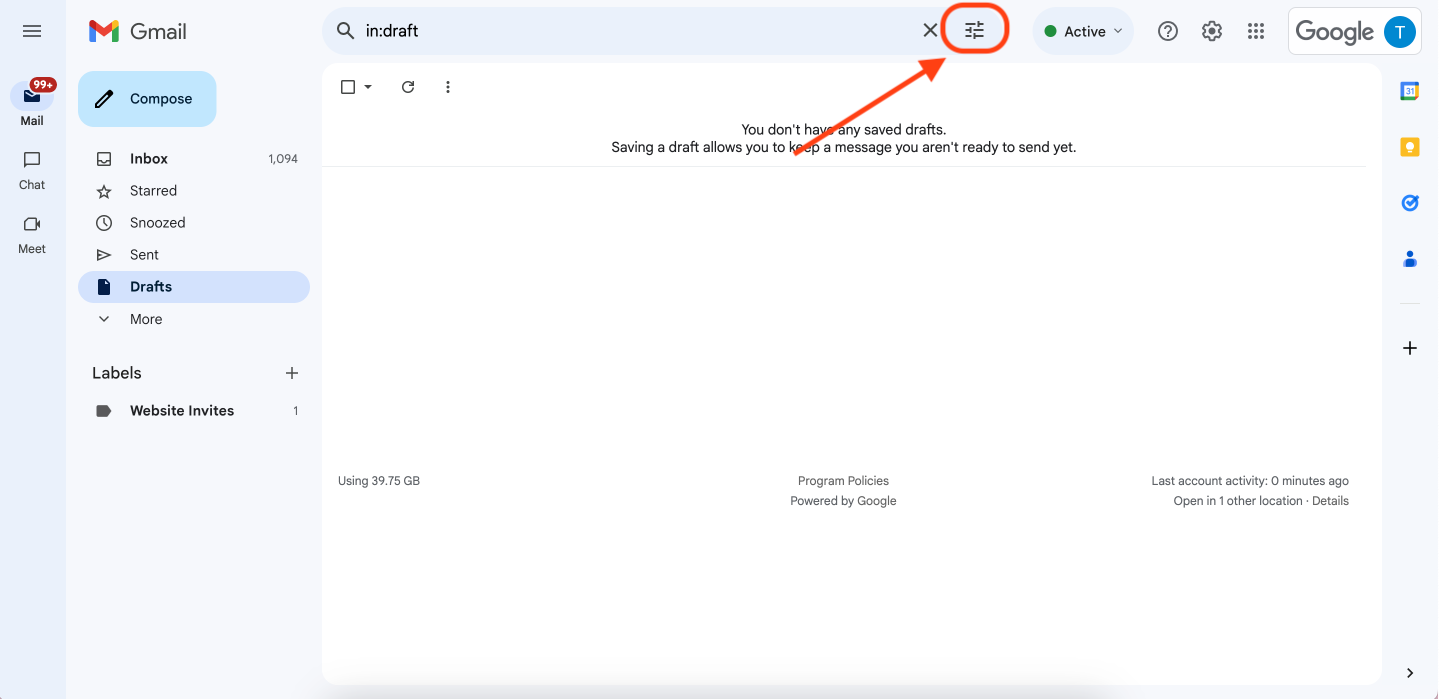
Click the filter icon on the right of your Gmail search bar.
-
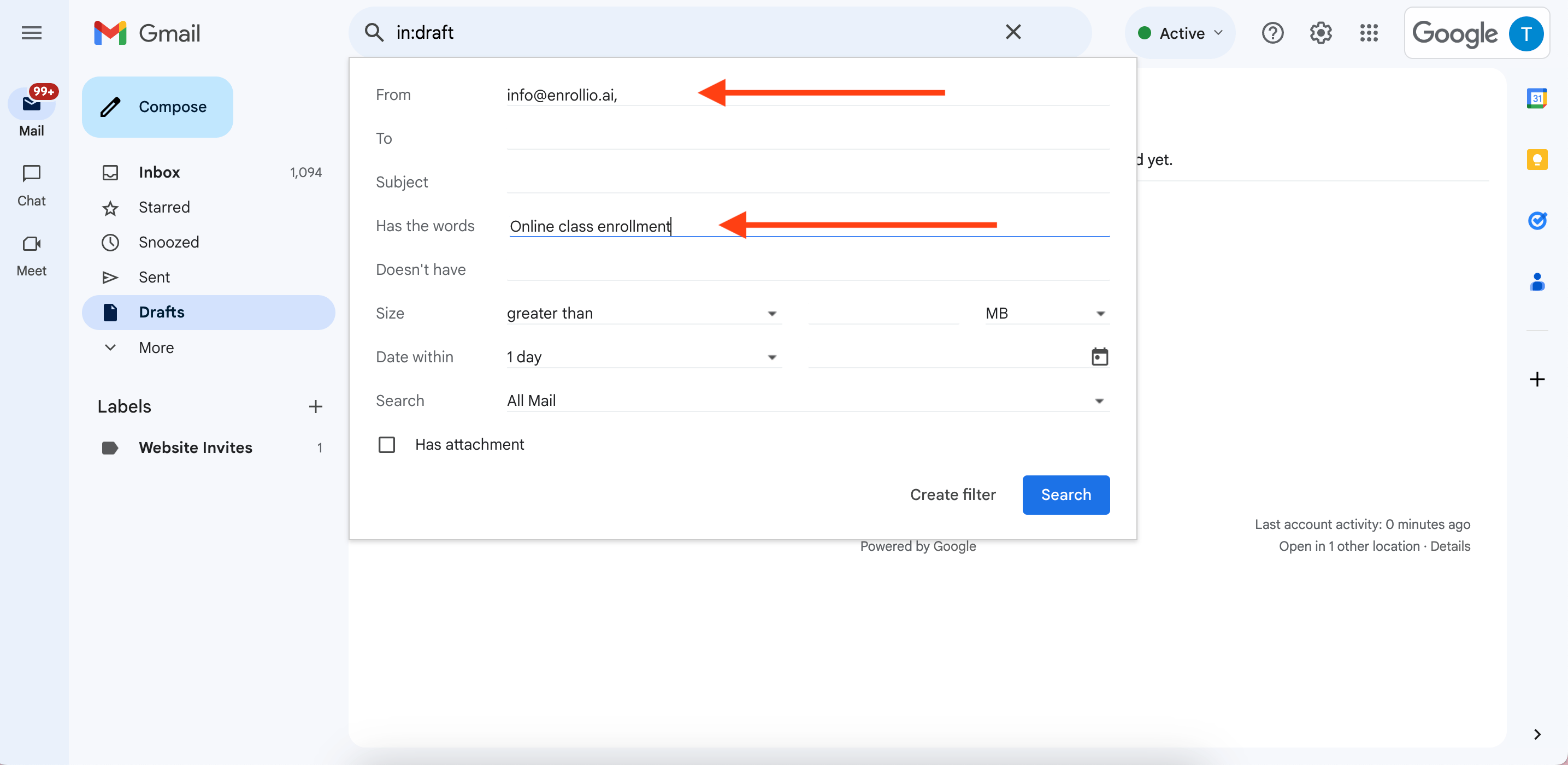
In the filter form:
From: Enter the platform email that sends your lead alerts (e.g. leads@leadplatform.com)
Subject or keywords: (Optional) Add a phrase like “New Lead” or any identifier used in the lead email subject line.
Click ‘Create Filter.’
-
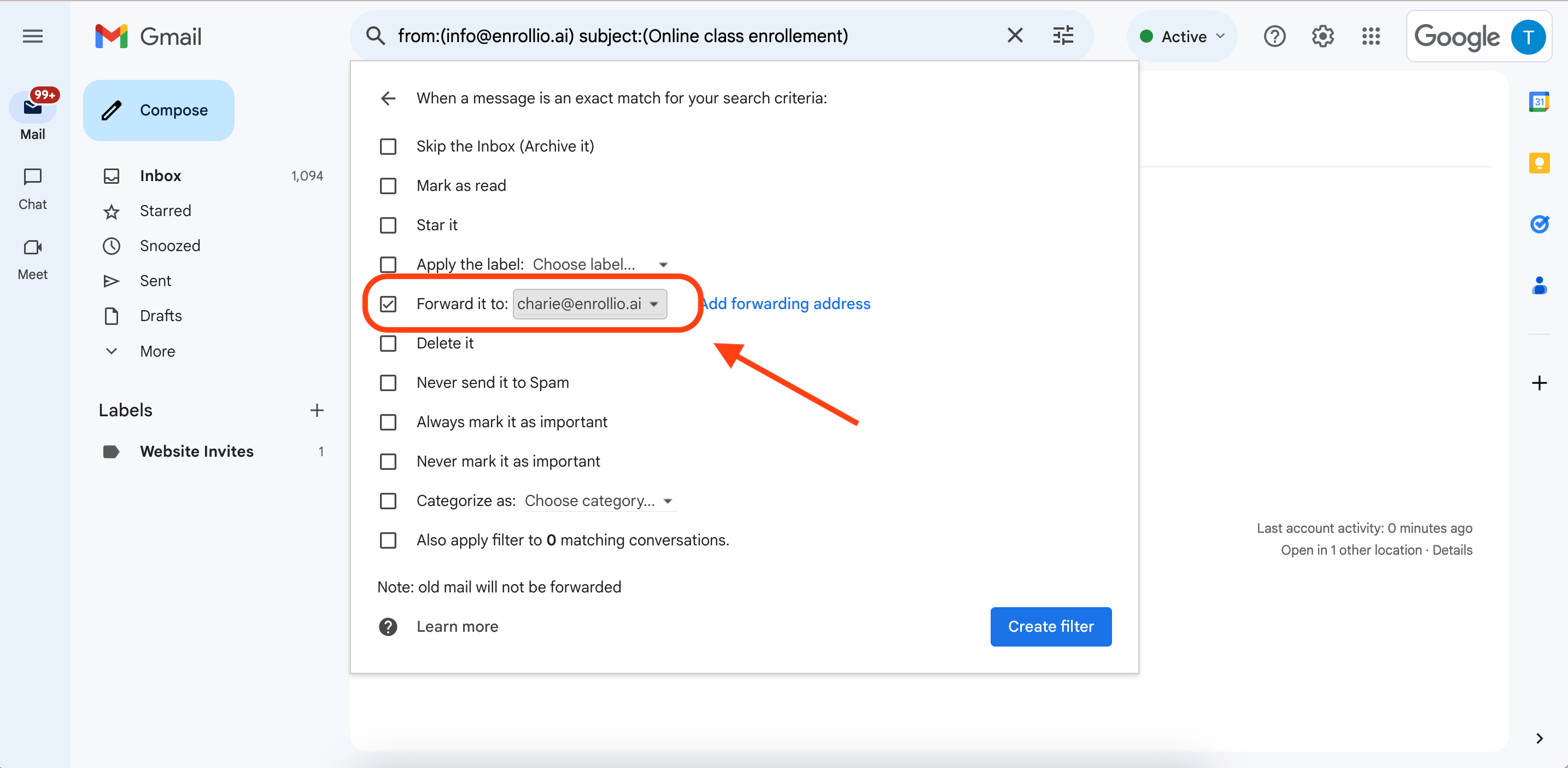
In the next window:
Check ‘Forward it to’ and choose the leads@enrollio.ai
-
Click ‘Create Filter’ again to save.
Final Step
Send us a message via live chat or email support@enrollio.ai once forwarding is set up. We’ll complete the setup on our end to start receiving your lead data.