
Why This Happens
Sometimes after connecting your Google account, it may not appear in your integration settings right away. This usually happens when the connection process didn't fully complete.
How to Fix It
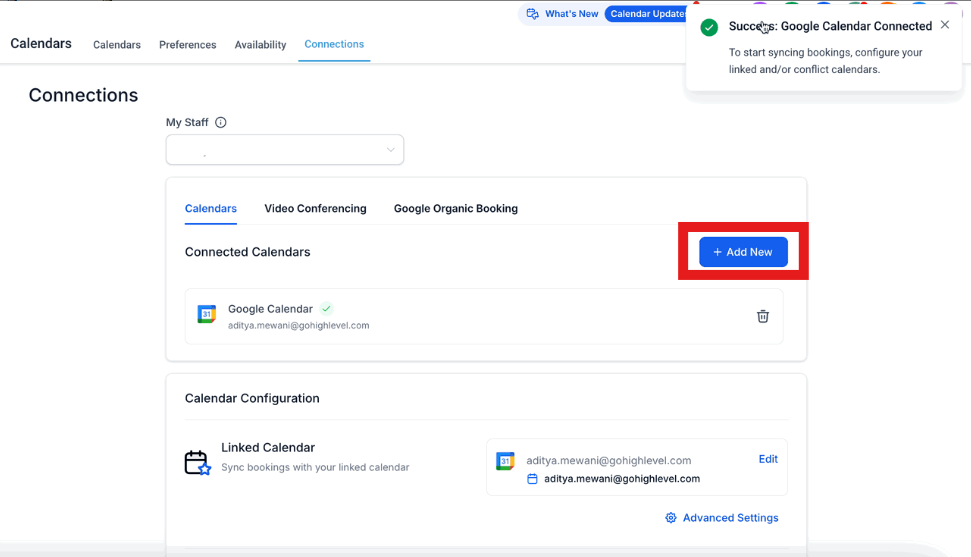
Follow these steps to properly connect your Google account:
- Navigate to Settings → Integrations
- Click Add another account in the Google Calendar section
- Select the same Google account you previously tried to connect
- Complete the authorization process
Pro Tip: Make sure you're logged into the correct Google account in your browser before starting the connection process. This helps avoid confusion with multiple Google accounts.
Still Having Issues?
If you're still not seeing your Google account after following these steps:
- Clear your browser cache and cookies, then try again
- Make sure pop-ups are enabled for Enrollio
- Try connecting from a different browser
- Verify that you have admin access to the Google account you're connecting
Need additional help? Contact our support team with details about which Google account you're trying to connect.