
StudioBot’s main conversion job is helping a parent book a trial class. Trial settings and calendars live in Setup; scheduled check-ins live under Conversations → Follow-ups.
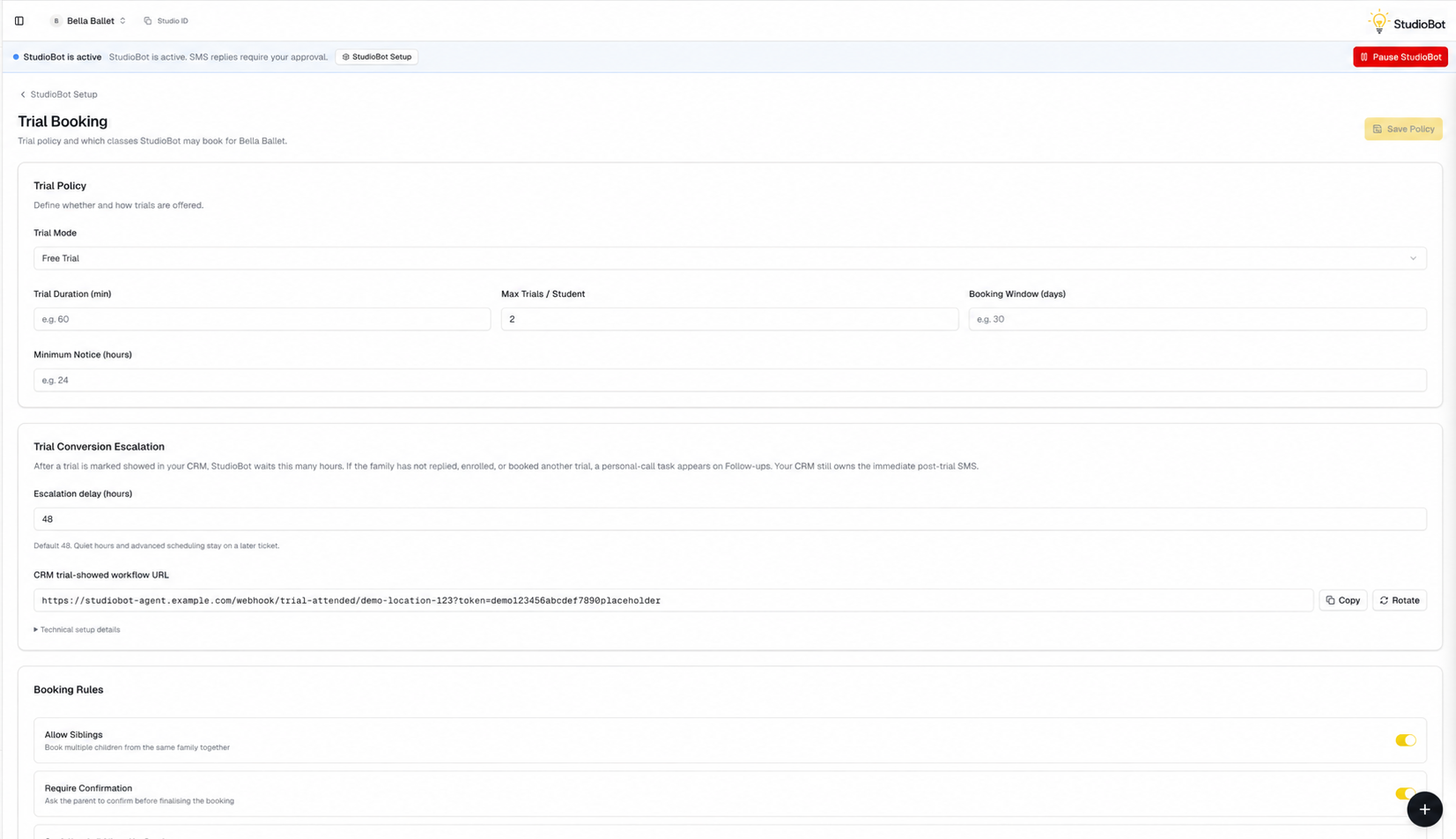
Trial Booking settings
Path: StudioBot Setup → Trial Booking
Trial policy
Choose how StudioBot should treat trials for your studio, for example:
- Free trials — StudioBot can offer and book free trial appointments
- Request only — collect interest and hand off instead of booking
- No trials — don’t push trial booking
- Other studio-specific options shown in your dashboard
Paid trials and tuition conversations are handed to staff — StudioBot is not a payment checkout.
Class length (45 vs 60 minutes)
Trial Duration is one number for the whole studio. It cannot represent both 45-minute and 60-minute classes.
If your studio offers mixed class lengths:
- Leave Trial Duration blank
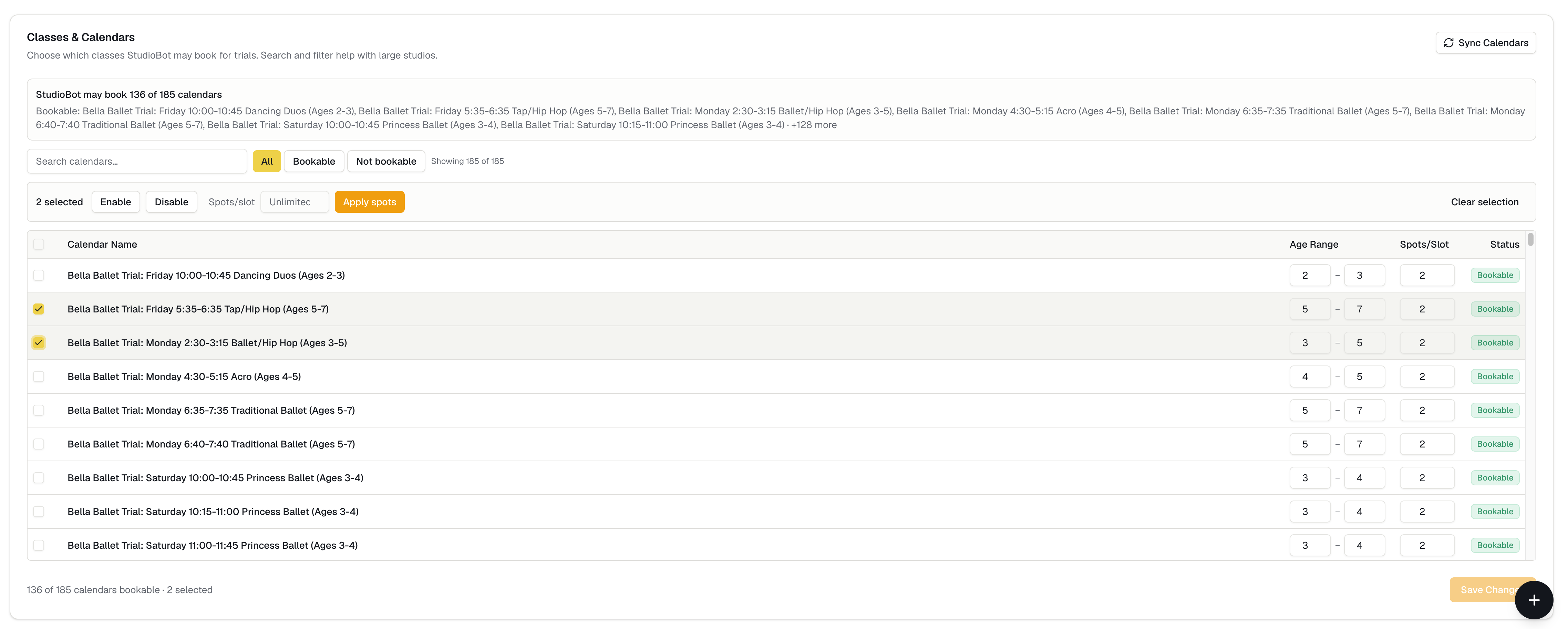
- Enable each class calendar StudioBot may book — a 45-minute class and a 60-minute class are two calendars, not two policy settings
- StudioBot offers open times from those calendars; the parent picks a slot
If you fill in 45 or 60, StudioBot will treat every trial as that length, which is wrong for the other classes. Class length comes from the calendars you enable, not from Trial Duration.
Calendars and classes
- Refresh the calendar list from Enrollio CRM if something new is missing
- Enable only the classes / calendars StudioBot may offer
- Leave demo, private, or staff-only calendars disabled
If a parent asks for a style you didn’t enable, StudioBot may escalate or suggest alternatives based on what’s available.
After the trial
Configure any post-trial follow-up delay shown on the page so StudioBot (or your follow-up tools) can check in after the visit — without nagging too soon.
What parents see when booking
- StudioBot confirms age and interest
- Offers open times from enabled calendars
- Parent picks a slot
- StudioBot confirms the booking details (class, time, location reminders you’ve configured)
The appointment should appear on your Enrollio CRM calendar when booking succeeds.
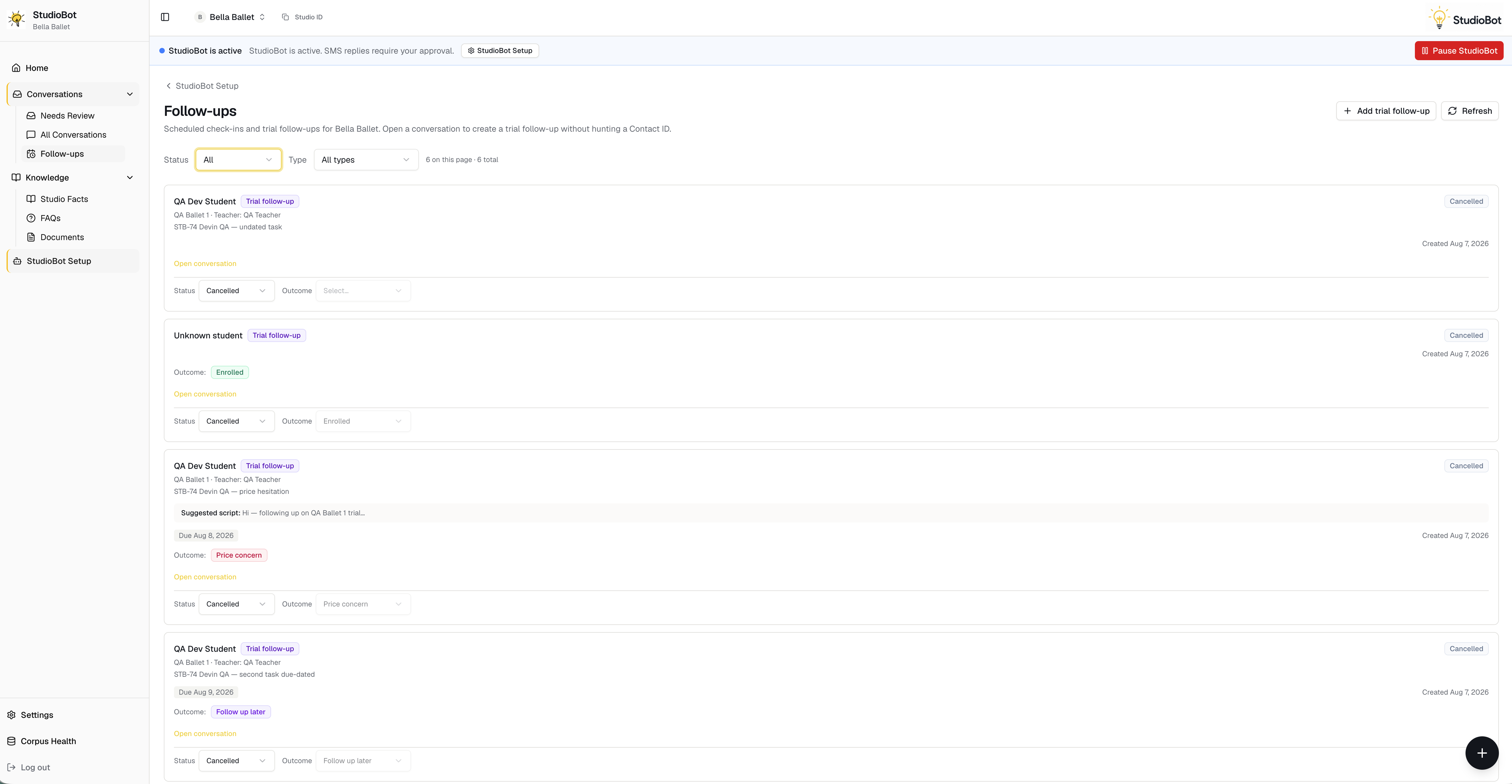
Follow-ups
Path: Conversations → Follow-ups
Use Follow-ups to see scheduled check-ins (including trial-related follow-ups). From here you can understand what’s queued without digging through every conversation.
When booking fails or won’t offer times
Common causes:
- No calendars enabled for that class style
- No open slots in CRM for the requested days
- Trial policy set to request-only / no trials
- StudioBot is in Practice (drafts only) or Paused
- Family contact is paused after handoff
See When StudioBot answers wrong or won’t book.