
Stay on top of your social media presence with automatic email notifications when posts fail, accounts need reconnection, or team approval is required.
What Notifications Are Available?
Enrollio sends email notifications for these social media events:
- Account Expired — Your social media account connection has expired and needs to be reconnected
- Account Pre-Expiry — Your Facebook page connection will expire soon (around day 50 of the 60-day cycle)
- Request for Approval — A scheduled post is waiting for your approval
- Post Approved — Notifies the post creator that their scheduled post was approved
- Post Rejected — Notifies the post creator that their scheduled post was rejected
- Post Failed — A scheduled post failed to publish
How to Access Notification Settings
- Click Marketing in your main navigation
- Select Social Planner
- Click the gear icon (settings) next to the New Post button
- Click the Notifications tab
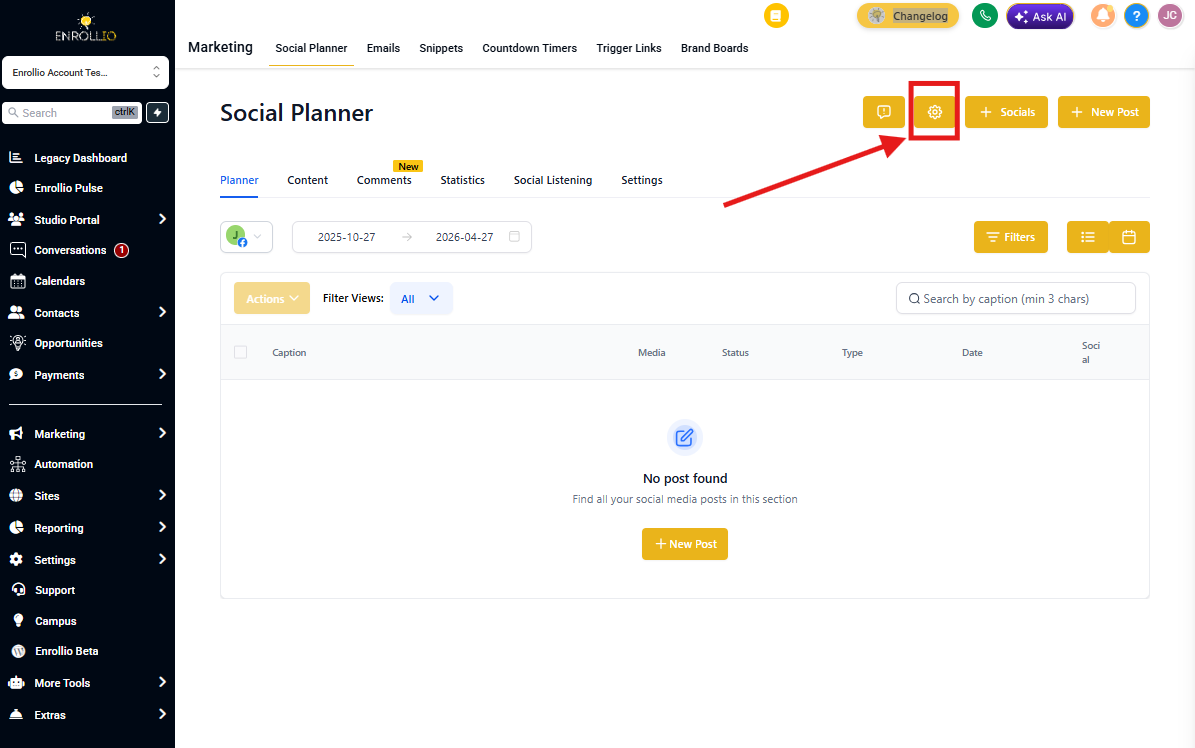
Configuring Each Notification Type
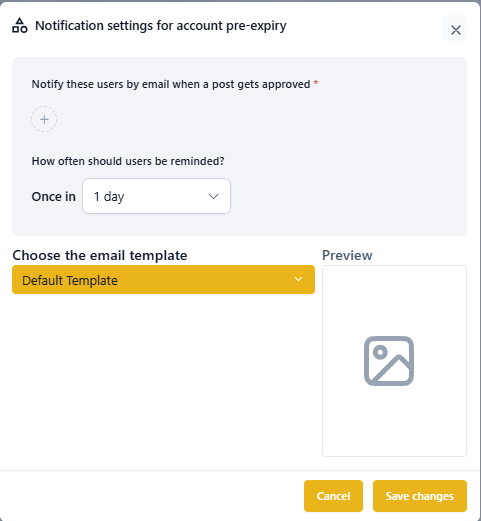
Account Pre-Expiry Notifications
- Click the pencil icon to edit account pre-expiry settings
- Select which team members should receive the notification
- Choose how often reminders should be sent
- Select an email template (or stick with the default)
Team members can refresh their token by visiting the integrations page when they receive this notification.
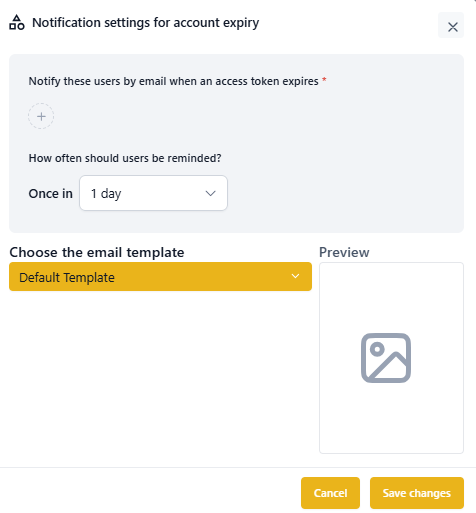
Account Expired Notifications
- Click the pencil icon to edit account expired settings
- Select which team members should receive the notification
- Choose how often reminders should be sent to reconnect the account
- Select an email template (or stick with the default)
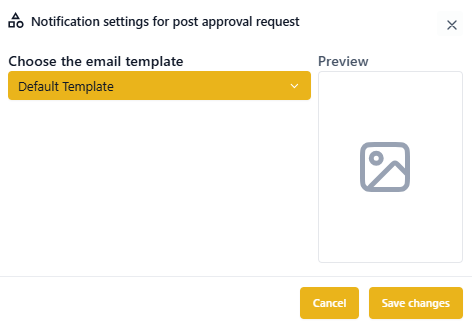
Request for Approval Notifications
- Click the pencil icon to edit approval request settings
- Select an email template (or stick with the default)
This notification is sent when a team member schedules a post that requires approval before publishing.
Post Approved Notifications
- Click the pencil icon to edit approved post settings
- Select an email template (or stick with the default)
The post creator receives this notification when their scheduled post is approved.
Post Rejected Notifications
- Click the pencil icon to edit rejected post settings
- Select an email template (or stick with the default)
The post creator receives this notification when their scheduled post is rejected.
Post Failed Notifications
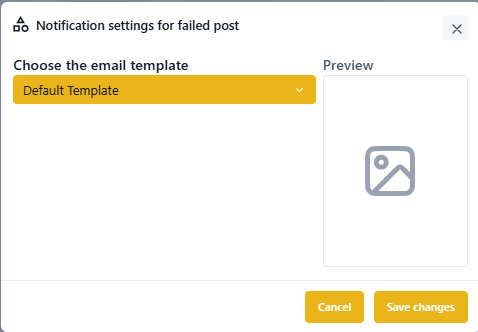
- Click the pencil icon to edit failed post settings
- Select which team members should be notified
- Select an email template (or stick with the default)
This notification alerts your team when a scheduled post fails to publish.
Customizing Email Templates
Want to personalize your notification emails? Here's how to customize the templates:
- Go to Marketing > Email > Templates
- Click New Template
- Select Email Marketing Template
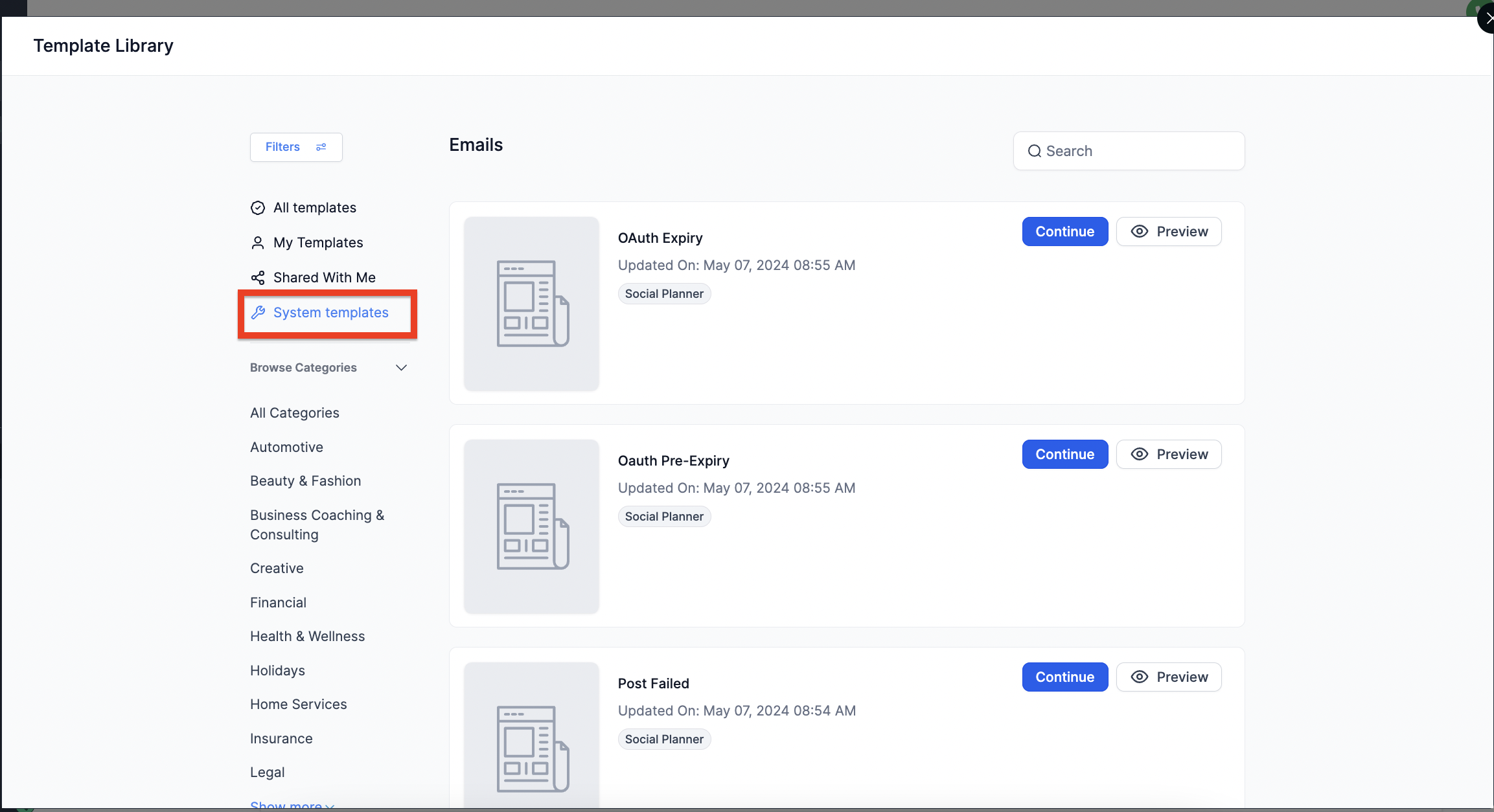
- In the template library, click System Templates in the left sidebar
- Find and select the social media notification template you want to customize
- Edit the content to match your preferences
- Save your template
- Return to Social Planner notification settings and select your custom template
How Pre-Expiry Timing Works
Pre-expiry notifications are designed to give you plenty of warning before your social accounts disconnect.
For Facebook pages (which expire every 90 days), Enrollio triggers the first notification around day 80 — giving you 10 days to refresh your connection before it expires.