
Email Notifications in Forms & Surveys
Email notifications keep you updated on form submissions without constant manual checking. You can respond quickly to inquiries, share submissions with your team, and manage parent communication efficiently. The Auto Responder feature automatically sends a confirmation email to families who fill out your forms.
What are Email Notifications in Forms & Surveys?
Email notifications are alerts sent whenever someone submits a form or survey. These go directly to your inbox (or your team's inboxes), keeping everyone informed in real time. Auto Responder sends an automated reply to the person who submitted the form, which can include a copy of their responses.
Key Benefits
Email notifications and auto responders help your childcare center respond faster and stay organized:
- Instant alerts — Get notified immediately when a family submits a tour request, enrollment form, or survey
- Faster follow-up — Respond to prospective families while you're top of mind
- Team coordination — Send notifications to multiple staff members at once
- Customization — Personalize the subject line, sender name, and reply-to email
- Professional touch — Auto Responder instantly acknowledges submissions
Finding the Notification Icon
The notification option is in the form editor's secondary toolbar.
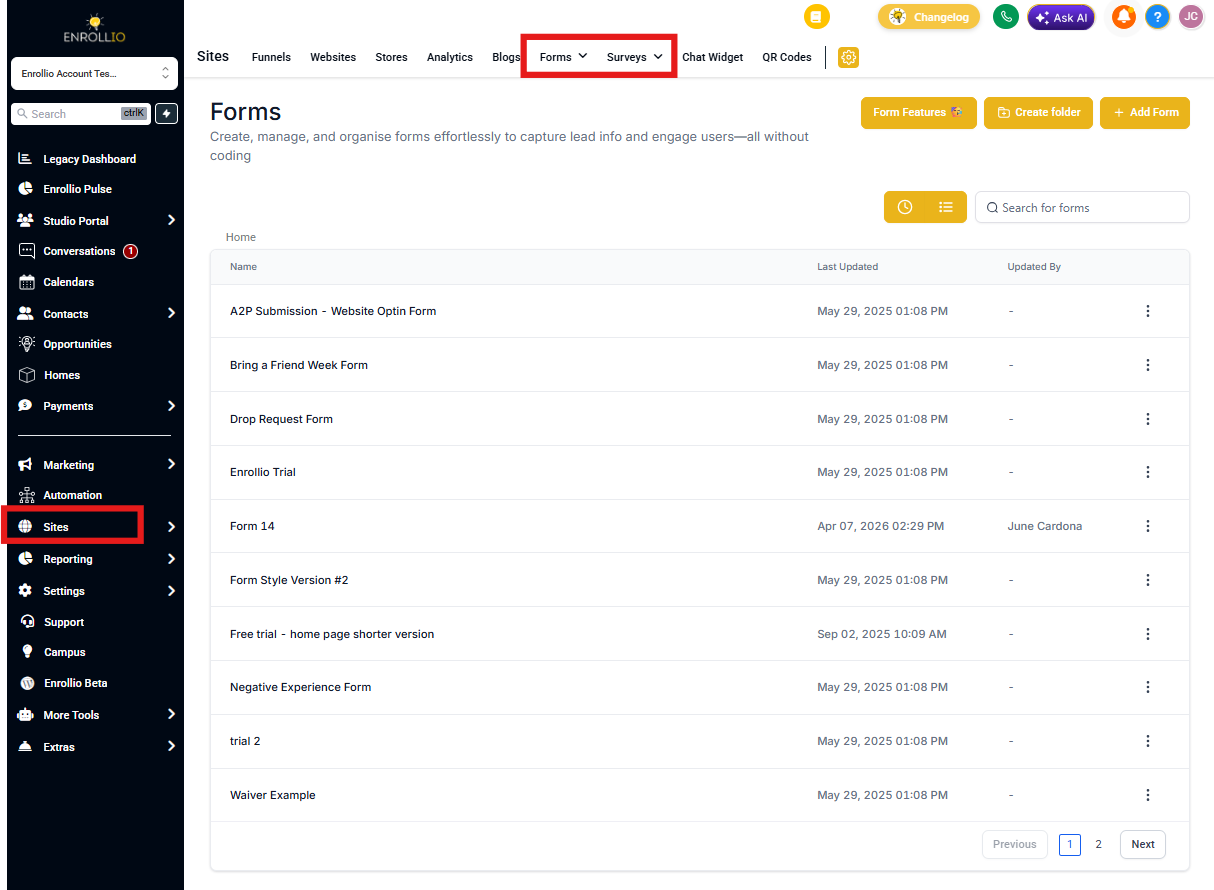
Navigate to Forms or Surveys
Go to Sites → Forms (or Sites → Surveys) from the top navigation bar. This is where all your forms and surveys are stored.
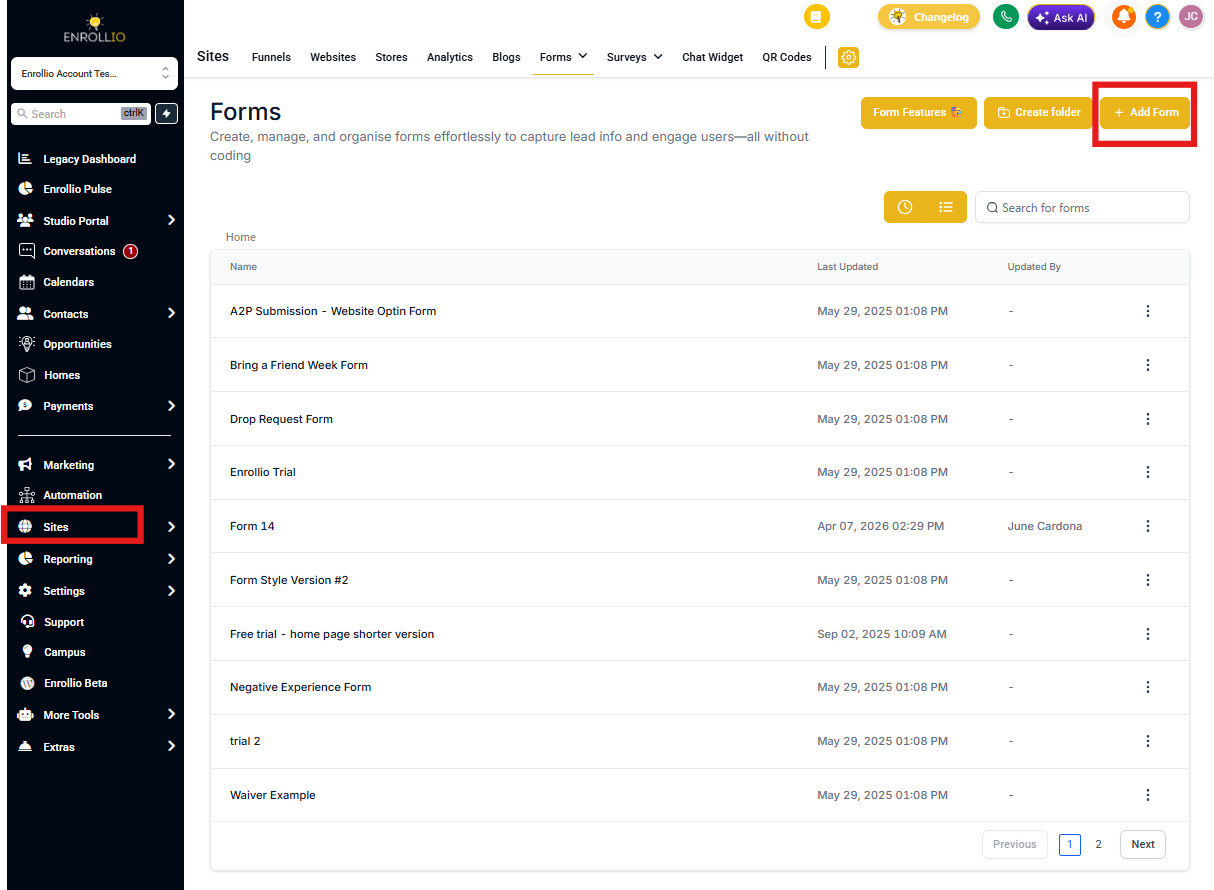
Select or Create a Form or Survey
In the dashboard, either select an existing form from the list or click Add Form in the top right to create a new one.
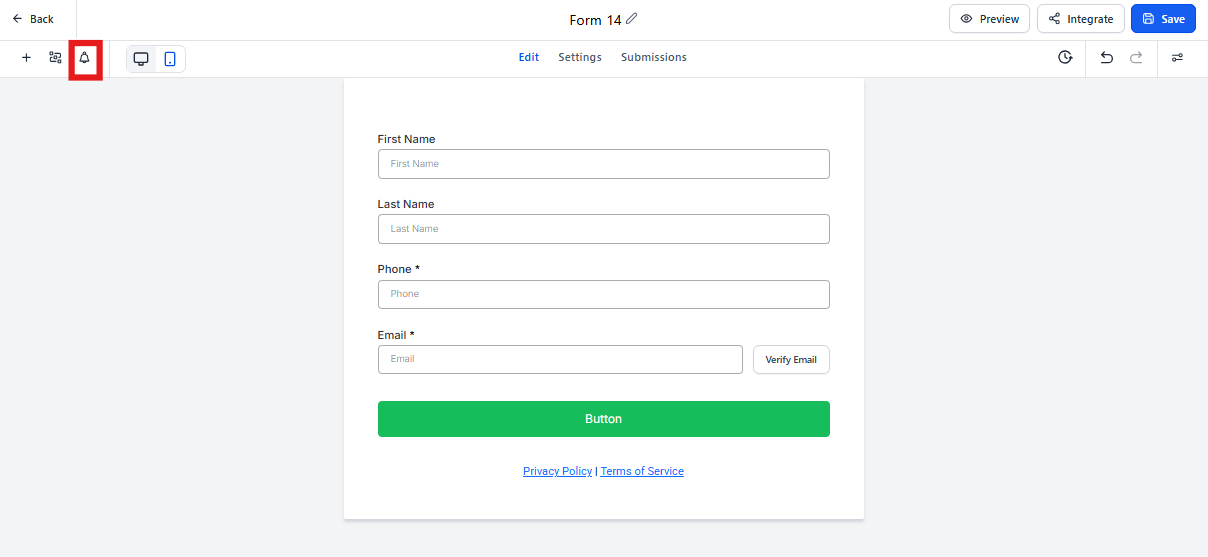
Open the Notification Sidebar
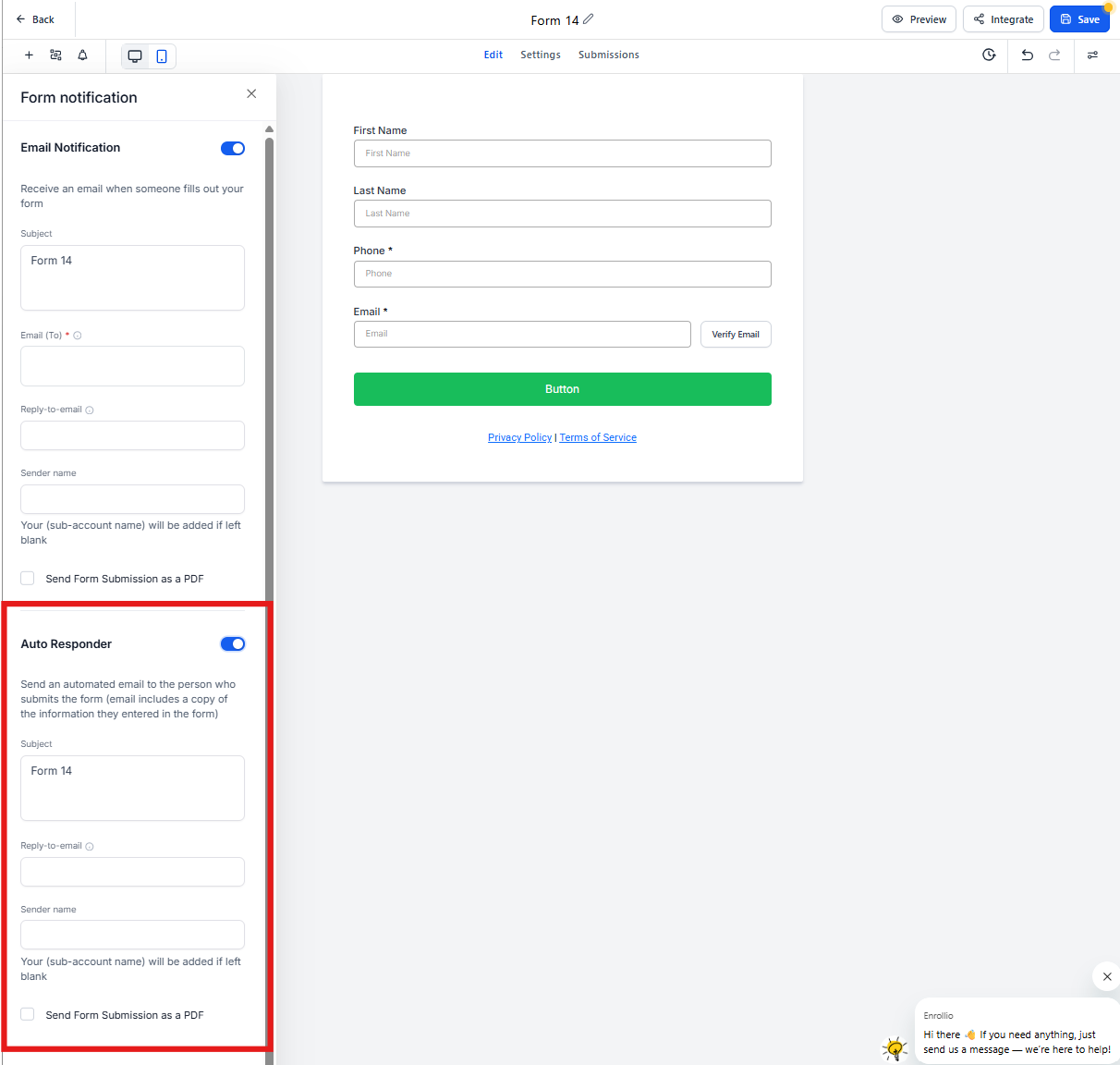
Inside the form editor, click the Bell icon in the secondary toolbar. This opens the Form Notification panel on the left.
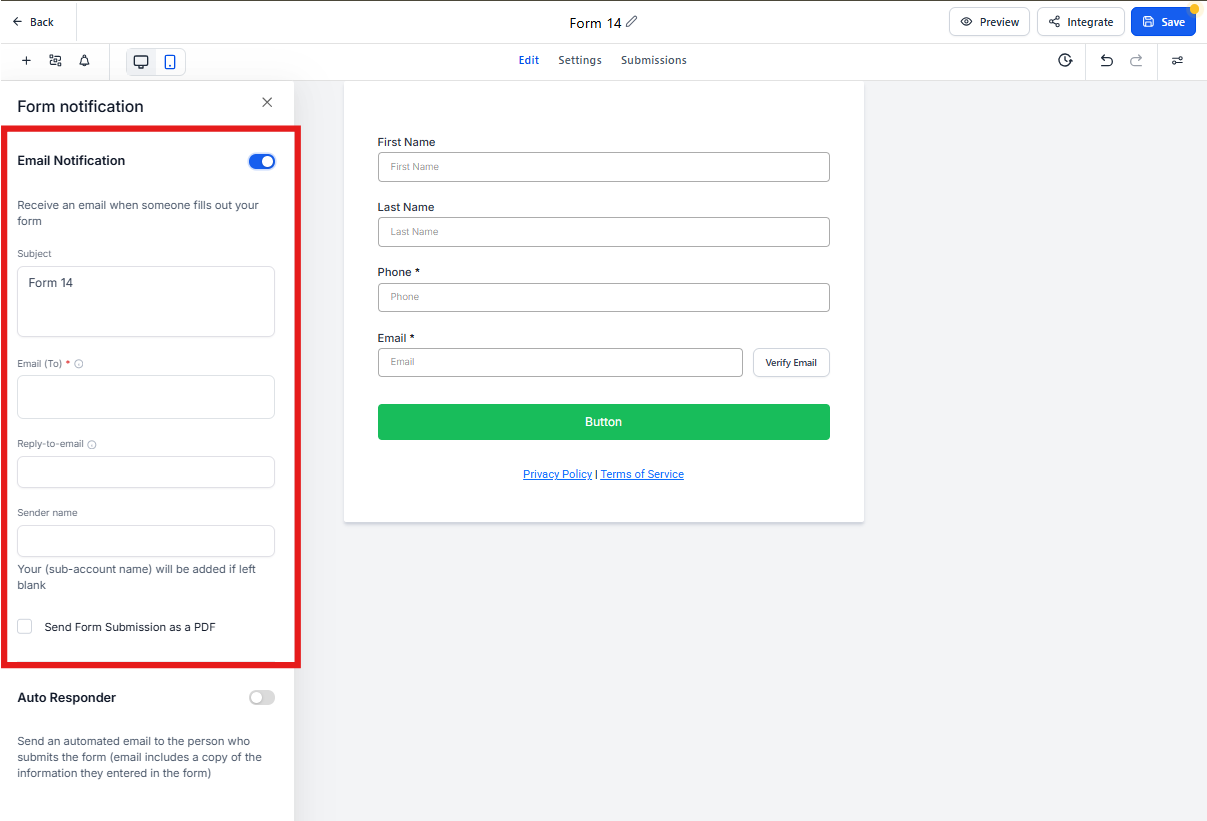
Configure Email Notifications
The Email Notifications sidebar lets you configure who receives alerts and how the email appears. Setting this up properly ensures the right team members stay informed.
- Click the Bell icon in the form editor
- Toggle on Email Notification
- Fill out the configuration fields:
- Subject — Enter a subject line. If left blank, the form name will be used. You can include custom fields.
- Email (To) — Enter one or more email addresses. Each address converts into a tag.
- Reply-to Email — Add the email address where you want replies directed
- Sender Name — If left empty, your center's name will be used by default
- Save your changes
Configure Auto Responder
Auto Responder sends an automated email to the family who submitted the form. This helps build trust by instantly acknowledging their submission.
- Open the Form Notification sidebar
- Toggle on Auto Responder
- Fill out the configuration fields:
- Subject — Enter a subject line. Default is the form name.
- Reply-to Email — Add an email for parent replies
- Sender Name — If blank, defaults to your center's name
- Save your changes
How to View Survey Responses After Receiving an Email Notification
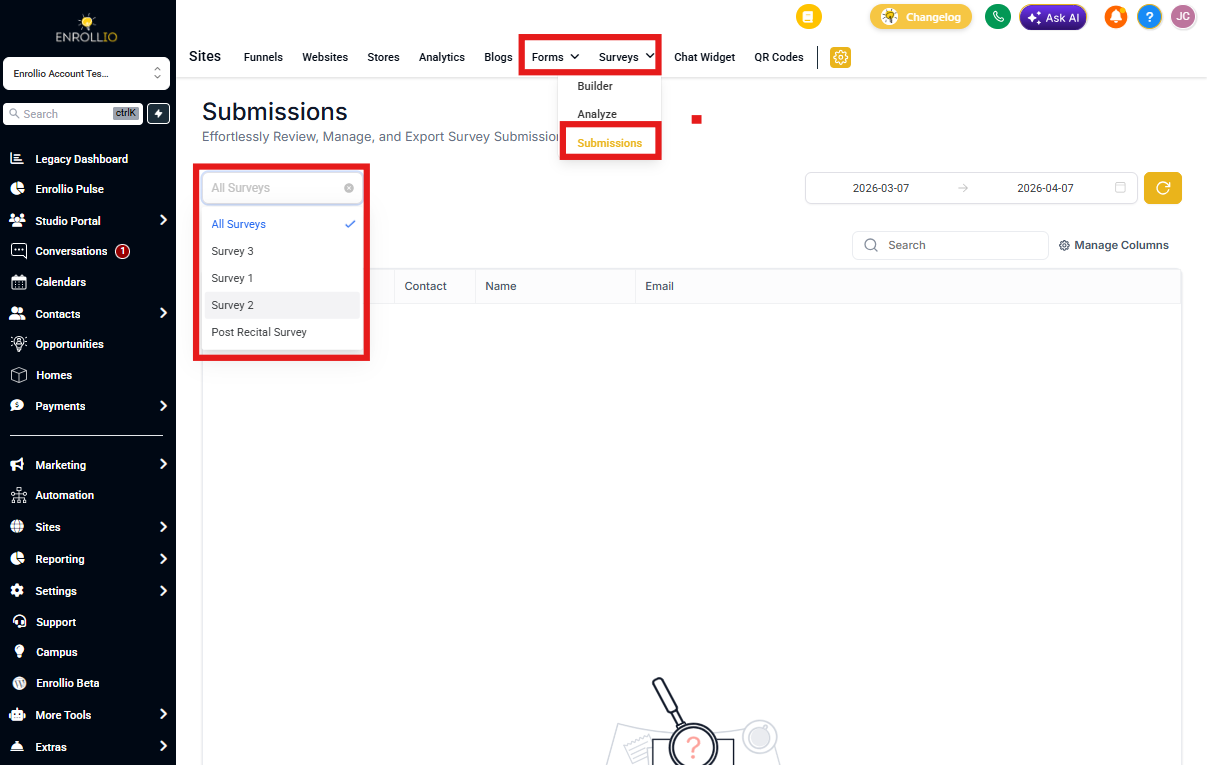
Email notifications are alerts only and don't include full survey responses. To view complete responses:
- Navigate to Sites from the left-hand menu
- Select the Surveys tab, then click Submissions
- Review the list of submissions with timestamps and answers
- Click an individual entry to see all responses
Frequently Asked Questions
Q: Can I send email notifications conditionally, based on how someone answers a form question?
No, the native email notifications in the Form Notification sidebar apply to all submissions equally. If you want conditional routing (for example, send to your director if the answer is "Infant care" and to your preschool lead if it's "Preschool"), you'll need to use Automations.
The "Form Submitted" automation trigger allows you to set conditions and route notifications based on responses.
Q: Do Auto Responder emails count toward my email credit usage just like notifications?
Yes. Both Email Notifications (sent to your team) and Auto Responder emails (sent to families) consume email credits from your account. If your credits run out, neither type of email will send until you add more credits. You can monitor credit usage in your account's email reporting.
Q: What happens if I enter multiple emails in the "Email (To)" field and one is invalid? Will the others still receive the notification?
Yes. Notifications will still be delivered to valid addresses. Invalid addresses will fail silently and won't block delivery to other recipients. However, regularly verify the addresses in the "Email (To)" field to avoid repeated delivery failures.
Q: Can I use dynamic merge fields (like {{user.email}} or {{contact.email}}) in the "Email (To)" field for notifications?
Currently, merge fields aren't supported in the "Email (To)" field. You must enter static email addresses. If you need notifications to go to dynamic recipients, set up an Automation triggered by the form submission and use automation actions to send email to the appropriate person.