
How to Set Up Two-Way Email Sync for Gmail
Two-way email sync connects your Gmail account with Enrollio, so every email you send or receive automatically appears in your conversations. No more toggling between platforms or missing important parent communications.
This integration works both ways: emails from Enrollio show up in Gmail, and emails from Gmail appear in your Enrollio conversations.
What You Can Do With Gmail Two-Way Sync
- Sync all inbound and outbound emails with existing families automatically
- Create new family records directly from Gmail conversations
- Keep your entire team on the same page with real-time email updates
How to Connect Your Gmail Account
Step 1: Navigate to Email Sync Settings
- Click Settings from your Client Account
- Click the My Profile tab
- Scroll down to the Email (2-way Sync) section
- Select Gmail and click Connect
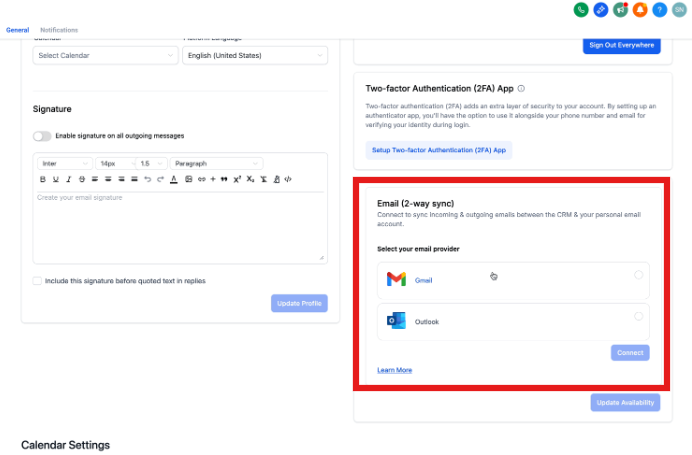
Step 2: Authorize the Connection
- Select your Gmail account when prompted (or sign into a new one)
- Review the permission request and click Continue
- Click Allow to grant access
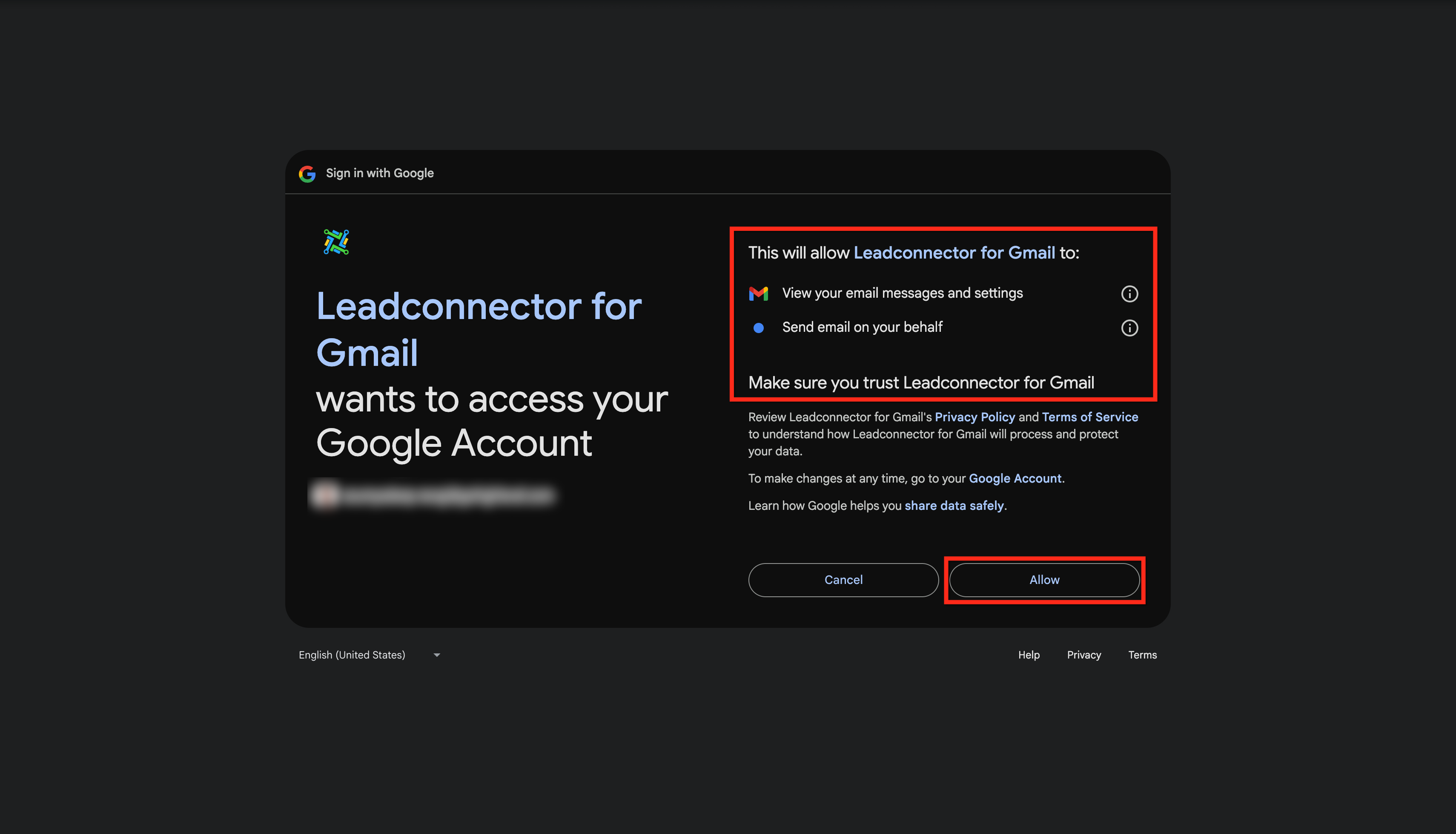
Once connected, your Gmail account will appear under the Email Two-Way Sync tab.
How the Sync Works
The sync activates in two ways:
1. Emails You Send from Enrollio
When you email a family from Enrollio, that message appears in your Gmail sent folder. All replies stay synced in both places.
2. Emails Parents Send to Your Gmail
When a parent who's already in your Enrollio account emails your Gmail address, that conversation automatically appears in your Enrollio inbox.
After the first email is synced, all subsequent messages in that thread stay synchronized automatically. Whether you reply from Gmail or Enrollio, everyone sees the same conversation.
Multi-Account Behavior
If you're added to multiple Client Accounts and connect the same Gmail address in each one, here's what happens:
When a parent emails you, that email appears in all Client Accounts where you have sync enabled. However, the family record will only remain active in the Client Account where you actually reply. The sync will stop for all other instances.
This ensures conversations stay organized and families don't get duplicated across accounts unnecessarily.
Additional Features
Update Your Connected Email
You can change which email address is connected without breaking existing conversations. New outbound emails will use the updated address, but existing threads will continue to sync until those conversations naturally conclude.
Disconnect Gmail Sync
If you need to stop syncing, click Disconnect in your email sync settings. After disconnecting, emails will no longer sync between platforms. Your existing conversations and emails stay in Enrollio—they won't be deleted.
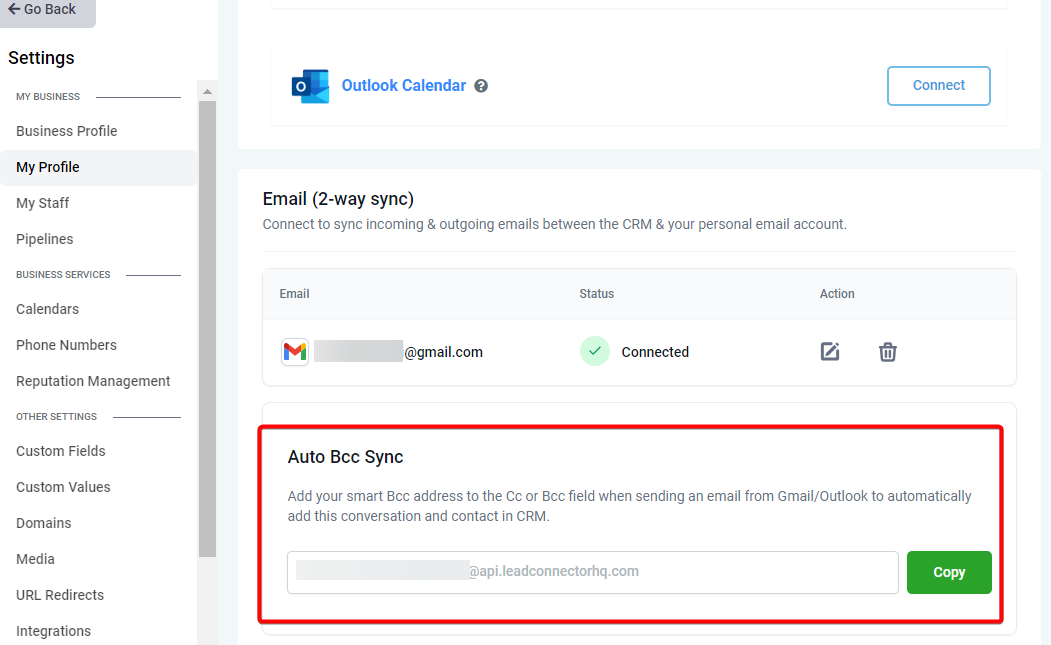
BCC Address for Manual Logging
Enrollio provides a unique BCC address you can use when sending emails directly from Gmail. Add this address to the Cc or Bcc field, and the email will automatically:
- Create a new family record if needed
- Log the conversation in Enrollio
- Enable ongoing sync for future emails from that family
How Different Email Types Work
Individual Emails: When you email one family at a time from Enrollio with Gmail sync enabled, those emails send directly from your Gmail account. The 500/day Gmail limit applies to these messages.
Bulk Emails: Mass emails to multiple families use Enrollio's email system (not Gmail), so they don't count toward your Gmail limit. Send as many as you need.
Automated Messages: Emails triggered by automations also use Enrollio's email system, not your Gmail connection. This keeps your automated follow-ups separate from your personal email limits.
Attachment Size Limit
Gmail supports attachments up to 25 MB. If you need to send larger files, consider using a file-sharing link instead.
Frequently Asked Questions
What happens to emails from existing families?
If the family already exists in your Enrollio account and they email your synced Gmail address, the email automatically appears in their conversation history in Enrollio.
Will disconnecting Gmail delete my existing emails?
No. Emails that were already synced remain in Enrollio. Only future emails will stop syncing.
Do new emails sync after I disconnect?
No. Once disconnected, new emails won't sync between Gmail and Enrollio.
Will all my Gmail contacts sync to Enrollio?
No. Only emails involving families already in your Enrollio account will sync. The integration doesn't import your entire Gmail contact list.
What happens when a new email arrives from a family?
If the family exists in Enrollio, the email appears in their conversation. If they're new, you can create a family record directly from the email.
What happens to emails I send from Enrollio or Gmail?
All sent emails appear in both platforms. If you send from Enrollio, it shows in your Gmail sent folder. If you send from Gmail to an existing family, it appears in their Enrollio conversation.
How are Cc/Bcc recipients handled?
If you Cc or Bcc other people on an email, those addresses are captured in the email record. If any of those addresses belong to families in your account, separate conversations may be created for each family.
What if a parent emails someone else but Cc's me?
If you're Cc'd on an email and you have Gmail sync enabled, that email will sync to the family's conversation in Enrollio.
How are group emails with multiple recipients managed?
Each family in the email thread gets their own conversation in Enrollio. This keeps communication organized by family rather than creating one massive thread with multiple families.
What if the same family exists in multiple Client Accounts?
The email will initially appear in all accounts where you have sync enabled. Once you reply from one account, the sync stops for the other instances.
What happens if I change my Gmail password?
You'll need to reconnect your Gmail account in Enrollio. Go to Settings → My Profile → Email (2-way Sync) and reconnect using your updated credentials.
What happens when I forward an email from Gmail?
Forwarded emails are treated as new outbound emails from you. If you forward to a family in your Enrollio account, the forwarded message will appear in their conversation.
What if multiple families share the same email address?
The email will sync to all family records using that email address. This is uncommon but can happen with shared family email accounts.