
Purpose
This guide will show you how to use the Category Queue in Enrollio’s Social Planner. With this feature, you can create categories for your social posts and add brand-new posts directly into a queue. This makes scheduling your studio’s content easier, more flexible, and more organized.
What It’s For
The Category Queue is perfect if you want to:
Keep a steady flow of posts on your social media pages.
Organize posts by themes (like “Motivation Monday,” “Studio Updates,” or “Student Highlights”).
Add new posts on the spot—without needing pre-scheduled content.
Rearrange or slot in posts anywhere in the lineup.
Step-by-Step Instructions
-
Open Social Planner
-
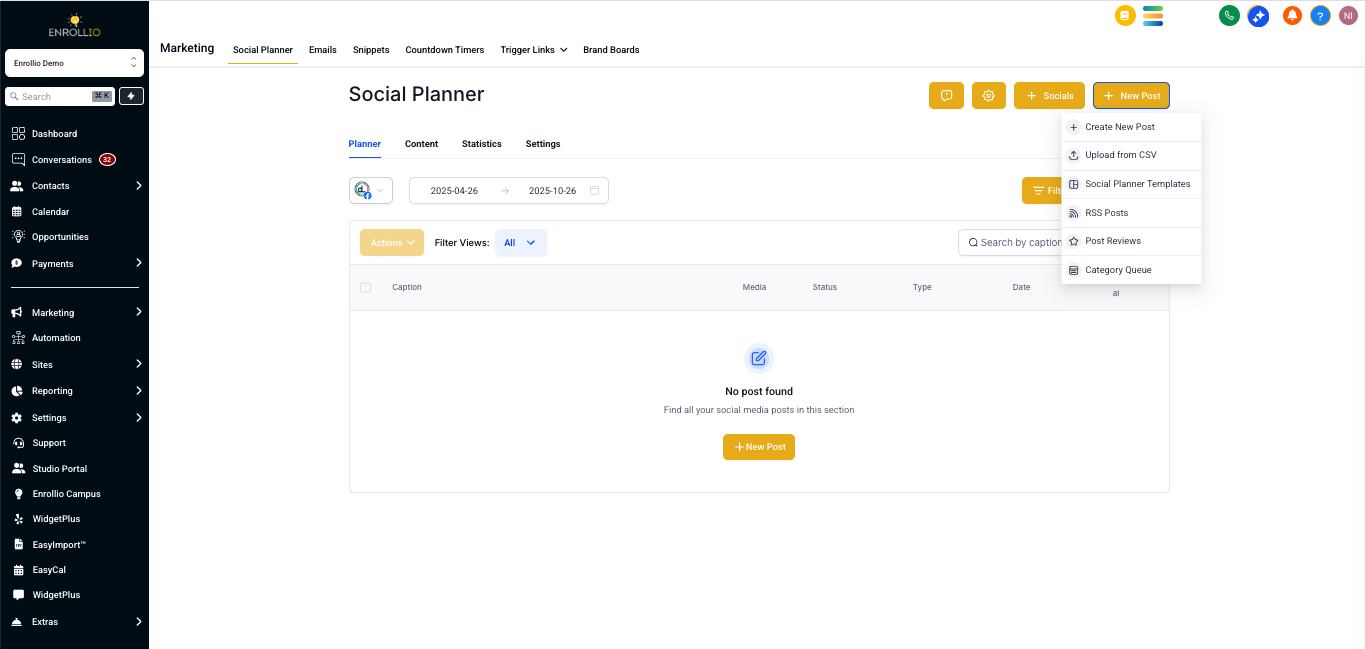
Go to Marketing > Social Planner in your Enrollio dashboard.
-
-
Connect Your Social Accounts
Under the Integrations tab, link your Facebook, Instagram, or other accounts.
-
Create a New Post
-
Click New Post and choose Category Queue as your post type.
-
-
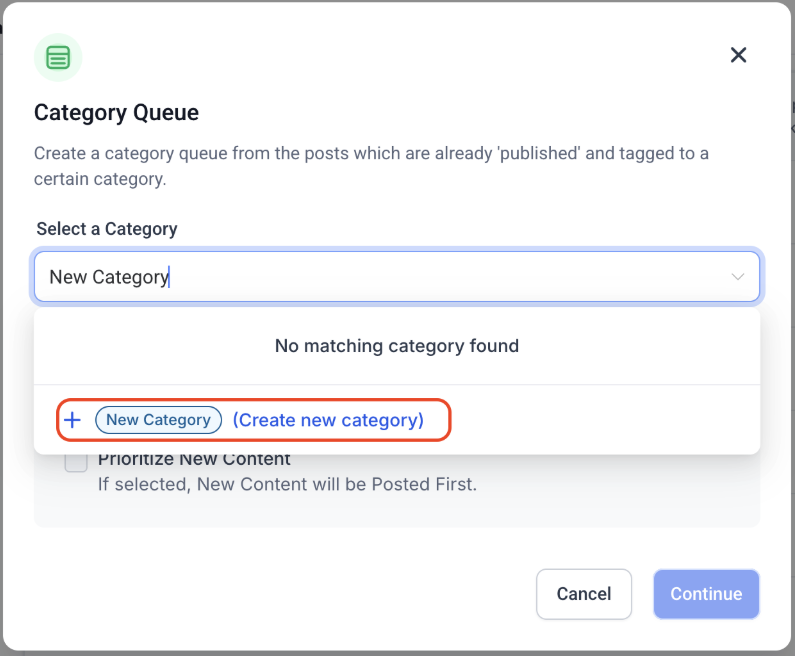
Choose or Create a Category
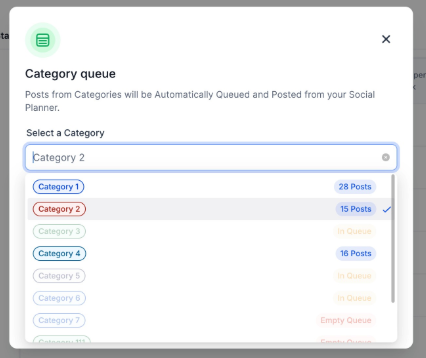
In the dropdown, either pick an existing category or create a new one (e.g., “Upcoming Events” or “Parent Testimonials”).
-
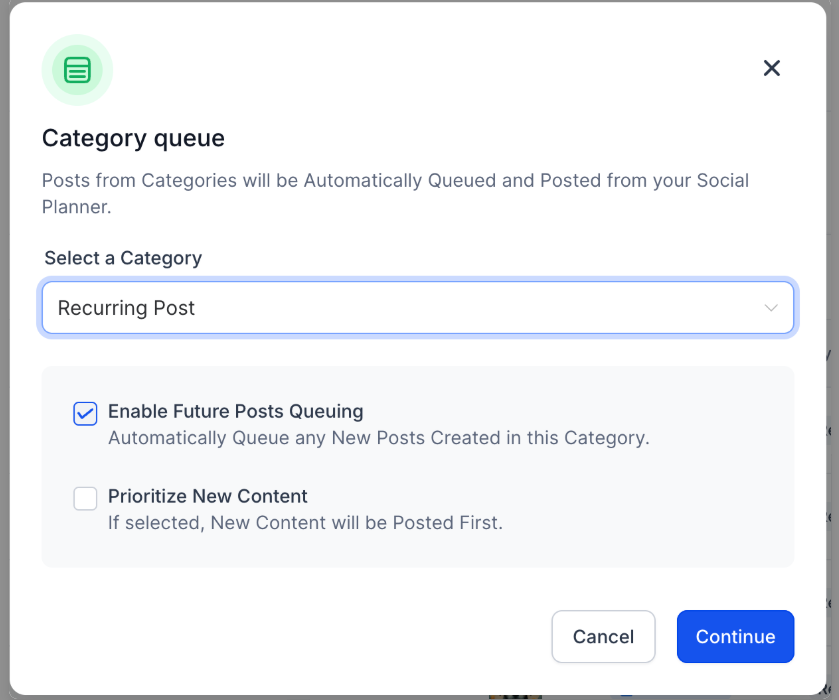
Optional: Decide whether new posts should go first in the queue and if published items should automatically return to the queue.
-
Set the Schedule
Select the days and times you want posts from this category to publish.
-
Add Content to Your Queue
Write your posts, upload photos or videos, and add them to the queue.
You can insert new posts at any position—before, after, or between existing posts.
Edit or update content as needed.
-
Publish Your Queue
-
Once you’re happy with the setup, activate the queue so posts will go live at your chosen times.
-
Notes / Tips
Think of categories like “buckets” of content—you can rotate between them to keep your studio’s social feed fresh and engaging.
Use a mix of fun posts (like dance quotes or behind-the-scenes photos) and business posts (like registration reminders or event announcements).
You can always go back to edit your posts or rearrange the queue if plans change.
Support Reminder
If you have any questions, please reach out to support@enrollio.ai and our team will be happy to help.