
This article explains how to refund a charge for a student. You'll learn the steps to locate the student, access charges, and complete the refund process.
1. Introduction To Refunding Charges
In this video, we'll be walking through how to refund a charge for a student.
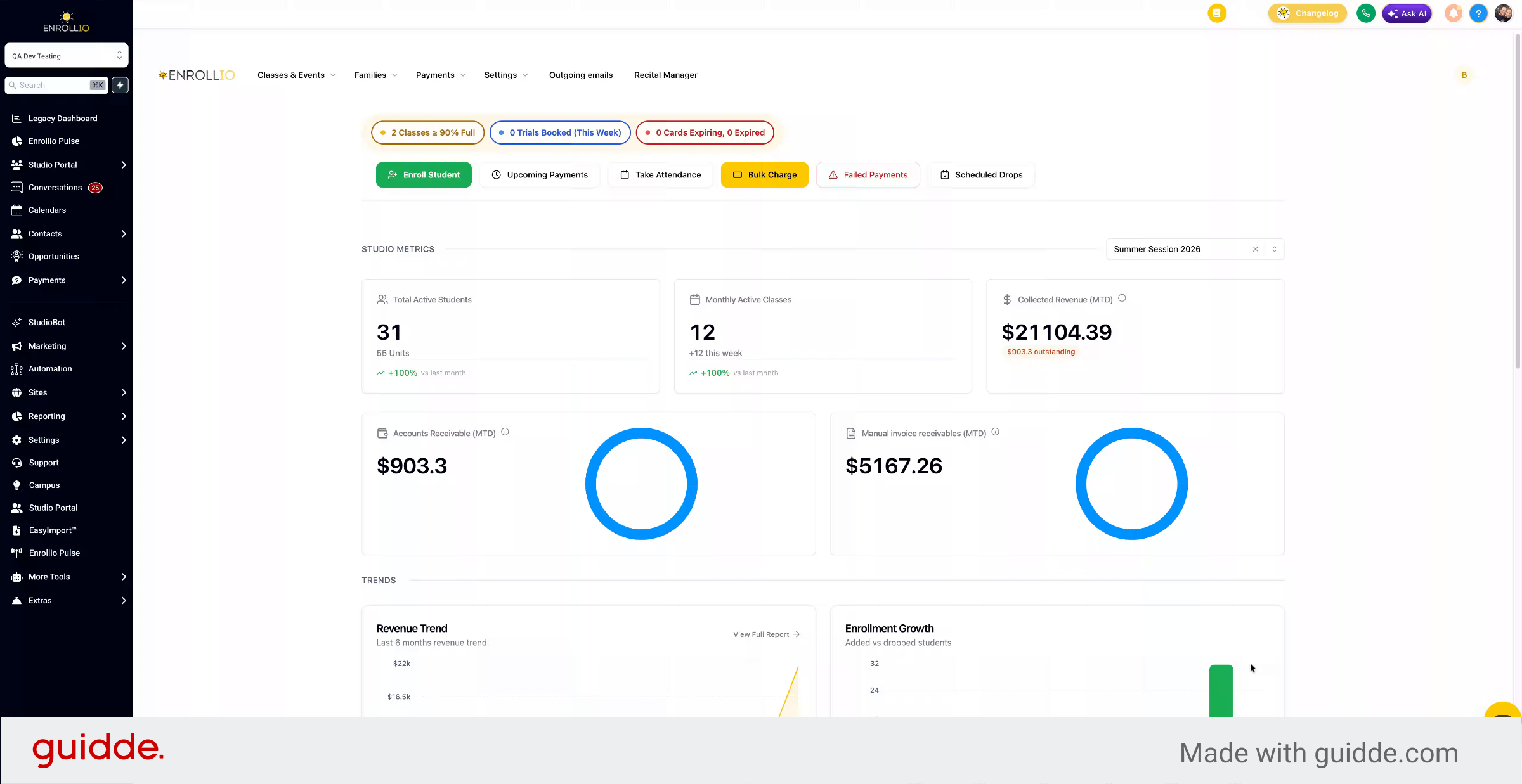
2. Navigate To Student Profile
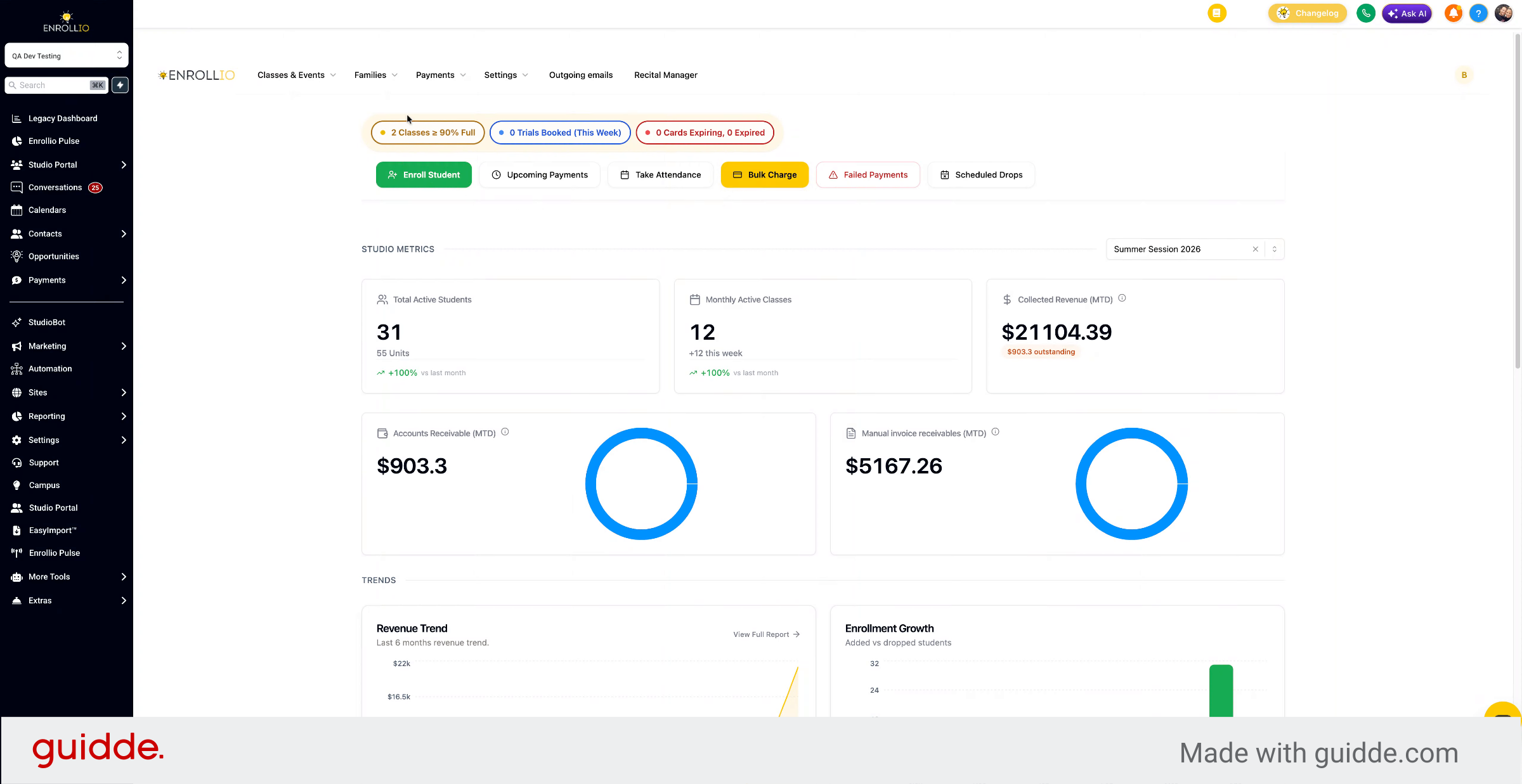
You're going to go to families and students, and then you can search for the student here and select.
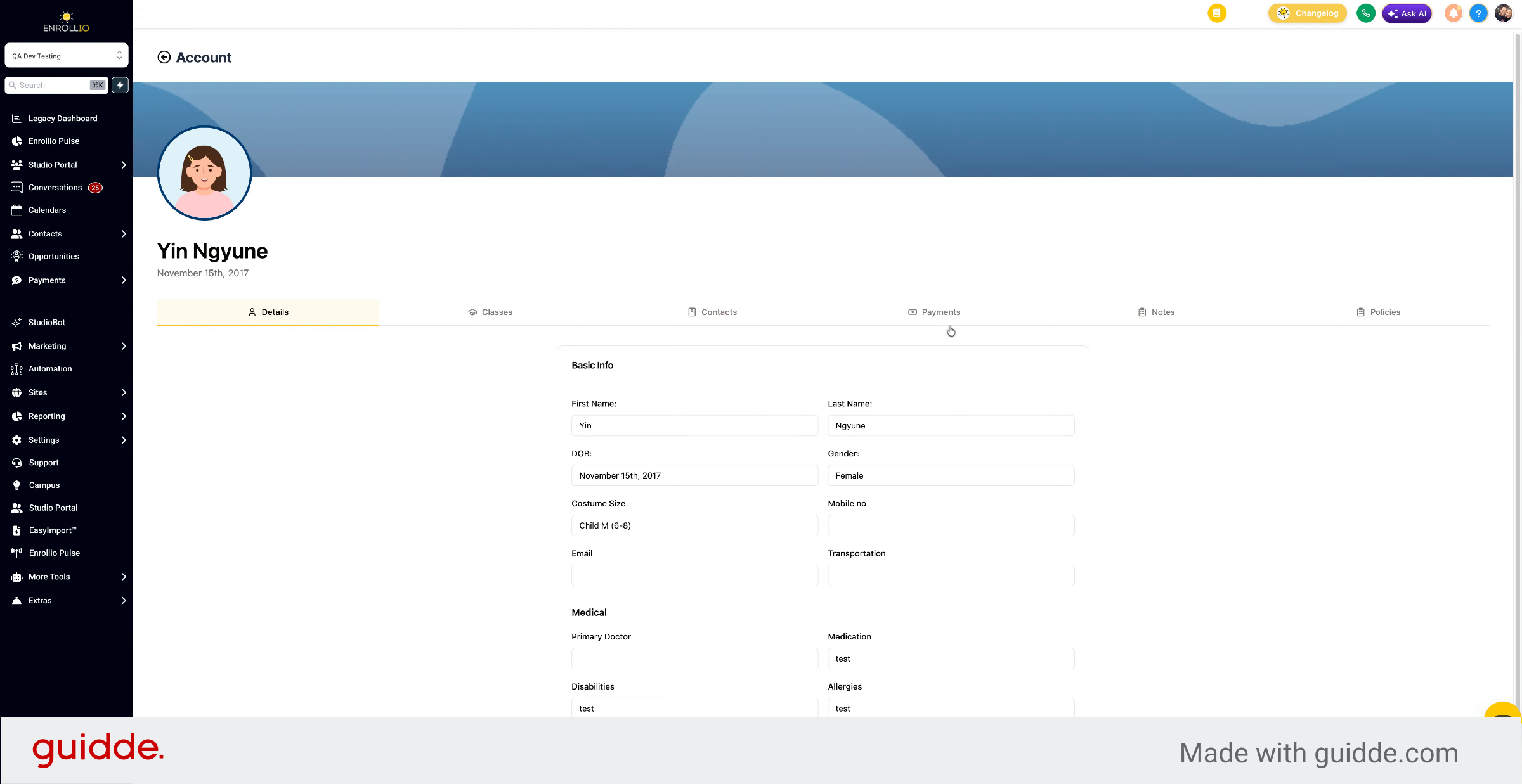
3. Access And Filter Charges
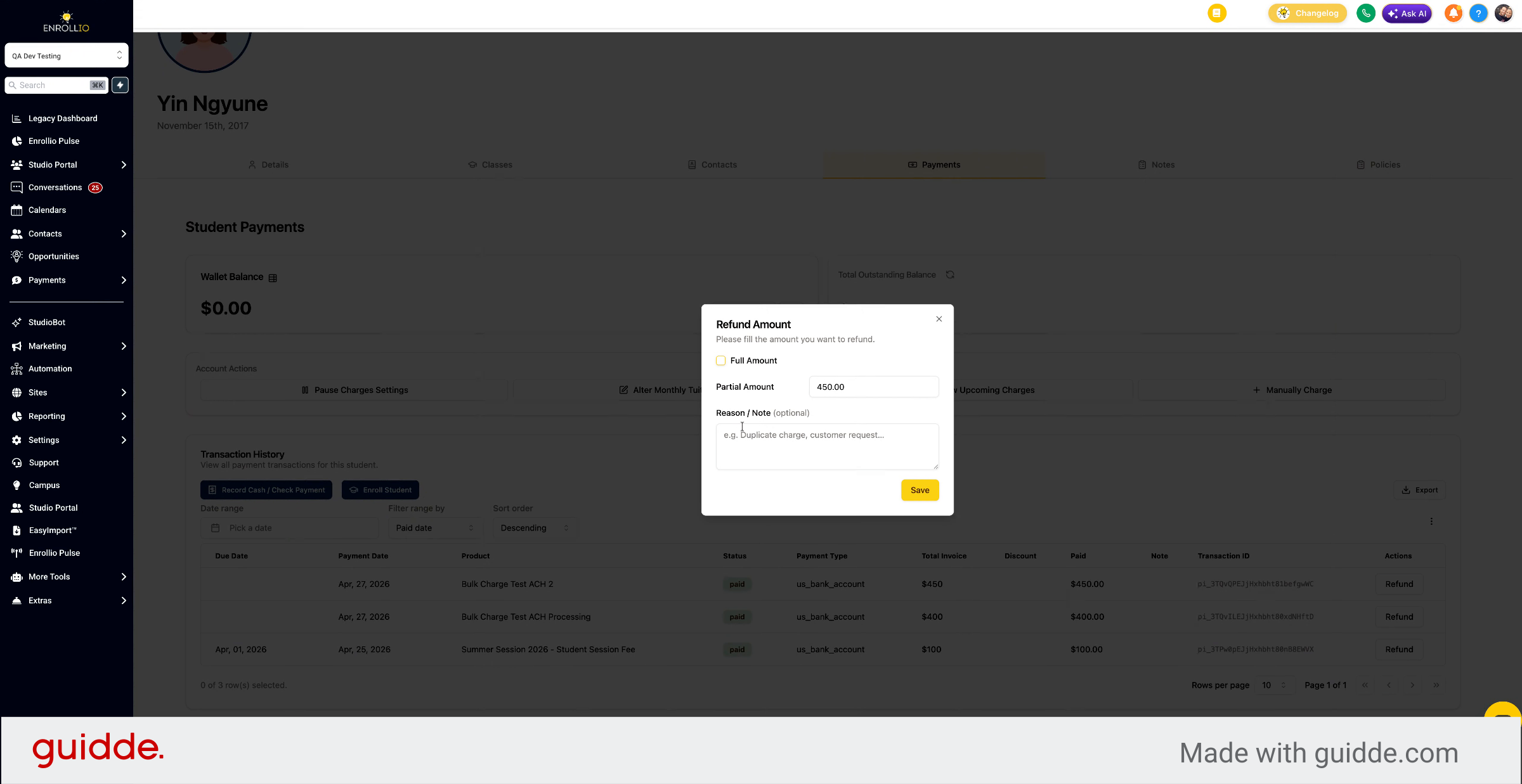
And then we go over to payments and we'll see a list of charges here. If you are not seeing that charge, you can search a date range in the past and filter by paid or due date. Then we can select a refund.
4. Choose Refund Type
And we can choose to refund partial or full.
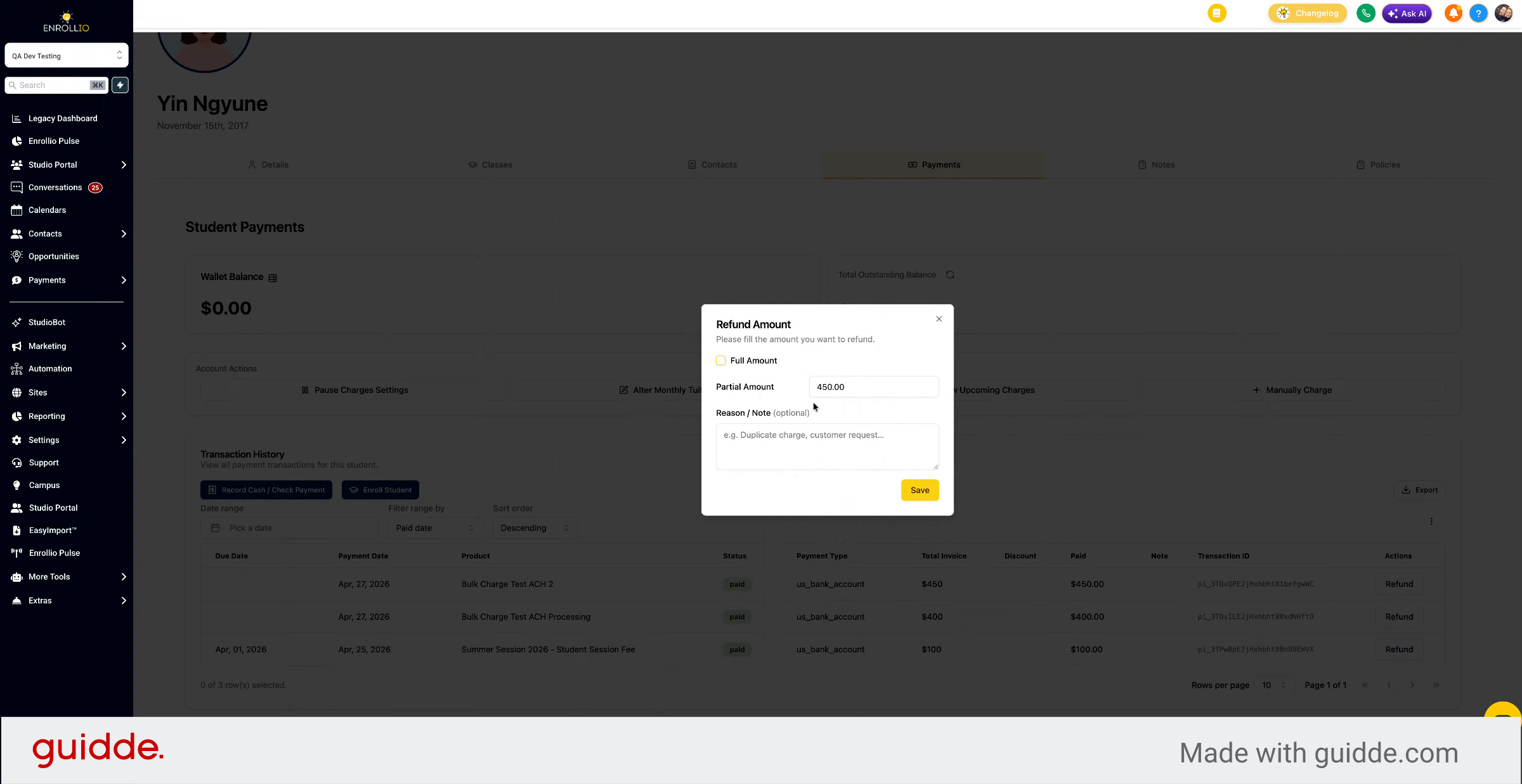
5. Add Refund Note And Confirm
And then optionally have a refund note, which will be displayed here once you refund.
This article guides you through refunding a student charge, from locating the student profile to confirming the refund with an optional note. For more information, see related payment and refund articles in the knowledge base.