
This article explains how to manually charge a single student using the Enrollio portal. You'll learn the steps to select a student and complete a manual payment charge.
1. Introduce Manual Student Charge
In this video, we'll walk through how to charge a single student manually.
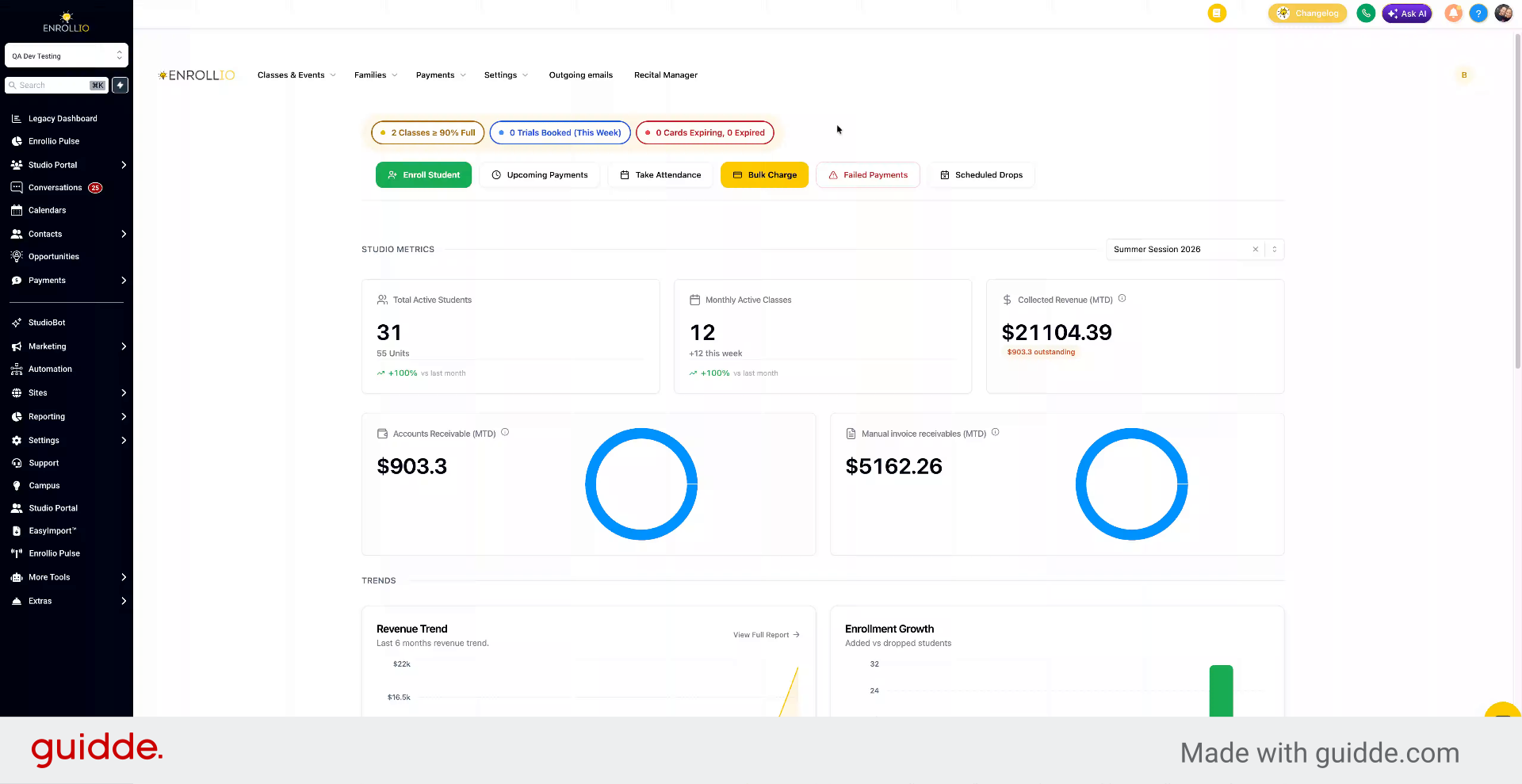
2. Open Main Navigation Menu
Open the main navigation menu to access the sections for managing students and payments.
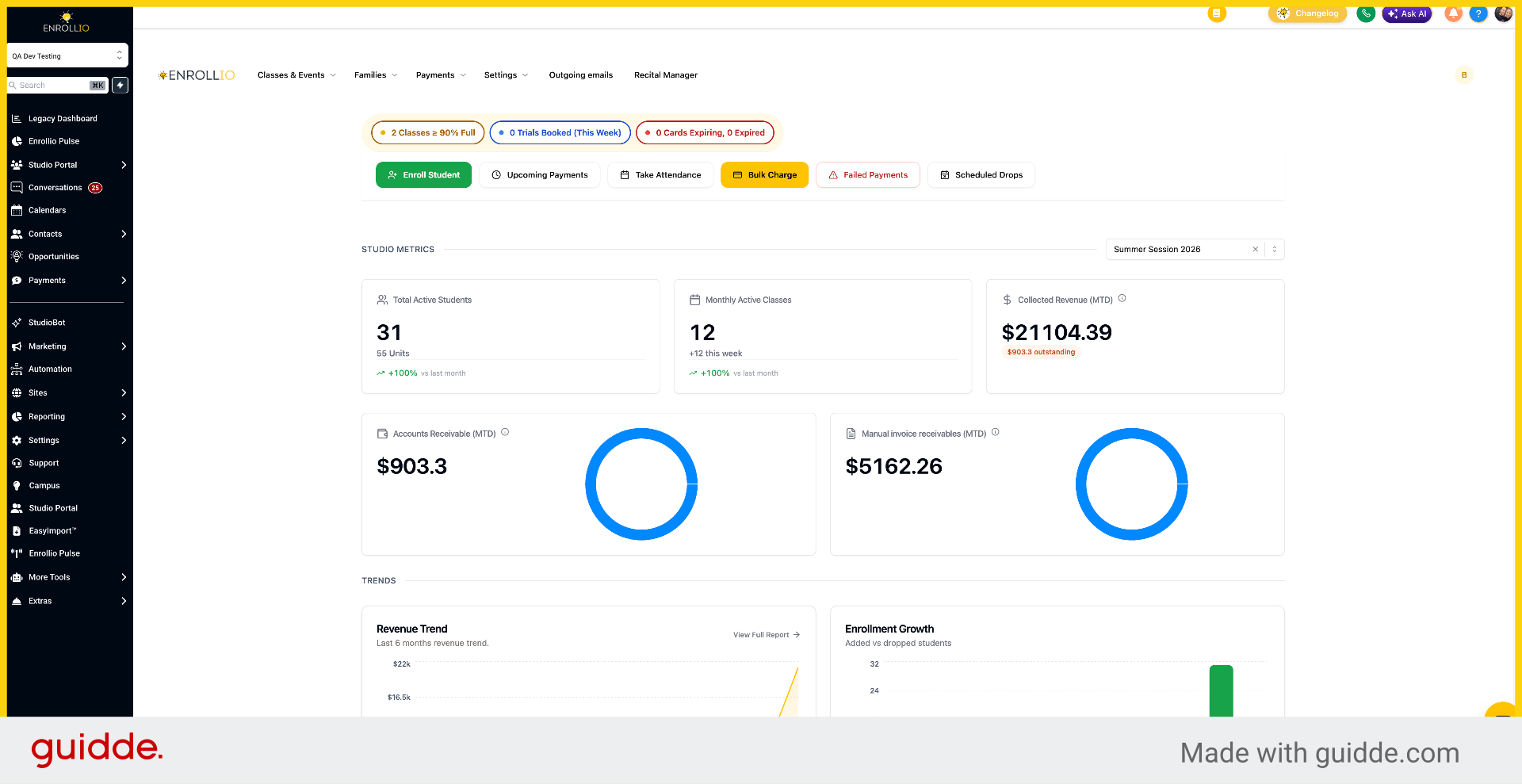
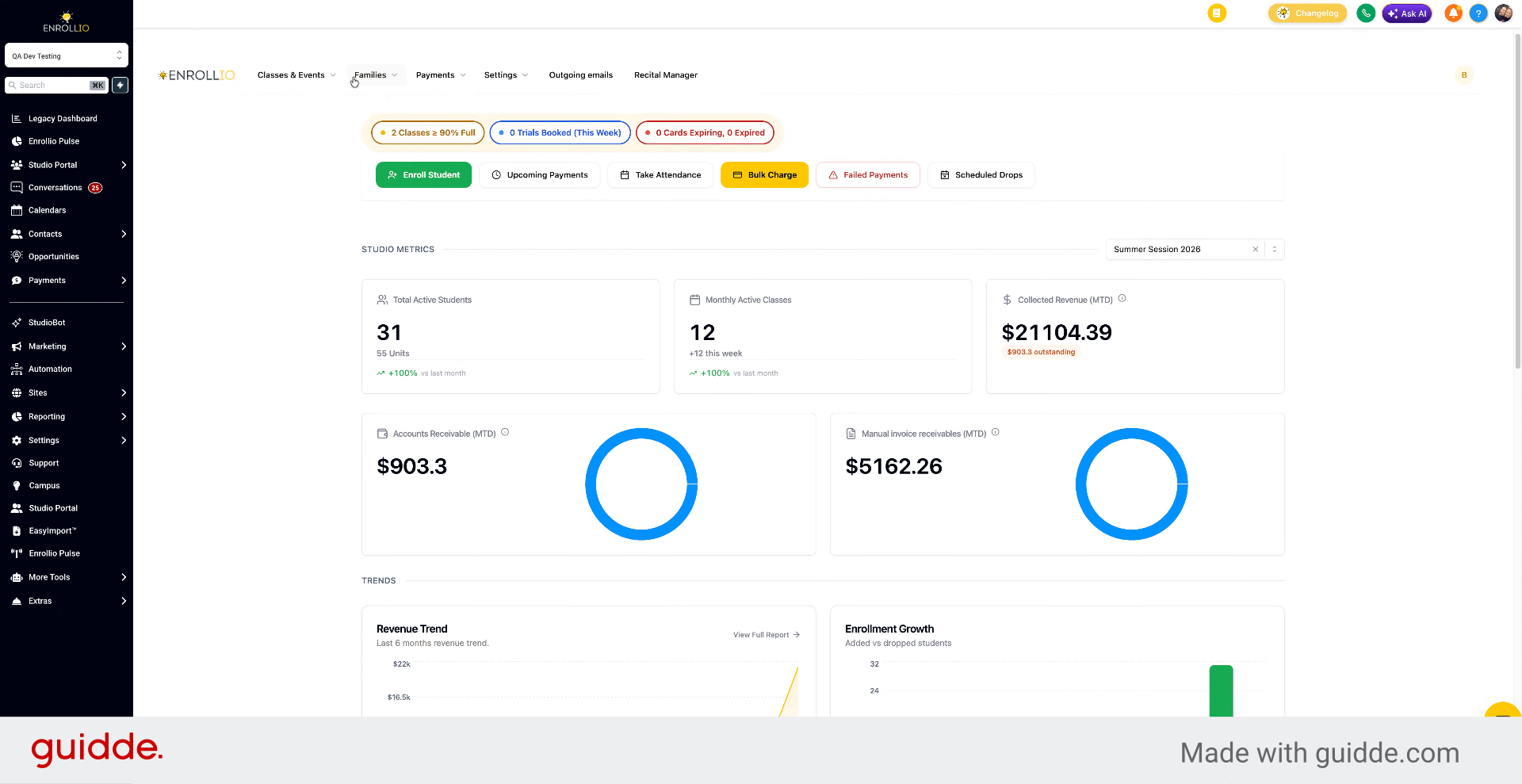
3. Navigate to Students Section
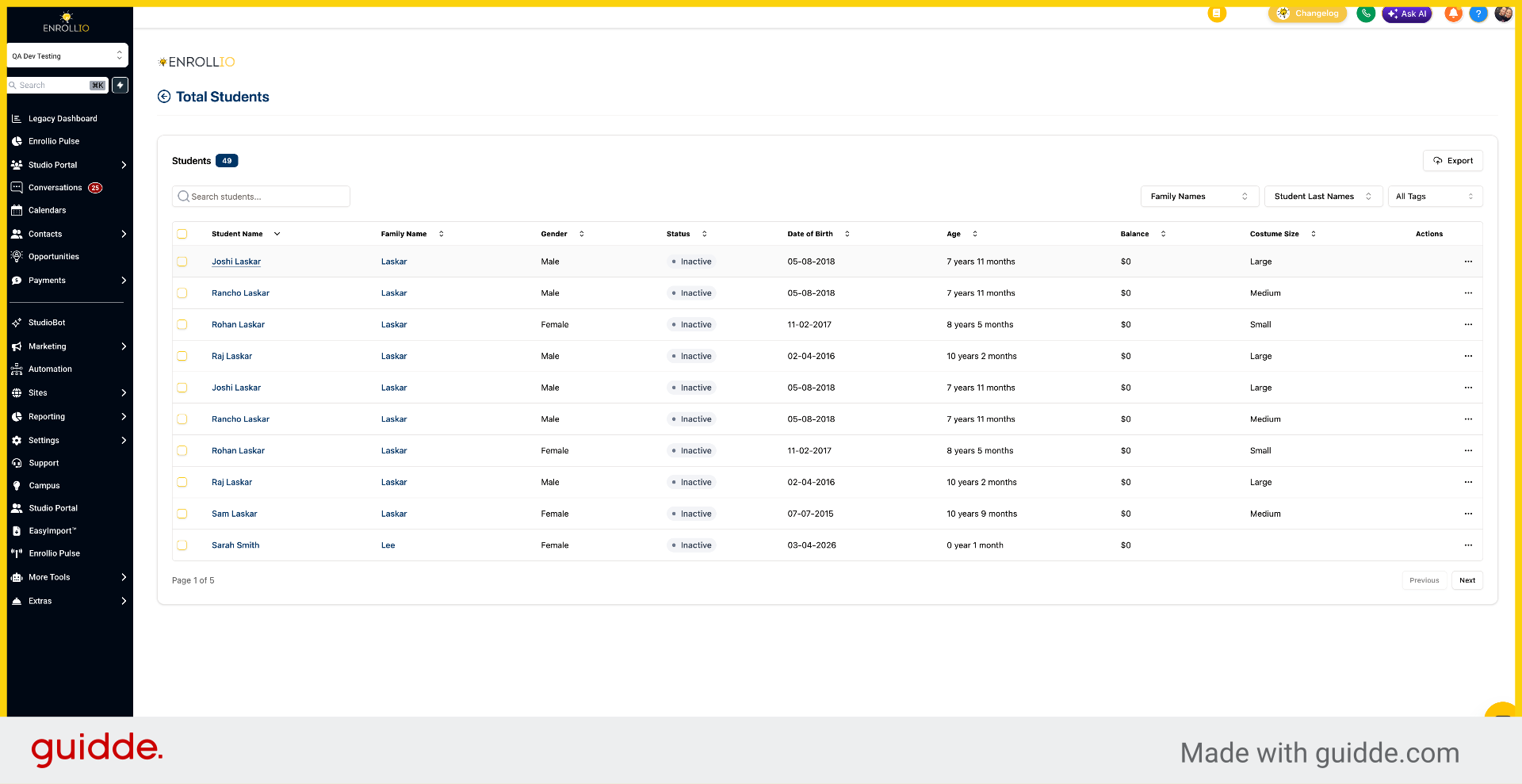
Go to Families and then click Students.
4. Select a Student Record
Click on a student from the list to open their record.
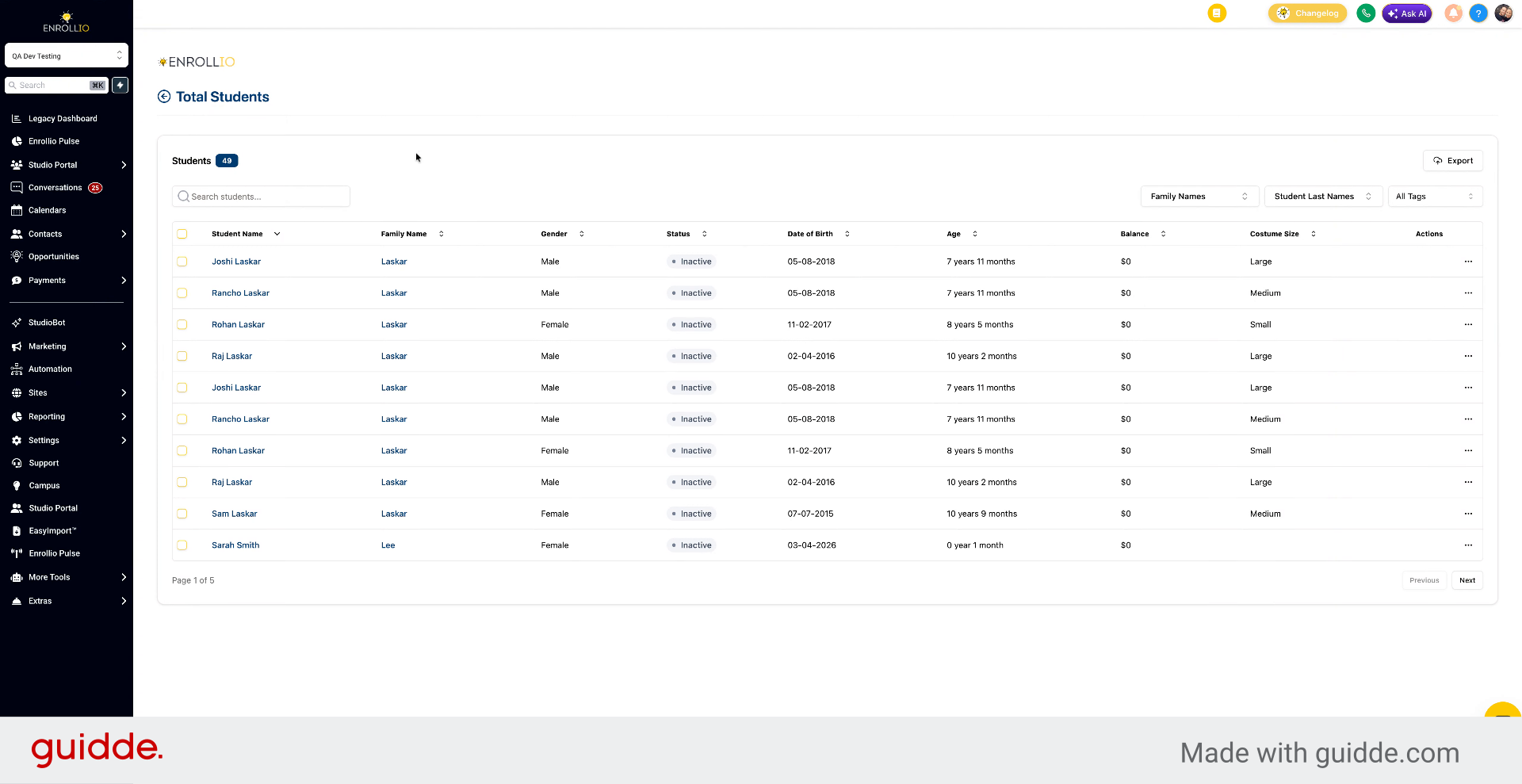
5. Choose Specific Student
Select the student from the list to view their details and payment options.
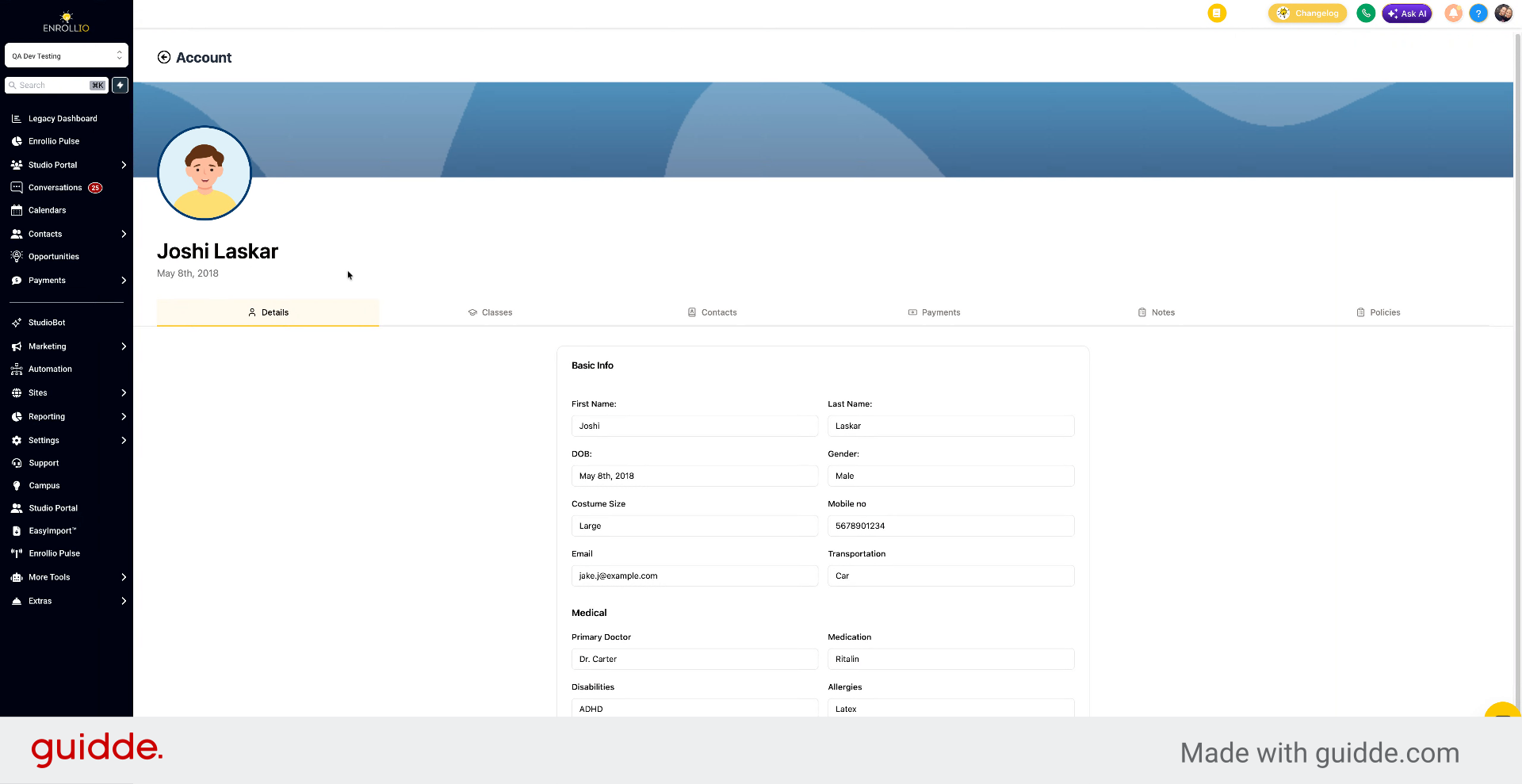
6. Access Manual Charge Option
Go to Payments and choose Manual Charge.
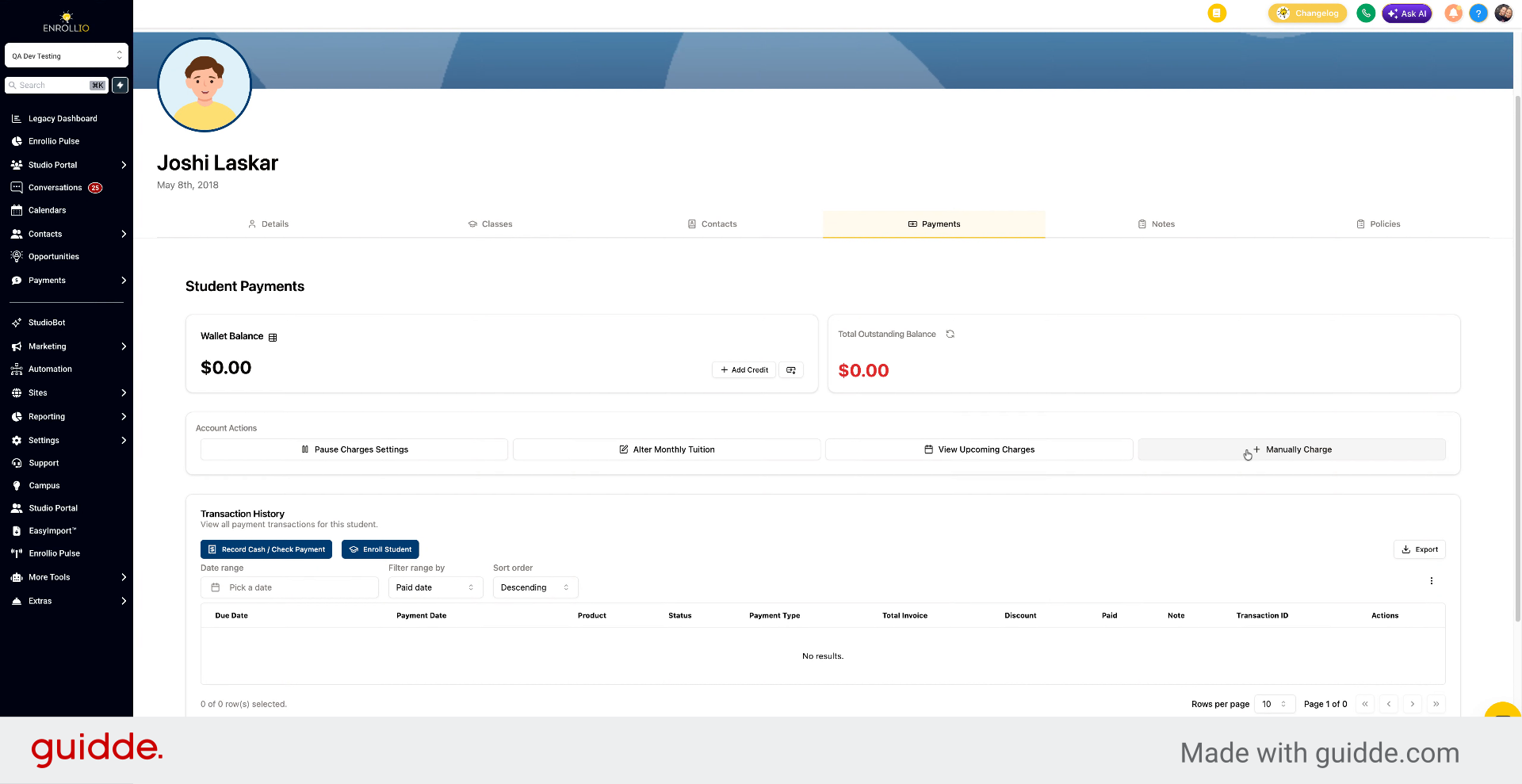
7. Initiate Manual Charge Process
Click Manually Charge to open the charge form.
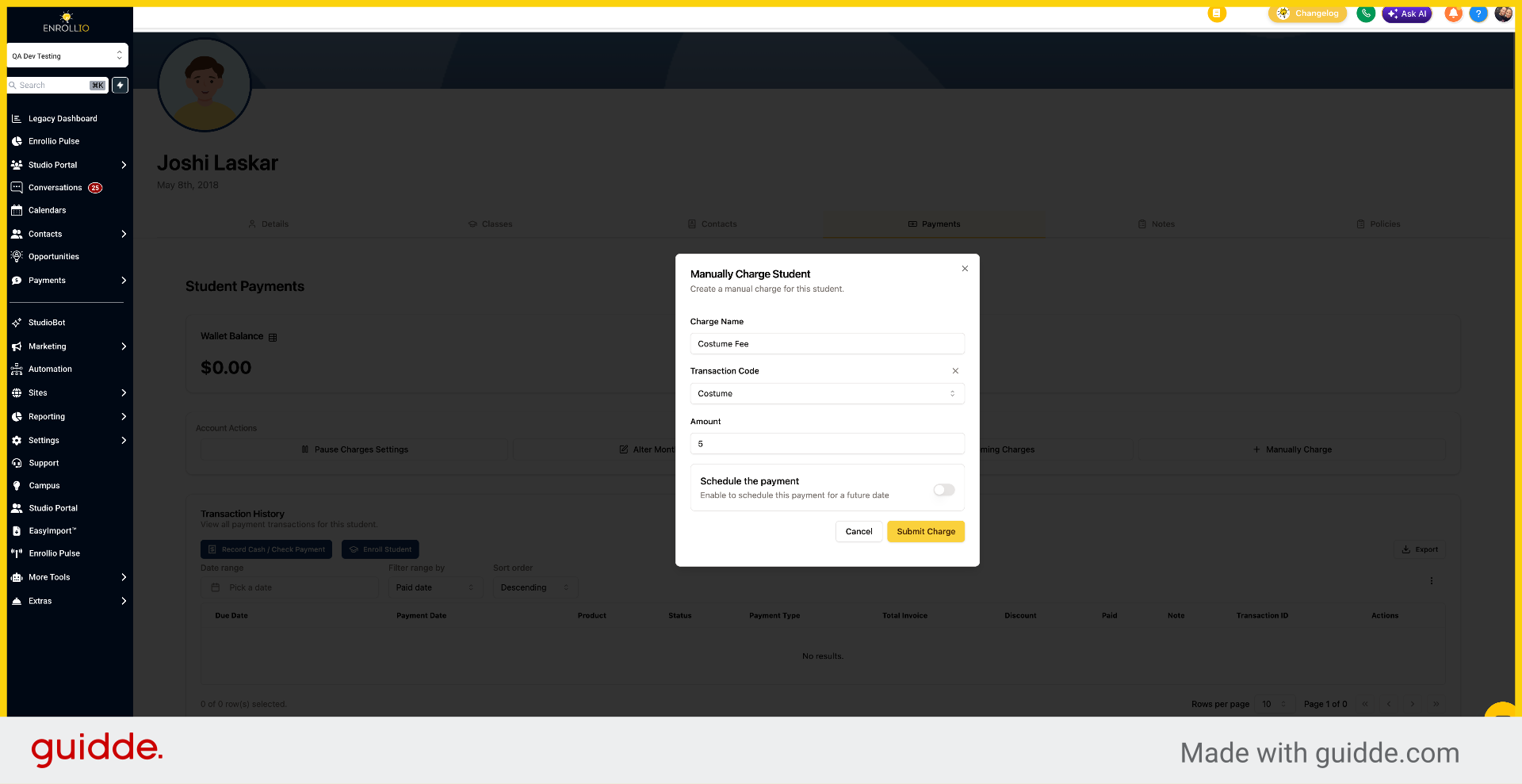
8. Enter Fee and Transaction Code
Enter a fee description and provide a transaction code.
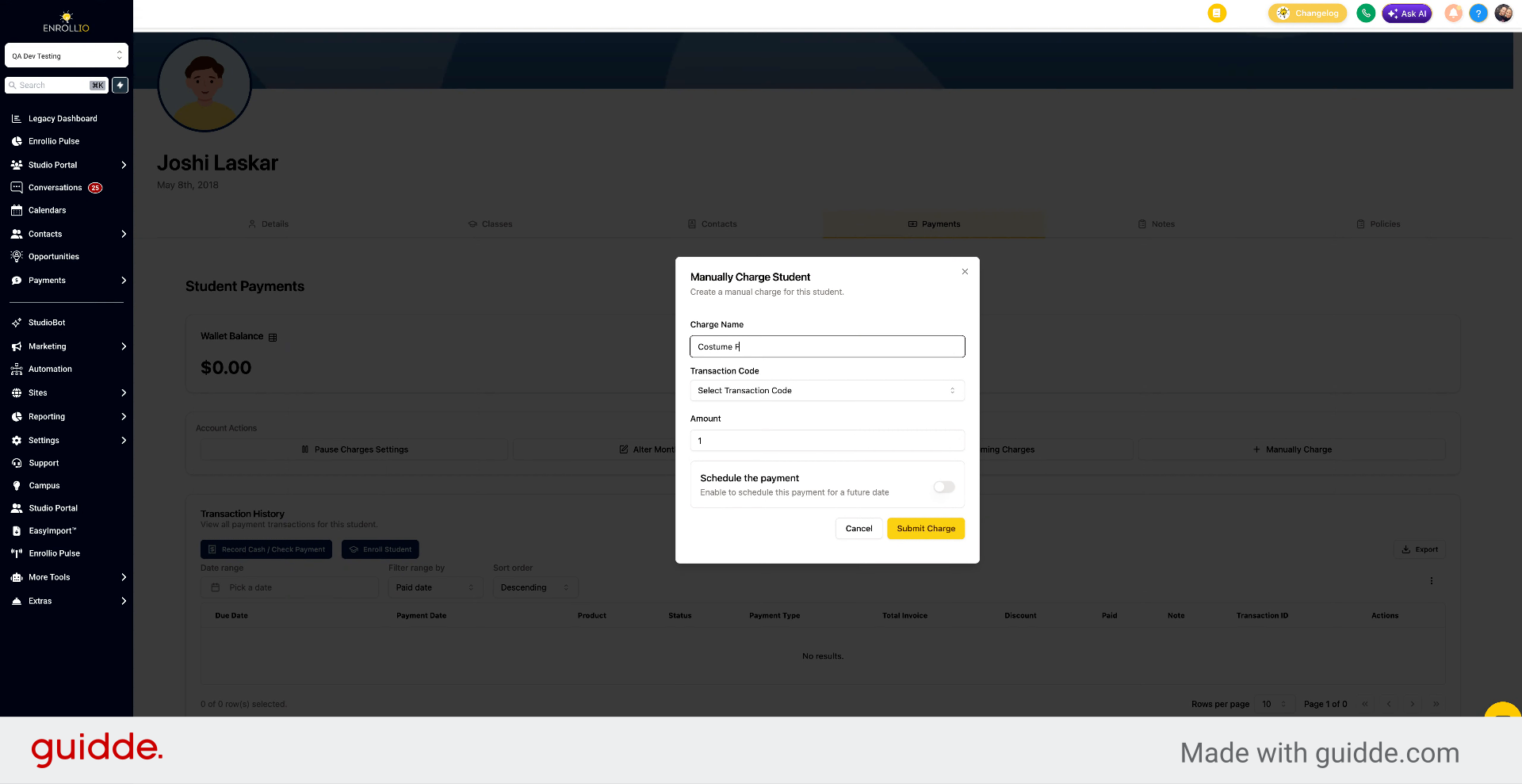
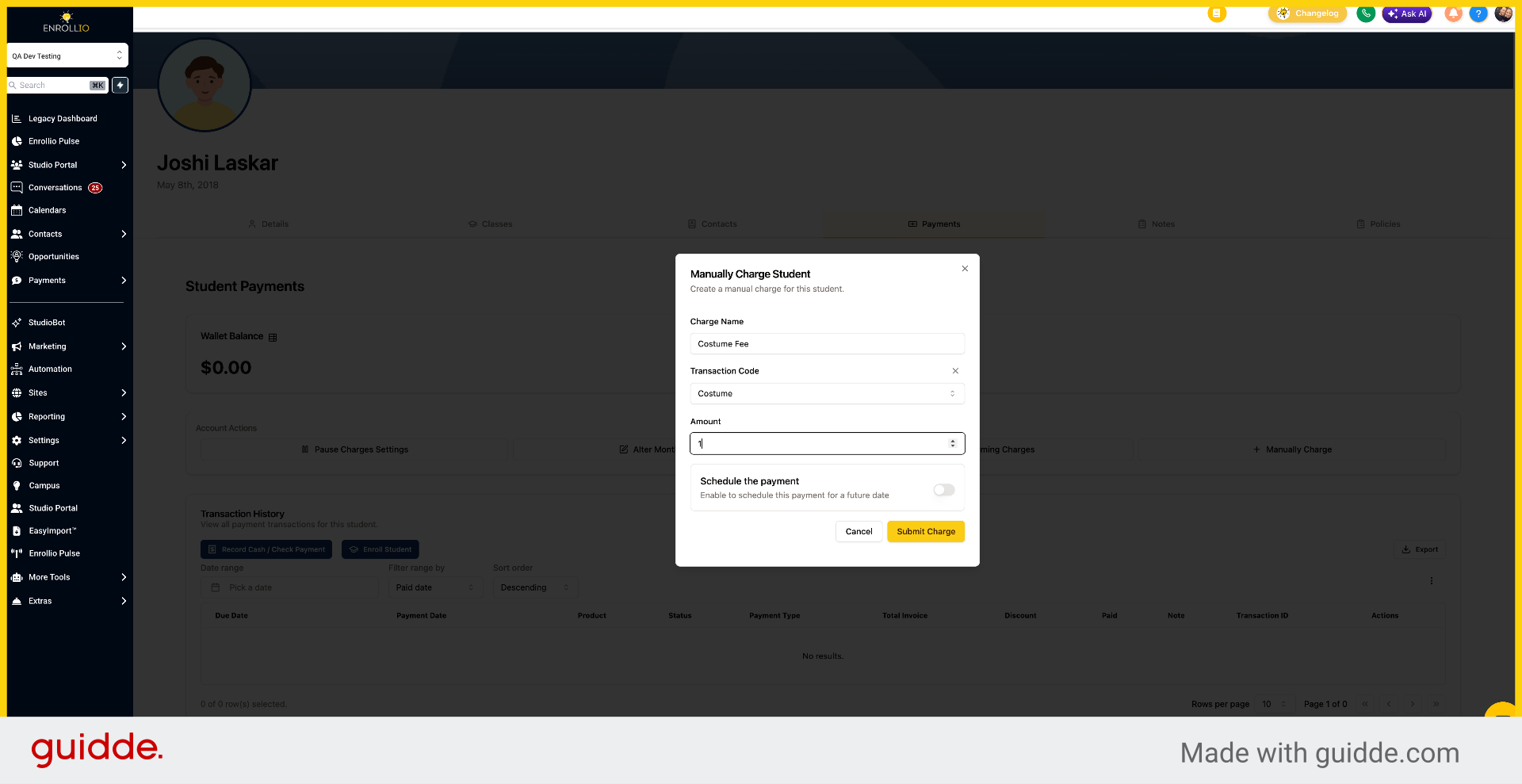
9. Open Amount Field
Open the amount field to specify the charge value.
10. Open Amount Field Again
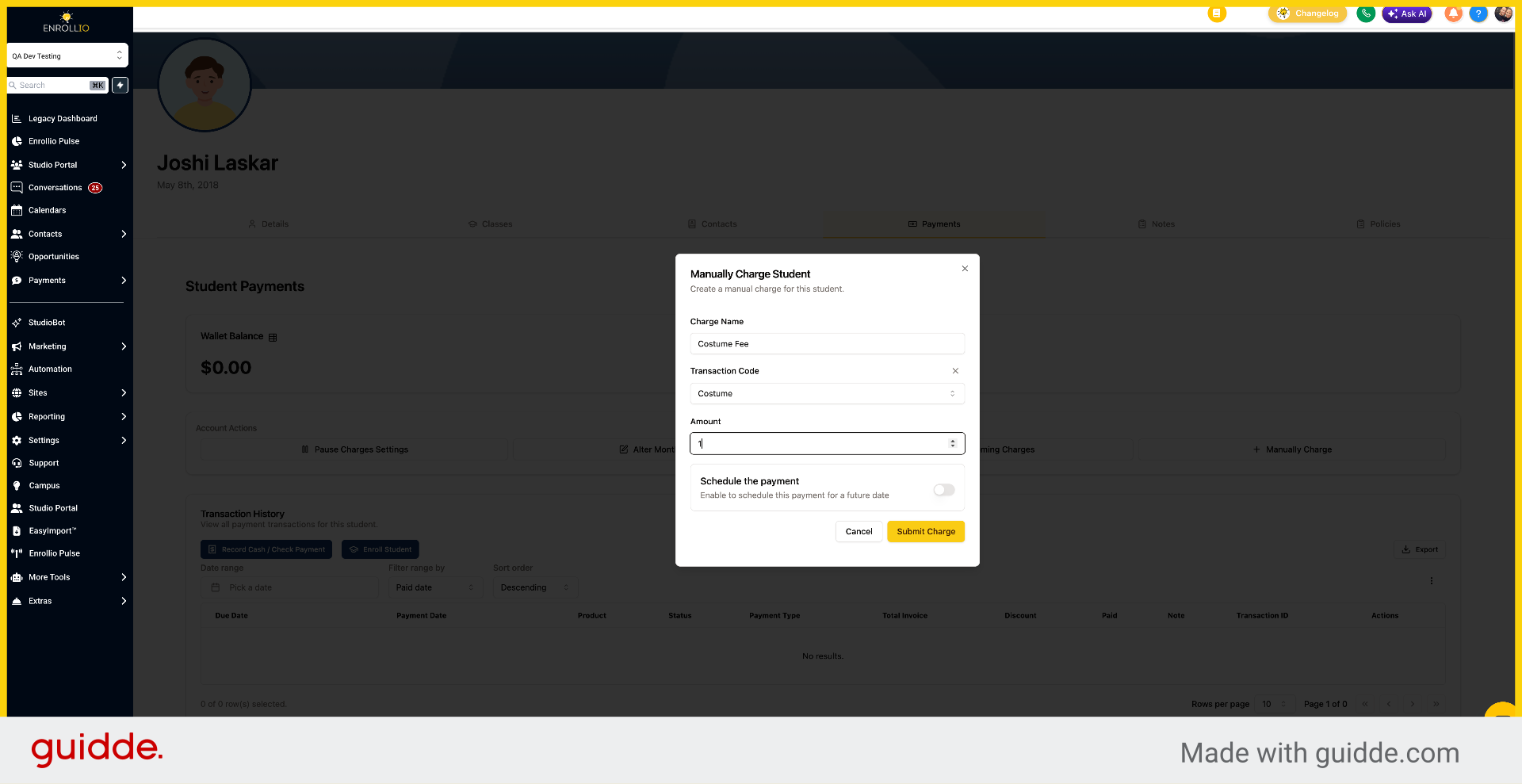
Open the amount field to specify the charge value.
11. Specify Charge Amount
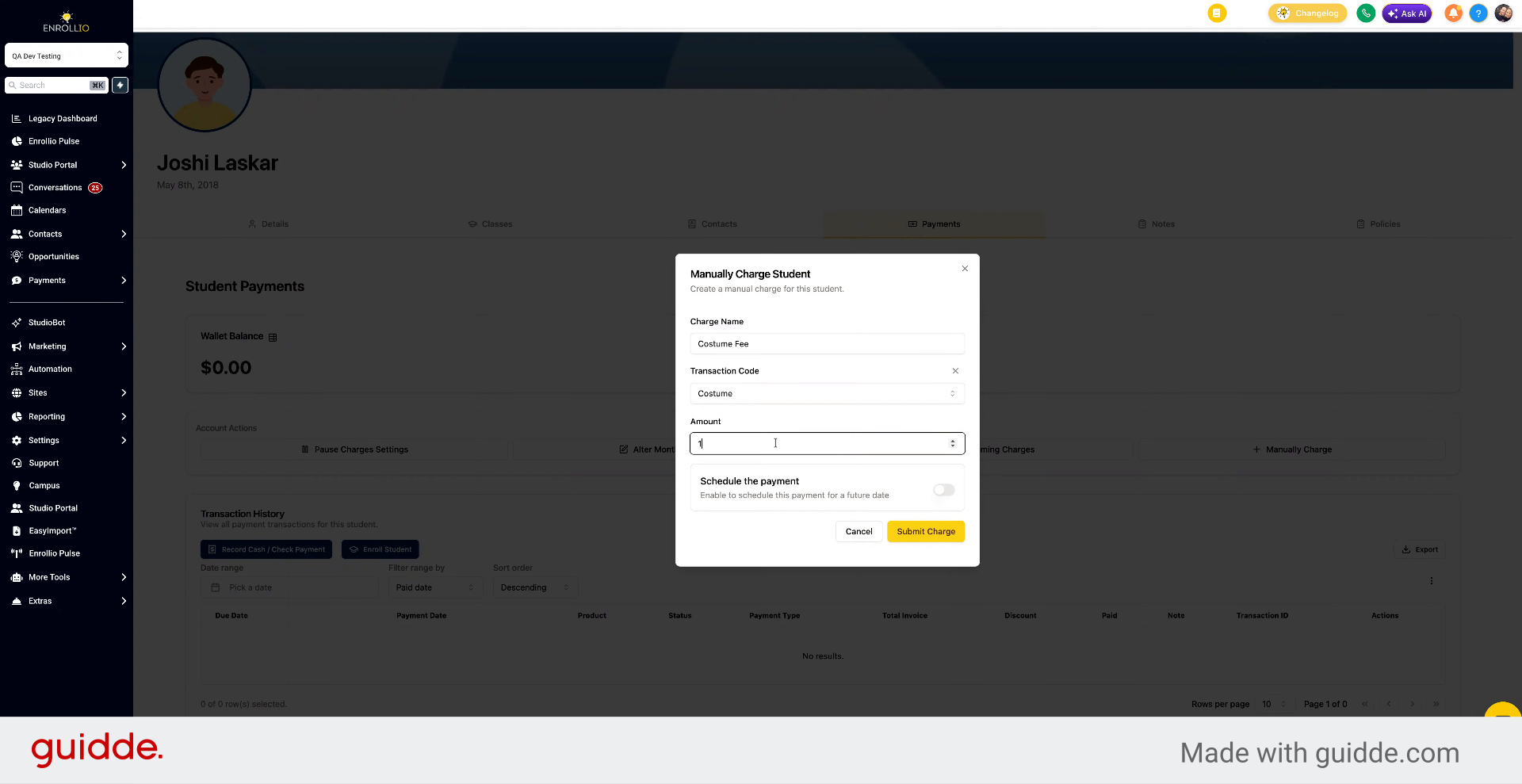
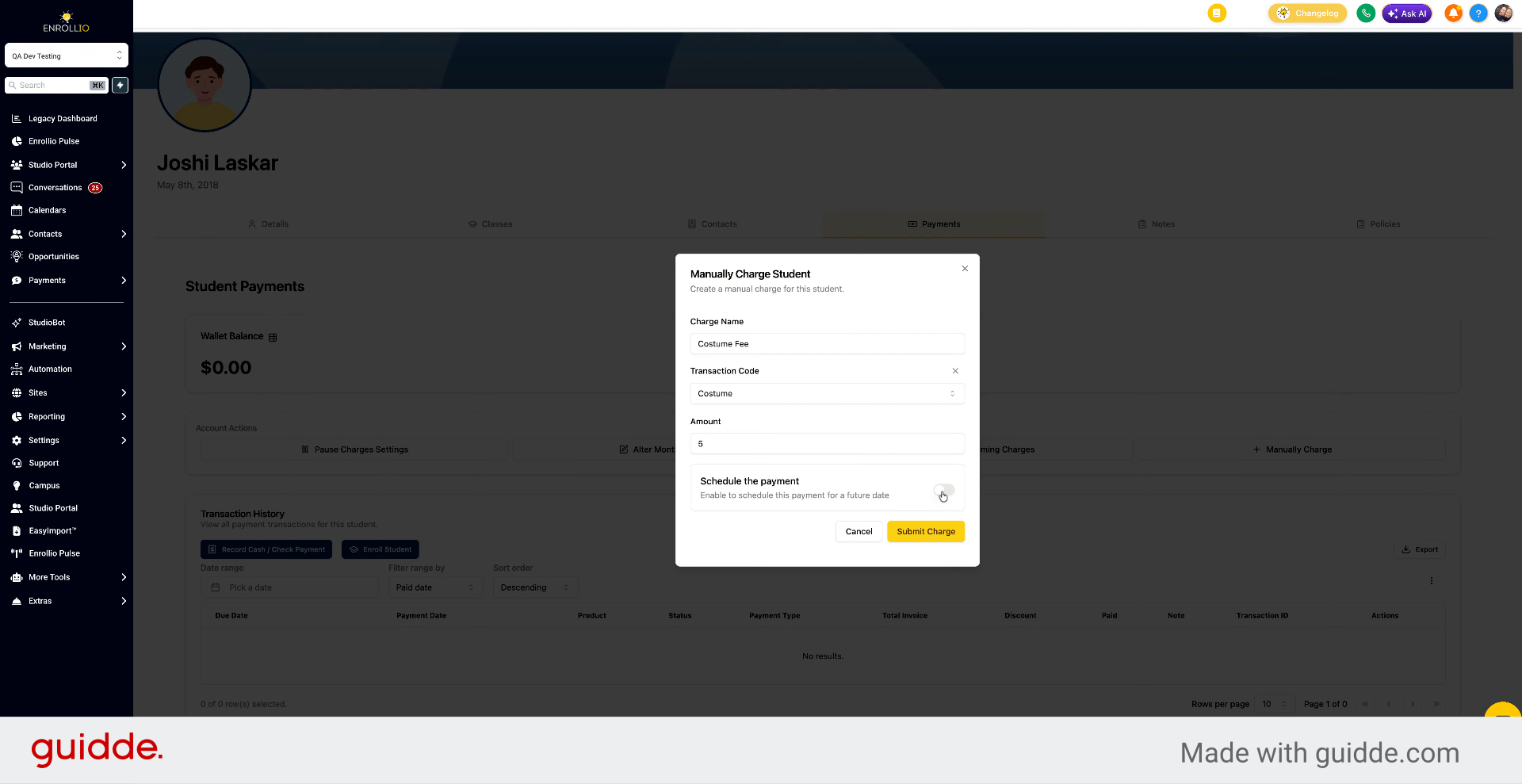
Enter the charge amount (for example, $5). You can also schedule the payment for a future date if needed.
12. Schedule or Submit Charge
Choose whether to schedule this payment for the future or submit it now.
13. Submit Manual Charge
Click the Submit Charge button to finalize the manual charge for the student.
You've now learned how to manually charge a single student in the Enrollio portal. The process covers navigation, selecting the student, entering charge details, and submitting the payment.